Getting started
1. Install AniCraft
Section titled “1. Install AniCraft”Install AniCraft through ArtCraft Launcher by clicking Install on AniCraft’s card, or download standalone installers from Install and update.
2. Start a new project
Section titled “2. Start a new project”Open AniCraft and choose File › New (Ctrl+N or ⌘N on macOS).
- Set your project dimensions (such as
1920×1080or1280×720). - Set the frame rate (default is 24 fps).
- Choose a stage background color.
- Click Create.
3. Draw on the stage
Section titled “3. Draw on the stage”Select the Pencil or Pen tool from the toolbar:
- Pencil: Freehand drawing with automated curve smoothing.
- Pen: Click to create straight segments; click and drag to pull Bézier tangent handles.
- Subselection tool: Select and edit individual anchor points and curve handles.
- Paint Bucket: Fill enclosed vector contours with solid colors or gradients.
4. Work with layers and frames
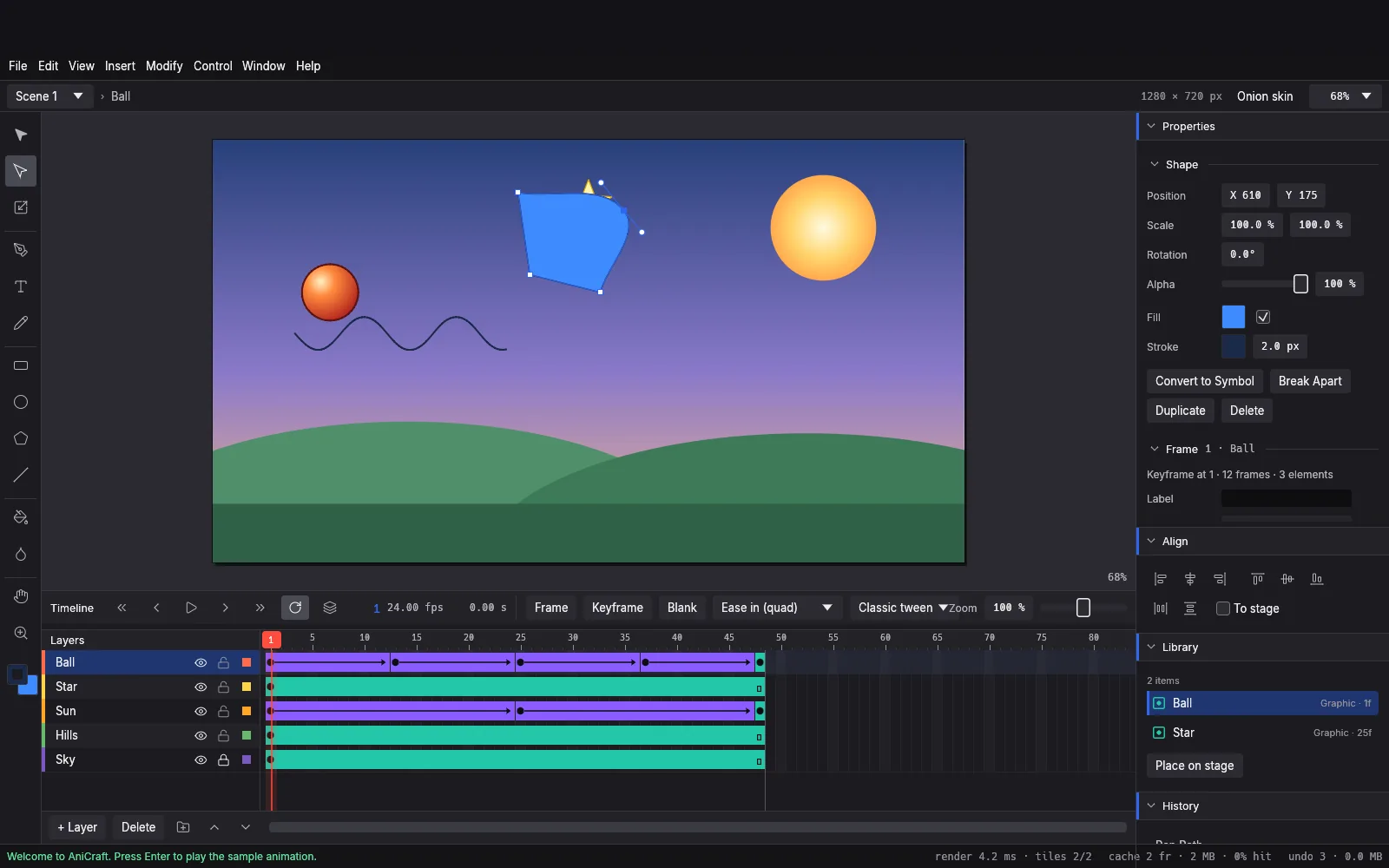
Section titled “4. Work with layers and frames”The timeline sits below the stage:
- Press F5 to extend a layer’s exposure by inserting regular frames.
- Press F6 to insert a Keyframe, copying the previous drawing to a new editable point.
- Press F7 to insert a Blank Keyframe.
5. Add a classic tween
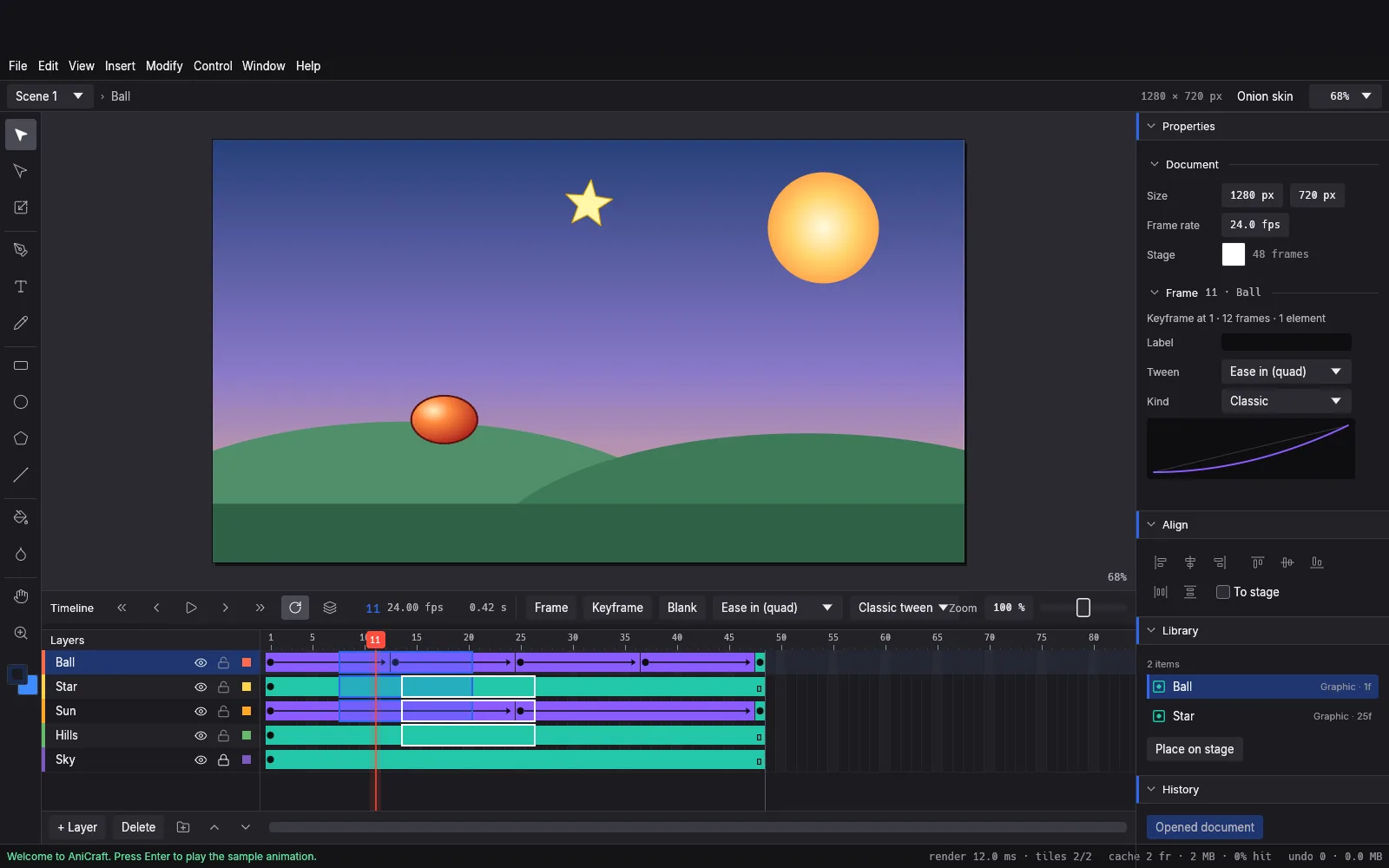
Section titled “5. Add a classic tween”- On frame 1, draw a shape on the stage.
- Select frame 24 on the timeline and press F6 to insert a keyframe.
- With the Selection tool (V) or Free Transform tool (Q), move or scale the artwork on frame 24 to its new position or pose.
- Right-click any frame between the two keyframes and choose Create Classic Tween.
- Select any frame inside the tween span.
- In the Properties panel, pick an easing preset (such as Ease In/Out) or adjust the custom Bézier easing curve.
- Press Enter or the Spacebar to play your animation on the stage.
6. Export
Section titled “6. Export”Choose File › Export › Export Animated GIF… or File › Export › Export Video… to output your work. You can also export PNG image sequences or Lottie JSON files.
What’s next
Section titled “What’s next”- Workflows: master tools, symbols, and nested timelines.
- AI agents: automate drawing and exporting with AI assistants.
- Troubleshooting: solve startup, performance, and playback issues.