Google app password
While Google reviews MailCraft, Sign in with Google works only for invited testers. Everyone else adds a Gmail or Google Workspace account with an app password: a 16-character password that Google makes for one program, in place of your everyday Google password.
Before you start
Section titled “Before you start”- 2-Step Verification must be on. Google offers app passwords only to accounts that have it. Turn it on at myaccount.google.com/signinoptions/twosv.
- Some accounts can’t make one. Google doesn’t offer app passwords to accounts in its Advanced Protection Program, or to accounts that use only security keys for 2-Step Verification. A Google Workspace administrator can also turn them off for an organisation. If the page below says the setting isn’t available, see Google’s app password help or ask your administrator. Don’t weaken your account’s protection to get one.
Make the app password
Section titled “Make the app password”-
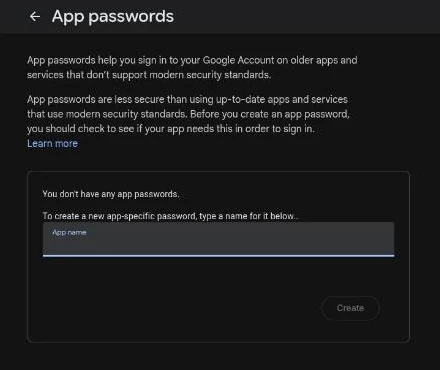
Go to myaccount.google.com/apppasswords and sign in to the Google account you’re adding. Google may ask for your password again.
-
Under App name, type a name you’ll recognise later, such as
MailCraft, and choose Create.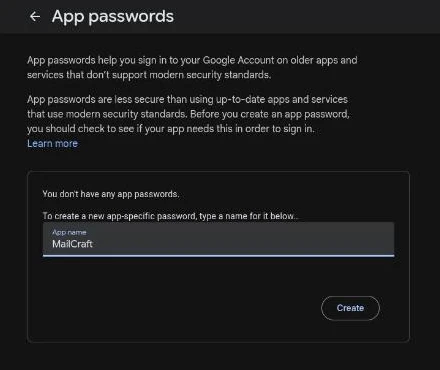
-
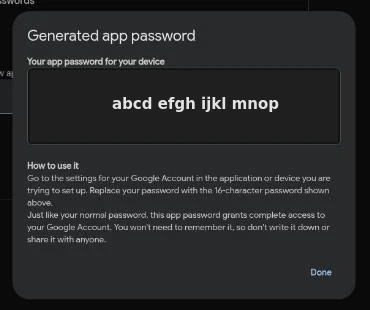
Google shows the app password as four groups of four letters. Copy it. Google shows it only once: if you lose it, delete it and make another.
-
Choose Done.
Add the account in MailCraft
Section titled “Add the account in MailCraft”-
Open Send / Receive → Add Account, enter your Gmail or Workspace address and continue. For a Workspace domain MailCraft doesn’t recognise, choose Google — Gmail and Google Workspace as the provider.
-
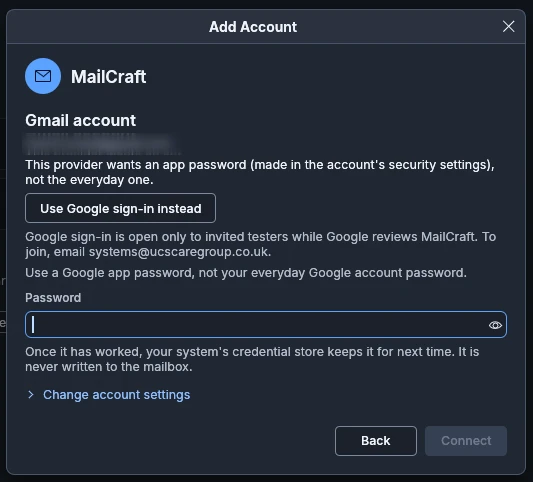
MailCraft asks for an app password. If it shows Sign in with Google instead, choose Use an app password instead.
-
Paste the app password into the Password box and choose Connect.
-
Finish the wizard. Mail starts downloading, Inbox first.
Never type your everyday Google password into MailCraft. If Google refuses the password, check that you pasted the app password, not your Google one.
What works with an app password
Section titled “What works with an app password”An app password gives the same mail as Google sign-in:
- Mail: downloading and sending, with your folders and Gmail labels as folders. Read marks, flags, moves, deletes and sent copies go back to Gmail.
- Gmail’s inbox categories: Primary, Social, Promotions, Updates and Forums show under the Inbox, or as tabs above it (View › Gmail Categories), each with its unread count. Search them with
gmail:primary,gmail:socialand so on. - Category alerts: in Account Settings, under Gmail categories, you can limit desktop alerts to mail in Primary.
Not available yet
Section titled “Not available yet”These aren’t switched on yet, whichever way the account signs in:
- Moving mail between Gmail’s categories. It’s built in, but stays off until Google has reviewed MailCraft’s use of Gmail’s API. When it’s on, it will need Google sign-in, because Gmail’s API doesn’t take app passwords. An app-password account will show Move to Category greyed, with Needs Google sign-in.
- Google Calendar and Google Contacts. MailCraft can’t connect to them yet.
- Gmail in the browser build. The browser build doesn’t connect to mail servers.
- Switch to Google sign-in: once Google has finished its review, open the account’s Account Settings and choose Switch to Google sign-in. Your mail and folders stay as they are.
- Remove the app password: on myaccount.google.com/apppasswords, delete the MailCraft entry. MailCraft can’t sign in with it after that. Changing your Google password also removes all your app passwords.