
Forms and signing
Fill in a form
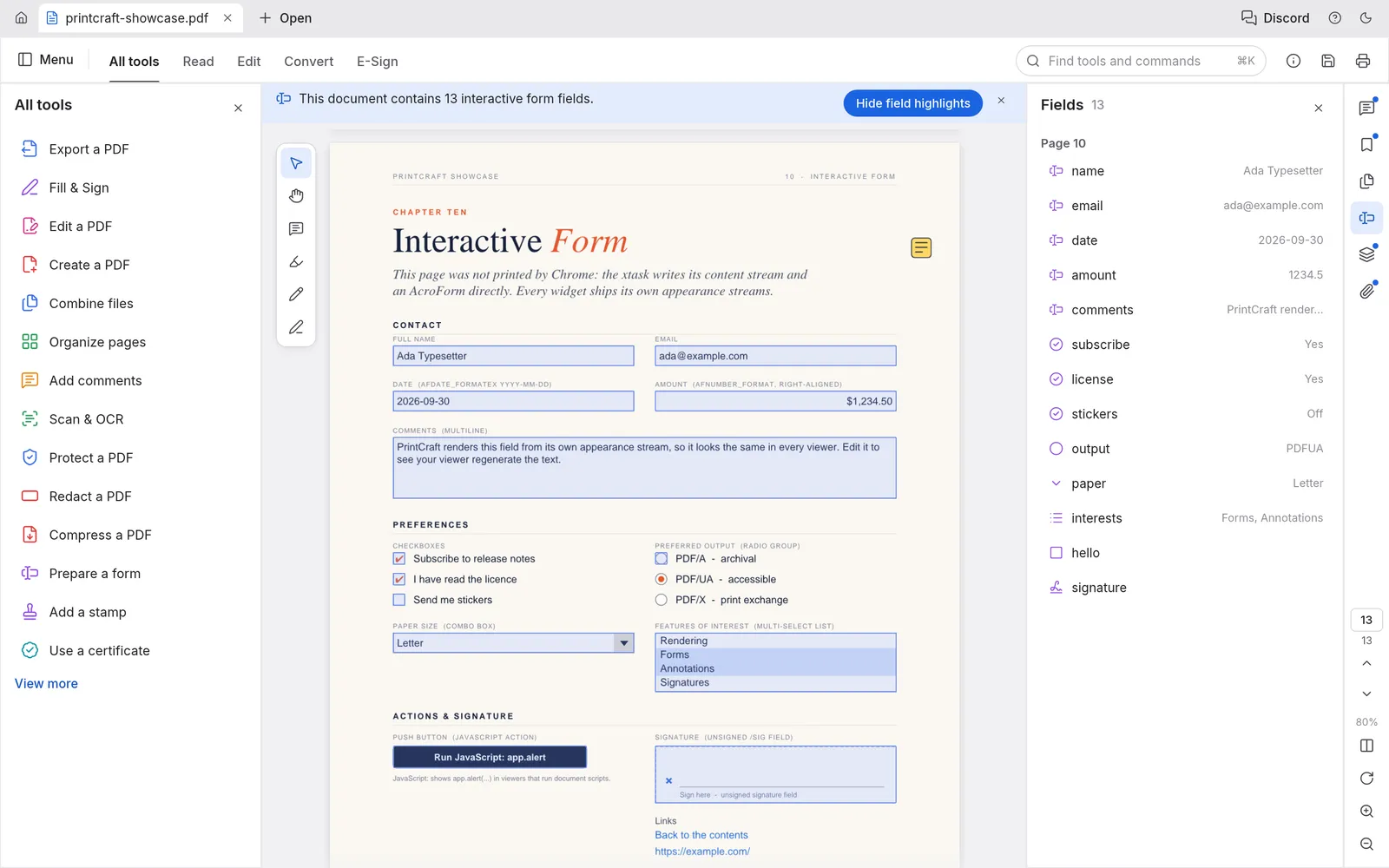
Section titled “Fill in a form”When a PDF has form fields, a bar above the page says how many it has. Click Highlight fields to see where they are. Click a field and type, select the boxes, or pick from the lists.
The Fields panel on the right lists every field and what’s in it. Edit › Clear form empties them all.
Fill and sign a form that has no fields
Section titled “Fill and sign a form that has no fields”Many forms are printed pages with nowhere to type. Choose Fill & Sign in the tools panel, or the E-Sign tab at the top, then:
- Add text types wherever you click.
- Checkmark, Cross, Dot and Line mark boxes and lines.
- Date adds today’s date. Edit › Preferences… sets its format.
- Signature and Initials add your signature or initials.
The first time you add a signature, PdfCraft asks you to make one. Type your name, Draw it with the mouse or a pen, use an Image of it (a PNG or JPEG), or Scan it. PdfCraft remembers it for next time. Sign › Fill & Sign has the same tools, and the Sign menu has the commands to change or remove your saved signature and initials.
Sign with a digital ID
Section titled “Sign with a digital ID”A digital signature proves who signed and shows whether the document has changed since. Choose Use a certificate in the tools panel:
- Digitally sign asks you to choose the digital ID to sign with. If you don’t have one, you can use a digital ID from a file, or create a new one. A new ID is self-signed and saved to a file protected by a password.
- Certify (visible signature) and Certify (invisible signature) sign as the author and set what others can still do: nothing, fill in the form and sign, or also add comments.
- Validate all signatures checks every signature in the document. The Signatures panel shows the results.
Make a form
Section titled “Make a form”Choose Prepare a form:
- Detect form fields adds fields to a form that doesn’t have any.
- Add fields yourself: text fields, checkboxes, radio buttons, drop-down lists, list boxes, buttons, date fields, image fields and digital signature fields.
- Field properties sets a field’s options, such as its appearance and actions. Calculation order and the Tab order commands set how fields work together.
- Flatten form fields makes the filled-in values part of the page, so the form can’t be changed any more.
Move form data in and out
Section titled “Move form data in and out”Prepare a form also has Import data and Export data, to fill a form from a data file or save what’s in it. Merge data files into spreadsheet… (find it with Ctrl+K) gathers the answers from many filled-in copies of the same form.
Calculated fields don’t update
Section titled “Calculated fields don’t update”Some forms add up totals or check what you type with scripts. This depends on Enable Acrobat JavaScript in Edit › Preferences…, which runs scripts in a sandbox with no file or network access. With it off, Acrobat’s standard format, validate and calculate functions still work, but other scripts don’t.
If a form’s scripts hit an error, PdfCraft stops them and says so in the bar above the page. Totals and buttons then stop working. Choose JavaScript Console in that bar, or press Ctrl+J (⌘J on a Mac), to see the error. Include it when you report a bug.