Live sessions
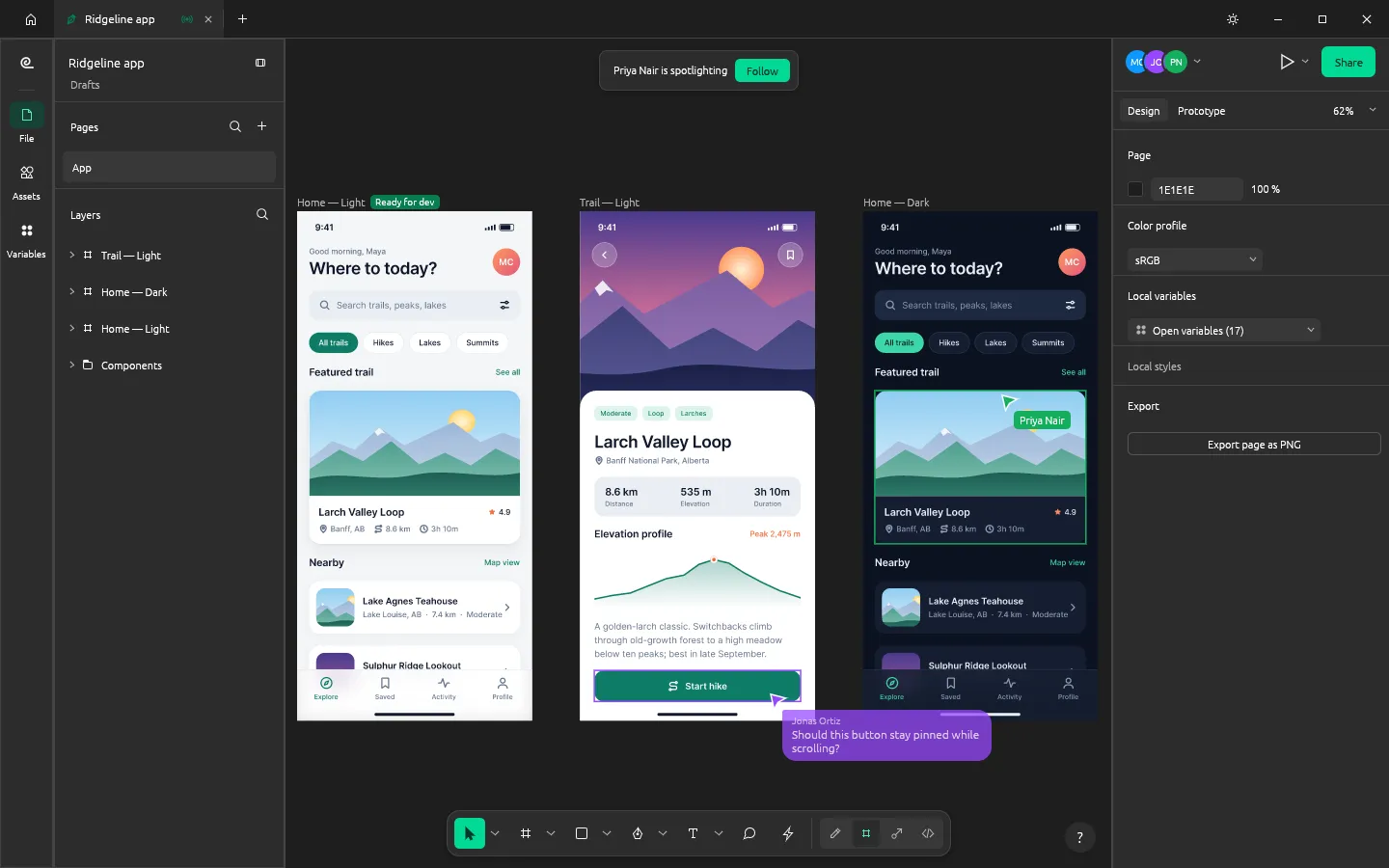
A live session lets several people work in the same FigCraft file at once. Everyone’s changes appear as they make them, with each person’s cursor and selection. Undo only takes back your own changes.
Share a file
Section titled “Share a file”- Open the file and click Share at the top of the right panel.
- Choose Online or Local network (see below for the difference).
- Click Start sharing.
- FigCraft shows a join code. Click Copy code to send the code, or Copy link to send an invite link that opens FigCraft and joins.
Below the code, choose what it lets people do: Can edit, Can comment or Can view. On the local network, everyone who joins can edit.
To end it, open Share again and click Stop sharing. Everyone else is disconnected and their codes stop working. They keep their own copy.
Join a file
Section titled “Join a file”- Paste the code or link into Join with a code on the Home screen, or in the Share popover.
- Or choose File › Join live session… from the main menu.
- Invite links open FigCraft and join right away. To turn this off, clear Open invite links in FigCraft in Preferences.
People can also join from the web version of FigCraft in a browser.
Work together
Section titled “Work together”- The avatars at the top of the right panel show who’s in the file. Click one to follow their view, or choose Spotlight me from your own avatar so everyone follows you.
- Press / to type a short message next to your cursor (cursor chat).
- Set the name others see in Preferences › Your name.
- View › Multiplayer cursors shows or hides other people’s cursors.
Online or local network: what’s sent where
Section titled “Online or local network: what’s sent where”Online uploads the file to a server. By default that’s the public FigCraft server at collab.craftapps.dev; you can set another one in Preferences › Server for online sharing, or clear it to turn online sharing off.
- The connection is encrypted, but the server stores the file unencrypted, and whoever runs the server can read it. Don’t share confidential work through a server you don’t trust.
- The file stays on the server after you stop sharing. Remove it with Share › Advanced › Remove from server…, or from Home › Online. The public server deletes a file nobody has opened for 30 days.
- The public server is offered as is, with no backups and no uptime promise.
- The public server holds a limited number of files. When it is full, publishing fails with “the server keeps at most 1000 files”, even for an empty project (#1402). Use Local network instead, or run a server of your own.
Local network involves no server. Your copy of FigCraft hosts the session and others connect to it directly, so it only lasts while your app stays open. It isn’t encrypted either, so use it on networks you trust.
Your online files
Section titled “Your online files”Home › Online lists the files you’ve shared online. Open one to carry on, or remove it from the server.
It lists only the files you published from this computer. A file you joined with a link isn’t listed (#1882), so keep the link. In the browser version of FigCraft, a file joined from a server of your own isn’t remembered either, so paste the link each time (#1881).
Run your own server
Section titled “Run your own server”A team can host its own files with figcraft-server, which is on each release page for Linux. Files on it survive restarts, and it gives out links to edit or only view each file. To publish a file to it, choose File › Publish to server… and give the address the server prints. The server’s setup guide covers running it behind a web server with HTTPS.