Keyboard shortcuts
This page lists every keyboard shortcut VectorCraft has by default, for Windows and Linux and for macOS. Where Windows and Linux use Ctrl, macOS uses Cmd, and where they use Alt, macOS uses Option.
Three menu items are grayed out because they do not work yet, but they still show a shortcut: File → Scripts → Other Script… (Ctrl+F12, or Cmd+F12 on macOS), Edit → Spelling → Check Spelling… (Ctrl+I, or Cmd+I on macOS) and Help → VectorCraft Help… (F1). Pressing those keys does not run anything, so the tables below leave them out.
Change a shortcut
Section titled “Change a shortcut”- Choose Edit → Keyboard Shortcuts…, or press Ctrl+Alt+Shift+K (Cmd+Option+Shift+K on macOS).
- Choose the Tools tab or the Menu Commands tab, and type part of a name in the search box. Panels are listed under Window on the Menu Commands tab, and each item of the Effect menu is listed too.
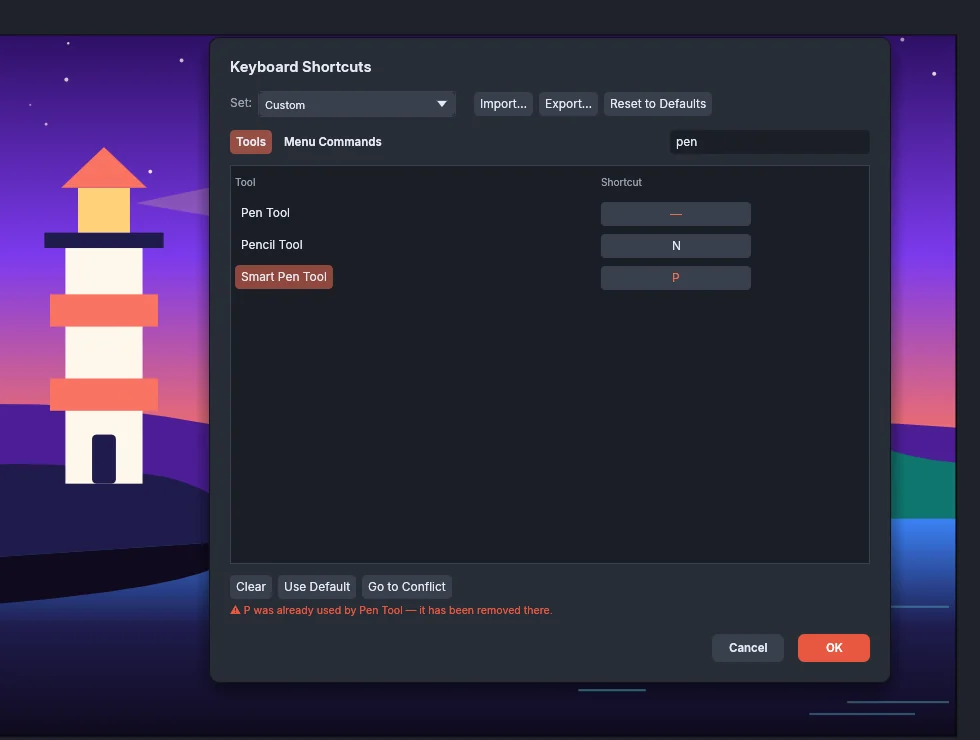
- Click the shortcut next to an entry, then press the new keys. Press Esc to cancel. If another entry already uses those keys, VectorCraft removes them from that entry and tells you which one.
- Click OK to keep the changes, or Cancel to discard them.
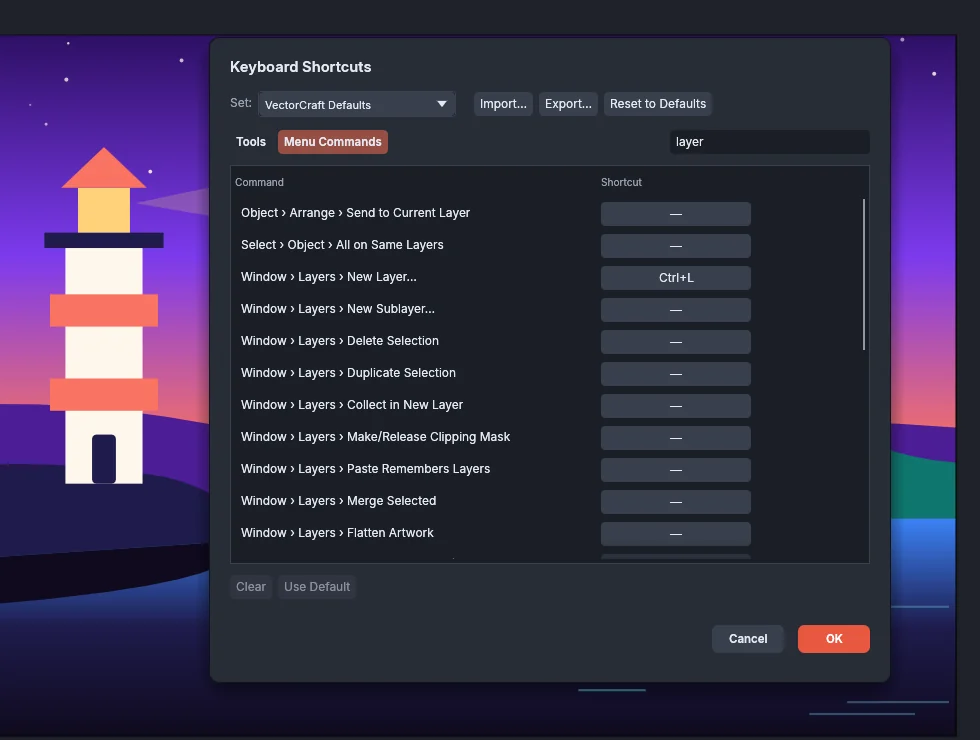
The Set list offers VectorCraft Defaults and Classic Defaults. Both sets have the same shortcuts, the ones listed on this page. After you change a shortcut, the list shows Custom. Clear removes the selected entry’s shortcut, Use Default gives it back its default, and Reset to Defaults returns every shortcut to the defaults. Export… saves your set as a .json file, and Import… reads one back. Automate VectorCraft describes every button of the dialog.
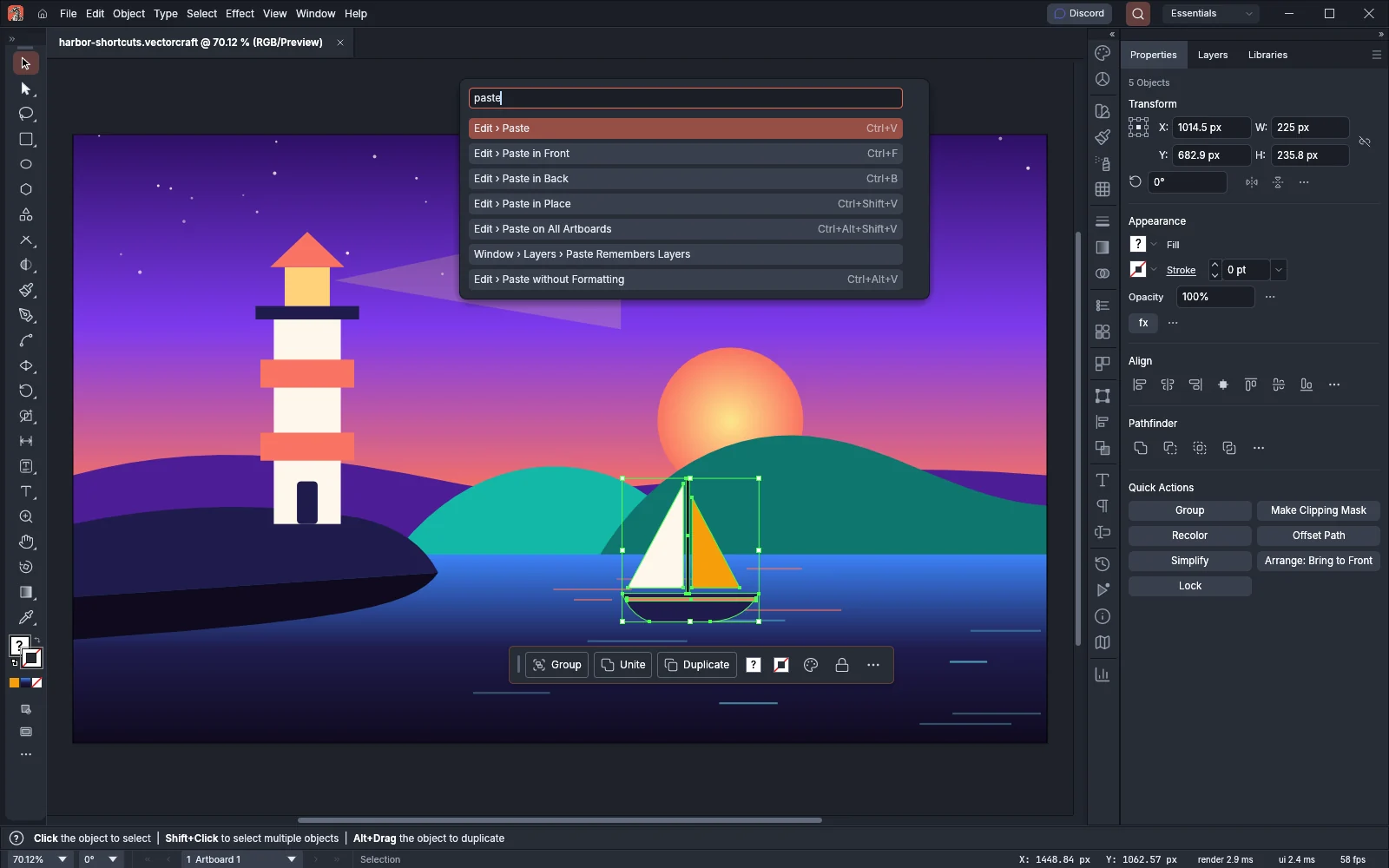
To run a command without its shortcut, choose Help → Search Commands…, or press Ctrl+Shift+/ (Cmd+Shift+/ on macOS). Type part of a command’s or a tool’s name, then press Enter. The list shows each match’s shortcut beside it.
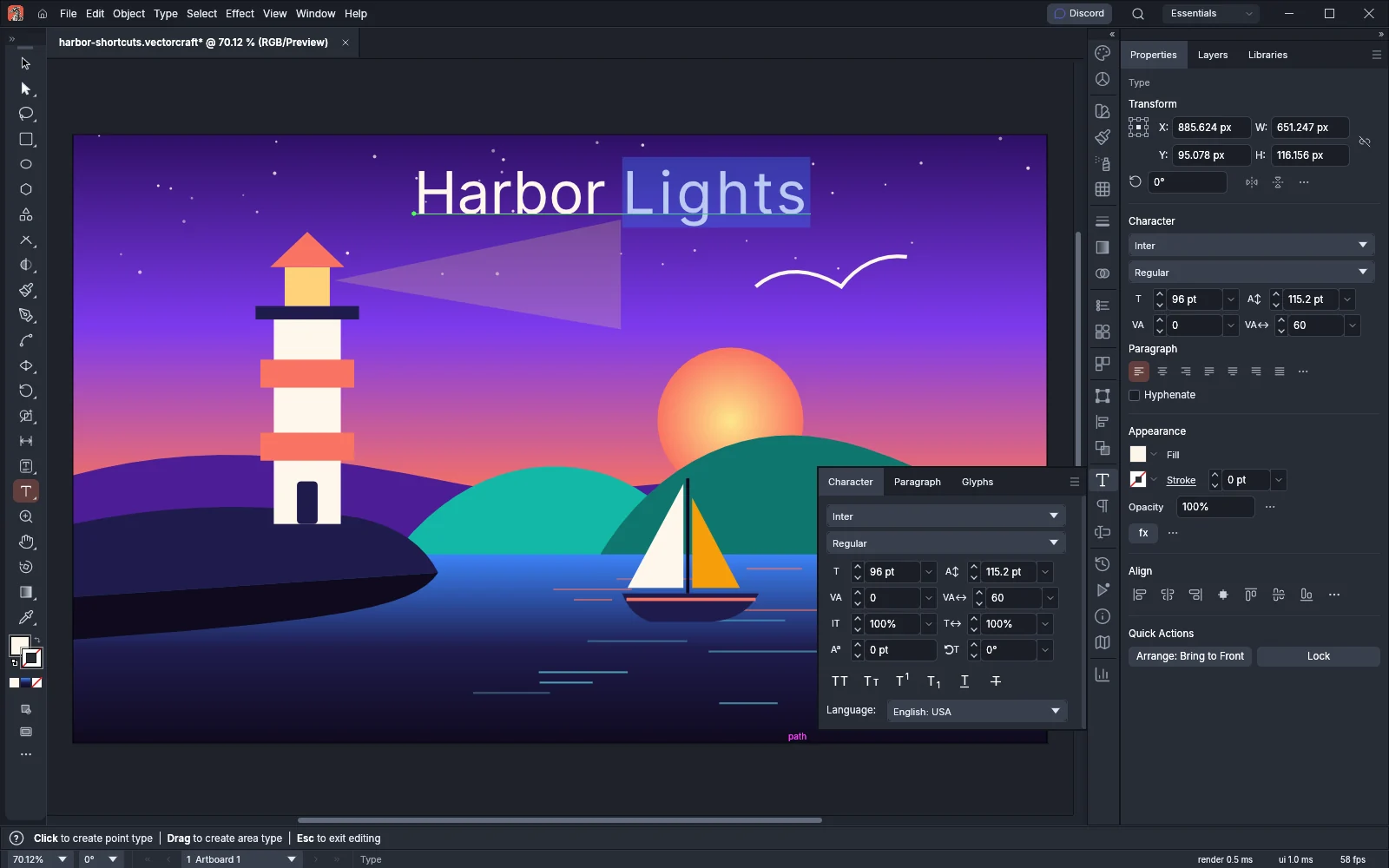
While you type text with the Type tool, only shortcuts that use Ctrl (Cmd on macOS) work. Tool keys, panel keys such as F7 and Shift+F7, and Tab do not. In that mode, Ctrl+Shift+B (Cmd+Shift+B on macOS) runs Type → Bold in place of View → Hide Bounding Box, and Ctrl+Shift+I (Cmd+Shift+I on macOS) runs Type → Italic in place of View → Perspective Grid → Show Grid.
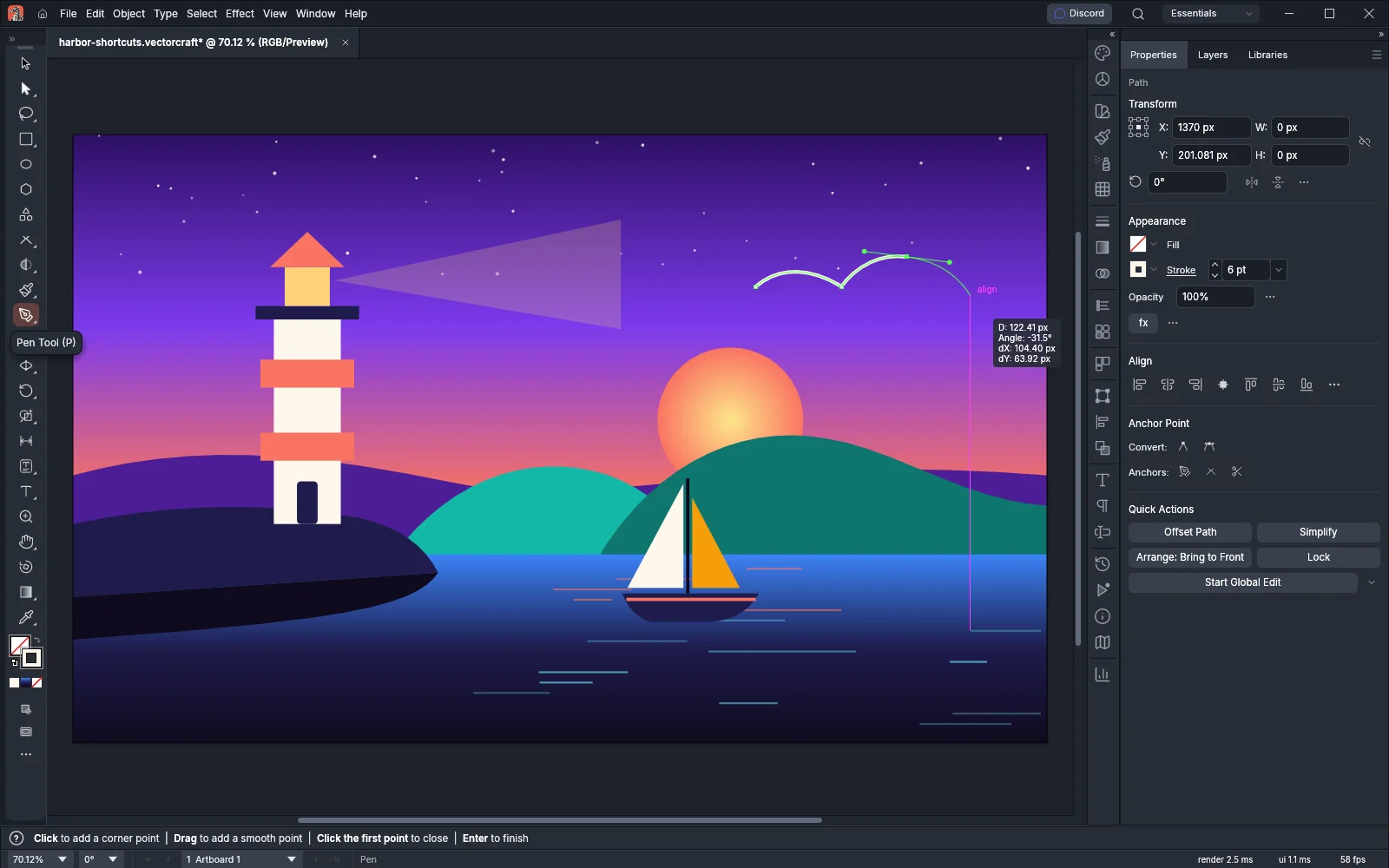
Press a tool’s key to select it. Tools that are not listed here have no default key, and you can give them one.
| Tool | Windows and Linux | macOS |
|---|---|---|
| Selection | V | V |
| Direct Selection | A | A |
| Magic Wand | Y | Y |
| Lasso | Q | Q |
| Pen | P | P |
| Add Anchor Point | + | + |
| Delete Anchor Point | - | - |
| Anchor Point | Shift+C | Shift+C |
| Curvature | Shift+~ | Shift+~ |
| Type | T | T |
| Touch Type | Shift+T | Shift+T |
| Line Segment | \ (backslash) | \ (backslash) |
| Rectangle | M | M |
| Ellipse | L | L |
| Paintbrush | B | B |
| Blob Brush | Shift+B | Shift+B |
| Shaper | Shift+N | Shift+N |
| Pencil | N | N |
| Eraser | Shift+E | Shift+E |
| Scissors | C | C |
| Rotate | R | R |
| Reflect | O | O |
| Scale | S | S |
| Width | Shift+W | Shift+W |
| Warp | Shift+R | Shift+R |
| Free Transform | E | E |
| Shape Builder | Shift+M | Shift+M |
| Live Paint Bucket | K | K |
| Live Paint Selection | Shift+L | Shift+L |
| Perspective Grid | Shift+P | Shift+P |
| Perspective Selection | Shift+V | Shift+V |
| Mesh | U | U |
| Gradient | G | G |
| Eyedropper | I | I |
| Blend | W | W |
| Symbol Sprayer | Shift+S | Shift+S |
| Column Graph | J | J |
| Artboard | Shift+O | Shift+O |
| Slice | Shift+K | Shift+K |
| Hand | H | H |
| Rotate View | Shift+H | Shift+H |
| Zoom | Z | Z |
For the Curvature tool, hold Shift and press the key to the left of 1, which types ~ on a US keyboard.
| Command | Windows and Linux | macOS |
|---|---|---|
| New… | Ctrl+N | Cmd+N |
| New from Template… | Ctrl+Shift+N | Cmd+Shift+N |
| Open… | Ctrl+O | Cmd+O |
| Close | Ctrl+W | Cmd+W |
| Close All | Ctrl+Alt+W | Cmd+Option+W |
| Save | Ctrl+S | Cmd+S |
| Save As… | Ctrl+Shift+S | Cmd+Shift+S |
| Save a Copy… | Ctrl+Alt+S | Cmd+Option+S |
| Revert | F12 | F12 |
| Place… | Ctrl+Shift+P | Cmd+Shift+P |
| Export → Export for Screens… | Ctrl+Alt+E | Cmd+Option+E |
| Export → Save for Web (Legacy)… | Ctrl+Alt+Shift+S | Cmd+Option+Shift+S |
| Package… | Ctrl+Alt+Shift+P | Cmd+Option+Shift+P |
| Document Setup… | Ctrl+Alt+P | Cmd+Option+P |
| File Info… | Ctrl+Alt+Shift+I | Cmd+Option+Shift+I |
| Print… | Ctrl+P | Cmd+P |
| Exit | Ctrl+Q | Cmd+Q |
On macOS, Exit is VectorCraft → Quit VectorCraft.
Ctrl+Alt+N (Cmd+Option+N on macOS) makes a new document without opening the New Document dialog. The document uses the settings the dialog would open with. This shortcut has no menu item.
| Command | Windows and Linux | macOS |
|---|---|---|
| Undo | Ctrl+Z | Cmd+Z |
| Redo | Ctrl+Shift+Z | Cmd+Shift+Z |
| Cut | Ctrl+X | Cmd+X |
| Copy | Ctrl+C | Cmd+C |
| Paste | Ctrl+V | Cmd+V |
| Paste in Front | Ctrl+F | Cmd+F |
| Paste in Back | Ctrl+B | Cmd+B |
| Paste in Place | Ctrl+Shift+V | Cmd+Shift+V |
| Paste on All Artboards | Ctrl+Alt+Shift+V | Cmd+Option+Shift+V |
| Paste without Formatting | Ctrl+Alt+V | Cmd+Option+V |
| Clear | Delete | Delete |
| Color Settings… | Ctrl+Shift+K | Cmd+Shift+K |
| Keyboard Shortcuts… | Ctrl+Alt+Shift+K | Cmd+Option+Shift+K |
| Preferences… | Ctrl+K | Cmd+K |
Backspace also deletes the selected objects. On macOS, Preferences is VectorCraft → Settings, and Cmd+, opens it too. See Preferences for every setting.
Object
Section titled “Object”| Command | Windows and Linux | macOS |
|---|---|---|
| Transform → Transform Again | Ctrl+D | Cmd+D |
| Transform → Move… | Ctrl+Shift+M | Cmd+Shift+M |
| Transform → Transform Each… | Ctrl+Alt+Shift+D | Cmd+Option+Shift+D |
| Arrange → Bring to Front | Ctrl+Shift+] | Cmd+Shift+] |
| Arrange → Bring Forward | Ctrl+] | Cmd+] |
| Arrange → Send Backward | Ctrl+[ | Cmd+[ |
| Arrange → Send to Back | Ctrl+Shift+[ | Cmd+Shift+[ |
| Group | Ctrl+G | Cmd+G |
| Ungroup | Ctrl+Shift+G | Cmd+Shift+G |
| Lock → Selection | Ctrl+2 | Cmd+2 |
| Unlock All | Ctrl+Alt+2 | Cmd+Option+2 |
| Hide → Selection | Ctrl+3 | Cmd+3 |
| Hide → Unselected Artwork | Ctrl+Alt+Shift+3 | Cmd+Option+Shift+3 |
| Show All | Ctrl+Alt+3 | Cmd+Option+3 |
| Path → Join | Ctrl+J | Cmd+J |
| Path → Average… | Ctrl+Alt+J | Cmd+Option+J |
| Path → Average & Join… | Ctrl+Alt+Shift+J | Cmd+Option+Shift+J |
| Pattern → Edit Pattern | Ctrl+Shift+F8 | Cmd+Shift+F8 |
| Blend → Make | Ctrl+Alt+B | Cmd+Option+B |
| Blend → Release | Ctrl+Alt+Shift+B | Cmd+Option+Shift+B |
| Envelope Distort → Make with Warp… | Ctrl+Alt+Shift+W | Cmd+Option+Shift+W |
| Envelope Distort → Make with Mesh… | Ctrl+Alt+M | Cmd+Option+M |
| Envelope Distort → Make with Top Object | Ctrl+Alt+C | Cmd+Option+C |
| Live Paint → Make | Ctrl+Alt+X | Cmd+Option+X |
| Clipping Mask → Make | Ctrl+7 | Cmd+7 |
| Clipping Mask → Release | Ctrl+Alt+7 | Cmd+Option+7 |
| Compound Path → Make | Ctrl+8 | Cmd+8 |
| Compound Path → Release | Ctrl+Alt+Shift+8 | Cmd+Option+Shift+8 |
Ctrl+Alt+Shift+2 (Cmd+Option+Shift+2 on macOS) locks every object that is not selected. This shortcut has no menu item.
These Type menu commands have shortcuts:
| Command | Windows and Linux | macOS |
|---|---|---|
| Create Outlines | Ctrl+Shift+O | Cmd+Shift+O |
| Show Hidden Characters | Ctrl+Alt+I | Cmd+Option+I |
These Type menu commands have shortcuts only while you edit text with the Type tool:
| Command | Windows and Linux | macOS |
|---|---|---|
| Bold | Ctrl+Shift+B | Cmd+Shift+B |
| Italic | Ctrl+Shift+I | Cmd+Shift+I |
Outside the text, the same keys run View → Hide Bounding Box and View → Perspective Grid → Show Grid.
The following shortcuts work on the selected type, or on the text you have selected with the Type tool, and have no menu item:
| Command | Windows and Linux | macOS |
|---|---|---|
| Increase Font Size | Ctrl+Shift+. | Cmd+Shift+. |
| Decrease Font Size | Ctrl+Shift+, | Cmd+Shift+, |
| Increase Font Size by Five Steps | Ctrl+Alt+Shift+. | Cmd+Option+Shift+. |
| Decrease Font Size by Five Steps | Ctrl+Alt+Shift+, | Cmd+Option+Shift+, |
| Reset Tracking and Kerning | Ctrl+Alt+Q | Cmd+Option+Q |
| Reset Horizontal Scale | Ctrl+Shift+X | Cmd+Shift+X |
| Align left | Ctrl+Shift+L | Cmd+Shift+L |
| Align center | Ctrl+Shift+C | Cmd+Shift+C |
| Align right | Ctrl+Shift+R | Cmd+Shift+R |
| Justify with last line aligned left | Ctrl+Shift+J | Cmd+Shift+J |
| Justify all lines | Ctrl+Shift+F | Cmd+Shift+F |
| Underline | Ctrl+Shift+U | Cmd+Shift+U |
| Highlight Font Name | Ctrl+Alt+Shift+F | Cmd+Option+Shift+F |
| Highlight Kerning | Ctrl+Alt+K | Cmd+Option+K |
| Toggle Line Composer | Ctrl+Alt+Shift+C | Cmd+Option+Shift+C |
| Hyphenate | Ctrl+Alt+Shift+H | Cmd+Option+Shift+H |
One font size step is the Size/Leading increment on the Type page of Preferences. Highlight Font Name opens the font menu of the Character panel with its search field ready for typing, and Highlight Kerning puts the cursor in the panel’s Kerning field.
While you edit horizontal text with the Type tool, these keys change the text:
| Keys | What they do |
|---|---|
| Alt+Left Arrow, Alt+Right Arrow | Change the kerning at the cursor, or the tracking of the selected text |
| Alt+Up Arrow, Alt+Down Arrow | Change the leading |
| Alt+Shift+Up Arrow, Alt+Shift+Down Arrow | Change the baseline shift |
Add Ctrl (Cmd on macOS) to change the value by five steps. On macOS, press Option in place of Alt.
Select
Section titled “Select”| Command | Windows and Linux | macOS |
|---|---|---|
| All | Ctrl+A | Cmd+A |
| All on Active Artboard | Ctrl+Alt+A | Cmd+Option+A |
| Deselect | Ctrl+Shift+A | Cmd+Shift+A |
| Reselect | Ctrl+6 | Cmd+6 |
| Next Object Above | Ctrl+Alt+] | Cmd+Option+] |
| Next Object Below | Ctrl+Alt+[ | Cmd+Option+[ |
Effect
Section titled “Effect”| Command | Windows and Linux | macOS |
|---|---|---|
| Apply Last Effect | Ctrl+Shift+E | Cmd+Shift+E |
| Last Effect… | Ctrl+Alt+Shift+E | Cmd+Option+Shift+E |
Last Effect… opens the dialog of the last effect you applied. The effects in the menu have no default shortcuts, and you can give any of them one in Edit → Keyboard Shortcuts….
| Command | Windows and Linux | macOS |
|---|---|---|
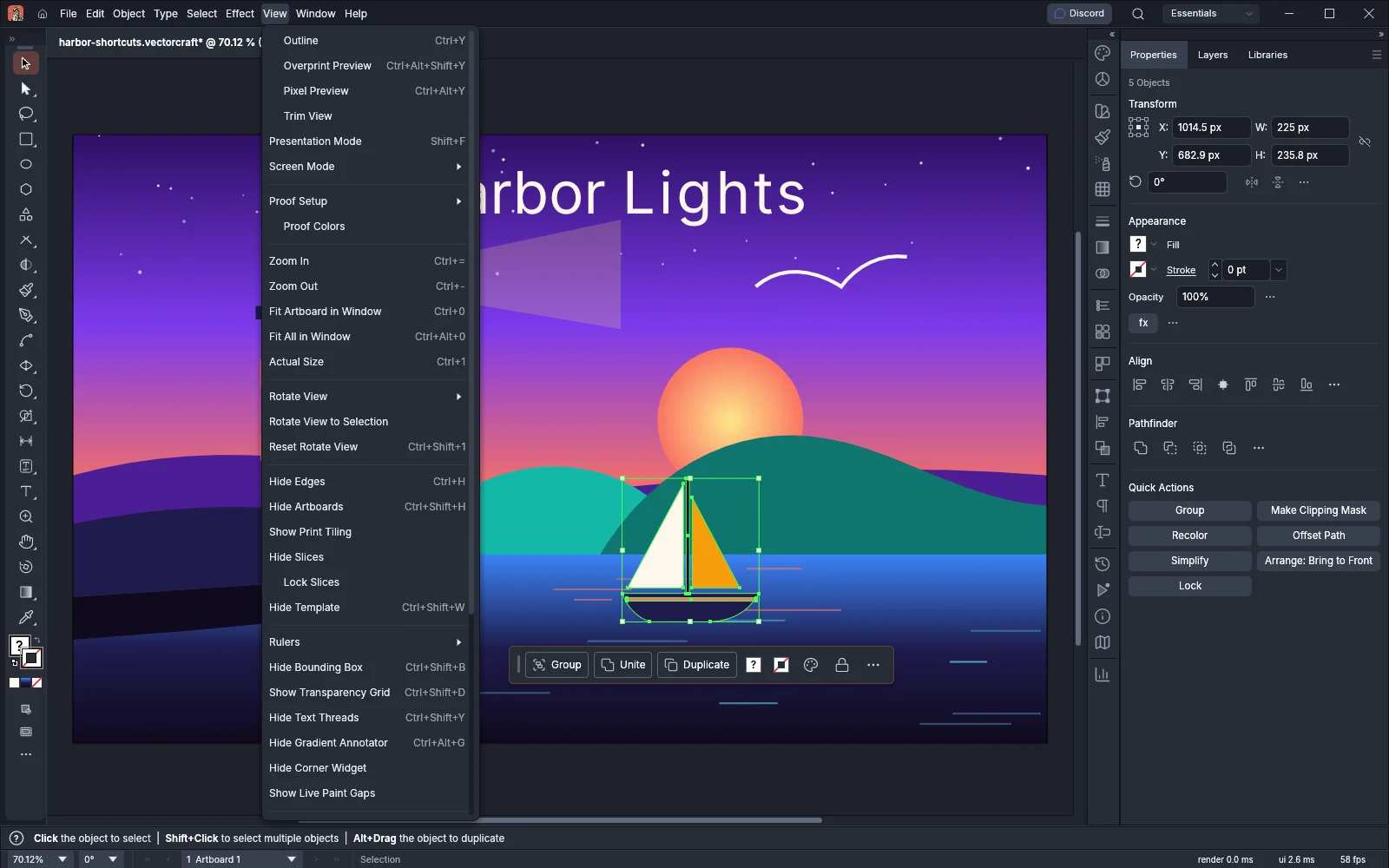
| Outline | Ctrl+Y | Cmd+Y |
| Overprint Preview | Ctrl+Alt+Shift+Y | Cmd+Option+Shift+Y |
| Pixel Preview | Ctrl+Alt+Y | Cmd+Option+Y |
| Presentation Mode | Shift+F | Shift+F |
| Screen Mode (next mode) | F | F |
| Zoom In | Ctrl+= | Cmd+= |
| Zoom Out | Ctrl+- | Cmd+- |
| Fit Artboard in Window | Ctrl+0 | Cmd+0 |
| Fit All in Window | Ctrl+Alt+0 | Cmd+Option+0 |
| Actual Size | Ctrl+1 | Cmd+1 |
| Reset Rotate View | Ctrl+Shift+1 | Cmd+Shift+1 |
| Hide Edges | Ctrl+H | Cmd+H |
| Hide Artboards | Ctrl+Shift+H | Cmd+Shift+H |
| Hide Template | Ctrl+Shift+W | Cmd+Shift+W |
| Rulers → Show Rulers | Ctrl+R | Cmd+R |
| Rulers → Change to Global Rulers | Ctrl+Alt+R | Cmd+Option+R |
| Hide Bounding Box | Ctrl+Shift+B | Cmd+Shift+B |
| Show Transparency Grid | Ctrl+Shift+D | Cmd+Shift+D |
| Hide Text Threads | Ctrl+Shift+Y | Cmd+Shift+Y |
| Hide Gradient Annotator | Ctrl+Alt+G | Cmd+Option+G |
| Guides → Hide Guides | Ctrl+; | Cmd+; |
| Guides → Lock Guides | Ctrl+Alt+; | Cmd+Option+; |
| Guides → Make Guides | Ctrl+5 | Cmd+5 |
| Guides → Release Guides | Ctrl+Alt+5 | Cmd+Option+5 |
| Smart Guides | Ctrl+U | Cmd+U |
| Perspective Grid → Show Grid | Ctrl+Shift+I | Cmd+Shift+I |
| Show Grid | Ctrl+’ | Cmd+’ |
| Snap to Grid | Ctrl+Shift+’ | Cmd+Shift+’ |
| Snap to Point | Ctrl+Alt+’ | Cmd+Option+’ |
While you edit text with the Type tool, Ctrl+Shift+B and Ctrl+Shift+I (Cmd+Shift+B and Cmd+Shift+I on macOS) run Type → Bold and Type → Italic instead of Hide Bounding Box and Perspective Grid → Show Grid. F steps through the three modes of View → Screen Mode. Commands that show or hide something change their name to match, for example Hide Edges becomes Show Edges. On macOS, Cmd+H is Hide Edges, and Ctrl+Cmd+H hides VectorCraft.
Ctrl+Alt+Shift+U (Cmd+Option+Shift+U on macOS) switches the document to the next unit: Points, Picas, Inches, Millimeters, Centimeters, Pixels, Feet & Inches, Meters, Yards and Feet, then Points again. This shortcut has no menu item.
Window and panels
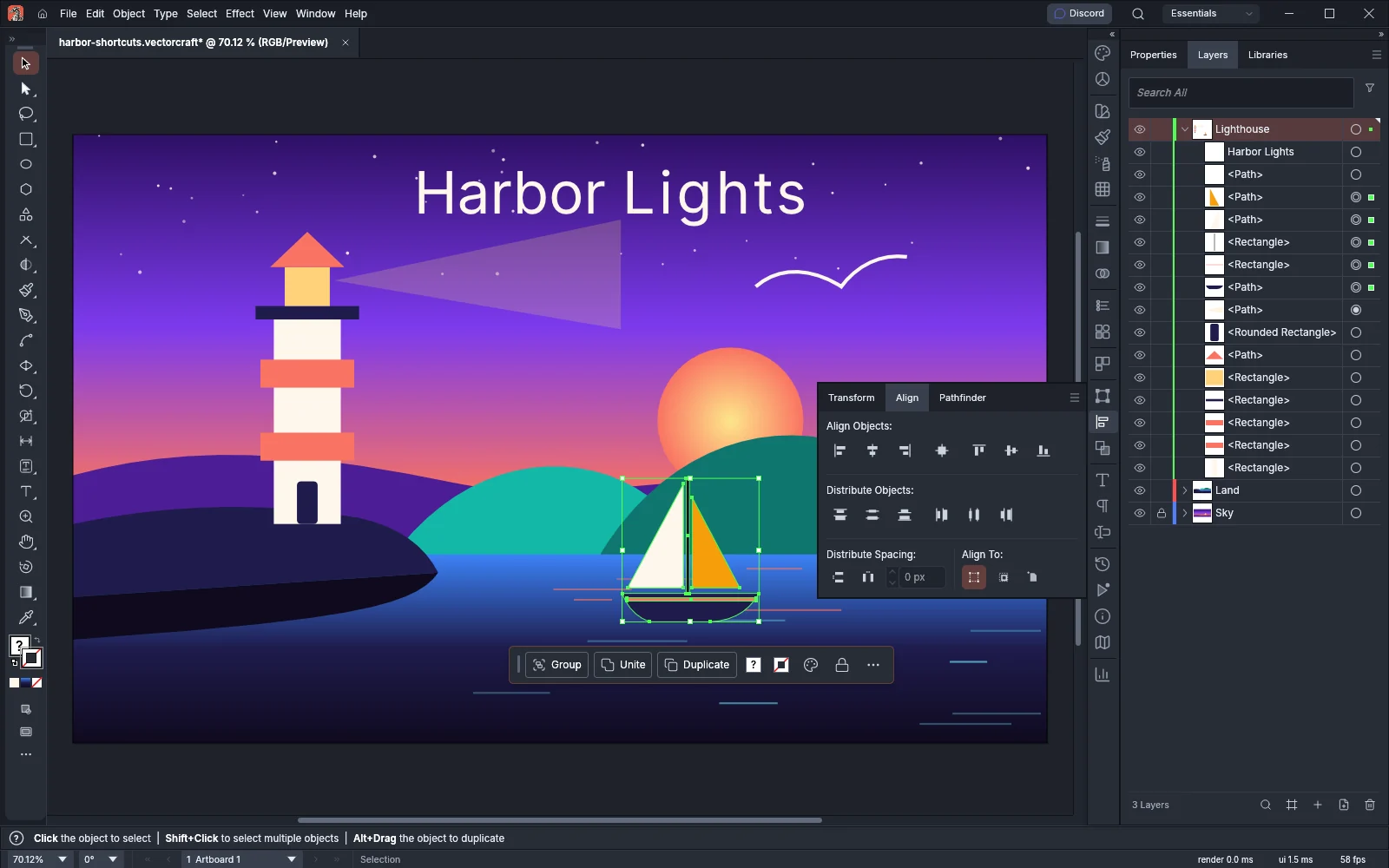
Section titled “Window and panels”Each of these keys shows its panel, or hides it when it is already showing.
| Panel | Windows and Linux | macOS |
|---|---|---|
| Brushes | F5 | F5 |
| Color | F6 | F6 |
| Layers | F7 | F7 |
| Color Guide | Shift+F3 | Shift+F3 |
| Graphic Styles | Shift+F5 | Shift+F5 |
| Appearance | Shift+F6 | Shift+F6 |
| Align | Shift+F7 | Shift+F7 |
| Transform | Shift+F8 | Shift+F8 |
| Info | Ctrl+F8 | Cmd+F8 |
| Gradient | Ctrl+F9 | Cmd+F9 |
| Pathfinder | Ctrl+Shift+F9 | Cmd+Shift+F9 |
| Stroke | Ctrl+F10 | Cmd+F10 |
| Transparency | Ctrl+Shift+F10 | Cmd+Shift+F10 |
| Attributes | Ctrl+F11 | Cmd+F11 |
| Symbols | Ctrl+Shift+F11 | Cmd+Shift+F11 |
| Type → Character | Ctrl+T | Cmd+T |
| Type → Paragraph | Ctrl+Alt+T | Cmd+Option+T |
| Type → Tabs | Ctrl+Shift+T | Cmd+Shift+T |
| Type → OpenType | Ctrl+Alt+Shift+T | Cmd+Option+Shift+T |
These shortcuts run panel commands or switch the window layout:
| Command | Windows and Linux | macOS |
|---|---|---|
| Hide or show the panels, the toolbar and the Control bar | Tab | Tab |
| Hide or show the panels only | Shift+Tab | Shift+Tab |
| Next document | Ctrl+F6 | Cmd+F6 |
| Previous document | Ctrl+Shift+F6 | Cmd+Shift+F6 |
| New Layer… (Layers panel) | Ctrl+L | Cmd+L |
| New Layer Options… (Layers panel) | Ctrl+Alt+L | Cmd+Option+L |
| Add New Fill (Appearance panel) | Ctrl+/ | Cmd+/ |
| Add New Stroke (Appearance panel) | Ctrl+Alt+/ | Cmd+Option+/ |
| Repeat the last Pathfinder operation | Ctrl+4 | Cmd+4 |
| Symbol Options… (Symbols panel) | F8 | F8 |
With objects selected, F8 opens Symbol Options for a new symbol. Customize the workspace covers arranging panels and saving workspaces.
Keys while you draw
Section titled “Keys while you draw”Shape tools
Section titled “Shape tools”These keys work while you drag with the Rectangle, Rounded Rectangle, Ellipse, Polygon, Star or Line Segment tool.
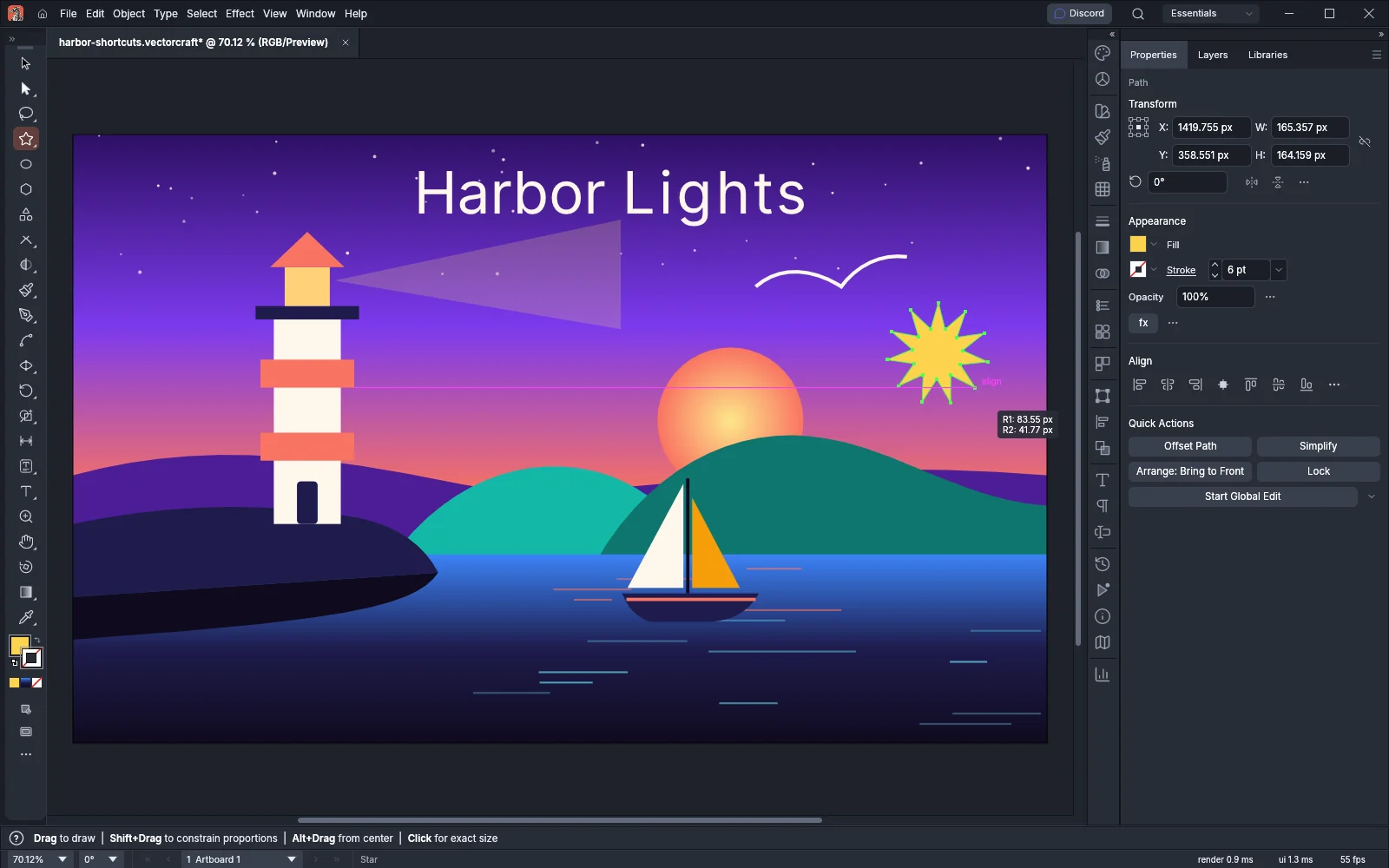
| Keys | What they do |
|---|---|
| Shift | Draws a square or a circle, or keeps a line to a multiple of 45° |
| Alt (Option on macOS) | Draws the shape out from its center |
| Space, held during the drag | Moves the shape you are drawing, while you keep the mouse button down |
| Up Arrow, Down Arrow | Adds or removes a Polygon side or a Star point (3 to 1000), or changes a Rounded Rectangle’s corner radius by 1 (0 to 1296 pt) |
| Ctrl (Cmd on macOS), Star tool | Keeps the inner radius where it is while the outer radius follows the pointer |
| Alt (Option on macOS), Star tool | Keeps the star’s shoulders straight |
| Esc | Cancels the shape |
Pen, Curvature and Pencil
Section titled “Pen, Curvature and Pencil”These keys work while you draw a path. Draw and edit paths describes each tool.
| Keys | What they do |
|---|---|
| Alt (Option on macOS), Pen tool drag | Breaks the handles, so only the outgoing handle follows the pointer |
| Shift, Pen tool | Keeps the handle at 45° steps |
| Space, held during a Pen tool drag | Moves the anchor point together with its handles |
| Enter or Esc, Pen or Curvature tool | Ends the path and leaves it open |
| Alt-click (Option-click on macOS) or double-click, Curvature tool | Switches a point between corner and smooth |
| Backspace or Delete, Curvature tool | Removes the point you last placed or moved |
| Alt (Option on macOS) as you release, Pencil tool | Closes the path |
| Shift as you press, Pencil tool | Draws a straight line at 45° steps |
Any tool
Section titled “Any tool”| Keys | What they do |
|---|---|
| Space, held before you press the mouse button | Switches to the Hand tool while you hold it |
| Space+Shift, held before you press | Switches to the Rotate View tool |
| Ctrl+Space (Cmd+Space on macOS), held before you press | Switches to the Zoom tool; add Alt (Option) to zoom out |
| Ctrl (Cmd on macOS), held | Switches to the selection tool you used last for one drag, except with the Hand, Zoom or Rotate View tool |
| Arrow keys | Move the selection by the Keyboard Increment in Preferences (1 pt by default) |
| Shift+arrow keys | Move the selection ten times as far |
| Alt+arrow keys (Option on macOS) | Move a copy of the selection |
| Shift+D | Steps through the drawing modes: Draw Normal, Draw Behind, Draw Inside |
Before you have chosen a selection tool, Ctrl (Cmd on macOS) switches the Pen, Add Anchor Point, Delete Anchor Point, Anchor Point and Curvature tools to Direct Selection, and the other tools to Selection. With the Direct Selection tool, Ctrl (Cmd on macOS) switches to Selection, and Ctrl+Alt (Cmd+Option on macOS) switches to Group Selection. The Selection and Group Selection tools do not switch.
Brushes and symbol tools
Section titled “Brushes and symbol tools”| Keys | What they do |
|---|---|
| [ and ] | Make the Blob Brush or the Eraser smaller or larger by 1 (1 to 1000) |
| [ and ] | Make the brush of a symbol tool smaller or larger by 10 (2 to 2000) |
| Shift+[ and Shift+] | Lower or raise a symbol tool’s intensity (1 to 10) |
Fill and stroke
Section titled “Fill and stroke”| Command | Windows and Linux | macOS |
|---|---|---|
| Default fill and stroke (white fill, 1 pt black stroke; type gets a black fill and no stroke) | D | D |
| Switch between the Fill and Stroke boxes | X | X |
| Swap fill and stroke | Shift+X | Shift+X |
| Set the active box to None | / | / |
| Apply the last color | , or Shift+, | , or Shift+, |
| Apply the last gradient | . or Shift+. | . or Shift+. |
| Stroke weight up | Ctrl+Alt+. | Cmd+Option+. |
| Stroke weight down | Ctrl+Alt+, | Cmd+Option+, |