Open and save files
This guide covers the File menu commands that move work in and out of VectorCraft: saving in the VectorCraft format, choosing a format for sharing, saving a picture for office documents, adding file information, opening files made in other programs, recovering work after a crash, placing files into an open document, and collecting a document with its linked files for someone else.
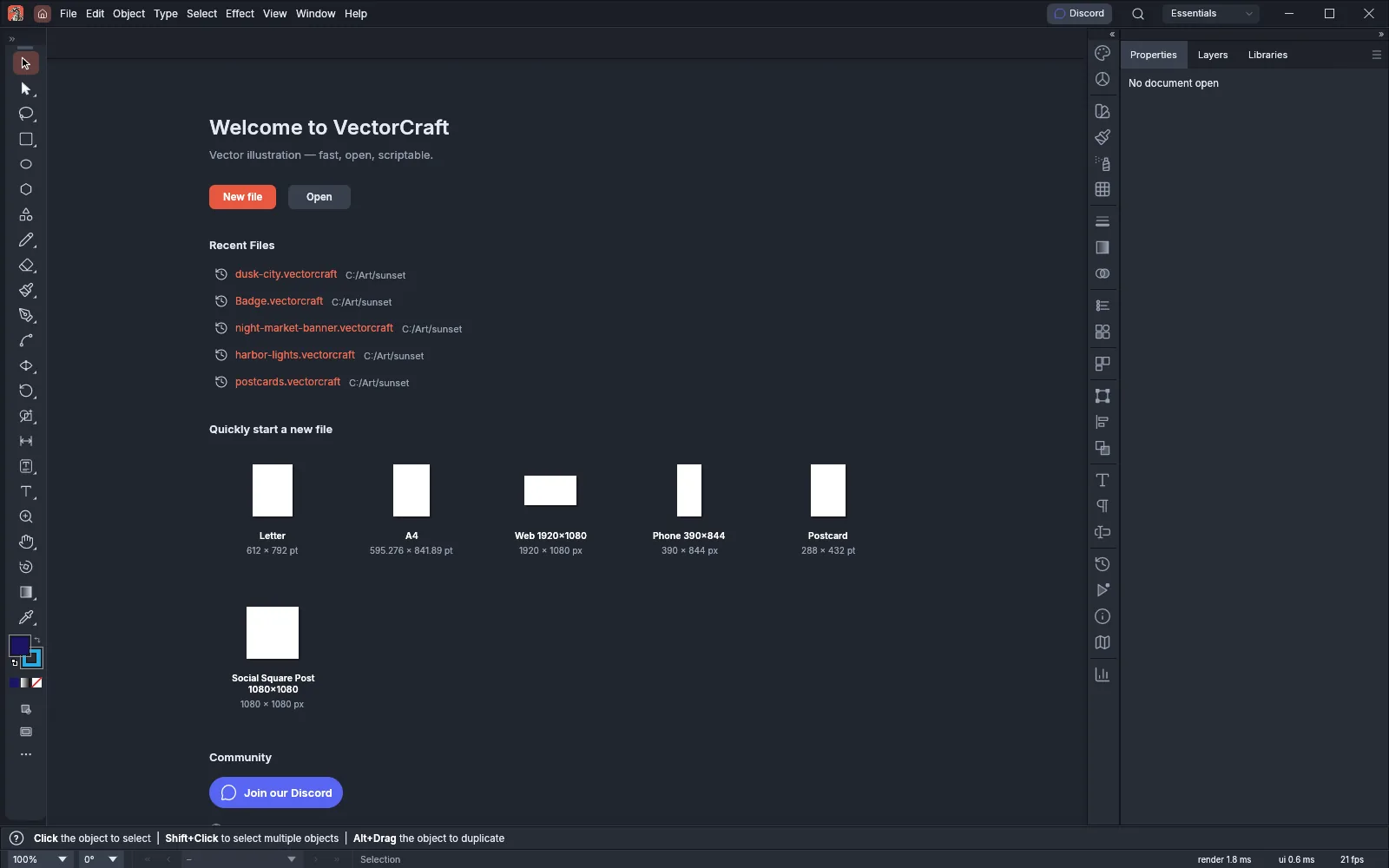
Start from the Home screen
Section titled “Start from the Home screen”When no document is open, VectorCraft shows the Home screen. New file opens the New Document dialog, Open opens a file, Recent Files lists the files you opened last, and Quickly start a new file makes a document from a preset such as Letter, A4 or Web 1920×1080 in one click. The Home button (the house icon before the menus in the application bar) shows the Home screen over open documents, and choosing a document tab returns to that document.
Save a document
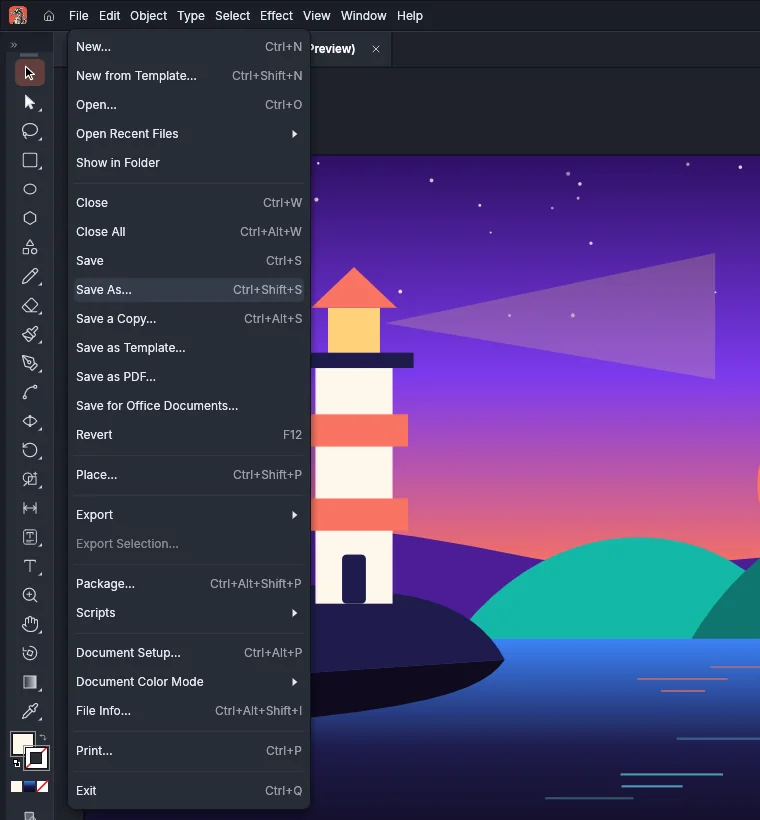
Section titled “Save a document”- Choose File → Save (Ctrl+S, or Cmd+S on macOS).
- If the document has never been saved, VectorCraft asks for a name and a location first.
- Later saves write the same file again without asking.
A new document saves as a .vectorcraft file. A document that you opened from, or last saved as, SVG, PDF or EPS saves in that format again. Save uses the options you last saved with in that format. A .ai file that VectorCraft wrote also saves as .ai again when you reopen it. When the document came from a format that Save does not write, such as a PNG image or a DXF drawing, or from a .ai file that another program wrote, the first Save asks for a name and a format.
The other save commands are on the same menu:
| Command | What it does |
|---|---|
| Save As… | Saves under a new name, location or format. The open document then takes the new file’s name, location and format. |
| Save a Copy… | Writes a copy. The open document keeps its file name and its unsaved state. |
| Save as Template… | Writes a template that opens as a new untitled document. The open document does not change. |
| Save as PDF… | Opens the Save PDF dialog with its presets and settings. |
| Save for Office Documents… | Saves one artboard as a PNG picture for office documents and slides. |
| Revert | Discards the changes since the last save and reloads the saved file in the same tab. VectorCraft asks first. |
In Preferences (Ctrl+K, or Cmd+K on macOS), the Use Compression option in the File Handling section makes VectorCraft compress .vectorcraft files when it saves them.
Choose a format for sharing
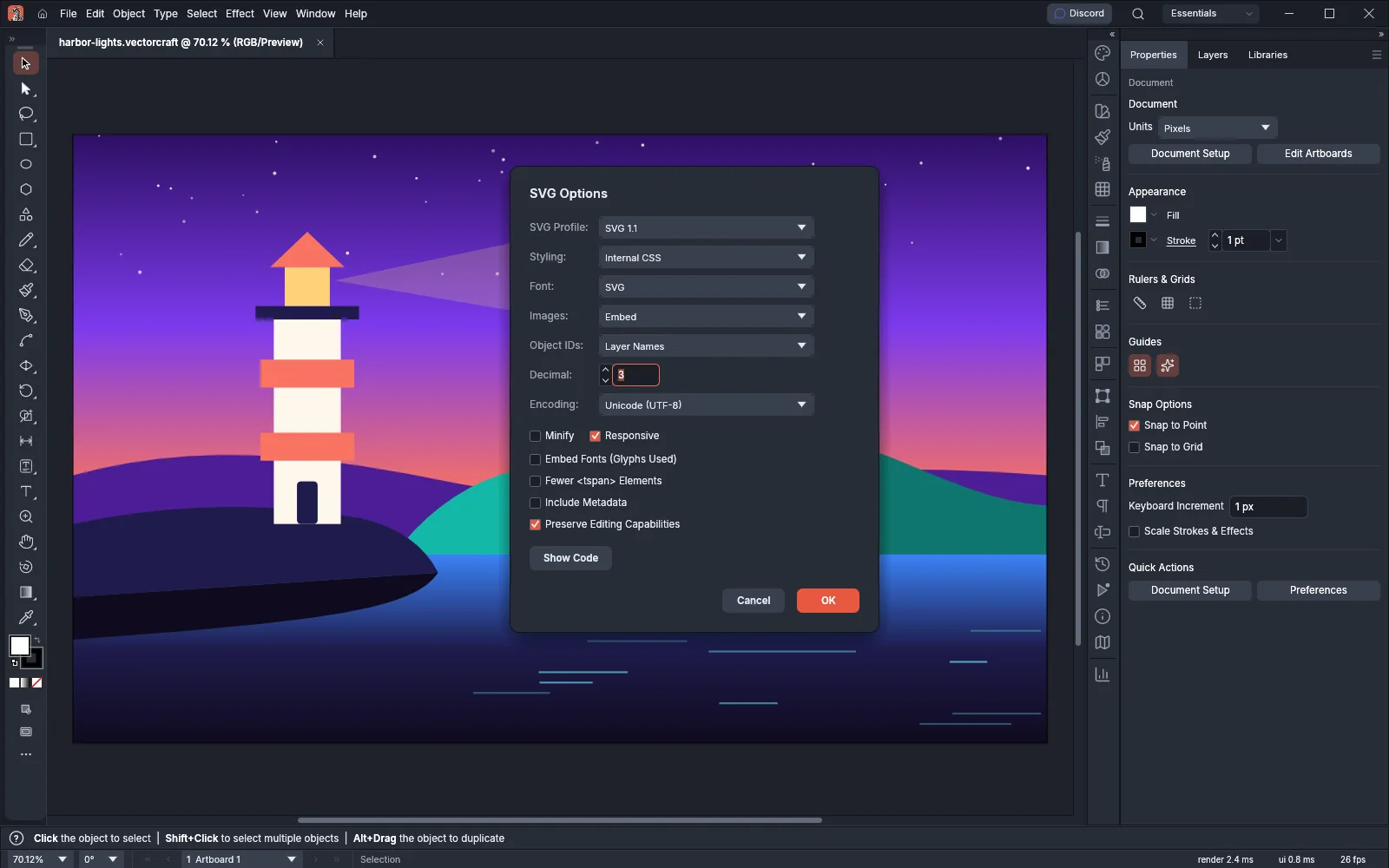
Section titled “Choose a format for sharing”Save As writes these formats: VectorCraft, VectorCraft Template, PDF, SVG, SVG Compressed (.svgz), .ai and EPS. Raster images and the other formats in the following table are written with File → Export instead (see Export for screens and the web).
| Format | Open | Save As | Export | Notes |
|---|---|---|---|---|
VectorCraft (.vectorcraft) |
Yes | Yes | Yes | Keeps the whole document |
VectorCraft Template (.vctemplate) |
Yes, as a new untitled document | Save as Template… | Yes | |
| Yes, one artboard per page | Yes, and Save as PDF… | Yes | Reopens as the full document when saved with Preserve editing capabilities | |
.ai |
Yes | Yes | Yes | Written as a PDF-compatible file of every artboard that carries the full document |
.ait |
Yes, as a new untitled document | Save as Template… | No | Written as a PDF-compatible .ai template |
| SVG and SVGZ | Yes | Yes | Yes | Reopens as the full document when saved with Preserve Editing Capabilities |
| EPS | Yes | Yes | Yes | Save writes one artboard, the first unless you choose another. Transparency is flattened in the printed appearance. An EPS file VectorCraft wrote reopens as the full document. |
| DXF (ASCII) | Yes, each DXF layer as a layer | No | Yes | |
| EMF and WMF | Yes, on one artboard | No | Yes | |
| PNG, JPEG, GIF, WebP, TIFF, BMP | Yes, as an image document | No | Yes | |
| PSD | Yes, as its merged image | No | Yes, with layers | |
Targa (.tga) |
Yes | No | Yes | |
Affinity (.af, .afdesign, .afpub) |
Yes | No | No | Keeps layers, artboards, shapes and text; a warning lists anything VectorCraft could not bring in |
Save a PDF
Section titled “Save a PDF”- Choose File → Save as PDF….
- Pick a preset from Preset, or change the settings in the dialog’s sections: General, Compression, Marks and Bleeds, Output, Advanced, Security and Summary.
- Under Artboards, choose All or enter a Range.
- Press Save PDF.
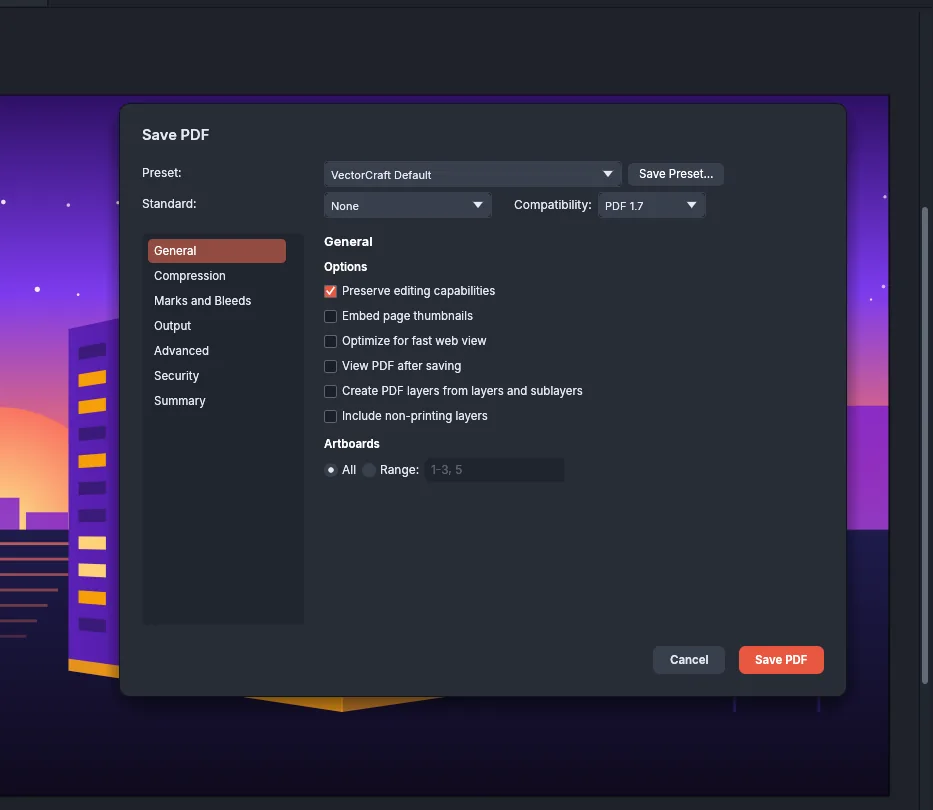
To check colors, overprints and transparency before you send a PDF to a print shop, see Manage color and proof.
Save a picture for office documents
Section titled “Save a picture for office documents”File → Save for Office Documents… saves one artboard as a PNG file that you can insert in a word processor document or a slide.
- Choose File → Save for Office Documents….
- Set the options from the following table. Size shows the width and height of the picture in pixels.
- Press Save…, then choose a name and a location for the PNG file.
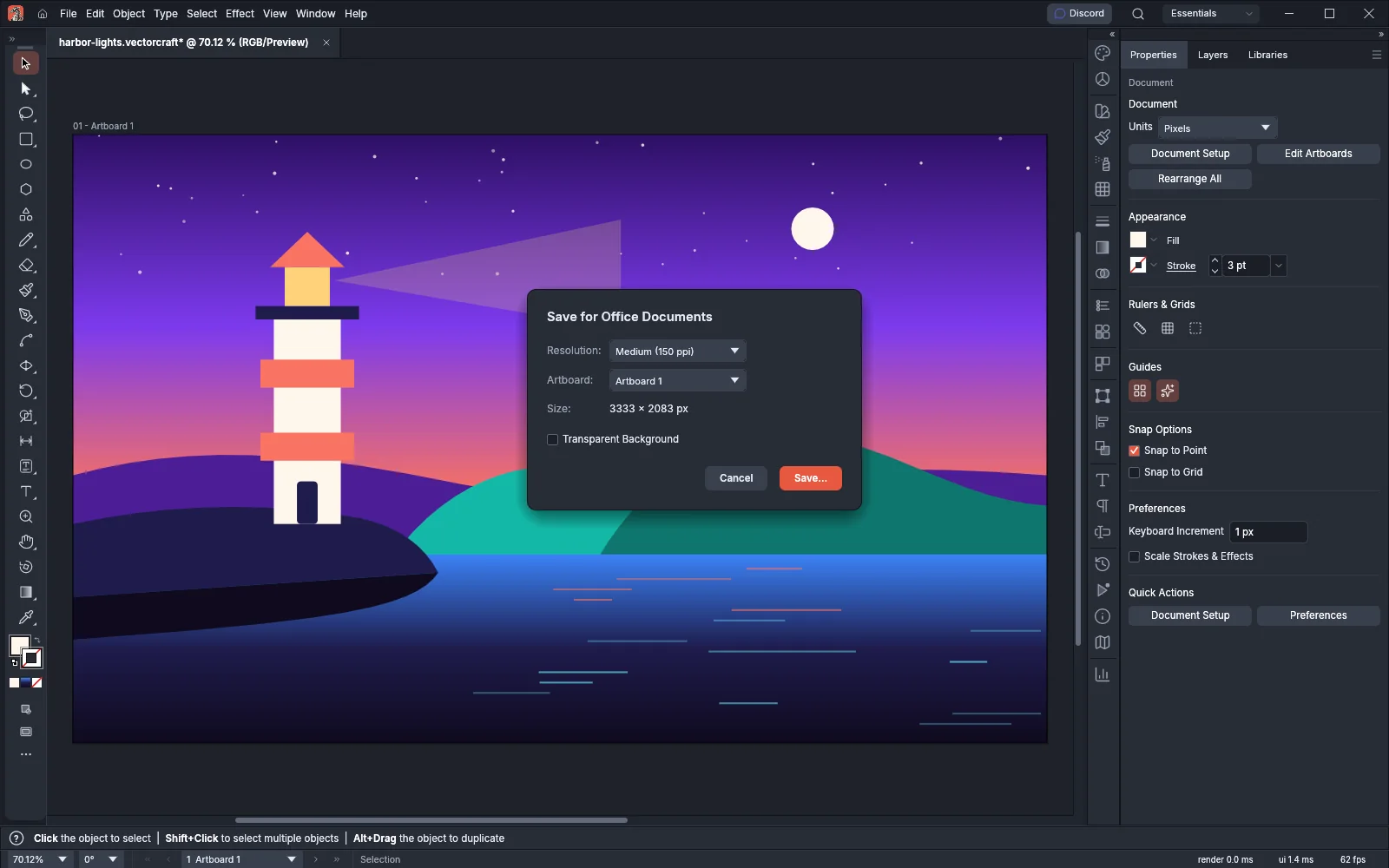
| Option | What it does | When the dialog opens |
|---|---|---|
| Resolution | Screen (72 ppi), Medium (150 ppi) or High (300 ppi) | Medium (150 ppi) |
| Artboard | The artboard to save. The list appears only when the document has more than one artboard. | The first artboard |
| Transparent Background | Leaves the background transparent. When it is off, the picture has a white background. | Off |
As with Export, the save ends with a warning when an image in the document could not be read or when type is drawn in a substitute font.
Add file information
Section titled “Add file information”File Info stores a title, an author, keywords and copyright details in the document.
- Choose File → File Info… (Ctrl+Alt+Shift+I, or Cmd+Option+Shift+I on macOS).
- Fill in the fields from the following table.
- Press OK. The change is one step in the undo history.
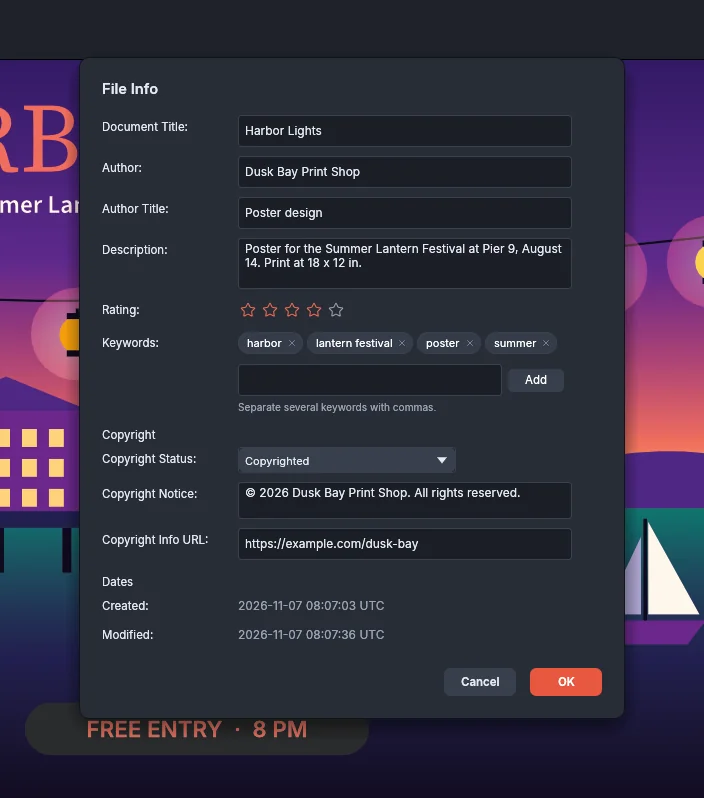
| Field | What it holds |
|---|---|
| Document Title | The document’s title. It cannot be empty. |
| Author and Author Title | Who made the document, and that person’s role |
| Description | A few lines about the document |
| Rating | Zero to five stars. Click a star to set the rating, and click the same star again to clear it. |
| Keywords | Type a keyword and press Enter or Add. Separate several keywords with commas. Each keyword is listed once, and the × on a keyword removes it. |
| Copyright Status | Unknown, Copyrighted or Public Domain |
| Copyright Notice and Copyright Info URL | The copyright line and a web address for it |
| Created and Modified | The dates the document was created and last modified, in UTC. You cannot edit them. |
PDF and PNG files that VectorCraft writes carry the File Info, and so do SVG files written with Include Metadata on. When you open a PDF or a .ai file, VectorCraft reads the file information the file carries.
Open files
Section titled “Open files”- Choose File → Open… (Ctrl+O, or Cmd+O on macOS).
- Pick a file in any format that has Yes in the Open column of the format table.
- To open a file you used recently, choose it from File → Open Recent Files. Clear Recent Files at the end of that submenu empties the list.
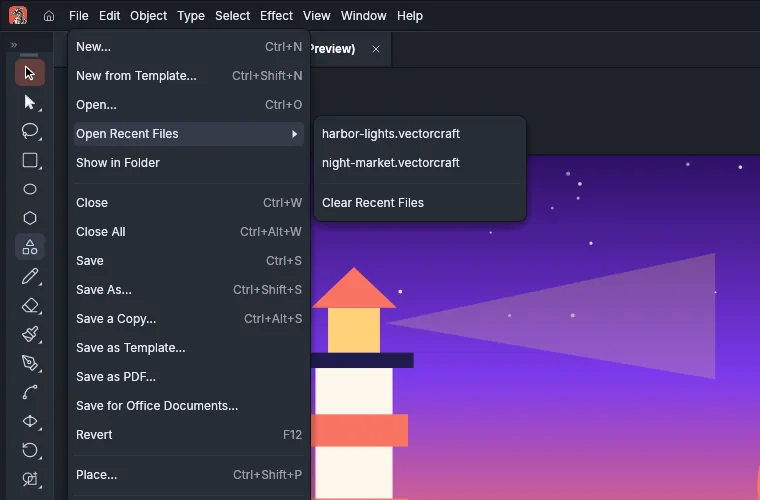
What you get depends on the file:
- A PDF opens with one artboard per page.
- A raster image opens as a document the size of the image, at the resolution the file declares, or at 72 ppi when it declares none.
- A template (
.vctemplateor.ait) opens as a new untitled document. - An EPS file from another program is read as PostScript. When its PostScript cannot be read, it opens as its preview image with a warning.
File → Show in Folder shows the active document’s file in your system’s file manager.
Add or replace missing fonts
Section titled “Add or replace missing fonts”When a document uses fonts that are not installed, the Missing Fonts dialog opens after the document opens, once any questions about missing linked images are answered. Each font in the list is marked missing when its family is not installed, or substituted by another style when the family is installed but the style is not. The text shows in another font until you add or replace the font. While Highlight Substituted Fonts is on in the Type section of Preferences, text set in a missing font is highlighted on the canvas.
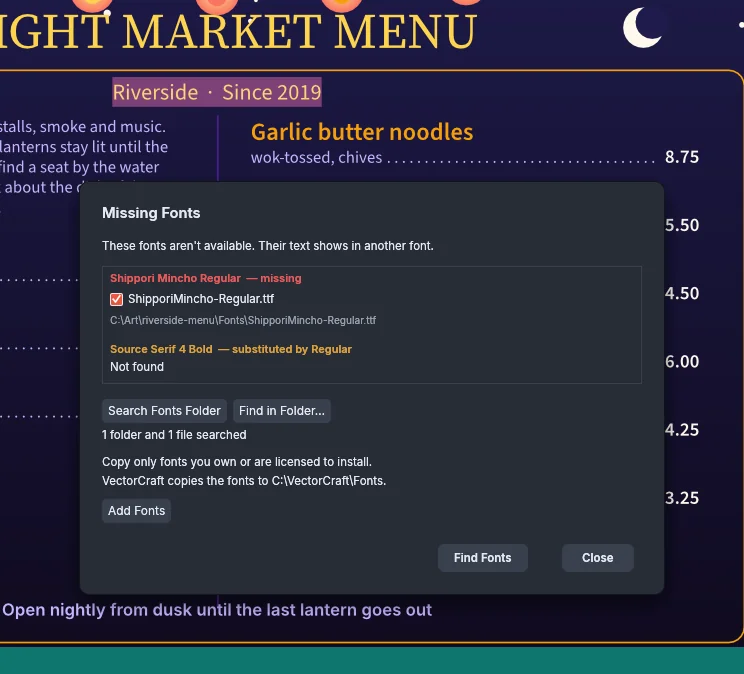
- To look for the font files, press Search Fonts Folder or Find in Folder…:
- Search Fonts Folder searches the
Fontsfolder next to the document. It appears only when that folder exists, for example in a folder that File → Package… made. - Find in Folder… asks for a folder and searches it and its subfolders.
- Search Fonts Folder searches the
- Under each font, the dialog lists the files it found and checks the first one. A font without a file shows Not found. Clear the check box of a file you do not want to add.
- Press Add Fonts. VectorCraft copies the checked files into its own Fonts folder, which the dialog names, and redraws the text set in those fonts. Copy only fonts you own or are licensed to install.
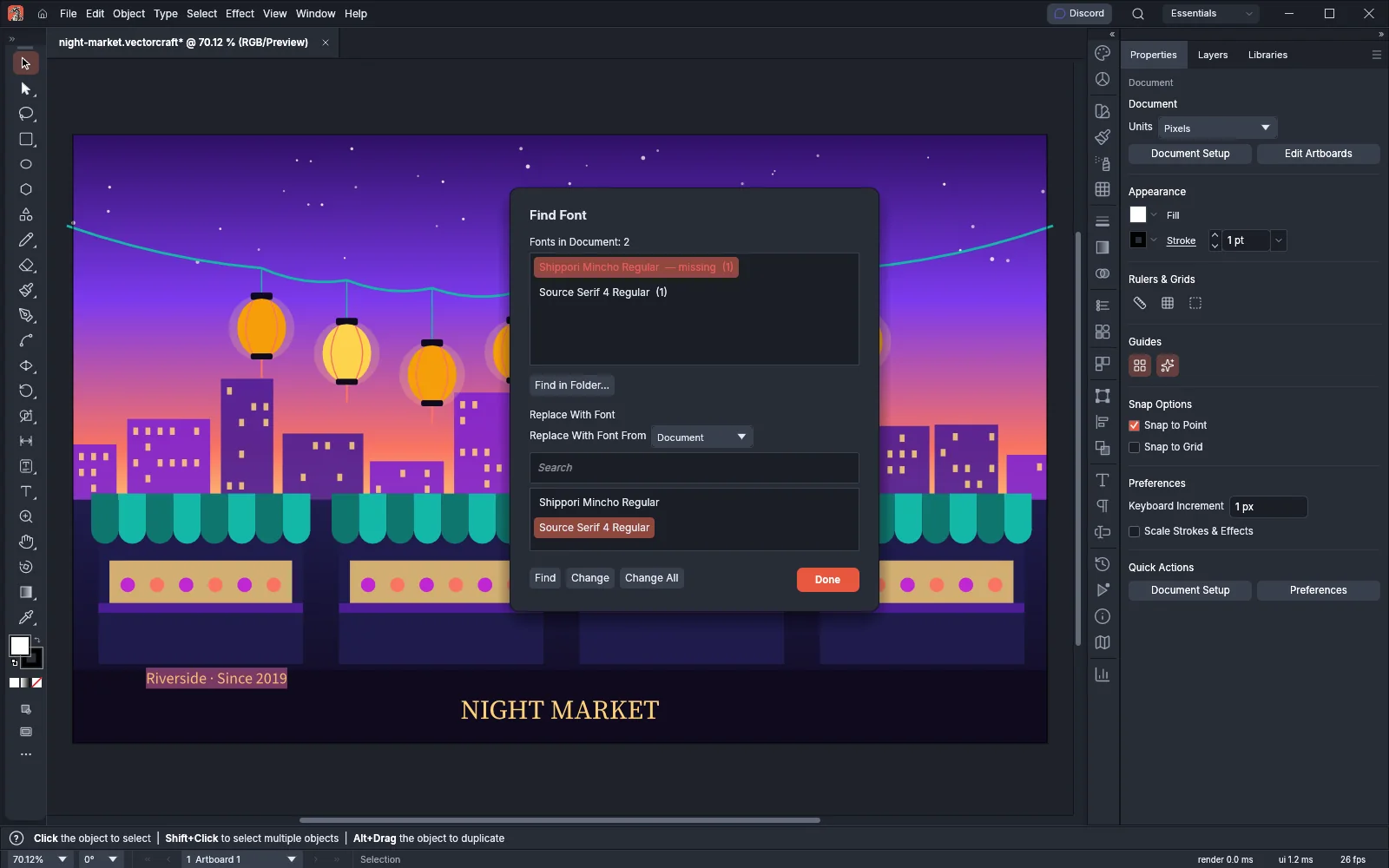
To use another font instead, press Find Fonts. It opens Type → Find Font… with the first missing font selected. Pick a replacement font, then press Change to change it in the selected objects or Change All to change it everywhere in the document. Close closes the dialog without changing the document. Later, Find in Folder… in the Find Font dialog asks for a folder and opens the Missing Fonts dialog with that folder’s search results.
Recover work after a crash
Section titled “Recover work after a crash”VectorCraft keeps recovery copies of documents that have unsaved changes. By default it writes them every 2 minutes in the background, and the status bar shows each copy it saves. Saving, reverting or closing a document removes its copy.
When VectorCraft starts after it did not quit normally, the Recover Documents dialog lists the documents that had unsaved changes and the time of each copy.
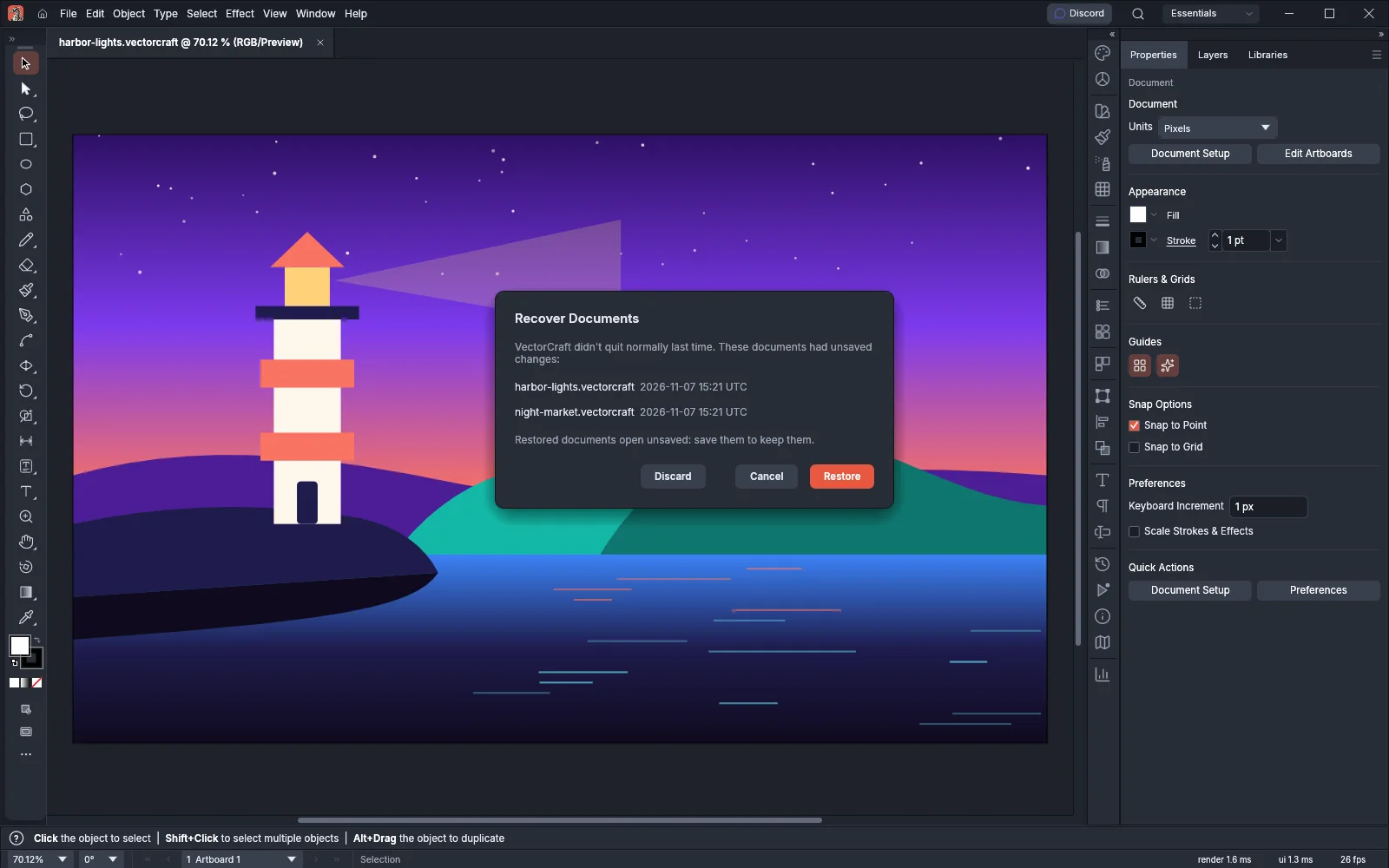
- Press Restore. Each document opens in its own tab with [Recovered] after its name, as a document that has not been saved.
- Save each restored document to keep it. Save asks for a name and a location.
Discard deletes the copies. Cancel keeps them, and the dialog asks again the next time VectorCraft starts. The dialog does not list the copies of another VectorCraft that is still running.
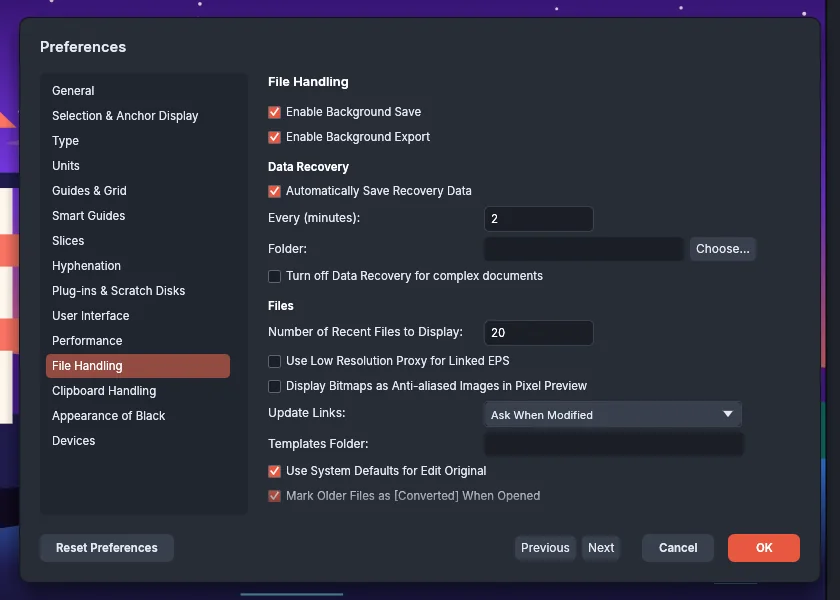
The recovery settings are under Data Recovery in Edit → Preferences… → File Handling on Windows and Linux, and in VectorCraft → Settings → File Handling… on macOS:
| Setting | What it does | Default |
|---|---|---|
| Automatically Save Recovery Data | Turns recovery copies on or off | On |
| Every (minutes) | How often VectorCraft writes the copies, from 1 to 60 minutes | 2 |
| Folder | The folder that holds the copies | The folder VectorCraft sets |
| Turn off Data Recovery for complex documents | Skips the copies of documents with more than 20,000 objects | Off |
If VectorCraft keeps closing unexpectedly, Troubleshooting shows where to find the log to send with a report.
Place a file instead of opening it
Section titled “Place a file instead of opening it”File → Place… (Ctrl+Shift+P, or Cmd+Shift+P on macOS) brings a file into the open document instead of opening it in a new tab.
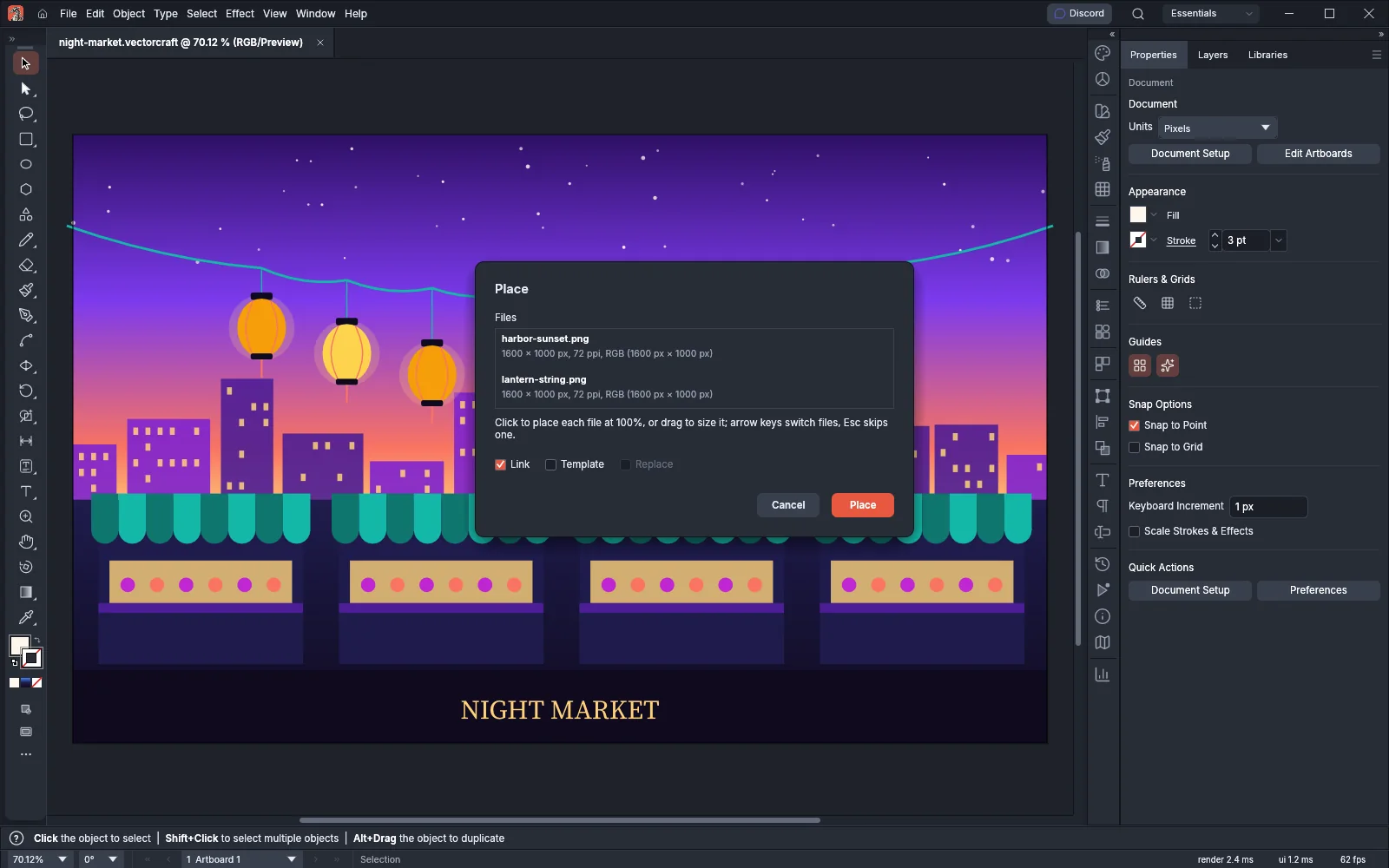
- Choose File → Place… and pick one or more files.
- In the Place dialog, turn on any of the options:
- Link keeps a link to an image file instead of only embedding it. For a VectorCraft document, it places one locked object that updates when the file changes.
- Template places the file on a new locked, dimmed template layer below the current layer.
- Replace swaps the selected object for the file and keeps its place and transform. It is available when you place one file and one object is selected.
- Press Place. A single file is placed in the center of the view.
- With several files, the pointer is loaded with them one at a time. Click on the canvas to place the current file at 100%, or drag to set its size. The arrow keys switch between files, and Esc skips one.
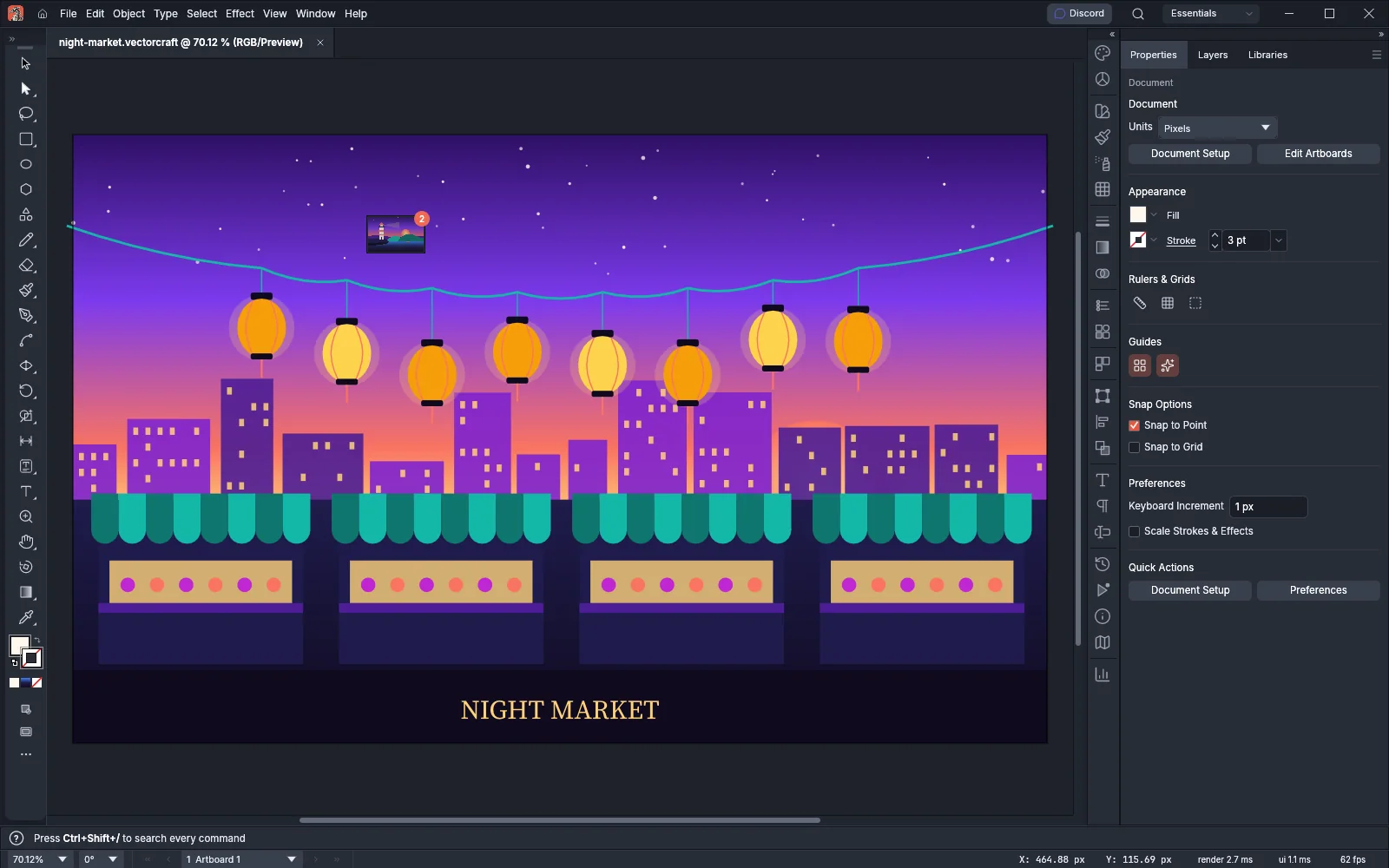
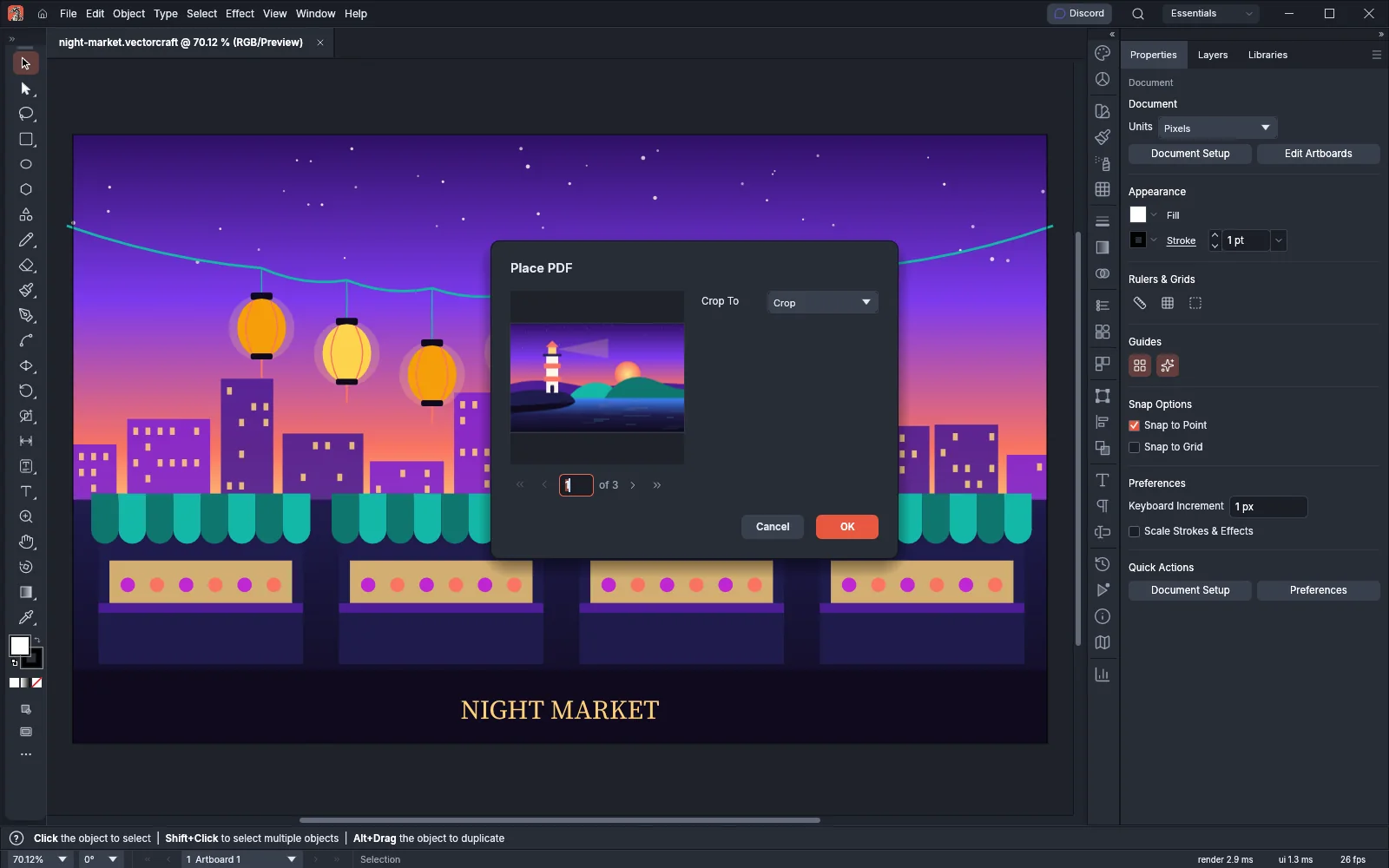
Place reads raster images, SVG, PDF and .ai pages, EPS, DXF, EMF, WMF and other VectorCraft documents. Text files (.txt, .rtf, .docx and .doc) are placed as area type. Raster images are placed at 100% of their physical size, using the resolution the file declares, or 72 ppi when it declares none. A PDF with several pages opens the Place PDF dialog first, where you pick the page.
Package a document for someone else
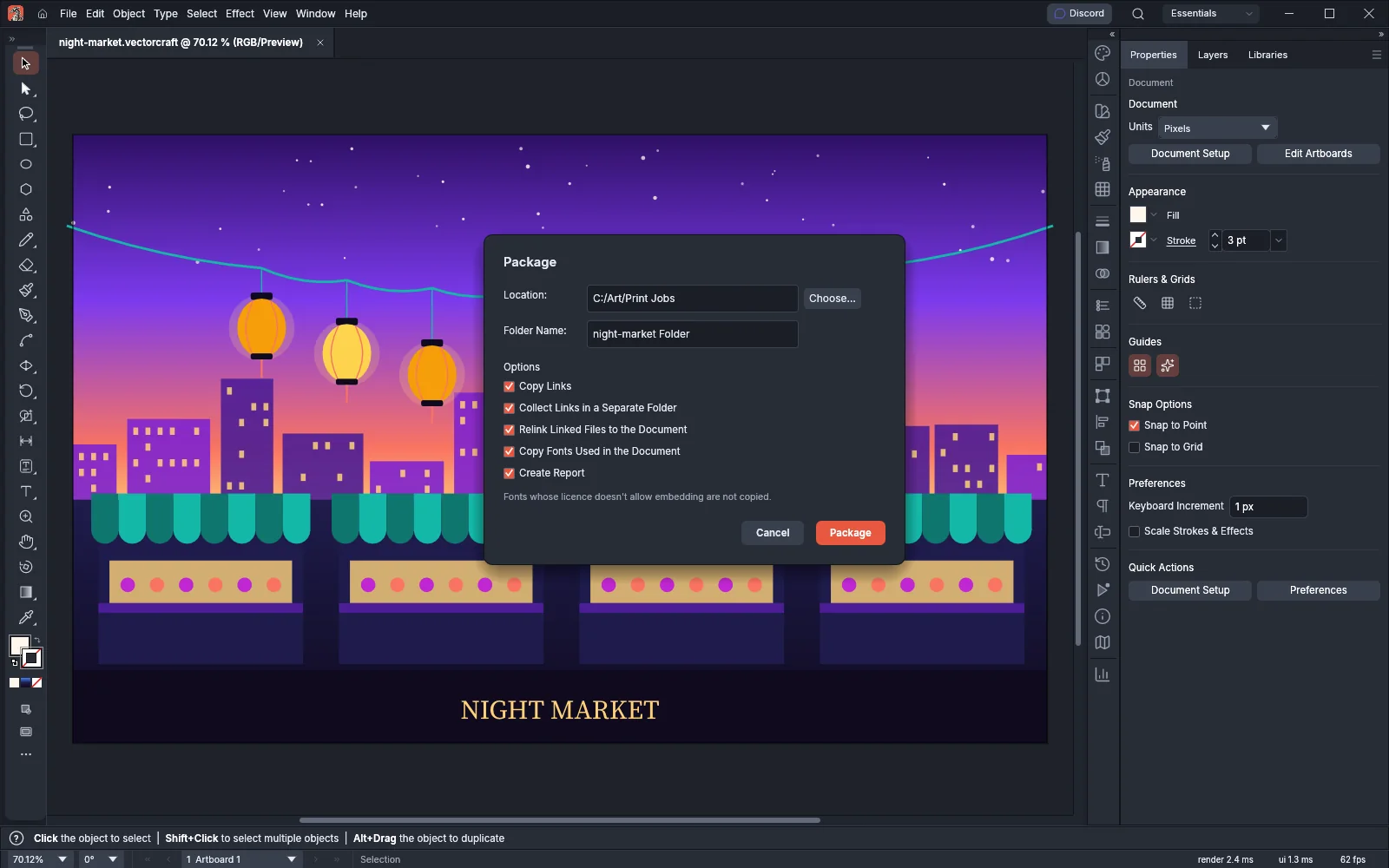
Section titled “Package a document for someone else”File → Package… (Ctrl+Alt+Shift+P, or Cmd+Option+Shift+P on macOS) collects a saved document with its linked files and fonts in one folder.
- Save the document. Package asks you to save first when it has never been saved, and saves unsaved changes when you press Package.
- Set Location and Folder Name.
- Choose the options: Copy Links, Collect Links in a Separate Folder, Relink Linked Files to the Document, Copy Fonts Used in the Document and Create Report.
- Press Package.
Close documents
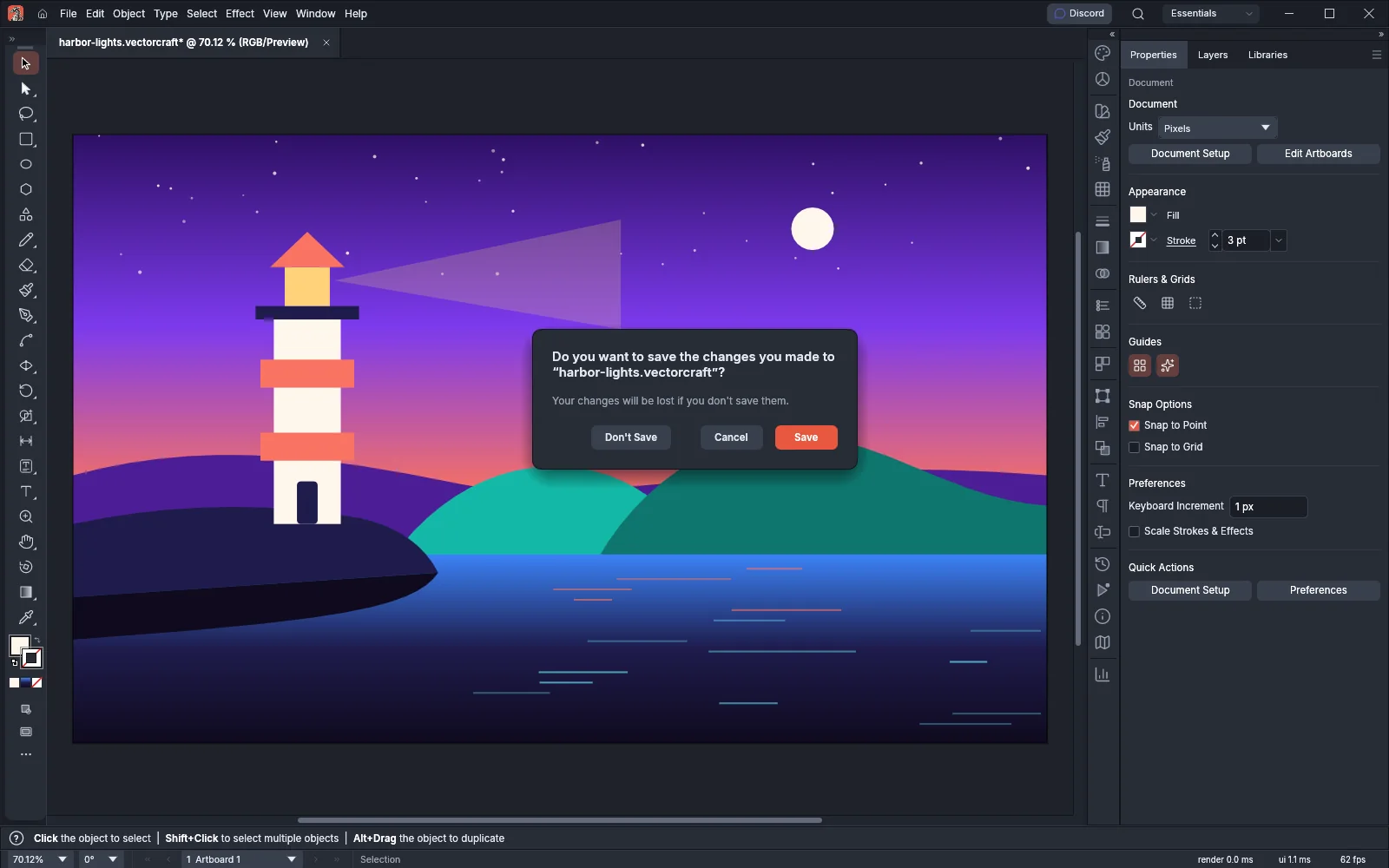
Section titled “Close documents”File → Close (Ctrl+W, or Cmd+W on macOS) closes the active document, and File → Close All (Ctrl+Alt+W, or Cmd+Option+W on macOS) closes every open document. If a document has unsaved changes, VectorCraft asks whether to save them first.
File shortcuts
Section titled “File shortcuts”| Command | Windows and Linux | macOS |
|---|---|---|
| New… | Ctrl+N | Cmd+N |
| New from Template… | Ctrl+Shift+N | Cmd+Shift+N |
| Open… | Ctrl+O | Cmd+O |
| Save | Ctrl+S | Cmd+S |
| Save As… | Ctrl+Shift+S | Cmd+Shift+S |
| Save a Copy… | Ctrl+Alt+S | Cmd+Option+S |
| Revert | F12 | F12 |
| Place… | Ctrl+Shift+P | Cmd+Shift+P |
| Package… | Ctrl+Alt+Shift+P | Cmd+Option+Shift+P |
| File Info… | Ctrl+Alt+Shift+I | Cmd+Option+Shift+I |
| Close | Ctrl+W | Cmd+W |
| Close All | Ctrl+Alt+W | Cmd+Option+W |
To change these shortcuts, choose Edit → Keyboard Shortcuts….