
Workflows
On macOS, substitute ⌘ for Ctrl in the shortcuts below.
Interface overview
Section titled “Interface overview”| Panel | Purpose |
|---|---|
| Stage | The central canvas where your vector artwork is drawn and viewed. |
| Timeline | Layers, keyframes, frame ranges, onion skinning, and playback controls. |
| Tools | Selection, Subselection, Free Transform, Pen, Pencil, Shapes, and Fills. |
| Properties | Object dimensions, fill/stroke colors, tween easing, and stage settings. |
| Library | Graphic symbols, movie clips, bitmap assets, and imported media. |
Command palette
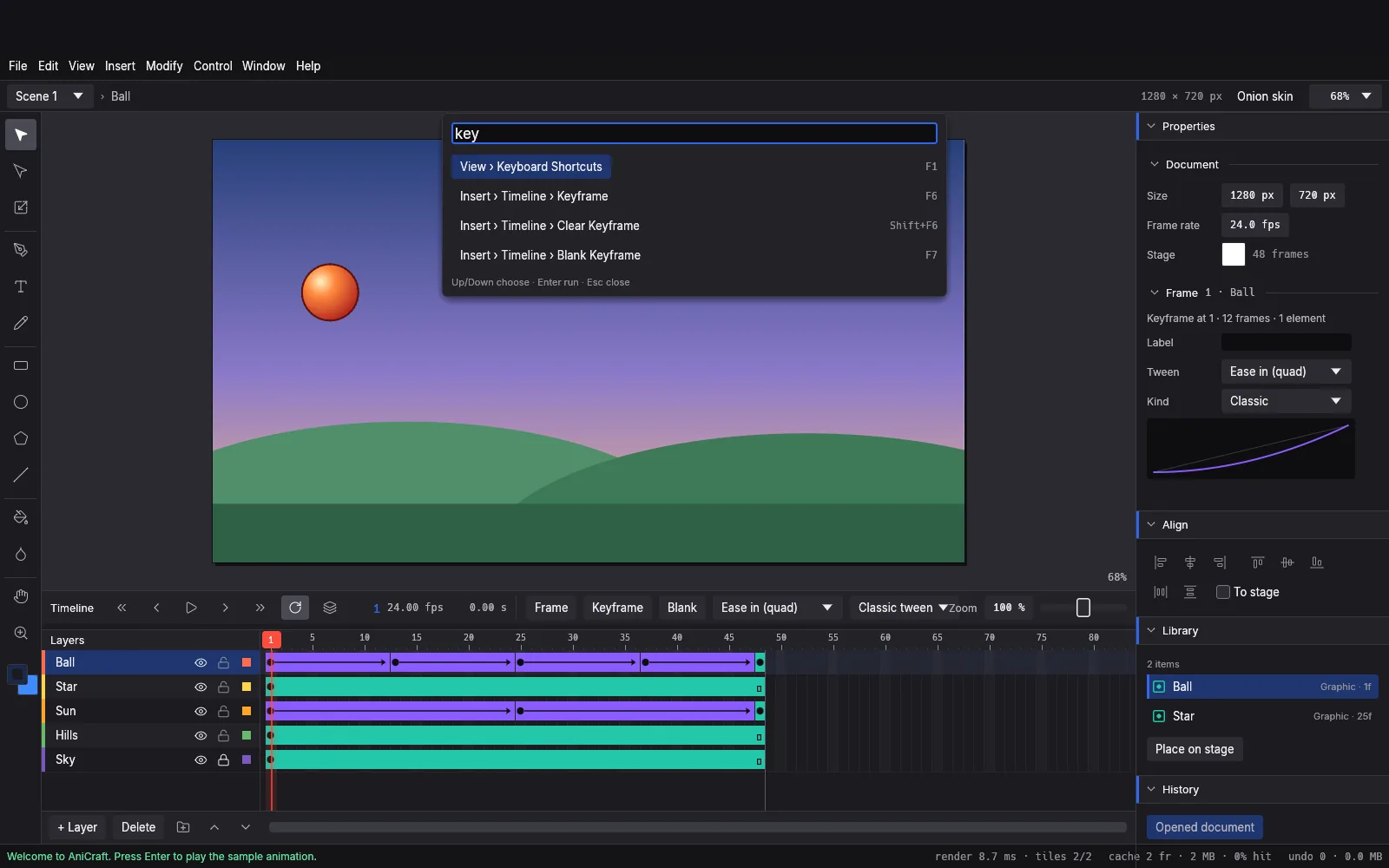
Section titled “Command palette”Press Ctrl+K (or ⌘K on macOS) at any time to open the Command Palette. Search for any tool, menu item, or operation and execute it with instant keyboard navigation.
Symbols and nested timelines
Section titled “Symbols and nested timelines”Turn reusable artwork into symbols:
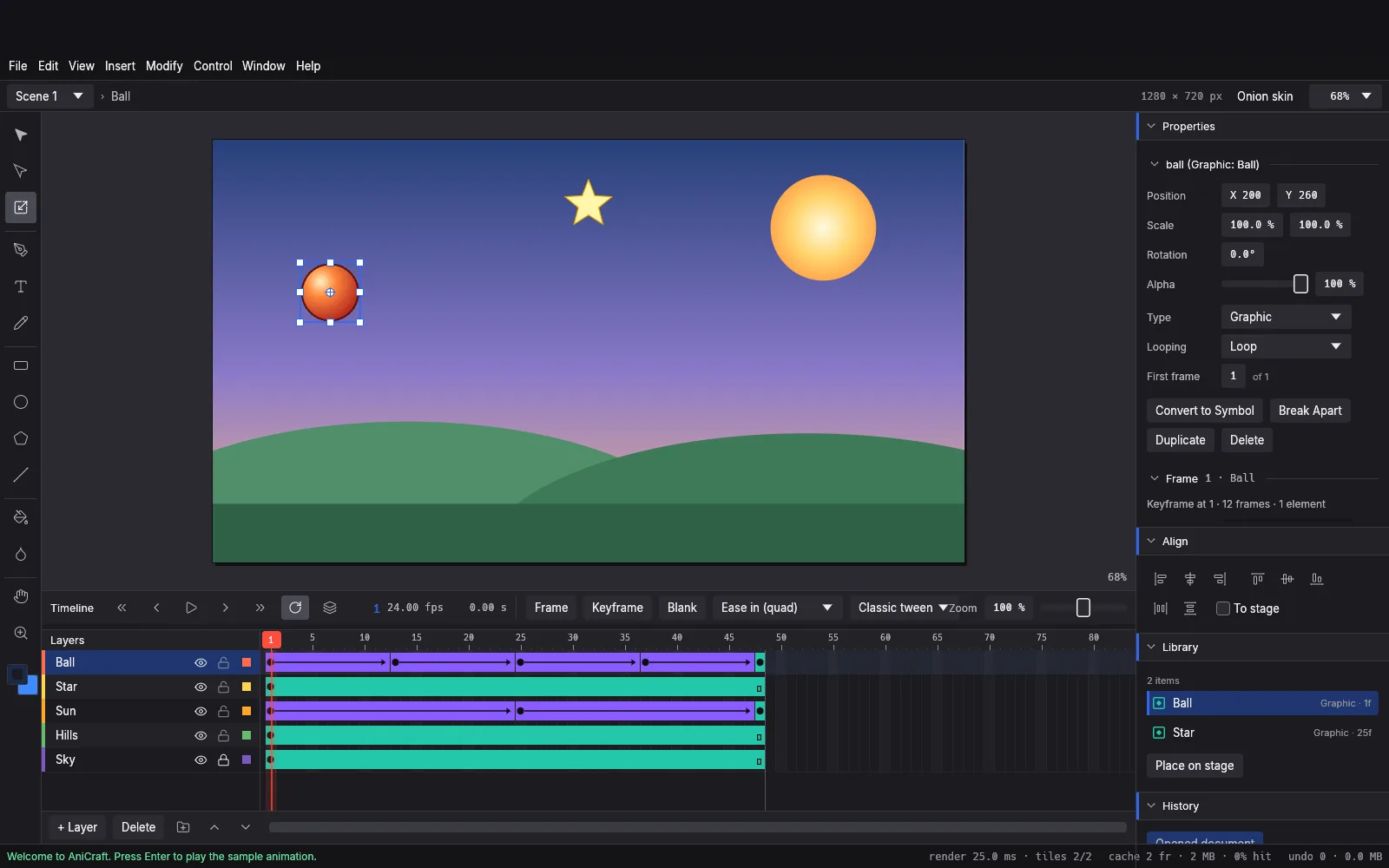
- Select artwork on the stage and press F8 (Modify › Convert to Symbol…).
- Choose Graphic or Movie Clip.
- Double-click the instance to edit its nested internal timeline.
- Use the Free Transform tool to scale, rotate, skew, or position the instance.
Onion skinning
Section titled “Onion skinning”Click the Onion Skin toggle on the timeline header to view semi-transparent previews of preceding and succeeding frames while in-betweening hand-drawn motion.
Keyboard shortcuts
Section titled “Keyboard shortcuts”| Action | Shortcut |
|---|---|
| Insert Frame | F5 |
| Insert Keyframe | F6 |
| Insert Blank Keyframe | F7 |
| Convert to Symbol | F8 |
| Play / Stop Animation | Enter or Space |
| Command Palette | Ctrl+K / ⌘K |
| Selection Tool | V |
| Subselection Tool | A |
| Free Transform | Q |
| Pen Tool | P |
| Pencil Tool | Y |
| Paint Bucket | K |
| Eyedropper | I |