
AI agents
VectorCraft comes with a Model Context Protocol (MCP) server, so an AI assistant such as Claude Code can draw, edit, inspect and export VectorCraft documents. The assistant uses the same commands as VectorCraft’s menus, tools and panels.
VectorCraft has no AI of its own and doesn’t connect to an AI service. You bring the assistant; VectorCraft gives it the tools.
Two ways to work
Section titled “Two ways to work”- With the app open: the assistant drives the VectorCraft window, and you watch the drawing change as it works.
- Without a window: the assistant works on documents in the background. Everything works except things that need the window, such as screenshots of the interface and answering dialogs.
The MCP server tries to connect to a running VectorCraft when it starts. If it finds none, it works without a window.
Find vectorcraft-cli
Section titled “Find vectorcraft-cli”The MCP server is part of vectorcraft-cli, which comes with VectorCraft:
| How you installed VectorCraft | Where vectorcraft-cli is |
|---|---|
| Windows installer | %LOCALAPPDATA%\Programs\ArtCraft\VectorCraft\vectorcraft-cli.exe (or under C:\Program Files\ArtCraft\VectorCraft\ if you installed for everyone) |
| Windows portable zip | Next to vectorcraft.exe |
Linux .deb or .rpm |
/usr/bin/vectorcraft-cli |
| macOS | A separate download on the release page: vectorcraft-cli-<ver>-macos-universal.zip |
Connect Claude Code
Section titled “Connect Claude Code”On Linux, or on macOS once you’ve unzipped vectorcraft-cli somewhere on your PATH:
claude mcp add vectorcraft -- vectorcraft-cli mcpOn Windows, in PowerShell, with the default install folder:
claude mcp add vectorcraft -- "$env:LOCALAPPDATA\Programs\ArtCraft\VectorCraft\vectorcraft-cli.exe" mcpOther MCP clients use the same command in their settings file:
{"mcpServers": {"vectorcraft": {"command": "vectorcraft-cli", "args": ["mcp"]}}}Let the assistant drive the window
Section titled “Let the assistant drive the window”VectorCraft only listens for an assistant when you start it with --control and a port number. Start the app that way first, wait for its window to open, then start your assistant.
# Linuxvectorcraft --control 7979# macOS (quit VectorCraft first)open -a VectorCraft --args --control 7979# Windows, default install folder& "$env:LOCALAPPDATA\Programs\ArtCraft\VectorCraft\vectorcraft.exe" --control 7979The port only accepts connections from your own computer. Starting VectorCraft from the Start menu, the Dock or a desktop launcher doesn’t open it.
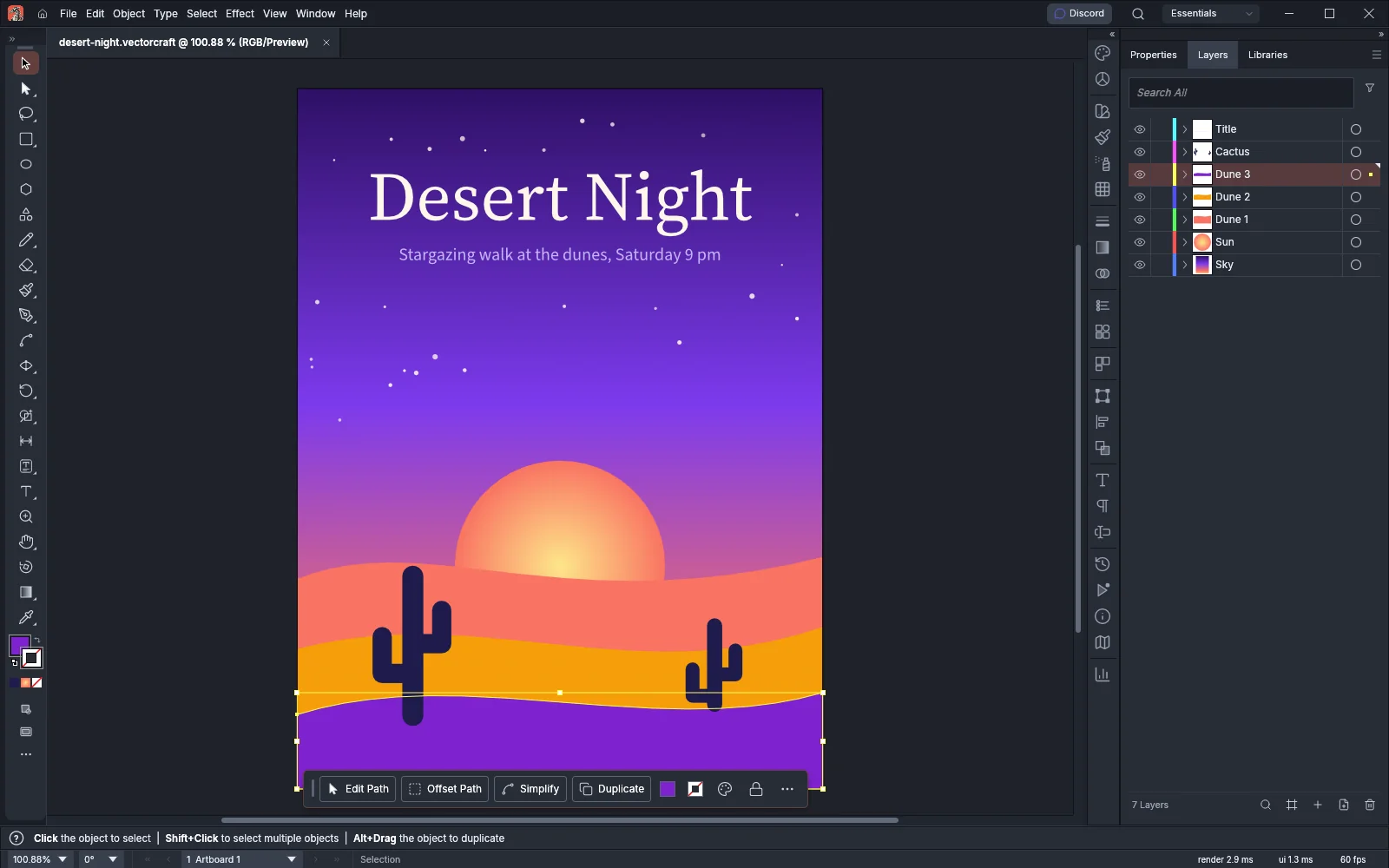
With the window connected, each change the assistant makes shows up in the document as it happens. The Layers panel lists the layers it creates, and the objects it selects show their bounding box.
What the assistant can do
Section titled “What the assistant can do”The server gives the assistant 33 tools. Most of them work with or without the window. The tools under The window need VectorCraft started with --control.
Documents
Section titled “Documents”| Tool | What it does |
|---|---|
open_file |
Opens a file as a new document |
save_file |
Saves the active document, to its own file or to a new path; the extension sets the format |
export |
Exports the active document to SVG, PDF, PNG, JPEG and the other export formats |
inspect_document, doc_inspect |
Return the artboards, the layer tree, the selection and the undo history |
render_preview |
Returns an artboard as a PNG image, 1024 pixels on its longer side unless the assistant asks for another size from 1 to 4096 |
screenshot |
Returns the active artboard as a PNG image, and can also save it to a file |
Drawing
Section titled “Drawing”| Tool | What it does |
|---|---|
draw_shape |
Draws a rectangle, ellipse, polygon, star or line |
draw_path |
Draws a path from a list of points or from SVG path data |
add_text |
Adds point type, area type, or type in or along a path |
set_paint |
Sets the fill, stroke and stroke weight of the selection |
transform |
Moves, rotates, scales, reflects or shears the selection |
pathfinder |
Combines the selected objects: unite, minus front, intersect, exclude, divide, trim, merge, crop, outline or minus back |
apply_effect |
Adds a live effect from the Effect menu to the selection, or lists the effects and their settings |
text_wrap |
Makes area type below the selected objects flow around them |
create_graph |
Draws a graph from a table of values |
Commands
Section titled “Commands”| Tool | What it does |
|---|---|
list_commands, command_list |
List VectorCraft’s commands with their menu paths, shortcuts, settings, and whether each one can run now |
run_command, command_run |
Run any command by its id |
command_batch |
Runs up to 256 commands in order, as separate undo steps or as one |
invoke_menu |
Runs a menu item by its command id |
undo, redo |
Run Edit → Undo and Edit → Redo |
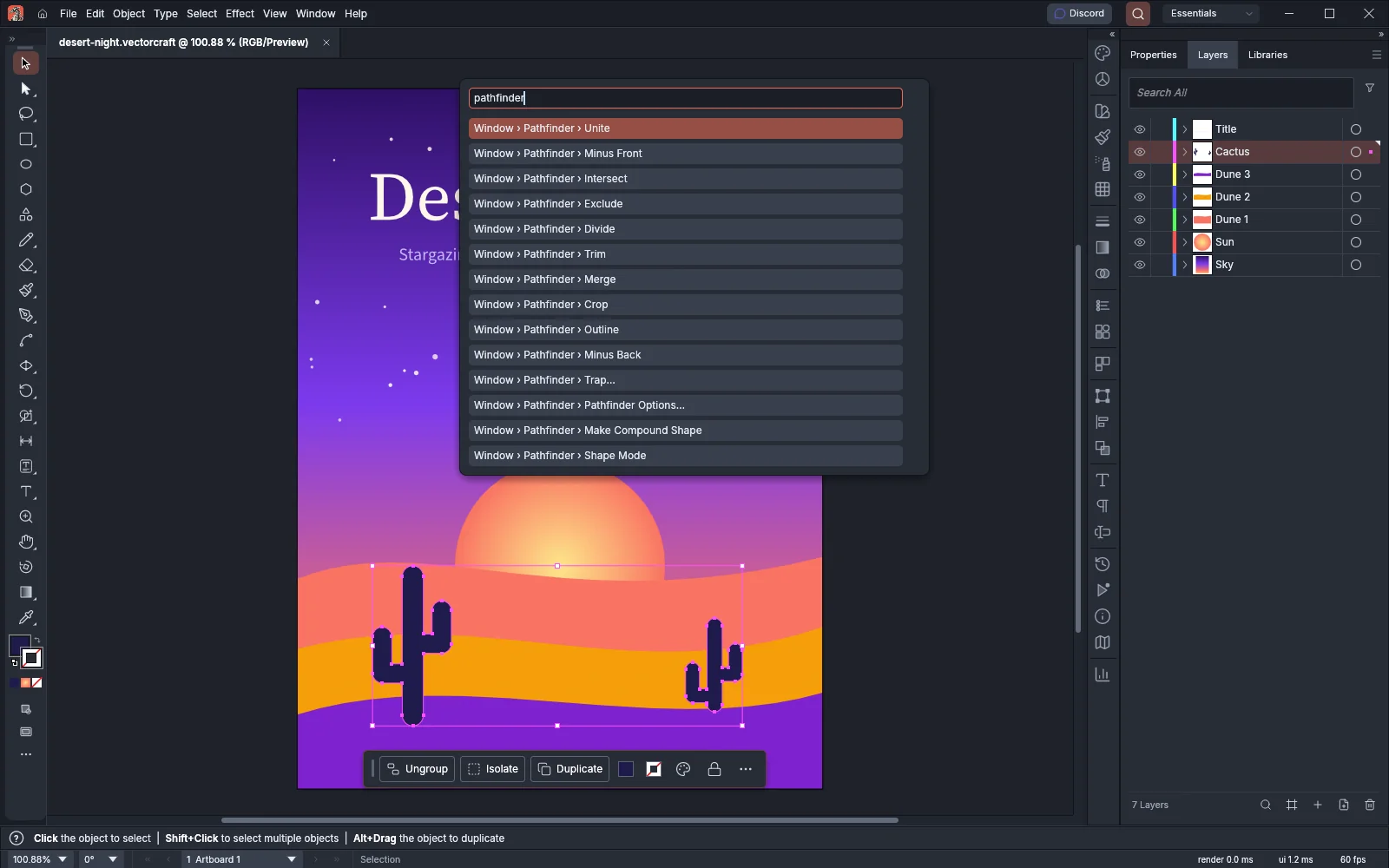
Every menu item, tool and panel action in VectorCraft is a command, so list_commands finds the same commands that Help → Search Commands… shows you. To see what an assistant can run, press Ctrl+Shift+/ (Cmd+Shift+/ on macOS) and type a word in Search Commands.
The window
Section titled “The window”| Tool | What it does |
|---|---|
select_tool |
Selects a tool, as clicking it in the Tools panel does |
pointer_gesture |
Drags, clicks and moves the pointer with the active tool, as the mouse or a pen does |
press_key |
Presses a key with modifier keys |
type_text |
Types into the focused text or dialog field |
open_panel |
Opens a panel in the dock |
answer_dialog |
Fills in the open dialog and clicks OK or Cancel |
inspect_ui, ui_inspect |
Return the current tool, the open panels and dialogs, the view and the open documents |
ui_screenshot |
Returns a picture of the whole VectorCraft window |
select_tool, pointer_gesture and press_key also work without a window. There they drive the tools on the document in the background, and press_key runs the command that the key’s shortcut runs. type_text, open_panel, answer_dialog, inspect_ui, ui_inspect and ui_screenshot work only with the window, and so does screenshot when the assistant asks it for the whole window.
Read one thing at a time
Section titled “Read one thing at a time”Besides the whole document, the assistant can read one object, command, effect or swatch by its address:
| Address | What it returns |
|---|---|
vectorcraft://document |
A summary of the active document: layer tree, artboards, selection and history |
vectorcraft://document/json |
The complete document |
vectorcraft://commands |
Every command, with its settings and whether it can run now |
vectorcraft://object/{id} |
One layer or object, with its children, bounds and paint |
vectorcraft://command/{id} |
One command: its label, menu path, shortcut and settings |
vectorcraft://effect/{id} |
One live effect, with its settings and their defaults |
vectorcraft://swatch/{name} |
One swatch, gradient swatch or pattern swatch |
When you fill in a ready-made task or one of these addresses in your MCP client, the server suggests command ids, effect ids, swatch names, export formats, Image Trace presets and object ids from the open document, up to 100 at a time.
Keep the assistant to one folder
Section titled “Keep the assistant to one folder”To stop the assistant reading or writing files outside a project, give it the folders it may use:
claude mcp add vectorcraft -- vectorcraft-cli mcp --automation-read-root /work/project --automation-write-root /work/project--automation-read-root sets a folder it may read from, and --automation-write-root one it may write to. You can give each more than once. With these flags the server always works without a window. To confine the app instead, start it with the same flags after --control 7979.
Set the port and folders with environment variables
Section titled “Set the port and folders with environment variables”The VectorCraft app also reads its control port and folders from environment variables. Use them when a launcher or a script starts VectorCraft and you can’t add flags to its command line.
| Variable | Same as |
|---|---|
VECTORCRAFT_CONTROL_PORT |
--control |
VECTORCRAFT_AUTOMATION_READ_ROOT |
--automation-read-root |
VECTORCRAFT_AUTOMATION_WRITE_ROOT |
--automation-write-root |
# Linux and macOSVECTORCRAFT_CONTROL_PORT=7979 vectorcraft# Windows$env:VECTORCRAFT_CONTROL_PORT = "7979"& "$env:LOCALAPPDATA\Programs\ArtCraft\VectorCraft\vectorcraft.exe"- The port must be a number from 1 to 65535. If it isn’t, VectorCraft doesn’t start. An empty variable means no port.
- When you give
--control, VectorCraft uses its port and ignoresVECTORCRAFT_CONTROL_PORT. The first--automation-read-rootor--automation-write-rootreplaces the folder that its variable gives, and each later one adds a folder. - Each folder variable holds one folder. To allow more, add the flags.
- The folders limit only the files that the assistant’s requests open and save. You can still open and save any file yourself.
Only the app reads these variables; vectorcraft-cli mcp ignores them. The MCP server looks for the app on port 7979. If you start the app on another port, add --connect with that port:
claude mcp add vectorcraft -- vectorcraft-cli mcp --connect 127.0.0.1:7990Watch and undo what the assistant did
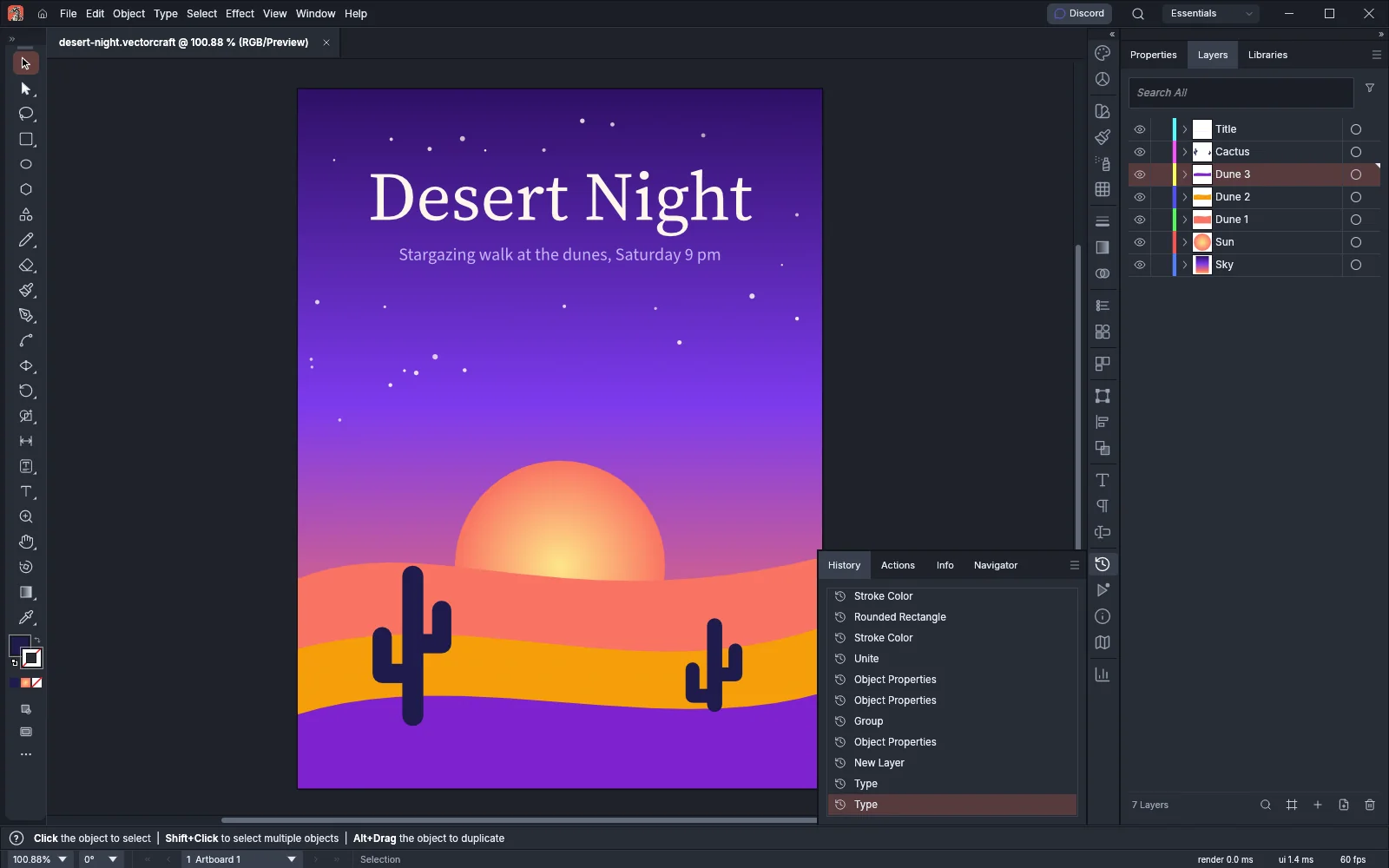
Section titled “Watch and undo what the assistant did”Each command the assistant runs is a step in the document’s history. You check and undo these steps as you do your own.
- Choose Window → History. The panel lists one row per step, from Open at the top to the newest step at the bottom, which is highlighted.
- Click a row to take the document back to that step. The steps after it turn gray, and clicking one of them takes the document forward to it again.
- To undo one step at a time, choose Edit → Undo or press Ctrl+Z (Cmd+Z on macOS). Edit → Redo is Ctrl+Shift+Z (Cmd+Shift+Z on macOS).
You can also ask the assistant to undo or redo with its undo and redo tools. When the assistant runs several commands with command_batch and atomic set, the whole batch is one step in the history, named after its label.
Ready-made tasks
Section titled “Ready-made tasks”The server offers five ready-made prompts that your assistant may show as commands: poster, icon-set, recolor, trace-and-style and export-set.
| Prompt | What it asks the assistant to do |
|---|---|
| poster | Lay out a poster from a brief with live shapes, gradients, type and live effects, checking it with screenshots before export |
| icon-set | Draw a row of matching icons as live shapes on a grid |
| recolor | Recolor the selection, either to colors you give or after grouping its similar colors |
| trace-and-style | Trace an image with Image Trace, expand the result, add a live effect and recolor it |
| export-set | Export every artboard in several formats at once |
If the assistant can’t connect
Section titled “If the assistant can’t connect”If the assistant says a tool needs the desktop app, the MCP server is working without a window. Start VectorCraft with --control 7979, wait for the window, then restart the assistant.
If VectorCraft was already open on Windows or Linux, starting it with --control opens a second window. The assistant works in that window, and the window you opened earlier doesn’t listen for it. On macOS, quit VectorCraft first, then start it with --control.
The MCP server only looks on port 7979. If the app runs on another port, add --connect 127.0.0.1:<port> after mcp, as in Set the port and folders with environment variables. With --connect, the server exits with the message cannot connect to followed by the address when no app is listening there.
If another program already uses the port, VectorCraft still opens, but it doesn’t listen on that port. Quit the other program, or start VectorCraft with a different port and give the same port to --connect.
If you gave the MCP server --automation-read-root or --automation-write-root, it always works without a window. To confine an assistant that drives the window, give the folders to the app instead.
To check which mode the server is in, read the one line it writes to its error output when it starts: vectorcraft-cli: MCP server on stdio (remote 127.0.0.1:7979) when it found the app, or vectorcraft-cli: MCP server on stdio (headless) when it works without a window. Your MCP client may show this line in its log for the server.
More detail
Section titled “More detail”The full list of tools, commands and options is in VectorCraft’s MCP documentation on GitHub. Automate VectorCraft covers the server’s connection modes, running commands with vectorcraft-cli, and recording actions.