
Organize pages
See every page at once
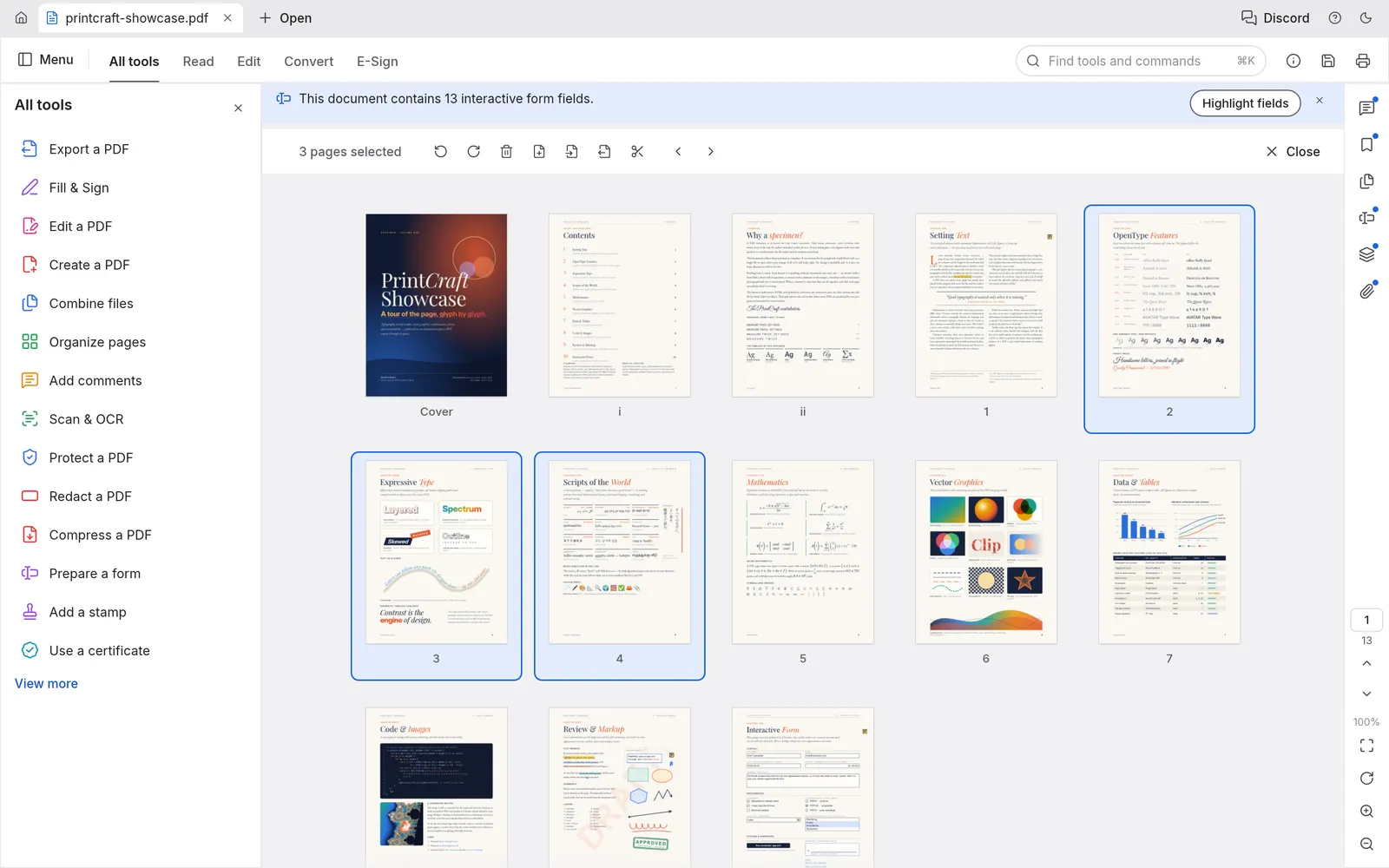
Section titled “See every page at once”Choose Organize pages in the tools panel. Every page of the document appears as a thumbnail, with the page tools in the panel on the left. Close at the top right goes back to the document.
- Click a page to select it. Ctrl-click (⌘-click on a Mac) adds pages one at a time, and Shift-click selects a run of pages.
- Use the panel’s Page options to rotate the selected pages either way, delete them, insert pages, extract them to a new document, or split the document.
The same commands are in Edit › Pages, and work on the current page without opening the grid:
- Insert blank page, Insert pages from file… and Replace pages…
- Duplicate pages, Delete pages and Reverse pages
- Rotate pages clockwise and Rotate pages counterclockwise
- Crop pages and Set page boxes…
- Number pages…, which sets page labels such as i, ii, iii for the front matter
Every change can be undone with Ctrl+Z (⌘Z), even after you save. Nothing is written to the file until you save.
Extract pages
Section titled “Extract pages”Edit › Pages › Extract pages… copies the pages you choose into a new document. Select Delete pages after extracting to move them out of the original instead, or Extract pages as separate files to make one file per page.
Split a document
Section titled “Split a document”Edit › Pages › Split document… divides the document into several files:
- Number of pages: set Pages per file. With 1, every page becomes its own file.
- Before each selected page: select the first page of each part in Organize pages first.
The dialog tells you how many files it will make. Press Split to make them.
Combine files
Section titled “Combine files”Choose Combine files in the tools panel, or File › Combine files…, to join several files into one PDF:
- Drop PDFs, pictures, text files or folders on the window, or click Add files…. Add open documents adds the PDFs you have open.
- Drag the files into the order you want. They are combined from top to bottom.
- In List view, type in Pages to take only some pages of a file. Leave it empty to take every page.
- Press Combine.
Each file gets a bookmark in the combined PDF, with its own bookmarks under it. Links, form fields, layers and attachments come along too.
From the command line
Section titled “From the command line”pdfcraft-cli does the same jobs without opening the app:
pdfcraft-cli combine report.pdf appendix.pdf --out combined.pdfpdfcraft-cli extract report.pdf --pages 1,3,5-8 --out highlights.pdfpdfcraft-cli split report.pdf --every 10 --out-dir parts/See AI agents for where to find pdfcraft-cli.