Symbols
A Symbol is a piece of artwork that is “protected” from automatic boolean operations. When you convert artwork into a Symbol, it is added to your project’s Library. It becomes a reusable element, like a rubber stamp, that you can use again and again.
Converting artwork into Symbols is an important first step to creating Keyframe Animations.
The three types of Symbols in AniCraft are
- Graphic
- MovieClip
- Button
We’ll focus on the Graphic Symbol type for now, since it’s the simplest.
Converting Artwork to a Symbol
Section titled “Converting Artwork to a Symbol”To convert your artwork to a symbol, first select it.
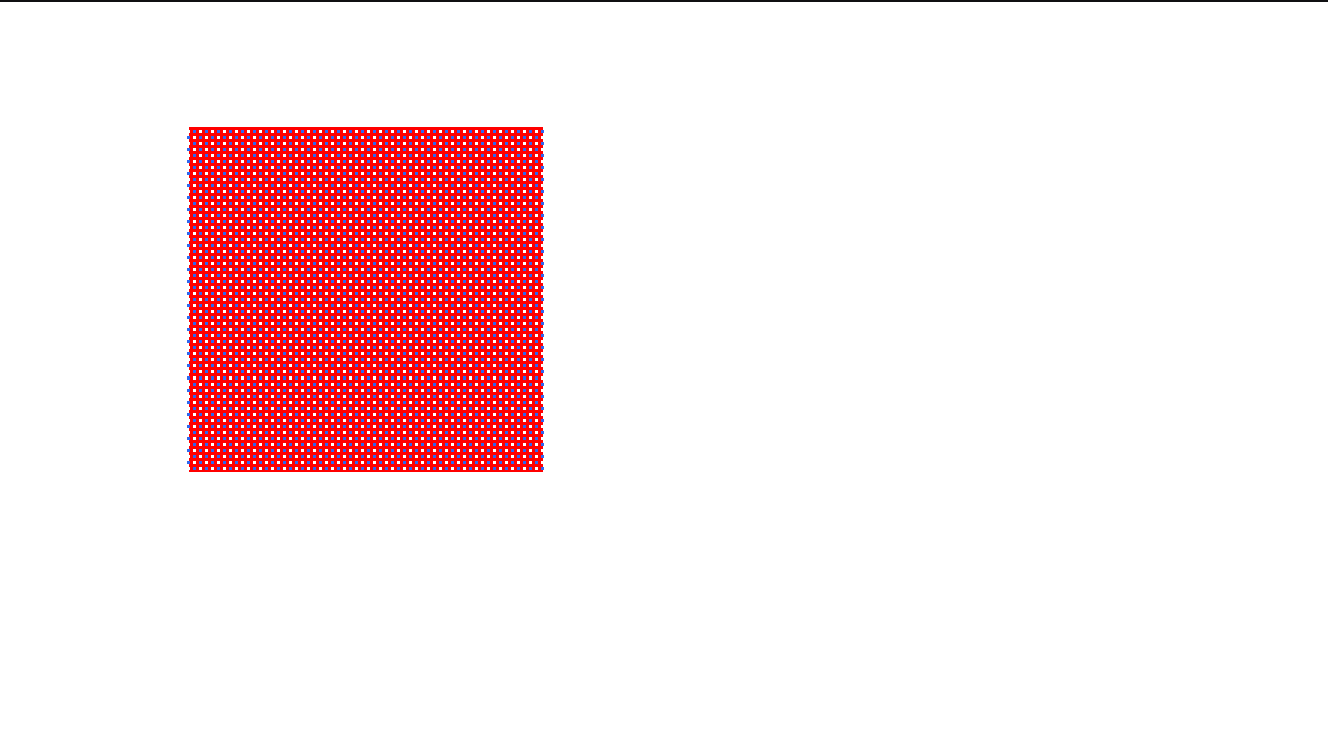
Then, either:
- Press F8
- Right-click and choose Convert to Symbol from the context menu
- Choose Modify > Convert to Symbol in the menu
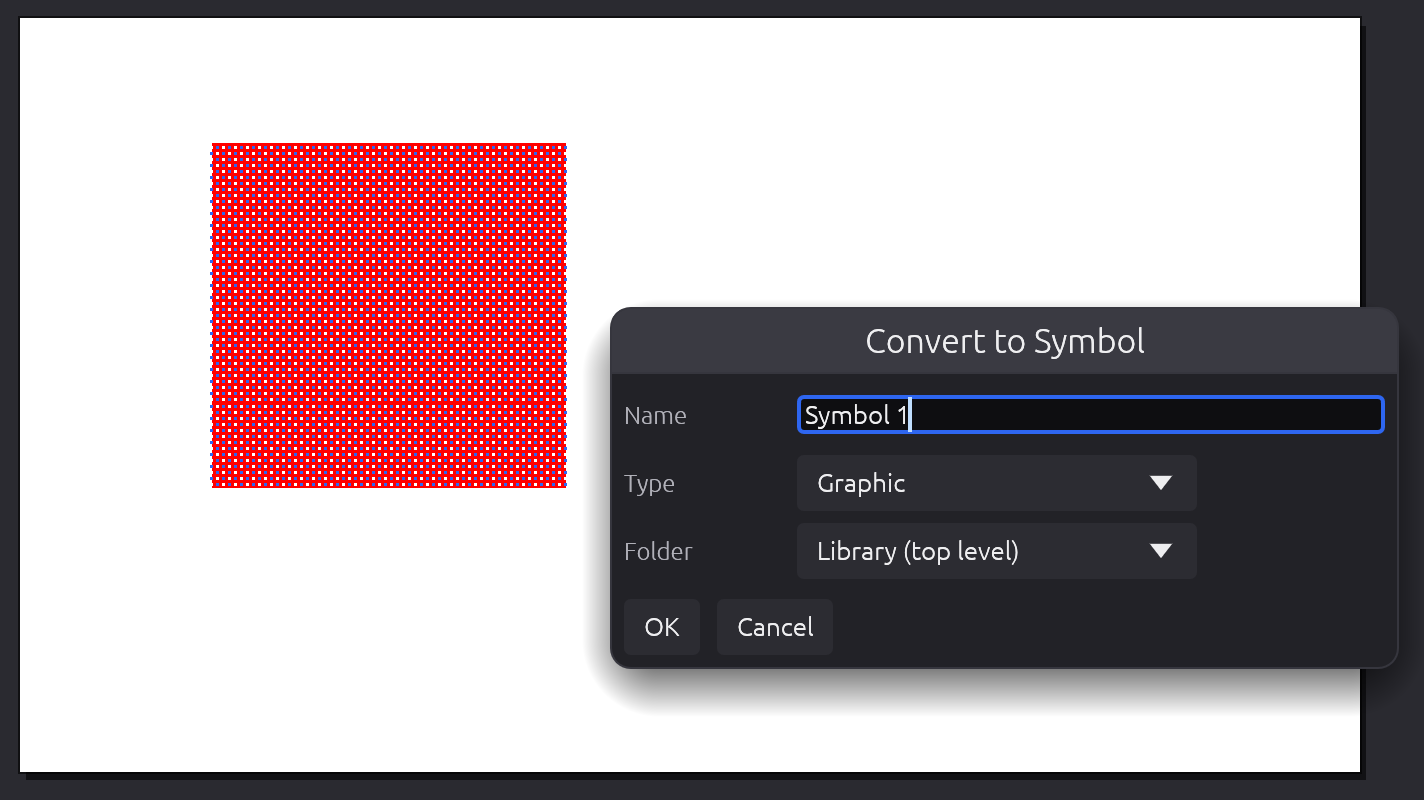
AniCraft will ask you to type a name for your Symbol, choose which kind of Symbol you want it to be, and select a folder location for it in your Library. For now, let’s just type a name for it and keep the other two options on their default settings. Click OK.
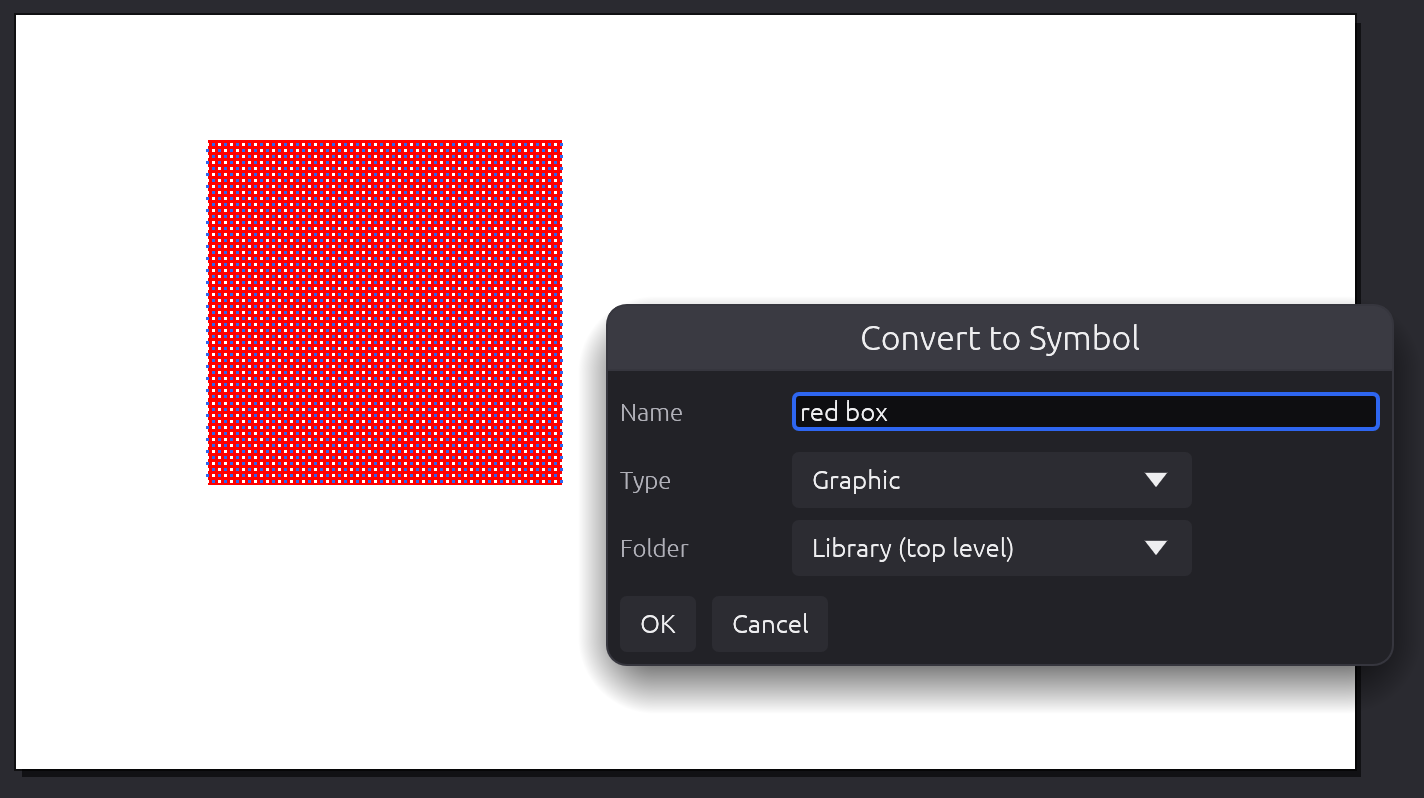
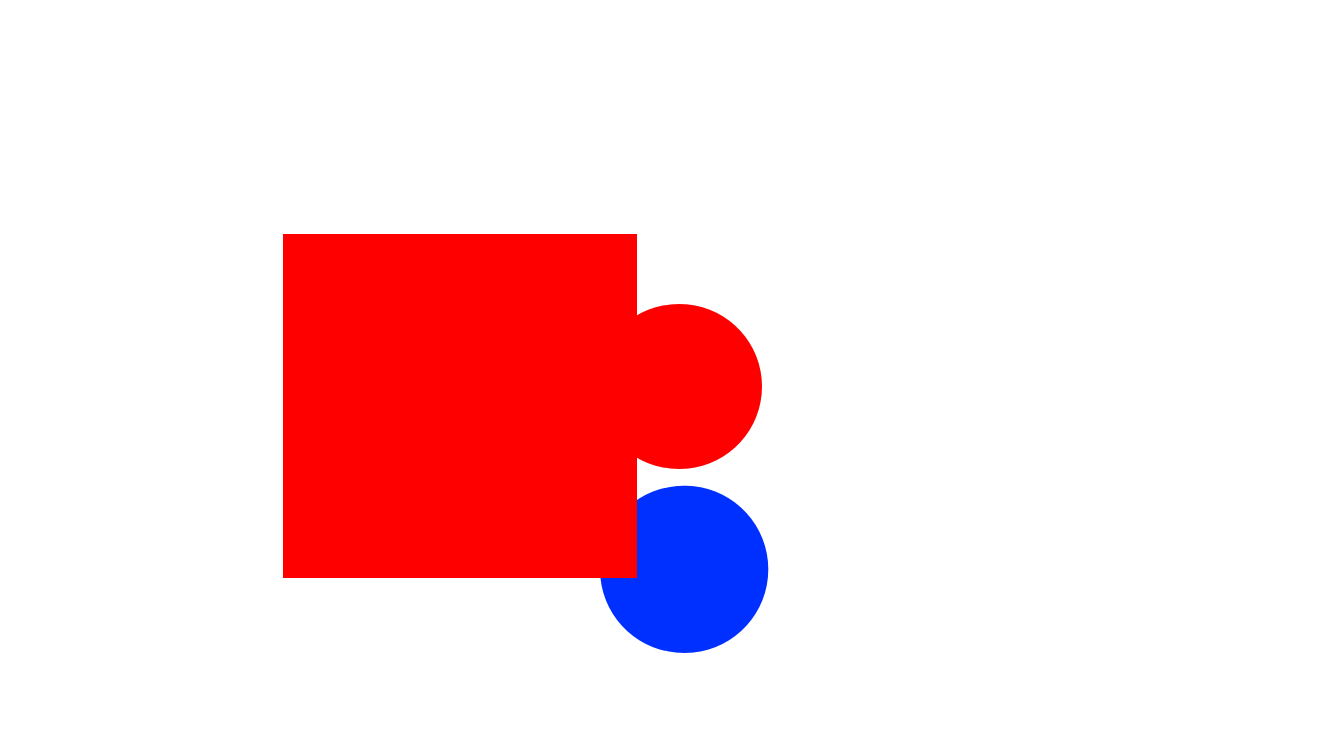
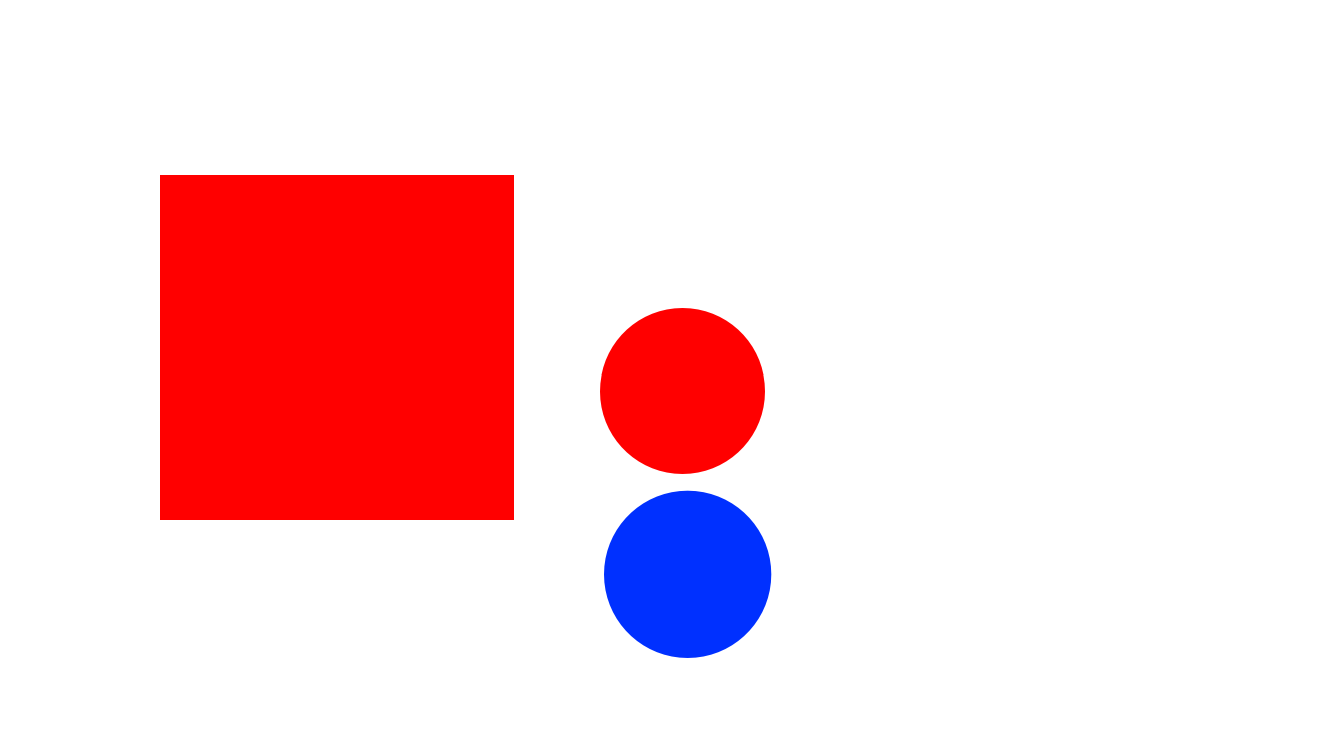
Now, when our Symbol overlaps Shapes of the same or different colours, it doesn’t combine with them or subtract from them.
Creating Instances
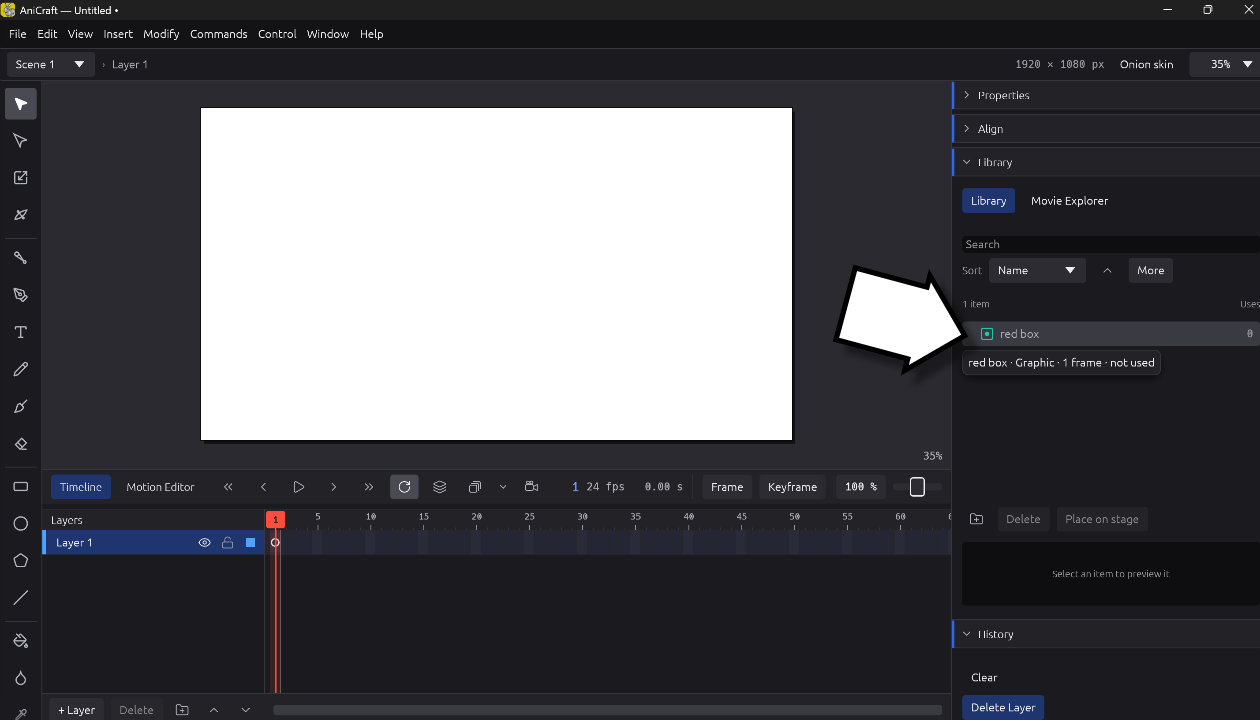
Section titled “Creating Instances”You can click and drag multiple copies of your Symbol from the Library to the Stage.
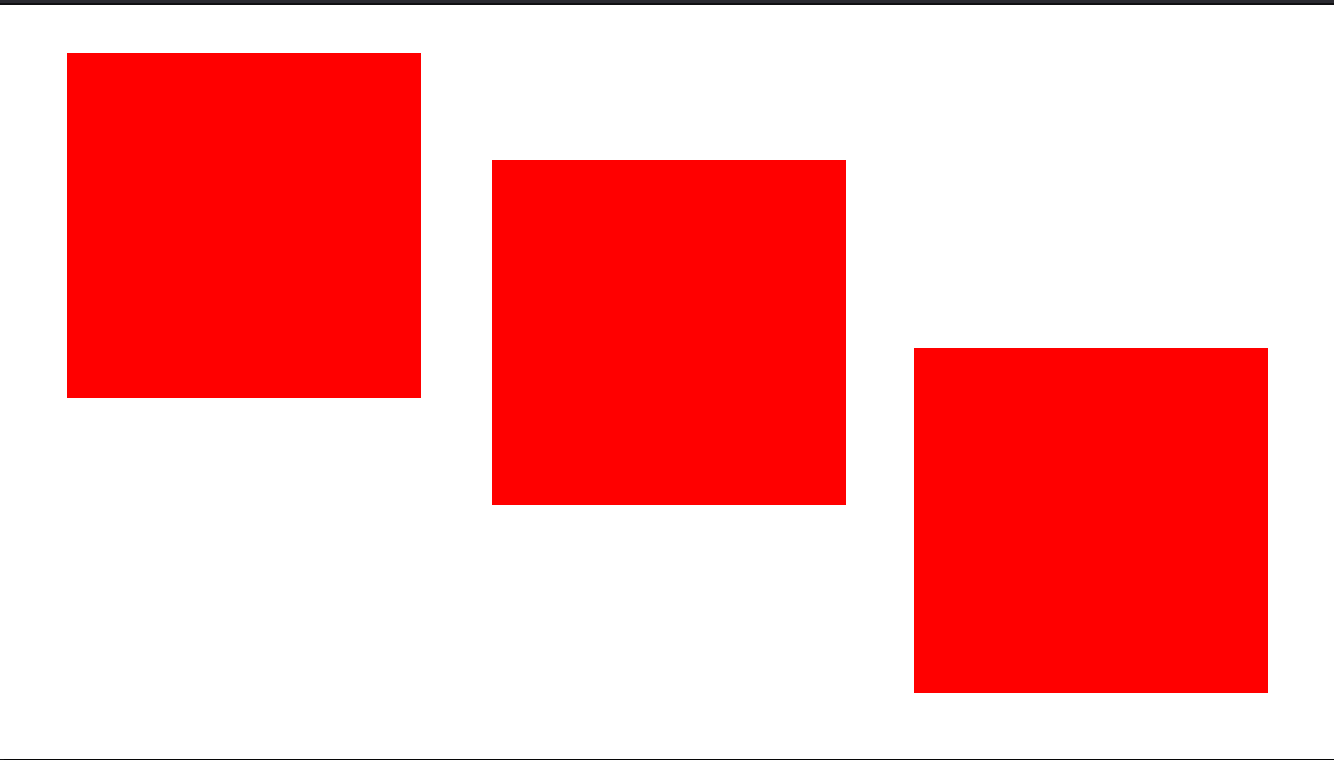
Each one of these is called an Instance of our Symbol.
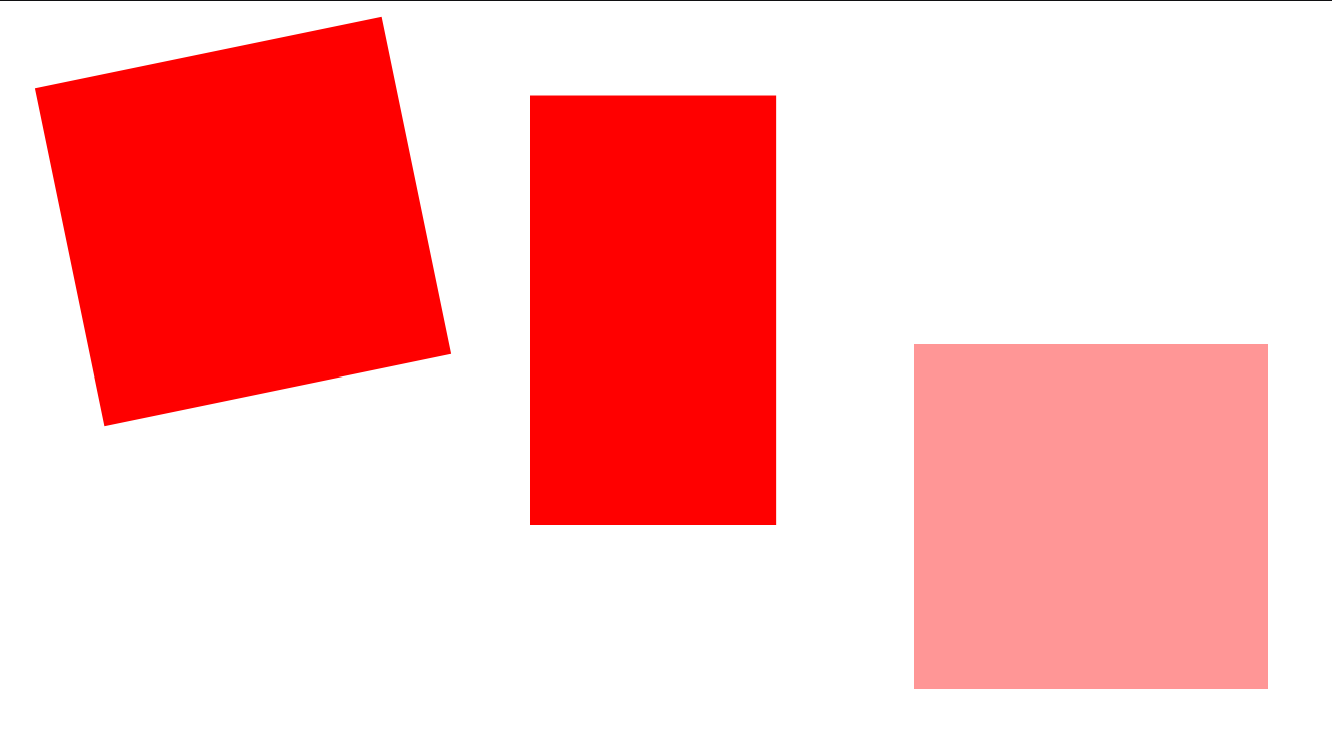
Each Symbol Instance has its own Transform. So we can change the position, rotation, scale, and colour effect of each Symbol separately.
Modifying a Symbol
Section titled “Modifying a Symbol”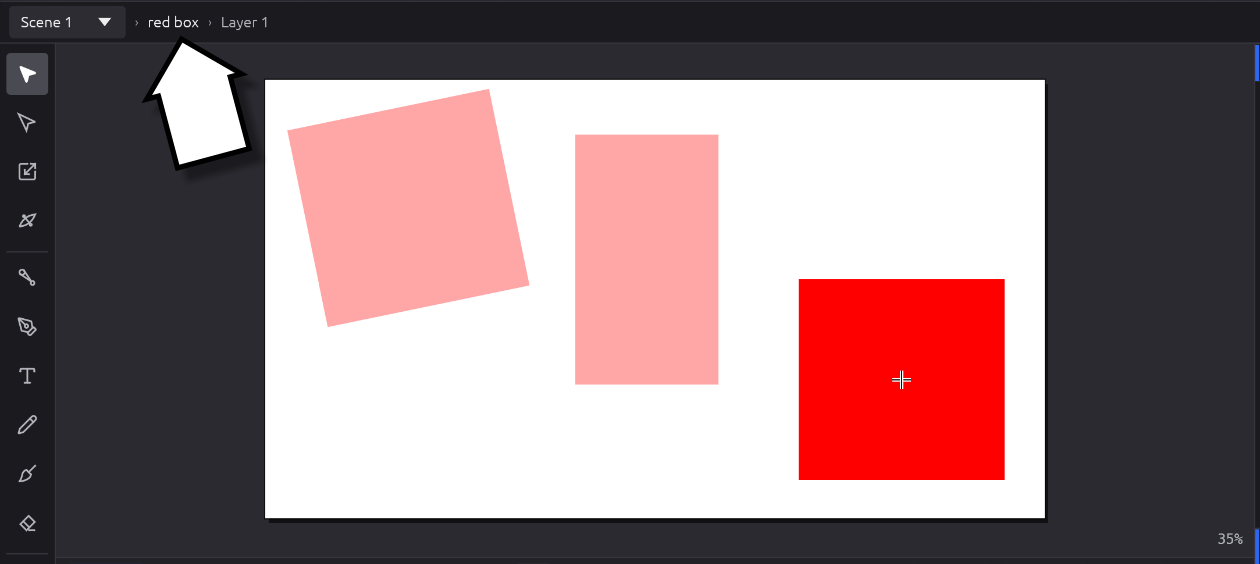
We can double-click a Symbol to go “inside” it. The breadcrumb trail at the top of the Stage shows us that we are now working within the Symbol.
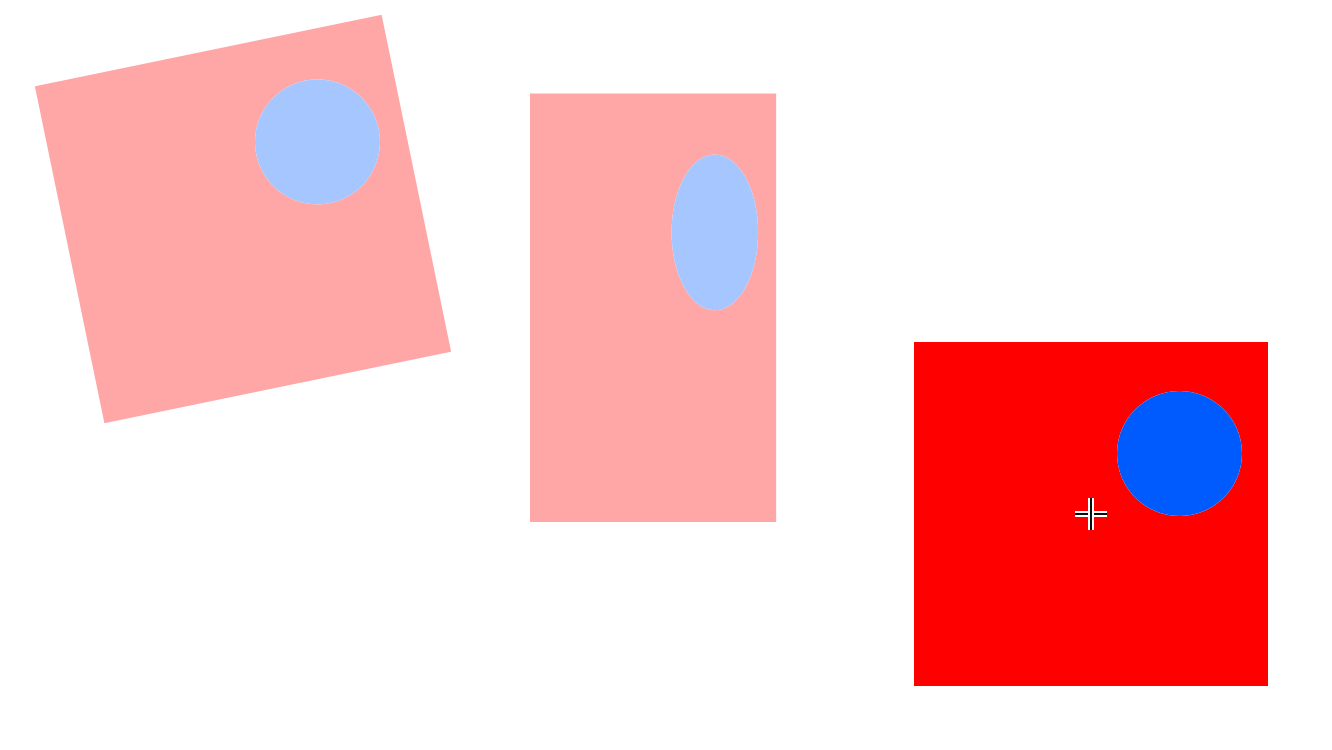
If we make changes inside our Symbol, that change happens to all of the other Instances of the Symbol.
Next: The Timeline