Tools reference
This page lists every tool in VectorCraft 0.24.1: the 92 tools of the Tools panel and the 11 tools that come with the built-in plug-ins. For each tool it gives the default key, what the tool does, what a double-click on its button opens and the guide that covers it.
Find a tool
Section titled “Find a tool”The Tools panel groups related tools under one button. The button shows the tool you used last in its group, and a small triangle in its lower-right corner marks a group with more than one tool. Hover over a button to see the tool’s name and key.
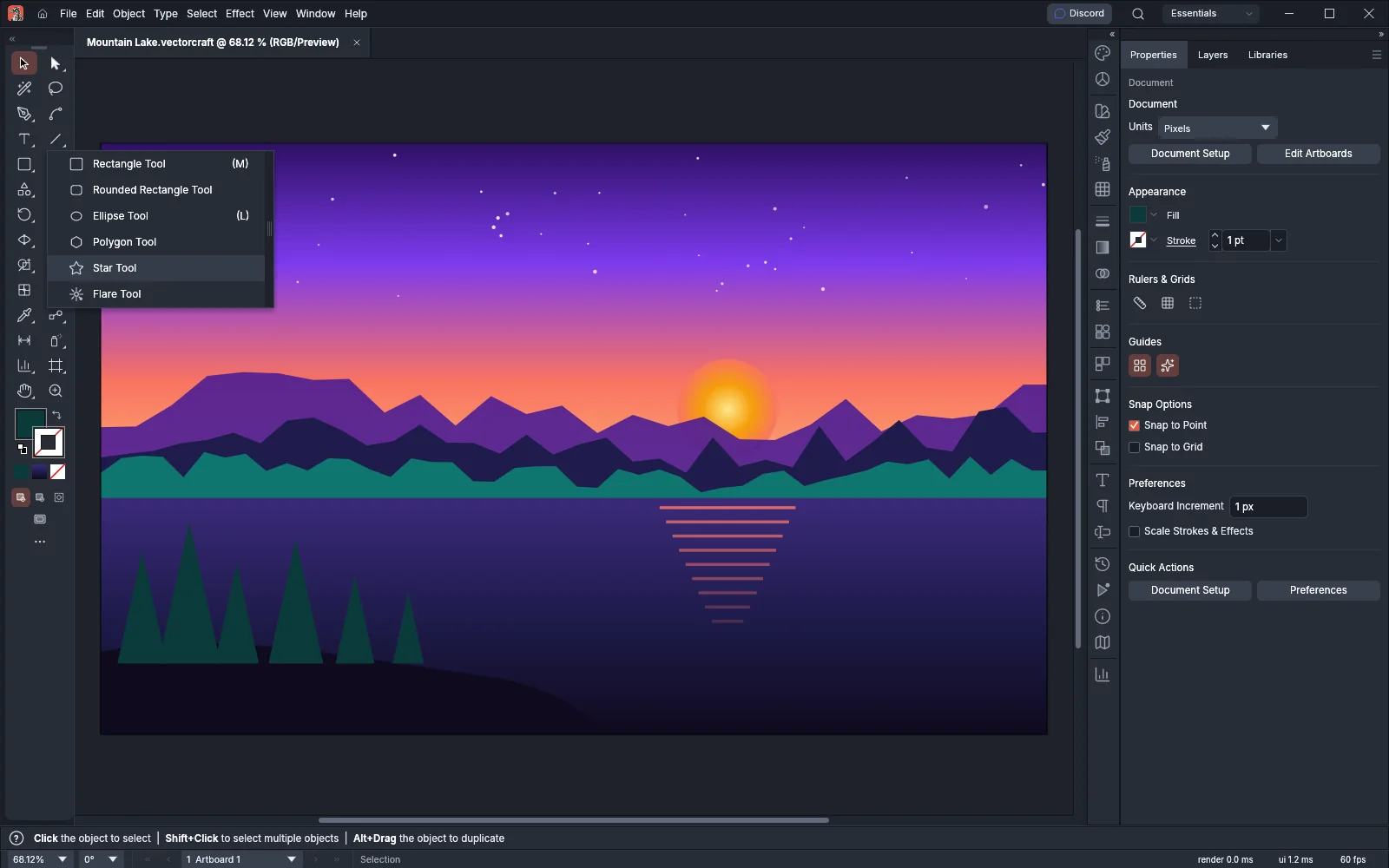
- To open a group’s flyout, right-click the button, press and hold it, or press its corner triangle. Click a tool in the flyout to choose it.
- To step through a group without the flyout, Alt-click (Option-click on macOS) its button. Each Alt-click chooses the next tool in the group.
- To keep a flyout open as a small floating toolbar, drag the bar on its right edge away from the panel. Click the × at the top of that bar to close it.
- Double-click a button to choose its tool and open the tool’s options. The tables below say what each double-click opens. Where a table says “Nothing”, a double-click chooses the tool and opens nothing else. The Mirror & Cut and Puppet Warp tools have their settings in the Control bar instead.
- Press a tool’s key to choose it. The keys are the same on Windows, Linux and macOS. Tools without a key can be given one in Edit → Keyboard Shortcuts…, on the Tools tab.
- Choose Help → Search Commands… (Ctrl+Shift+/, or Cmd+Shift+/ on macOS) and type part of a tool’s name to choose it from the list.
Basic and Advanced layouts
Section titled “Basic and Advanced layouts”The Tools panel has two layouts. Choose Window → Toolbars → Advanced to switch between them, and Window → Toolbars → Double Column to show the tools in one or two columns. Window → Tools shows or hides the panel.
- The Basic layout sorts 69 tools under the headings Select, Shapes, Draw, Modify, Type, Navigate and Color. It leaves out the Perspective Grid and Perspective Selection tools, the Objects on Path tool, the eight Symbolism tools, the nine graph tools, and the Artboard, Slice and Slice Selection tools.
- The Advanced layout holds all 92 tools in the 28 groups below. Every workspace except Essentials starts with it.
| Advanced group | Tools in the flyout |
|---|---|
| Selection | Selection |
| Direct Selection | Direct Selection, Group Selection |
| Magic Wand | Magic Wand |
| Lasso | Lasso |
| Pen | Pen, Add Anchor Point, Delete Anchor Point, Anchor Point |
| Curvature | Curvature |
| Type | Type, Area Type, Type on a Path, Vertical Type, Vertical Area Type, Vertical Type on a Path, Touch Type |
| Line Segment | Line Segment, Arc, Spiral, Rectangular Grid, Polar Grid |
| Rectangle | Rectangle, Rounded Rectangle, Ellipse, Polygon, Star, Flare |
| Paintbrush | Paintbrush, Blob Brush |
| Shaper | Shaper, Pencil, Smooth, Path Eraser, Join |
| Eraser | Eraser, Scissors, Knife, Mirror & Cut, Line Cut, Rectangle Cut |
| Rotate | Rotate, Reflect |
| Scale | Scale, Shear, Reshape |
| Width | Width, Warp, Twirl, Pucker, Bloat, Scallop, Crystallize, Wrinkle |
| Free Transform | Free Transform, Puppet Warp |
| Shape Builder | Shape Builder, Live Paint Bucket, Live Paint Selection |
| Perspective Grid | Perspective Grid, Perspective Selection |
| Mesh | Mesh |
| Gradient | Gradient |
| Eyedropper | Eyedropper, Measure |
| Blend | Blend, Objects on Path |
| Dimension | Dimension |
| Symbol Sprayer | Symbol Sprayer, Symbol Shifter, Symbol Scruncher, Symbol Sizer, Symbol Spinner, Symbol Stainer, Symbol Screener, Symbol Styler |
| Column Graph | Column Graph, Stacked Column Graph, Bar Graph, Stacked Bar Graph, Line Graph, Area Graph, Scatter Graph, Pie Graph, Radar Graph |
| Artboard | Artboard, Slice, Slice Selection |
| Hand | Hand, Rotate View, Print Tiling |
| Zoom | Zoom |
Tools that are not on the panel
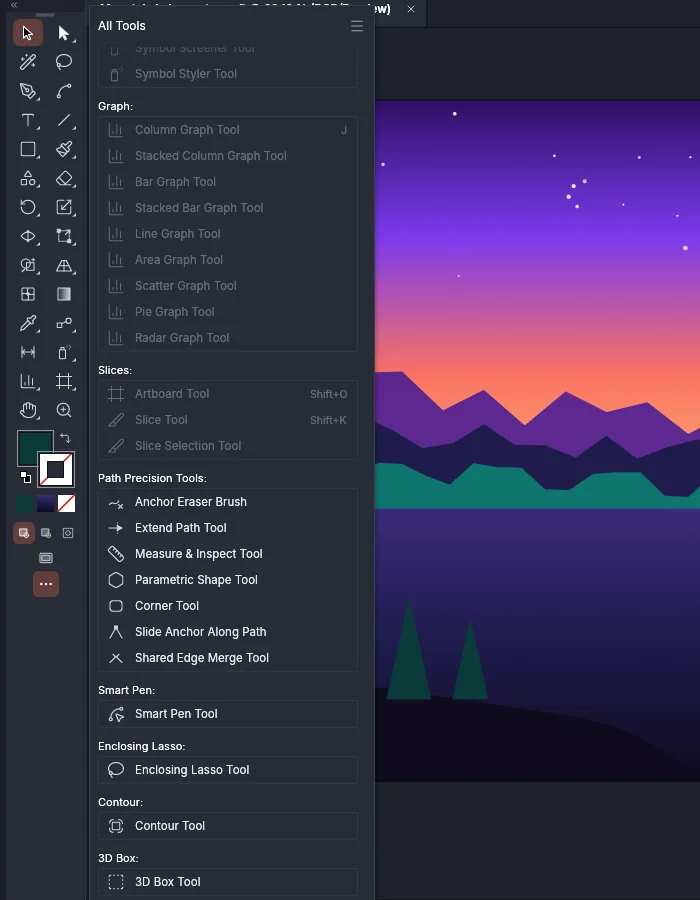
Section titled “Tools that are not on the panel”Click the ••• button (Edit Toolbar) at the foot of the Tools panel to open the All Tools drawer. The drawer lists every tool under headings, dims the tools that are already in the panel, and lists the plug-in tools at the end under their plug-in’s name. Drag a tool from the drawer into the panel to add it. Customize the workspace describes the drawer, its menu and custom toolbars.
The plug-in tools are also in Object → Plug-ins, in the submenu of the plug-in they come with. See Add-on tools.
Select and view tools
Section titled “Select and view tools”| Tool | Key | What it does | Double-click opens | Guide |
|---|---|---|---|---|
| Selection Tool | V | Selects, moves and resizes whole objects and groups. | Move dialog, when something is selected | Select objects |
| Direct Selection Tool | A | Selects and moves single anchor points, handles and segments. | Move dialog, when something is selected | Edit anchor points with Direct Selection |
| Group Selection Tool | None | Selects an object inside a group; each further click adds the next enclosing group. | Move dialog, when something is selected | Select with the Group Selection tool |
| Magic Wand Tool | Y | Selects objects that share the clicked object’s fill, stroke or other attributes. | Magic Wand panel | Select by color and stroke with the Magic Wand |
| Lasso Tool | Q | Selects the anchor points and segments inside a loop you drag. | Nothing | Draw around objects with the Lasso |
| Hand Tool | H | Pans the view when you drag. | Fits the artboard in the window, as View → Fit Artboard in Window does | Move around the canvas |
| Rotate View Tool | Shift+H | Turns the view of the canvas without rotating the artwork. | Nothing | Rotate the view |
| Print Tiling Tool | None | Moves the grid of printed pages over the artboard. | Puts the pages back where the print settings place them | See the tiles on the canvas |
| Zoom Tool | Z | Zooms in where you click; Alt-click (Option-click on macOS) zooms out. | Shows the document at 100%, as View → Actual Size does | Move around the canvas |
Drawing tools
Section titled “Drawing tools”| Tool | Key | What it does | Double-click opens | Guide |
|---|---|---|---|---|
| Pen Tool | P | Draws paths one anchor point at a time; a click makes a corner and a drag makes a curve. | Nothing | Draw with the Pen tool |
| Add Anchor Point Tool | + | Adds an anchor point where you click a path. | Nothing | Add, delete and convert anchor points |
| Delete Anchor Point Tool | - | Removes the anchor point you click. | Nothing | Add, delete and convert anchor points |
| Anchor Point Tool | Shift+C | Converts anchor points between corners and smooth points, and reshapes a segment you drag. | Nothing | Add, delete and convert anchor points |
| Curvature Tool | Shift+~ | Draws smooth curves through the points you click. | Nothing | Draw with the Curvature tool |
| Line Segment Tool | \ | Draws straight lines. | Line Segment Tool Options | Draw lines, arcs and spirals |
| Arc Tool | None | Draws arcs. | Arc Segment Tool Options | Draw lines, arcs and spirals |
| Spiral Tool | None | Draws spirals. | Nothing | Draw lines, arcs and spirals |
| Rectangular Grid Tool | None | Draws a rectangle divided into rows and columns. | Rectangular Grid Tool Options | Draw rectangular and polar grids |
| Polar Grid Tool | None | Draws concentric circles crossed by radial lines. | Polar Grid Tool Options | Draw rectangular and polar grids |
| Rectangle Tool | M | Draws rectangles and squares. | Nothing | Draw a shape |
| Rounded Rectangle Tool | None | Draws rectangles with rounded corners. | Nothing | Draw a shape |
| Ellipse Tool | L | Draws ellipses and circles. | Nothing | Draw a shape |
| Polygon Tool | None | Draws regular polygons from the center. | Nothing | Draw a shape |
| Star Tool | None | Draws stars from the center. | Nothing | Draw a shape |
| Flare Tool | None | Draws a lens flare with a center, halo, rays and rings. | Flare Tool Options | Draw a flare |
| Paintbrush Tool | B | Paints a freehand path with the current brush. | Paintbrush Tool Options | Paint with the Paintbrush |
| Blob Brush Tool | Shift+B | Paints filled shapes that merge with touching shapes of the same color. | Blob Brush Tool Options | Paint filled shapes with the Blob Brush |
| Shaper Tool | Shift+N | Turns a rough drawn shape into a clean live shape, and deletes art you scribble over. | Nothing | Sketch shapes with the Shaper tool |
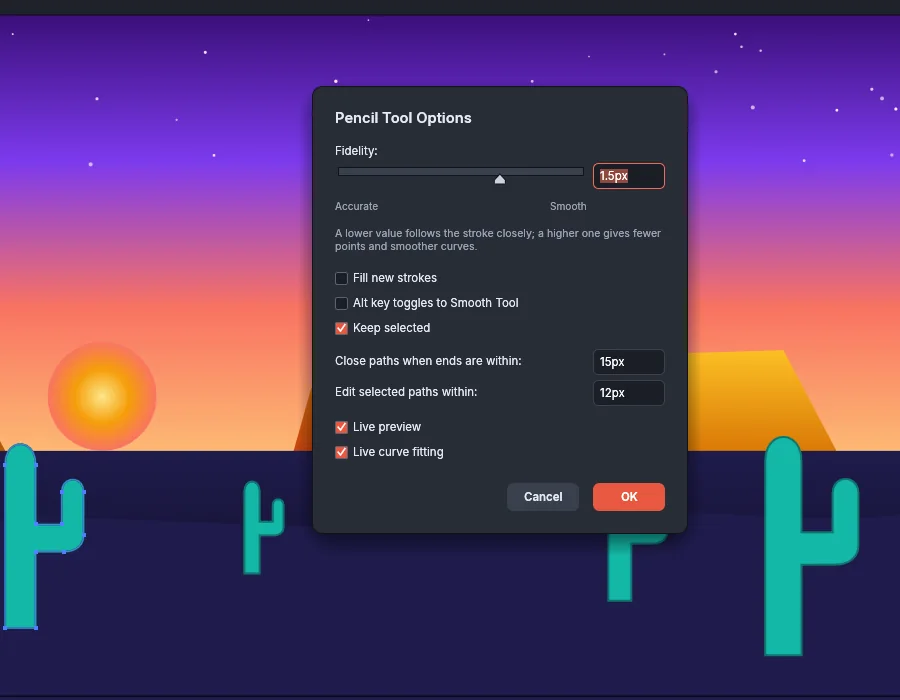
| Pencil Tool | N | Draws a freehand path; starting near the end of a selected open path continues it. | Pencil Tool Options | Draw freehand with the Pencil tool |
| Smooth Tool | None | Smooths the part of a selected path you drag along. | Smooth Tool Options | Smooth and erase parts of a path |
| Path Eraser Tool | None | Erases the part of a selected path you drag along. | Nothing | Smooth and erase parts of a path |
| Join Tool | None | Joins open path ends when you drag across the gap or the overlap between them. | Nothing | Join open ends with the Join tool |
A double-click on the Pencil Tool button opens Pencil Tool Options.
Type tools
Section titled “Type tools”| Tool | Key | What it does | Double-click opens | Guide |
|---|---|---|---|---|
| Type Tool | T | Adds point type where you click, area type in a frame you drag, or type inside or along a path you click. | Nothing | Add point type |
| Area Type Tool | None | Sets type inside the closed path whose outline you click. | Nothing | Add area type |
| Type on a Path Tool | None | Sets type along the path you click. | Type on a Path Options, for the selected type on a path | Put type on a path |
| Vertical Type Tool | None | Works as the Type Tool does, with each line running from top to bottom. | Nothing | Choose a type tool |
| Vertical Area Type Tool | None | Sets vertical type inside a closed path. | Nothing | Choose a type tool |
| Vertical Type on a Path Tool | None | Sets vertical type along a path. | Type on a Path Options, for the selected type on a path | Choose a type tool |
| Touch Type Tool | Shift+T | Moves, scales and rotates single characters, and the type stays editable. | Nothing | Choose a type tool |
Cutting and reshaping tools
Section titled “Cutting and reshaping tools”| Tool | Key | What it does | Double-click opens | Guide |
|---|---|---|---|---|
| Eraser Tool | Shift+E | Erases the area you drag over from shapes. | Eraser Tool Options | Erase parts of shapes with the Eraser |
| Scissors Tool | C | Splits a path where you click it. | Nothing | Cut paths |
| Knife | None | Cuts shapes along the freehand line you drag; hold Alt (Option on macOS) as you press to cut along a straight line. | Nothing | Cut paths |
| Mirror & Cut Tool | None | Cuts the selected art along an axis you drag and mirrors the side it keeps. | Nothing; its Axis and Keep settings are in the Control bar | Cut with Mirror & Cut, Line Cut and Rectangle Cut |
| Line Cut Tool | None | Cuts the selected art along a straight line you drag. | Nothing | Cut with Mirror & Cut, Line Cut and Rectangle Cut |
| Rectangle Cut Tool | None | Cuts the selected art along a rectangle you drag. | Nothing | Cut with Mirror & Cut, Line Cut and Rectangle Cut |
| Rotate Tool | R | Rotates the selection around a reference point you can click to set. | Rotate dialog, when something is selected | Rotate, reflect, scale and shear |
| Reflect Tool | O | Mirrors the selection across an axis through the reference point. | Reflect dialog, when something is selected | Rotate, reflect, scale and shear |
| Scale Tool | S | Resizes the selection around the reference point. | Scale dialog, when something is selected | Rotate, reflect, scale and shear |
| Shear Tool | None | Slants the selection around the reference point. | Shear dialog, when something is selected | Rotate, reflect, scale and shear |
| Reshape Tool | None | Pulls selected anchor points and the path around them smoothly. | Nothing | Pull points with the Reshape tool |
| Width Tool | Shift+W | Changes the width of a stroke at the points you drag. | Nothing | Vary a stroke’s width with the Width tool |
| Warp Tool | Shift+R | Pushes the outline of objects in the direction you drag. | Warp Tool Options | Pick a warp tool |
| Twirl Tool | None | Twists the outline under the brush into a swirl. | Twirl Tool Options | Pick a warp tool |
| Pucker Tool | None | Pulls the outline under the brush toward its center. | Pucker Tool Options | Pick a warp tool |
| Bloat Tool | None | Pushes the outline under the brush away from its center. | Bloat Tool Options | Pick a warp tool |
| Scallop Tool | None | Adds curved points along the outline under the brush. | Scallop Tool Options | Pick a warp tool |
| Crystallize Tool | None | Adds sharp spikes along the outline under the brush. | Crystallize Tool Options | Pick a warp tool |
| Wrinkle Tool | None | Adds small random folds to the outline under the brush. | Wrinkle Tool Options | Pick a warp tool |
| Free Transform Tool | E | Moves, scales and rotates the selection with its bounding box. | Nothing | Rotate, reflect, scale and shear |
| Puppet Warp Tool | None | Bends art around pins you place on it. | Nothing; its mesh and pin settings are in the Control bar | Bend art around pins with Puppet Warp |
Paint, combine and perspective tools
Section titled “Paint, combine and perspective tools”| Tool | Key | What it does | Double-click opens | Guide |
|---|---|---|---|---|
| Shape Builder Tool | Shift+M | Merges the regions of the selected overlapping shapes that you drag across, and deletes them when you hold Alt (Option on macOS). | Shape Builder Tool Options | Build shapes with the Shape Builder tool |
| Live Paint Bucket | K | Fills the faces and colors the edges of a Live Paint group. | Live Paint Bucket Options | Color regions with Live Paint |
| Live Paint Selection Tool | Shift+L | Selects faces and edges of a Live Paint group. | Live Paint Selection Tool Options | Color regions with Live Paint |
| Perspective Grid Tool | Shift+P | Shows the perspective grid and moves its handles. | Perspective Grid Options | Adjust the grid with the Perspective Grid tool |
| Perspective Selection Tool | Shift+V | Moves and copies art along the planes of the perspective grid. | Nothing | Move and copy art along a plane |
| Mesh Tool | U | Adds mesh points to a gradient mesh, and turns a path into a mesh. | Nothing | Edit a mesh with the Mesh Tool |
| Gradient Tool | G | Sets the direction and the stops of a gradient on the canvas. | Gradient panel | Edit a gradient on the canvas |
| Eyedropper Tool | I | Gives the selection the attributes of the object you click, as Eyedropper Options sets them. | Eyedropper Options | Copy colors with the Eyedropper |
| Measure Tool | None | Shows the distance, angle and offsets between two points you drag between, without changing the document. | Nothing | Measure a distance with the Measure tool |
| Blend Tool | W | Makes a blend between the objects you click. | Blend Options | Blend between objects with the Blend tool |
| Objects on Path Tool | None | Attaches the selected objects to the path you click and spaces them along it. | Objects on Path Tool Options | Place objects along a path |
| Dimension Tool | None | Adds linear, angular and radial dimensions that stay linked to the art. | Dimension Tool Options | Add a linear dimension |
Symbol, graph, artboard and slice tools
Section titled “Symbol, graph, artboard and slice tools”The eight Symbolism tools share one set of options. A double-click on any of them opens Symbolism Tools Options. All of them are covered in Spray and adjust symbols.
| Tool | Key | What it does |
|---|---|---|
| Symbol Sprayer Tool | Shift+S | Sprays instances of the symbol chosen in the Symbols panel where you drag; Alt (Option on macOS) removes them. |
| Symbol Shifter Tool | None | Moves symbol instances in the direction you drag. |
| Symbol Scruncher Tool | None | Pulls symbol instances together; Alt (Option on macOS) pushes them apart. |
| Symbol Sizer Tool | None | Makes symbol instances larger; Alt (Option on macOS) makes them smaller. |
| Symbol Spinner Tool | None | Turns symbol instances toward the direction you drag. |
| Symbol Stainer Tool | None | Tints symbol instances with the fill color. |
| Symbol Screener Tool | None | Makes symbol instances more transparent; Alt (Option on macOS) makes them more opaque. |
| Symbol Styler Tool | None | Applies the selected graphic style to symbol instances. |
The nine graph tools each draw one kind of graph: Column Graph Tool (J), Stacked Column Graph Tool, Bar Graph Tool, Stacked Bar Graph Tool, Line Graph Tool, Area Graph Tool, Scatter Graph Tool, Pie Graph Tool and Radar Graph Tool. Only the Column Graph Tool has a key. Drag to set the graph’s size, or click to type it, then enter the data. A double-click on any graph tool opens Graph Type for the selected graph. Draw a graph covers them.
| Tool | Key | What it does | Double-click opens | Guide |
|---|---|---|---|---|
| Artboard Tool | Shift+O | Draws, moves and resizes artboards. | Artboard Options | Add and arrange artboards |
| Slice Tool | Shift+K | Draws a slice for web export. | Nothing | Draw slices with the Slice tool |
| Slice Selection Tool | None | Selects, moves and resizes slices. | Nothing | Draw slices with the Slice tool |
Add-on tools
Section titled “Add-on tools”The built-in plug-ins add 11 tools. They are not in the Tools panel at first, and none of them has a key. Choose one from its submenu of Object → Plug-ins, for example Object → Plug-ins → Smart Pen → Smart Pen Tool, or drag it from the All Tools drawer into the Tools panel. Use the built-in plug-ins lists the plug-ins.
| Plug-in | Tool | What it does | Double-click opens | Guide |
|---|---|---|---|---|
| Path Precision Tools | Anchor Eraser Brush | Removes the anchor points you paint over from selected paths where the outline can do without them. | Anchor Eraser Brush Options | Extend, slide and round anchor points |
| Path Precision Tools | Extend Path Tool | Lengthens an open path from the end you drag, or shortens it when you drag back. | Extend Path Tool Options | Extend, slide and round anchor points |
| Path Precision Tools | Measure & Inspect Tool | Shows the distance and angle between two points, and the lengths, area and curvature of the path under the pointer. | Nothing | Inspect anchor points and objects |
| Path Precision Tools | Parametric Shape Tool | Draws shapes that stay editable as numbers. | Nothing | Draw parametric shapes |
| Path Precision Tools | Corner Tool | Rounds or cuts the corner at the anchor point you click or drag, and keeps it editable. | Nothing | Round corners with the Corner Tool |
| Path Precision Tools | Slide Anchor Along Path | Moves an anchor point along its curve without changing the outline. | Nothing | Extend, slide and round anchor points |
| Path Precision Tools | Shared Edge Merge Tool | Replaces the two edges where two paths touch with one edge between them. | Nothing | Merge shared edges |
| Smart Pen | Smart Pen Tool | Draws paths and edits them without switching tools. | Nothing | Draw with the Smart Pen |
| Enclosing Lasso | Enclosing Lasso Tool | Selects only the objects that lie wholly inside the loop you drag. | Nothing | Select only what is fully inside with the Enclosing Lasso |
| Contour | Contour Tool | Grows or shrinks a live outline copy of the selected shape as you drag from its edge. | Nothing | Outline areas with the Contour tool |
| 3D Box | 3D Box Tool | Draws a box in 3D that you can rotate from the Control bar. | Nothing | Draw boxes with the 3D Box tool |
Related
Section titled “Related”- Keyboard shortcuts
- Customize the workspace
- Panels
- Glossary
- Select artwork
- Draw and edit paths
- Draw and transform shapes
- Cut, join and refine paths
- Reshape with warp tools
- Add and style type
- Paint with brushes
- Combine and cut shapes
- Draw in perspective
- Fill, stroke and color
- Measure and dimension
- Make patterns, blends and repeats
- Organize with layers and symbols
- Make graphs and data-driven art
- Set up documents and artboards
- Slice artwork for the web
- Print a large poster
- Use the built-in plug-ins