Set path direction and fill rule
This page explains how VectorCraft decides which areas of a compound path or a self-crossing path are filled, and how you change that with the fill rule and the path direction in the Attributes panel.
How the fill rule decides holes
Section titled “How the fill rule decides holes”A compound path, or a single path that crosses itself, can enclose the same area more than once. The fill rule decides whether each enclosed area is filled or left as a hole. Every path also has a direction: it runs clockwise or counterclockwise on the screen.
| Fill rule | How it decides each area |
|---|---|
| Non-Zero Winding | Counts +1 for each path around the area that runs clockwise and -1 for each one that runs counterclockwise. The area is a hole when the total is 0 and filled otherwise. An inner path makes a hole only when it runs the other way from the path around it. |
| Even-Odd | Counts the paths around the area. The area is filled when the count is odd and is a hole when it is even, so every other overlap is a hole. The direction of the paths does not matter. |
New paths and new compound paths use Non-Zero Winding. A five-pointed star drawn as one path that crosses itself shows the difference: Non-Zero Winding fills the pentagon in the middle, and Even-Odd leaves it empty.
Choose a fill rule
Section titled “Choose a fill rule”- Select the compound path or the path with the Selection tool. You can also select a group; the rule then applies to the paths and compound paths inside it.
- Choose Window → Attributes (Ctrl+F11, or Cmd+F11 on macOS).
- In the row of buttons below the overprint options, click Use Non-Zero Winding Fill Rule or Use Even-Odd Fill Rule. These are the last two buttons in the row. Hold the pointer over a button to see its name.
The button for the selection’s current rule is highlighted. When the selected paths use different rules, neither button is highlighted. Each change is one undo step.
A path inside a compound path has no fill rule of its own. If you select one with the Direct Selection tool and click a fill rule button, the rule changes for the whole compound path.
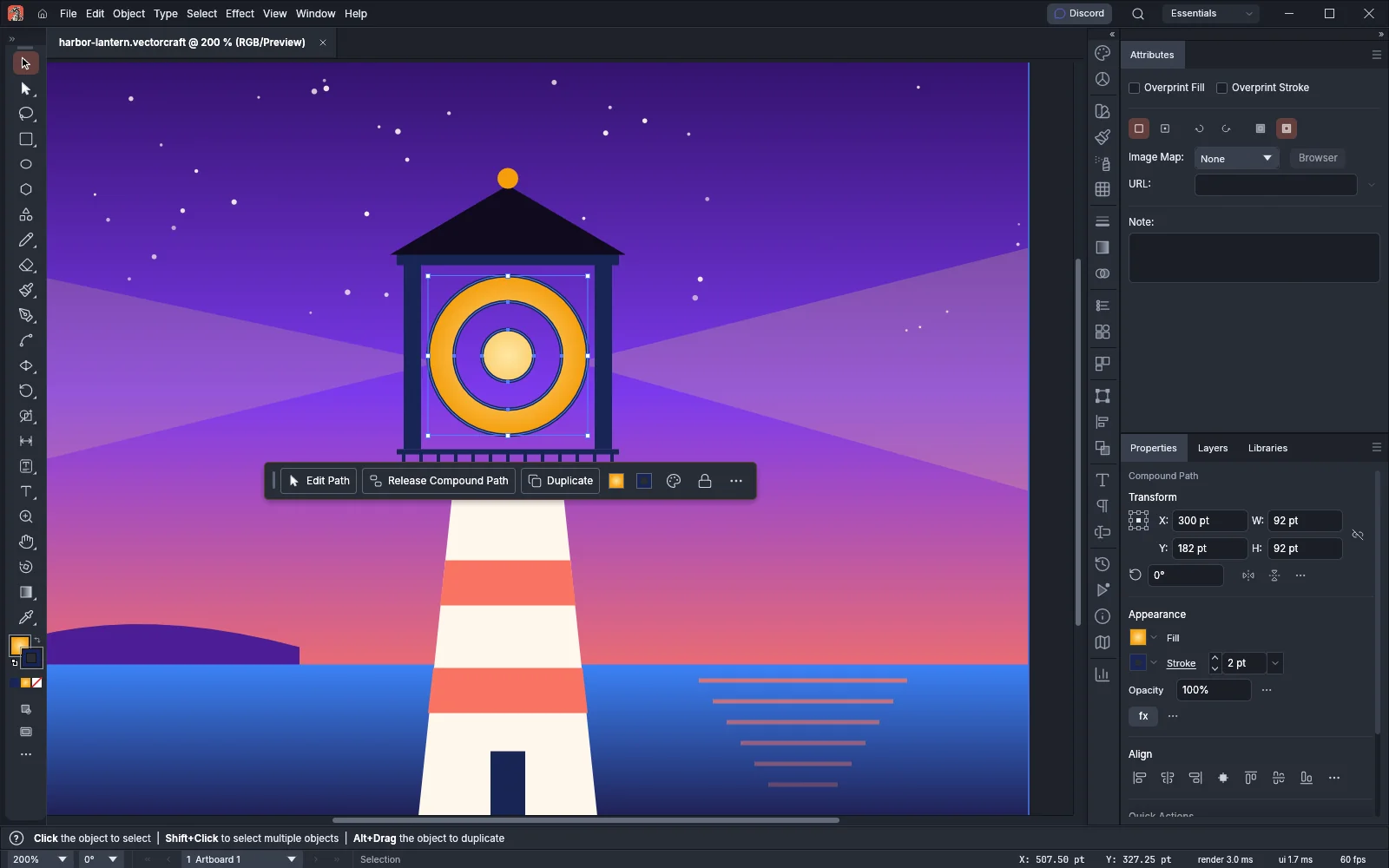
The row of buttons in the Attributes panel holds these pairs:
| Buttons | What they do |
|---|---|
| Don’t Show Center, Show Center | Hide or show the center point of the selected objects |
| Reverse Path Direction Off, Reverse Path Direction On | Make the selected paths run clockwise (Off) or counterclockwise (On) |
| Use Non-Zero Winding Fill Rule, Use Even-Odd Fill Rule | Set the fill rule of the selected paths and compound paths |
The direction and fill rule buttons work only when the selection holds paths. If the row of buttons does not show, choose Show Options from the Attributes panel menu.
Reverse a path’s direction
Section titled “Reverse a path’s direction”You can set the direction in the Attributes panel or flip it with a menu command.
To set a direction:
- Select the paths. To change one path inside a compound path, select it with the Direct Selection tool.
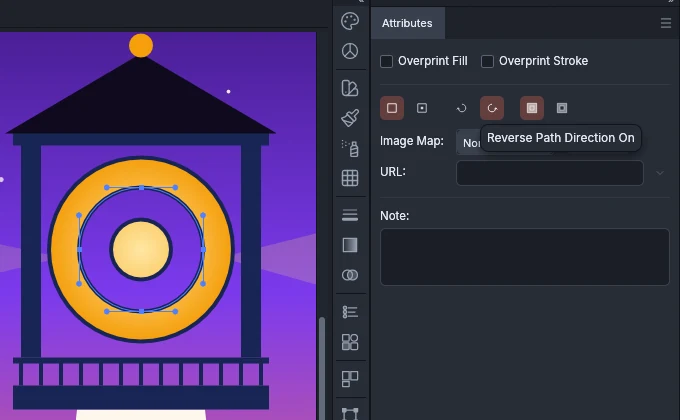
- In the Attributes panel, click Reverse Path Direction Off to make the paths run clockwise, or Reverse Path Direction On to make them run counterclockwise.
The panel highlights Reverse Path Direction On when every selected path runs counterclockwise, and Reverse Path Direction Off when every one runs clockwise. Paths that already run the chosen way do not change.
To flip the direction instead, select the paths and choose Object → Path → Reverse Path Direction. Every selected path then runs the other way. In a selected group or compound path, the command reverses each path inside it. The change is one undo step.
Under Even-Odd, reversing a path does not change which areas are filled.
Make a hole in a compound path
Section titled “Make a hole in a compound path”This example builds a round window from three circles of different sizes with the same center.
-
Draw three circles with the Ellipse tool around the same center: the largest circle first, then the middle one, then the smallest one. Give them a fill. The circle you draw first is the back-most path.
-
Select all three and choose Object → Compound Path → Make (Ctrl+8, or Cmd+8 on macOS).
VectorCraft reverses each front path that runs the same way as the back-most path. Circles drawn with the Ellipse tool all run the same way, so the middle and inner circles now run the other way from the outer one. Under Non-Zero Winding, the window shows a filled outer ring, a hole between the middle and inner circles, and a filled center. The center stays filled because its count is -1, not 0.
-
To close the hole, select the middle circle with the Direct Selection tool and click Reverse Path Direction Off in the Attributes panel. The middle circle now runs clockwise, like the outer circle, and the whole window fills.
-
To get the hole back, click Reverse Path Direction On, or select the compound path and click Use Even-Odd Fill Rule. Under Even-Odd, the areas alternate between filled and empty whatever the direction of each circle.
With three circles that share a center, the center can never become a hole under Non-Zero Winding, because a sum of three values of +1 or -1 is never 0. To cut a hole in the middle of a shape, use two paths, or switch to Even-Odd.
For other ways to cut holes, such as Minus Front in the Pathfinder panel, see Combine and cut shapes.