
Create and share PDF presets
This page covers Edit → PDF Presets…: reading the built-in presets, making and editing your own presets, saving a preset from the Save PDF dialog, and moving presets between computers.
Open the PDF Presets dialog
Section titled “Open the PDF Presets dialog”- Choose Edit → PDF Presets…. The PDF Presets dialog opens with VectorCraft Default selected.
- Click a preset in the Presets list to see its description and how its settings differ from VectorCraft Default.
- Press Close when you are done.
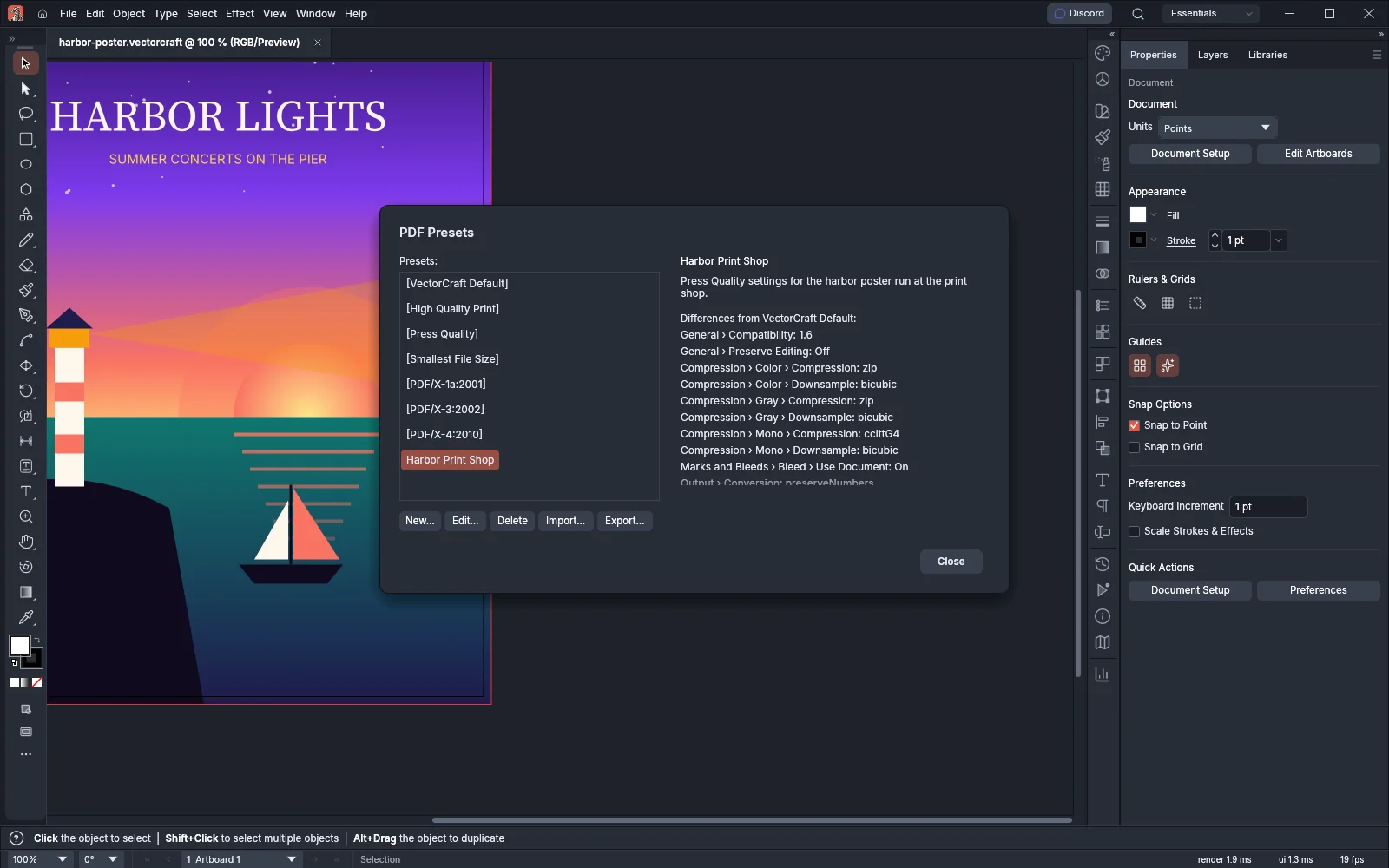
The list shows the built-in presets first, each name in brackets, and then the presets you saved. VectorCraft has seven built-in presets:
| Preset | Use it for |
|---|---|
| VectorCraft Default | Files you will edit again in VectorCraft |
| High Quality Print | Desktop printers and proofs |
| Press Quality | Commercial printing, with the document’s bleed and colors converted to CMYK |
| Smallest File Size | Screens, email and the web |
| PDF/X-1a:2001 | Print exchange with CMYK and spot colors only |
| PDF/X-3:2002 | Print exchange with color-managed colors |
| PDF/X-4:2010 | Print exchange that keeps live transparency and layers |
For the settings each built-in preset uses, see Choose a preset.
Read a preset’s settings
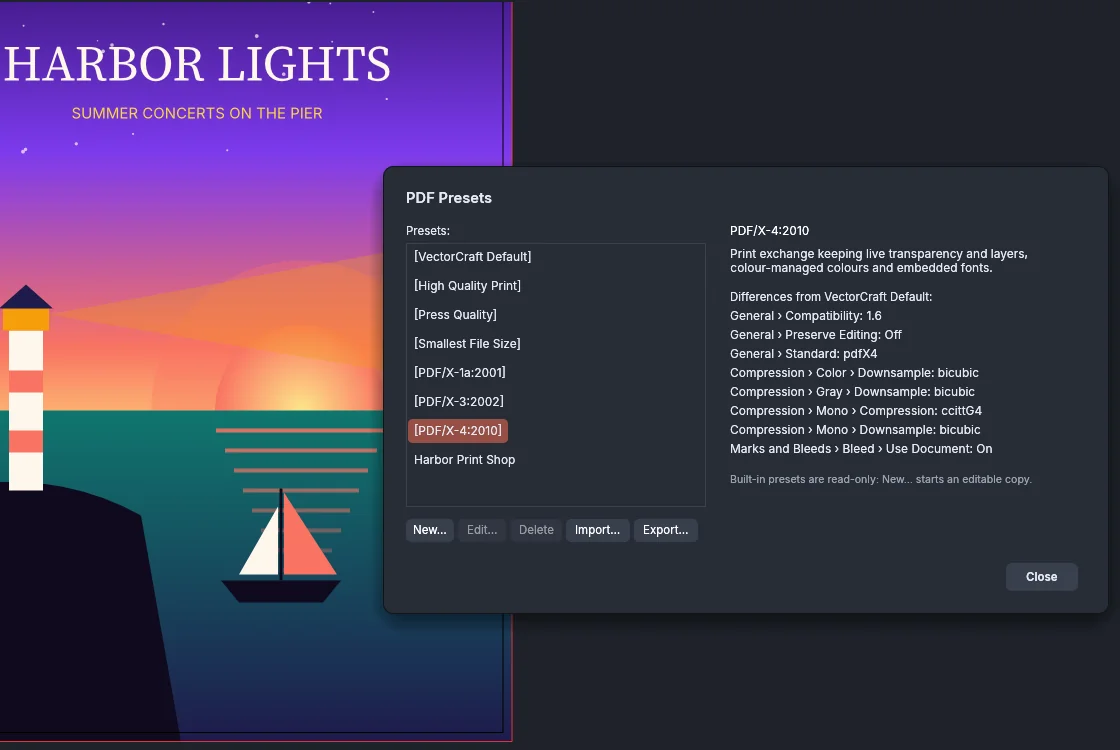
Section titled “Read a preset’s settings”When you select a preset, the dialog shows these details beside the list:
- the preset’s name and its description;
- Differences from VectorCraft Default, a list of every setting that differs from the VectorCraft Default preset, as the section, the option and its value, for example “General › Compatibility: 1.6”. The list is sorted by section and scrolls when it is long. It reads “None.” when the preset matches VectorCraft Default;
- a line marked ⚠ for each setting that the Save PDF dialog cannot apply as it is set.
Built-in presets cannot be changed. With a built-in preset selected, Edit… and Delete are dimmed, and the dialog shows the note “Built-in presets are read-only: New… starts an editable copy.”
Make a new preset from an existing one
Section titled “Make a new preset from an existing one”- Choose Edit → PDF Presets… and select the preset to start from. It can be a built-in preset or one of your own.
- Click New…. The New PDF Preset dialog opens with a copy of the selected preset’s settings.
- In Preset name, replace the suggested name, such as “PDF Preset 1”, with a name of your own.
- In the General section, type a short description in the Description box at the bottom. The description appears next to the preset in the PDF Presets dialog.
- Set Standard and Compatibility at the top, and click each section to change its options: General, Compression, Marks and Bleeds, Output, Advanced and Security. The options are the same as in the Save PDF dialog; see Save PDF files for print and sharing for each one.
- Click Summary to check what you changed.
- Press Save Preset. VectorCraft saves the preset and returns to the PDF Presets dialog with the new preset selected.
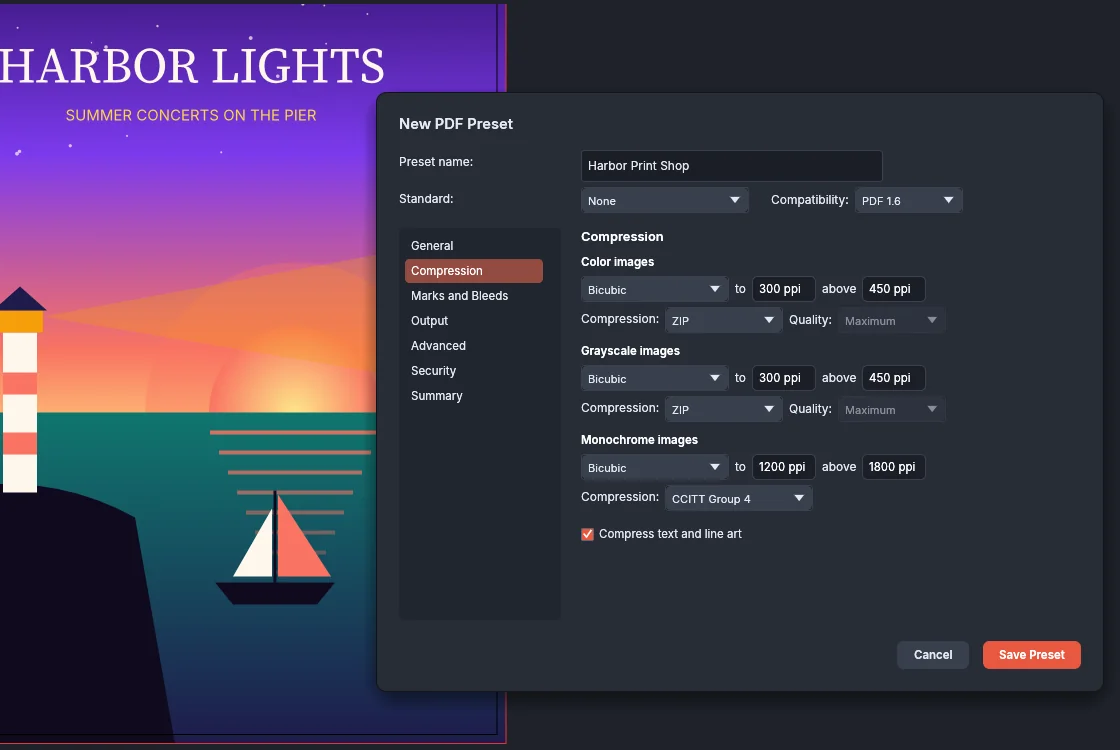
Each preset needs its own name. When you type a name that another preset already uses, with any mix of capital and small letters, the dialog stays open and the status bar reports that a preset with that name exists. The editor has no artboard choice: a preset does not store which artboards to save.
Change or delete a saved preset
Section titled “Change or delete a saved preset”To change a preset you saved:
- Choose Edit → PDF Presets… and select the preset.
- Click Edit…. The Edit PDF Preset dialog opens with the preset’s settings, name and description.
- Change the settings, the description, or the name in Preset name. You cannot rename a preset to a name that another preset uses.
- Press Save Preset.
To delete a preset you saved, select it in the PDF Presets dialog and click Delete. VectorCraft deletes the preset at once, without asking, and selects the preset above it in the list. You cannot delete a built-in preset.
Save a preset from the Save PDF dialog
Section titled “Save a preset from the Save PDF dialog”You can also save the settings you are using in the Save PDF dialog as a preset:
- Choose File → Save as PDF… and set the options.
- Click Save Preset… next to the Preset list. A Save as preset row appears with a suggested name, such as “PDF Preset 1”.
- Type a name, then click Save or press Enter. To leave without saving the preset, click Cancel in that row.
The new preset becomes the chosen preset in the Save PDF dialog, which stays open so you can save the PDF. A preset saved this way keeps every setting except the artboard range. You cannot use the name of a built-in preset. When you use the name of a preset you saved before, VectorCraft replaces that preset’s settings with the current ones.
A preset does not keep the Open password or the Permissions password. Type them in the Security section each time you save a protected PDF.
Share presets with another computer
Section titled “Share presets with another computer”To copy a preset to another computer, export it to a file and import that file on the other computer.
- Choose Edit → PDF Presets… and select the preset.
- Click Export…. In the save panel, choose a name and a folder. VectorCraft writes the preset to a
.vcpdfpresetsfile. You can export built-in presets too. - Copy the file to the other computer.
- On the other computer, choose Edit → PDF Presets…, click Import…, and pick the
.vcpdfpresetsfile. The imported preset appears in the list and is selected.
You can also import a .vcpdfpresets file by opening it with File → Open… or by dropping it on the VectorCraft window. The status bar then lists the imported presets, for example “Imported PDF presets: Harbor Print Shop”.
When an imported preset has the same name as a preset you already have, VectorCraft adds a number to the imported one, for example “Harbor Print Shop 2”, and keeps both. VectorCraft does not import a file that is not a PDF presets file, a file with settings outside their allowed values, or a file with more than 1,000 presets.
Where your presets appear
Section titled “Where your presets appear”Your saved presets appear after the built-in presets wherever VectorCraft offers PDF presets:
- The Preset list of the Save PDF dialog shows them. File → Save as PDF…, File → Save As… with the PDF format, and File → Export → Export As… with PDF and Use Artboards all open that dialog.
- The PDF Preset list in Export for Screens shows them. To see it, open Format Settings and choose PDF under Format. The default there is VectorCraft Default.
VectorCraft keeps each saved preset as a file in a PDF Presets folder next to its settings file:
| System | Folder |
|---|---|
| Windows | %APPDATA%\VectorCraft\PDF Presets |
| macOS | ~/Library/Application Support/VectorCraft/PDF Presets |
| Linux | ~/.config/vectorcraft/PDF Presets, or vectorcraft/PDF Presets in $XDG_CONFIG_HOME when it is set |
The portable version keeps the folder in VectorCraftData beside the app. Reset Preferences does not delete your saved presets; see Preferences.