
Panels
This page lists every panel, library and bar that the Window menu opens, with what each one does, its default shortcut and the guide that covers it.
Choose a panel in the Window menu to show it, and choose it again to hide it. The menu lists the panels in alphabetical order in your interface language. To find a panel by name, choose Help → Search Commands… (Ctrl+Shift+/, or Cmd+Shift+/ on macOS) and type part of its name. A panel with no default shortcut can be given one in Edit → Keyboard Shortcuts…, where the panels are listed under Window on the Menu Commands tab.
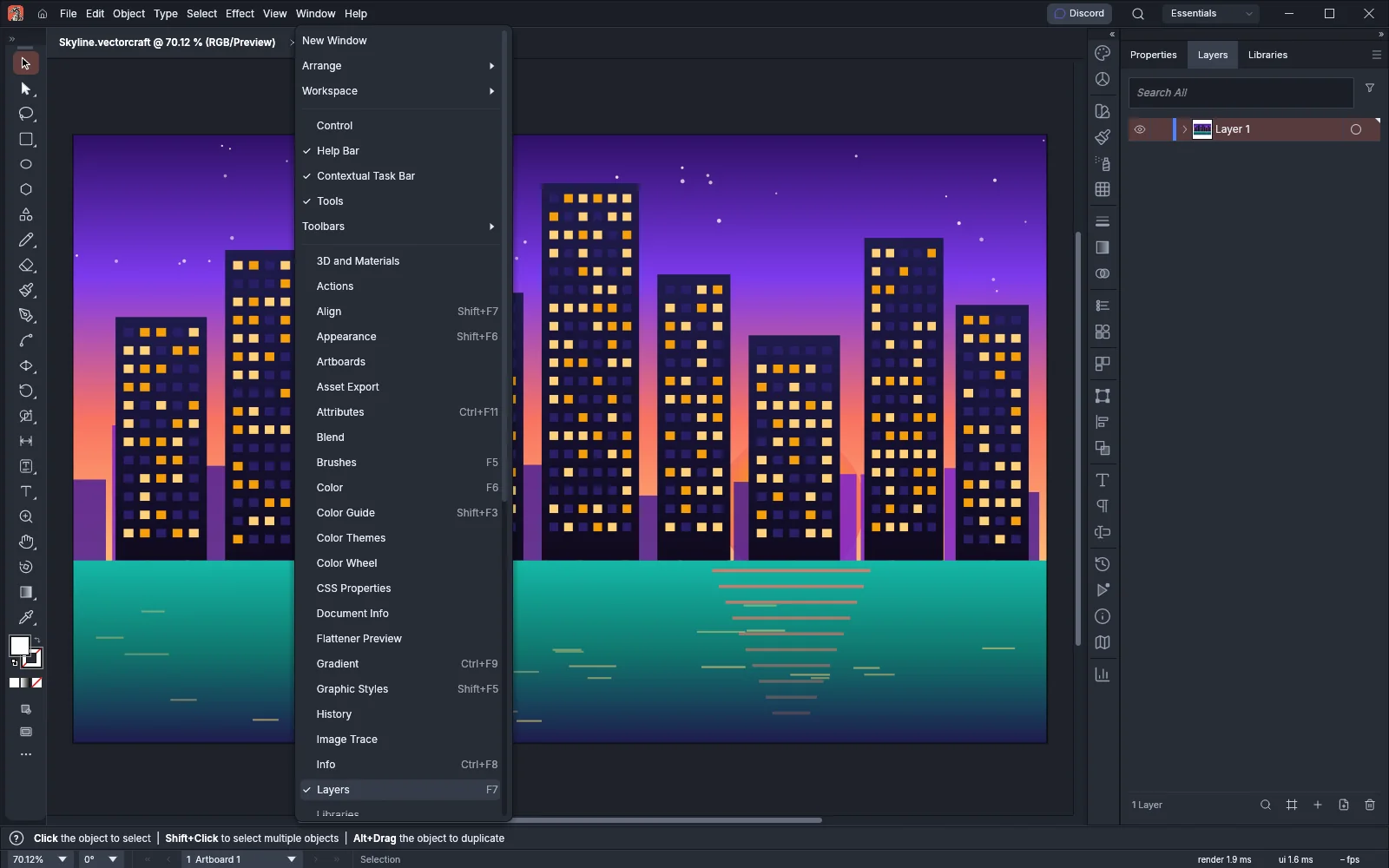
The View, Window and Help menus page covers the other items of the Window menu, such as New Window, Arrange and Workspace.
Press Tab to hide the panels, the Tools panel and the Control bar, and press Tab again to show them. Press Shift+Tab to hide or show only the panels.
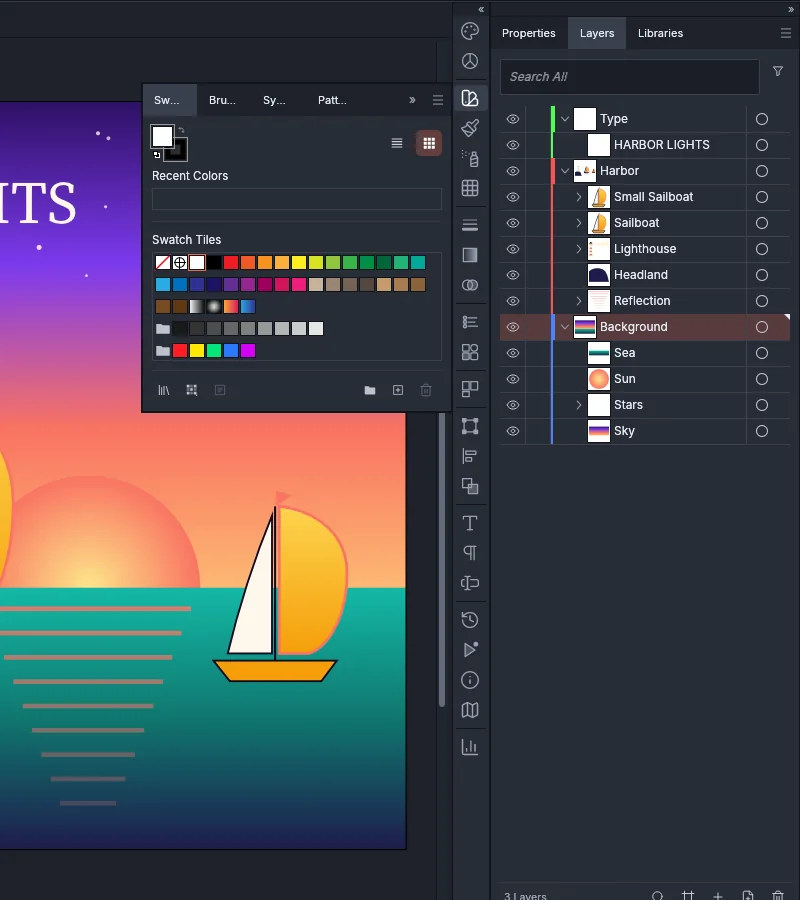
In the Essentials workspace, the dock at the right edge of the window holds the Properties, Layers and Libraries panels as tabs. The column of icons beside it holds the other panels in groups:
- Color and Color Guide
- Swatches, Brushes, Symbols and Pattern Options
- Stroke, Gradient and Transparency
- Appearance and Graphic Styles
- Artboards
- Transform, Align and Pathfinder
- Character, Paragraph and Glyphs
- History, Actions, Info and Navigator
- Variables
When you choose a panel in the Window menu that sits in the icon column, its group opens as a flyout panel beside the column. Choose the panel again to put the flyout away. The » button next to the flyout’s ≡ button also collapses it back to icons.
Panels
Section titled “Panels”| Panel | What it does | Windows and Linux | macOS | Guide |
|---|---|---|---|---|
| 3D and Materials | Applies a Plane, Extrude, Revolve or Inflate 3D effect to the selection, or changes the applied one, with the Object, Rotation and Lighting controls below them. | None | None | Make 3D artwork |
| Actions | Records commands as an action and plays the action back as one undo step. | None | None | Automate VectorCraft |
| Align | Aligns and distributes the selected objects, with Distribute Spacing and Align To (selection, key object or artboard). | Shift+F7 | Shift+F7 | Arrange, group and align |
| Appearance | Lists the fills, strokes and effects of the selected object in stacking order, and the object’s opacity. | Shift+F6 | Shift+F6 | Apply effects and appearance |
| Artboards | Lists the artboards by number. You can rename, reorder, add, duplicate, lock and delete artboards, and open Artboard Options. | None | None | Set up documents and artboards |
| Asset Export | Holds the document’s assets as thumbnails and exports them with the format settings shared with Export for Screens. | None | None | Export for screens and the web |
| Attributes | Sets Overprint Fill, Overprint Stroke, the center point, the path direction, the fill rule, an image map, a URL and a note. | Ctrl+F11 | Cmd+F11 | Manage color and proof |
| Blend | Makes a blend and sets its Spacing and Orientation. Its buttons also reverse, replace the spine of, expand and release a blend. | None | None | Make patterns, blends and repeats |
| Brushes | Shows the document’s brushes with stroke previews. A click applies a brush to the selected paths, and a double-click opens Brush Options. | F5 | F5 | Paint with brushes |
| Color | Mixes the fill or stroke color with Grayscale, RGB, HSB, CMYK or Web Safe RGB sliders, a hex field and a spectrum ramp. | F6 | F6 | Fill, stroke and color |
| Color Guide | Builds colors from a base color and a harmony rule, with a grid of shades, tints and variations of each color. | Shift+F3 | Shift+F3 | Fill, stroke and color |
| Color Themes | Makes a five-color theme on a harmony wheel on the Create tab, and lists your saved themes on the My Themes tab. | None | None | Fill, stroke and color |
| Color Wheel | Picks the fill or stroke color on a hue ring around a saturation and brightness square. | None | None | Fill, stroke and color |
| CSS Properties | Shows the CSS for the selected objects, or for the whole document after Generate CSS, and copies or exports it as a .css file. |
None | None | Slice artwork for the web |
| Document Info | Lists the document’s setup and contents, such as objects by kind, styles, brushes, spot colors, fonts and images, for the document or the selection, and saves the list as a text report. | None | None | Measure and dimension |
| Flattener Preview | Highlights in red the parts of the artwork that flattening would change. | None | None | Manage color and proof |
| Gradient | Edits the gradient of the fill or stroke: its type, angle, aspect ratio, color stops and midpoints. | Ctrl+F9 | Cmd+F9 | Fill, stroke and color |
| Graphic Styles | Shows the document’s graphic styles. A click applies a style to the selection, and Alt-click (Option-click on macOS) adds it on top of the current appearance. | Shift+F5 | Shift+F5 | Apply effects and appearance |
| History | Lists the document’s steps. Click a row to go back or forward to that state. | None | None | Customize the workspace |
| Image Trace | Sets the preset, view, mode, palette, threshold or color count and the advanced options of a trace, and traces the selected image. | None | None | Trace an image |
| Info | Shows the pointer’s X and Y position, the selection’s width and height, the pointer’s distance and angle from the selection, and the fill and stroke color values. | Ctrl+F8 | Cmd+F8 | Measure and dimension |
| Layers | Lists every layer, sublayer, group and object, with columns to show, hide, lock, target and select them. | F7 | F7 | Organize with layers and symbols |
| Libraries | Keeps colors, gradients, patterns, character and paragraph styles and graphics in libraries stored on your computer, and exports or imports a library as a .vclibrary file. |
None | None | Fill, stroke and color |
| Links | Lists every linked and embedded image with its status. Its buttons relink, go to, update and edit the original of the selected images. | None | None | Work with placed images |
| Magic Wand | Sets which attributes the Magic Wand tool compares, with a tolerance for each. | None | None | Select artwork |
| Navigator | Shows a thumbnail of the document with a view box that you drag to pan, and zoom buttons, a zoom slider and a zoom field. | None | None | Customize the workspace |
| Pathfinder | Combines the selected shapes with the Shape Modes and the Pathfinder buttons. By default, Alt-click (Option-click on macOS) on a Shape Mode makes a compound shape. | Ctrl+Shift+F9 | Cmd+Shift+F9 | Combine and cut shapes |
| Pattern Options | Sets the tile type, size, spacing, overlap and copies of a pattern while you edit it. Outside pattern editing mode, it lists the document’s patterns with an Edit button. | None | None | Make patterns, blends and repeats |
| Properties | Shows the settings for the current selection or tool. With nothing selected, it shows the document’s settings. | None | None | Getting started |
| Script Console | Lists the output and errors of the scripts run in this session. Closing the panel only hides it, and running scripts keep writing to it. | None | None | Run scripts |
| Separations Preview | Shows or hides each process and spot plate, and holds the color management and proof settings. | None | None | Manage color and proof |
| Stroke | Sets the stroke weight, caps, corners, alignment, miter limit, dashes, arrowheads and width profile. | Ctrl+F10 | Cmd+F10 | Fill, stroke and color |
| SVG Interactivity | Adds JavaScript that the selected objects run on an event in web output, and links JavaScript files to the document. | None | None | Slice artwork for the web |
| Swatches | Shows the document’s swatches and color groups as a grid or a list. You can drag swatches onto artwork and into color groups. | None | None | Fill, stroke and color |
| Symbols | Shows the document’s symbols. A click makes a symbol the Symbol Sprayer’s current symbol, and a double-click opens it in symbol editing mode. | Ctrl+Shift+F11 | Cmd+Shift+F11 | Organize with layers and symbols |
| Transform | Sets the X, Y, width, height, rotation and shear of the selection from a reference point. With the Artboard tool, it edits the active artboard instead. | Shift+F8 | Shift+F8 | Draw and transform shapes |
| Transparency | Sets the blend mode and opacity, and makes and edits opacity masks, with the isolate blending and knockout group options. | Ctrl+Shift+F10 | Cmd+Shift+F10 | Fill, stroke and color |
| Variables | Lists the document’s variables and data sets. A click on a data set applies it, and a click on a variable selects the objects it is bound to. | None | None | Make graphs and data-driven art |
Type panels
Section titled “Type panels”These panels are in the Window → Type submenu.
| Panel | What it does | Windows and Linux | macOS | Guide |
|---|---|---|---|---|
| Character | Sets the font family and style, size, leading, kerning, tracking, scale, baseline shift, rotation and language of the selected type, with the All Caps, Small Caps, Superscript, Subscript, Underline and Strikethrough buttons. | Ctrl+T | Cmd+T | Add and style type |
| Character Styles | Lists the document’s character styles. A click applies a style to the selected text, and Alt-click (Option-click on macOS) applies it and clears overrides. | None | None | Work with styles and long text |
| Glyphs | Shows every character of the current font. A double-click inserts the character at the Type tool’s insertion point. | None | None | Work with styles and long text |
| OpenType | Turns on the OpenType features of the selected text, such as ligatures, alternates, swashes, ordinals, fractions and figure styles. | Ctrl+Alt+Shift+T | Cmd+Option+Shift+T | Work with styles and long text |
| Paragraph | Sets alignment, indents, space before and after, bullets and numbering, hyphenation and the composer. | Ctrl+Alt+T | Cmd+Option+T | Add and style type |
| Paragraph Styles | Lists the document’s paragraph styles. A click applies a style to the selected paragraphs, and Alt-click (Option-click on macOS) applies it and clears overrides. | None | None | Work with styles and long text |
| Tabs | Sets tab stops on a ruler, with each stop’s alignment, position and leader. | Ctrl+Shift+T | Cmd+Shift+T | Work with styles and long text |
Libraries
Section titled “Libraries”The four library submenus at the end of the Window menu open libraries of brushes, graphic styles, swatches and symbols. Each library opens in a panel of its own, and you add its items to the document from there.
| Submenu | What it lists | Guide |
|---|---|---|
| Window → Brush Libraries | The built-in brush libraries, User Defined, Other Library… and Save Brushes… | Paint with brushes |
| Window → Graphic Style Libraries | The built-in graphic style libraries, User Defined, Other Library… and Save Graphic Style Library… | Apply effects and appearance |
| Window → Swatch Libraries | Default Swatches, the built-in swatch libraries, the Gradients and Patterns submenus, User Defined, Other Library… and Save Swatch Library… | Fill, stroke and color |
| Window → Symbol Libraries | The built-in symbol libraries, User Defined, Other Library… and Save Symbols… | Organize with layers and symbols |
User Defined lists up to 10 libraries that you saved. Other Library… opens a library file or a document that you choose. Save Brushes…, Save Graphic Style Library…, Save Swatch Library… and Save Symbols… save the document’s brushes, graphic styles, swatches or symbols as a library.
These items are at the top of the Window menu, under Workspace. None of them has a default shortcut. Each workspace keeps whether each bar shows. The Customize the workspace guide covers them.
| Item | What it does |
|---|---|
| Window → Control | Shows or hides the Control bar, which runs across the top of the window with the options of the current tool or selection. Its panel menu docks it to the top or the bottom of the window and turns each group of its options on or off. The Essentials workspace hides it. |
| Window → Help Bar | Shows or hides the strip at the bottom of the window that lists the current tool’s hints, separately from the status bar. It shows by default. |
| Window → Contextual Task Bar | Shows or hides the bar that floats under the selection with buttons for common commands on it, such as Group, Duplicate and Lock. Its More Options menu has Hide Bar, Pin Bar Position, Reset Bar Position and Show Properties Panel. |
| Window → Tools | Shows or hides the Tools panel. |
| Window → Toolbars | Holds Advanced, which switches the Tools panel between its Basic and Advanced layouts, Double Column, Keep Tools Beside the Canvas, a list of the toolbars you made, New Toolbar… and Manage Toolbars…. |
Keep Tools Beside the Canvas docks the Tools panel between the left-side panels and the canvas instead of at the window’s left edge. It is off by default.
Panel menus
Section titled “Panel menus”Click the ≡ button at the right end of a panel’s tab strip to open its panel menu. Every panel menu ends with Float Panel, which moves the panel out of the dock into a window of its own. In a floating panel, the item reads Dock Panel and puts the panel back in the dock. Items that cannot run on the current document, selection or panel rows are dimmed.
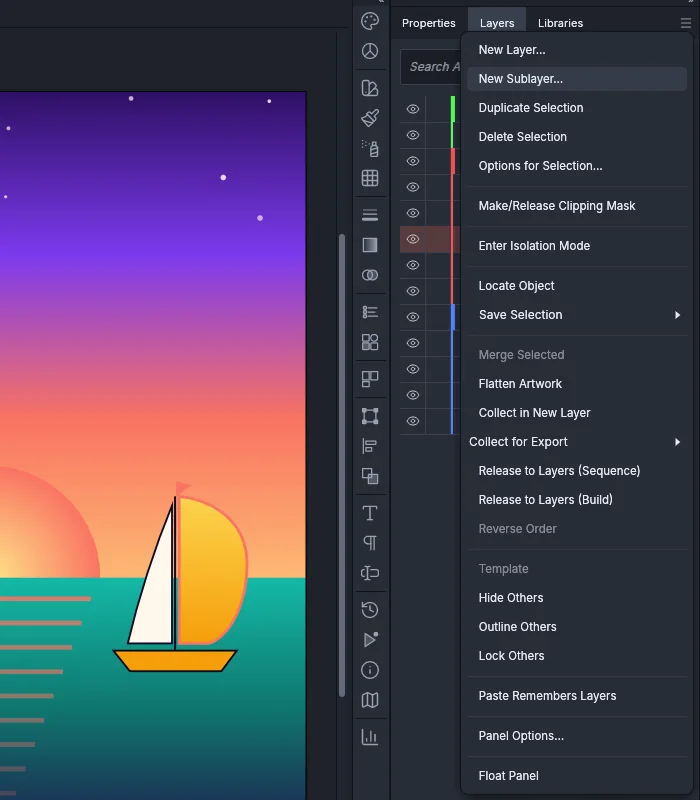
The table lists each menu’s items from top to bottom, with each group between separators on its own line. Where an item’s name changes with the state, both names are given.
| Panel | Panel menu items |
|---|---|
| Layers | New Layer…, New Sublayer…, Duplicate Selection, Delete Selection, Options for Selection… Make/Release Clipping Mask Enter Isolation Mode (Exit Isolation Mode while you are in isolation mode) Locate Object, Save Selection (a submenu with Save Selection…, Update Selection, Edit Selection… and the document’s saved selections) Merge Selected, Flatten Artwork, Collect in New Layer, Collect for Export (As Single Asset or As Multiple Assets), Release to Layers (Sequence), Release to Layers (Build), Reverse Order Template, Hide Others or Show All Layers, Outline Others or Preview All Layers, Lock Others or Unlock All Layers Paste Remembers Layers Panel Options… |
| Swatches | New Swatch…, New Color Group…, Duplicate Swatch, Merge Swatches, Delete Swatch, Edit or Apply Color Group…, Ungroup Color Group, Select All Unused, Add Used Colors Sort by Name, Sort by Kind Small Thumbnail View, Medium Thumbnail View, Large Thumbnail View, Small List View, Large List View Show Find Field Swatch Options…, Spot Colors… Open Swatch Library, Save Swatch Library… |
| Transparency | Hide Thumbnails or Show Thumbnails, Hide Options or Show Options Make Opacity Mask, Release Opacity Mask, Disable Opacity Mask or Enable Opacity Mask, Unlink Opacity Mask or Link Opacity Mask New Opacity Masks Are Clipping, New Opacity Masks Are Inverted Page Isolated Blending, Page Knockout Group |
| Graphic Styles | New Graphic Style…, Duplicate Graphic Style, Merge Graphic Styles, Delete Graphic Style, Break Link to Graphic Style Select All Unused, Sort by Name Thumbnail View, Small List View, Large List View Use Square for Previews, Use Text for Previews, Override Character Color Graphic Style Options…, Open Graphic Style Library, Save Graphic Style Library… |
| Appearance | Add New Fill, Add New Stroke Duplicate Item, Remove Item, Clear Appearance, Reduce to Basic Appearance New Art Has Basic Appearance, Hide Thumbnail or Show Thumbnail Redefine Graphic Style (with the name of the selection’s graphic style), Show All Hidden Attributes |
| Character Styles | New Character Style…, Duplicate Character Style, Delete Character Style, Select All Unused Clear Overrides, Redefine Character Style, Character Style Options… Load Character Styles…, Load All Styles… |
| Paragraph Styles | New Paragraph Style…, Duplicate Paragraph Style, Delete Paragraph Style, Select All Unused Clear Overrides, Redefine Paragraph Style, Paragraph Style Options… Load Paragraph Styles…, Load All Styles… |
| Variables | New Variable…, Variable Options…, Make Text Dynamic, Make Visibility Dynamic, Make Image Dynamic, Make Graph Dynamic, Unbind Variable, Delete Variable, Lock Variables or Unlock Variables Capture Data Set, Update Data Set, New Data Set…, Edit Data Set…, Rename Data Set…, Delete Data Set Import Data Sets…, Export Data Sets…, Load Variable Library…, Save Variable Library… Select Bound Object, Select All Bound Objects |
| Pathfinder | Trap…, Repeat Pathfinder (named after the last operation once you have used one), Pathfinder Options… Make Compound Shape, Release Compound Shape, Expand Compound Shape |
| Artboards | New Artboard, Duplicate Artboards, Delete Artboards, Rename, Delete Empty Artboards Convert to Artboards, Artboard Options…, Rearrange All Artboards… Fit to Artwork Bounds |
A few items have conditions:
- Merge Selected and Reverse Order in the Layers panel menu need two or more highlighted rows.
- Delete Artboards needs more than one artboard in the document.
- Import Data Sets… reads a
.csv,.tsvor.txtfile, and Export Data Sets… writes a.csvfile. Load Variable Library… reads an.xmlfile, and Save Variable Library… needs at least one text variable. - Open Swatch Library and Open Graphic Style Library are submenus of libraries. Choosing a library opens it in a panel of its own, as the submenus in Libraries do.