
Open and place PDF and .ai pages
This guide covers the Import PDF and Place PDF dialogs, which VectorCraft shows when you open or place a PDF, .ai or .ait file that has several pages or a password, and what each page becomes in the document. When you open (rather than place) a .ai or .ait file that carries the editing data of the program that made it, the file opens without the Import PDF dialog (see Files VectorCraft wrote reopen in full).
Open some pages of a PDF
Section titled “Open some pages of a PDF”- Choose File → Open… (Ctrl+O, or Cmd+O on macOS) and pick a PDF with several pages. The Import PDF dialog opens.
- Look through the pages in the preview. First Page, Previous Page, Next Page and Last Page are the arrow buttons under the preview, and you can type a page number in the box next to of and the page count.
- Under Pages, keep All, or choose Range: and type the pages, for example
1-3, 5. Clicking in the Range: box chooses Range:. - Choose the page box in Crop To. The preview shows the page cropped to that box.
- Press OK.
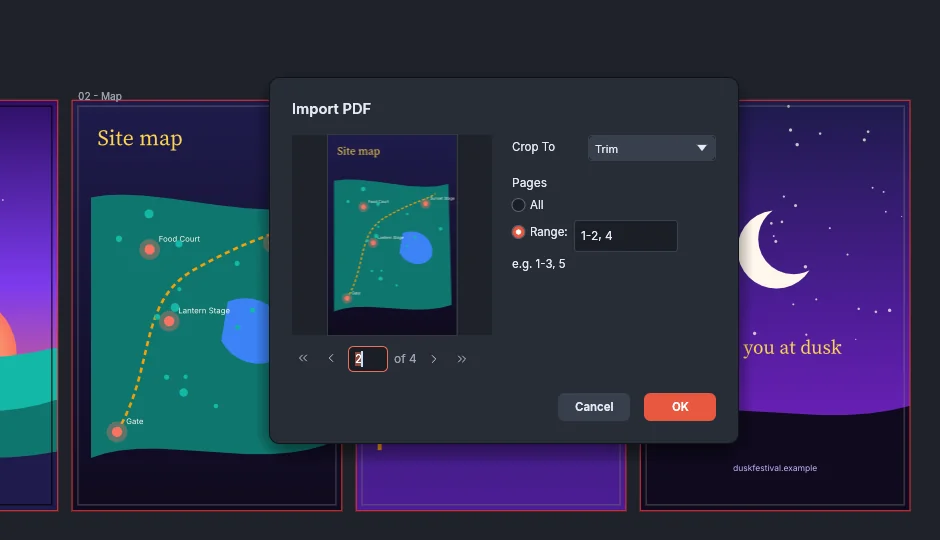
A range lists page numbers and spans separated by commas. 3- runs from page 3 to the last page, and -2 runs from the first page to page 2. The pages open in the order you type them, and a page you list twice opens once. If the range names a page the file does not have, VectorCraft shows an error and the dialog stays open with what you typed.
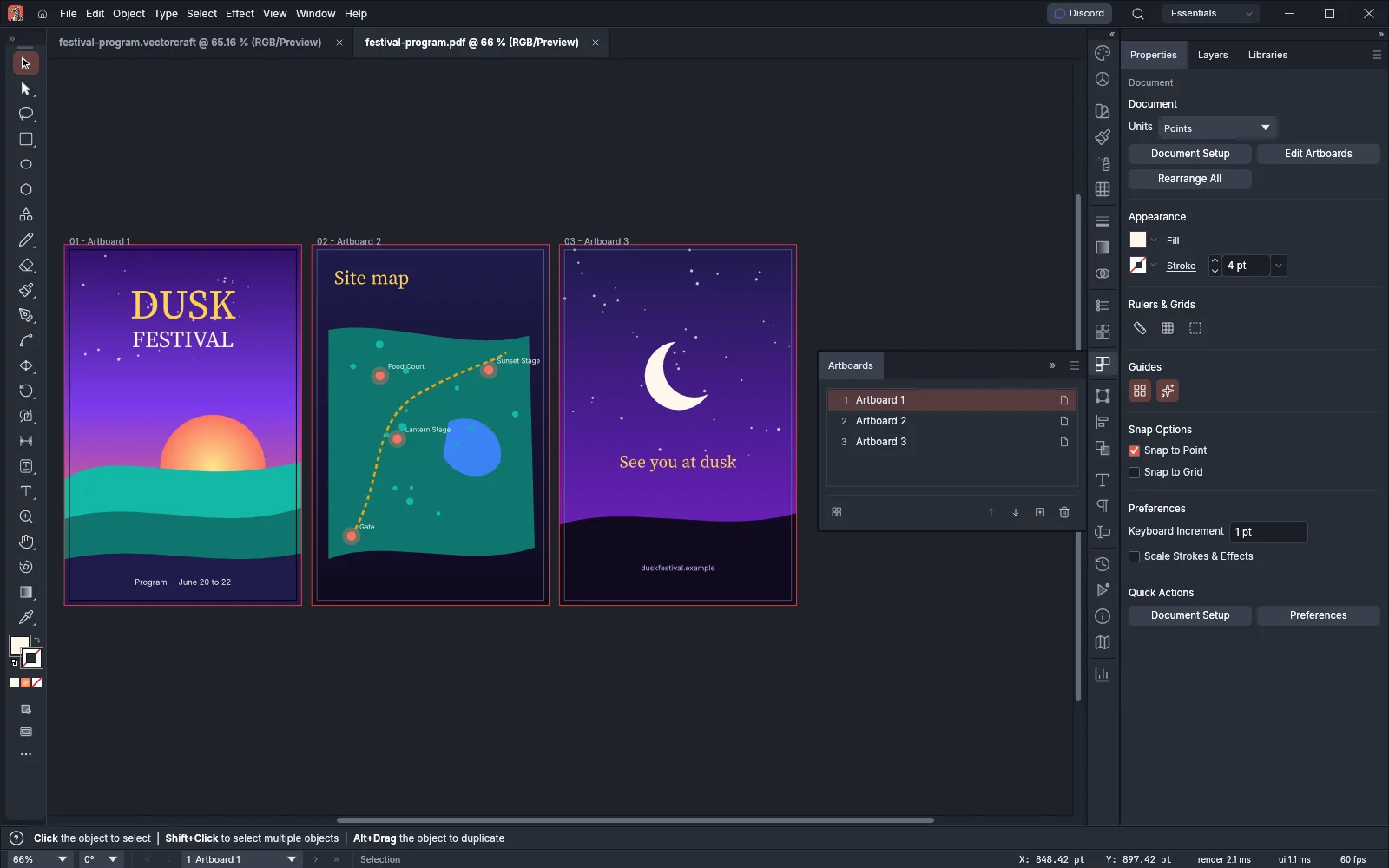
Each page you open becomes one artboard. The artboards sit in a row, 36 pt apart, and are named Artboard 1, Artboard 2 and so on in the order they open. The art of each page goes on a layer named after its page number in the file, such as Page 4. A PDF that has its own layers opens with those layers instead.
A PDF or .ai file with one page and no password opens without the dialog, with Crop To set to Crop (see the note under the Crop To table for .ai files).
When you open only some pages, choose a page box other than Crop, or open a password-protected file, the document has no file to save to. File → Save asks for a name and a location and does not overwrite the original file.
Crop To
Section titled “Crop To”Crop To sets which of the page’s boxes becomes the artboard (or, when placing, the frame of the placed page). When a page does not define the box you choose, VectorCraft uses its crop box.
| Crop To | The artboard is |
|---|---|
| Bounding Box | The bounds of the art on the page |
| Art | The page’s art box |
| Crop (default) | The visible page area, as PDF viewers show it |
| Trim | The finished page. The bleed box around it becomes the document’s bleed. |
| Bleed | The page’s bleed box |
| Media | The whole sheet |
A PDF-compatible .ai file, or a PDF that carries the editing data of the program that made it, opens differently with Crop: each artboard is the page’s trim box, and the bleed boxes around them become the document’s bleed, as with Trim.
With Trim, the art in the bleed area stays and shows inside the bleed guides. The document takes the widest bleed of the opened pages on each side, up to 72 pt. To check or change the bleed afterward, open File → Document Setup… (see Set up a document and artboards).
Open a password-protected PDF
Section titled “Open a password-protected PDF”- Choose File → Open… and pick the PDF. The Import PDF dialog says that the file is protected by a password.
- Type the password in Password.
- Press OK.

If the password is wrong, VectorCraft reports it and the dialog stays open, so you can type it again. When the password is right, a file with several pages then shows the page choice described in Open some pages of a PDF, and a file with one page opens at once.
Place one page of a PDF or .ai file
Section titled “Place one page of a PDF or .ai file”- Choose File → Place… (Ctrl+Shift+P, or Cmd+Shift+P on macOS).
- Pick a PDF or
.aifile, set Link or Template if you want them, and press Place. - If the file has several pages or a password, the Place PDF dialog opens. Type the password if it asks for one.
- Go to the page you want with the arrow buttons or the page box. The Place PDF dialog places one page and has no Pages setting.
- Choose the page box in Crop To and press OK.
The page is placed as one object, framed by the box you chose. The Link and Template choices you made in the Place dialog still apply, with one exception: when you typed a password, the page is embedded as an editable copy of its art even if Link is on. For linked and embedded files after placing, see Work with placed images.
Files VectorCraft wrote reopen in full
Section titled “Files VectorCraft wrote reopen in full”These files carry the whole VectorCraft document, and File → Open… opens them with every artboard, layer and object, without the Import PDF dialog:
- a
.aifile that VectorCraft saved; - a PDF saved with Preserve editing capabilities on in the Save PDF dialog;
- an SVG file saved with Preserve Editing Capabilities on in SVG Options;
- an EPS file that VectorCraft saved.
If one of the files in this list was changed in another program after VectorCraft saved it, VectorCraft opens the artwork the file shows instead and warns that the file was changed in another app after it was saved with its editing data.
A .ai or .ait file from another program that carries its editing data also opens with all of its artboards and layers, without the dialog.
File → Place… places one page, so it still shows the Place PDF dialog for these files when they have several pages.
EPS and PostScript files
Section titled “EPS and PostScript files”EPS (.eps, .epsf) and PostScript (.ps) files have one page, so they open and place without the Import PDF dialog. VectorCraft draws the page from its PostScript. When it cannot read the PostScript, it brings in the preview image that the file carries instead. An EPS or .ai file that also holds an editable copy of its art, written by the program that made it, opens from that copy, with its layers, hidden objects and the art outside its artboards.