
Drag files into VectorCraft
You can drag files from your file manager and drop them on the VectorCraft window: a drawing opens in a tab of its own, a picture or a text file is placed in the open document, and plug-ins, presets, libraries and shortcut sets are handled the way File → Open… handles them.
VectorCraft handles files dropped on a panel that floats in a window of its own the same way as files dropped on the main window.
Drop a document to open it
Section titled “Drop a document to open it”- Drag a drawing from your file manager onto the VectorCraft window.
- Release the mouse button. The drawing opens in a new tab and becomes the active document.
These files open as documents of their own:
- VectorCraft files (
.vectorcraft) and VectorCraft templates (.vctemplate) - SVG and SVGZ, PDF,
.aiand.ait - EPS and PostScript (
.ps) - DXF, EMF and WMF
- Affinity files (
.af,.afdesignand.afpub)
A dropped document opens the same way as one you open with File → Open…:
- A PDF with several pages, or one that needs a password, shows the Import PDF dialog first. A DXF drawing shows DXF Import Options first.
- A document that is already open is not opened a second time. Its tab comes to the front instead.
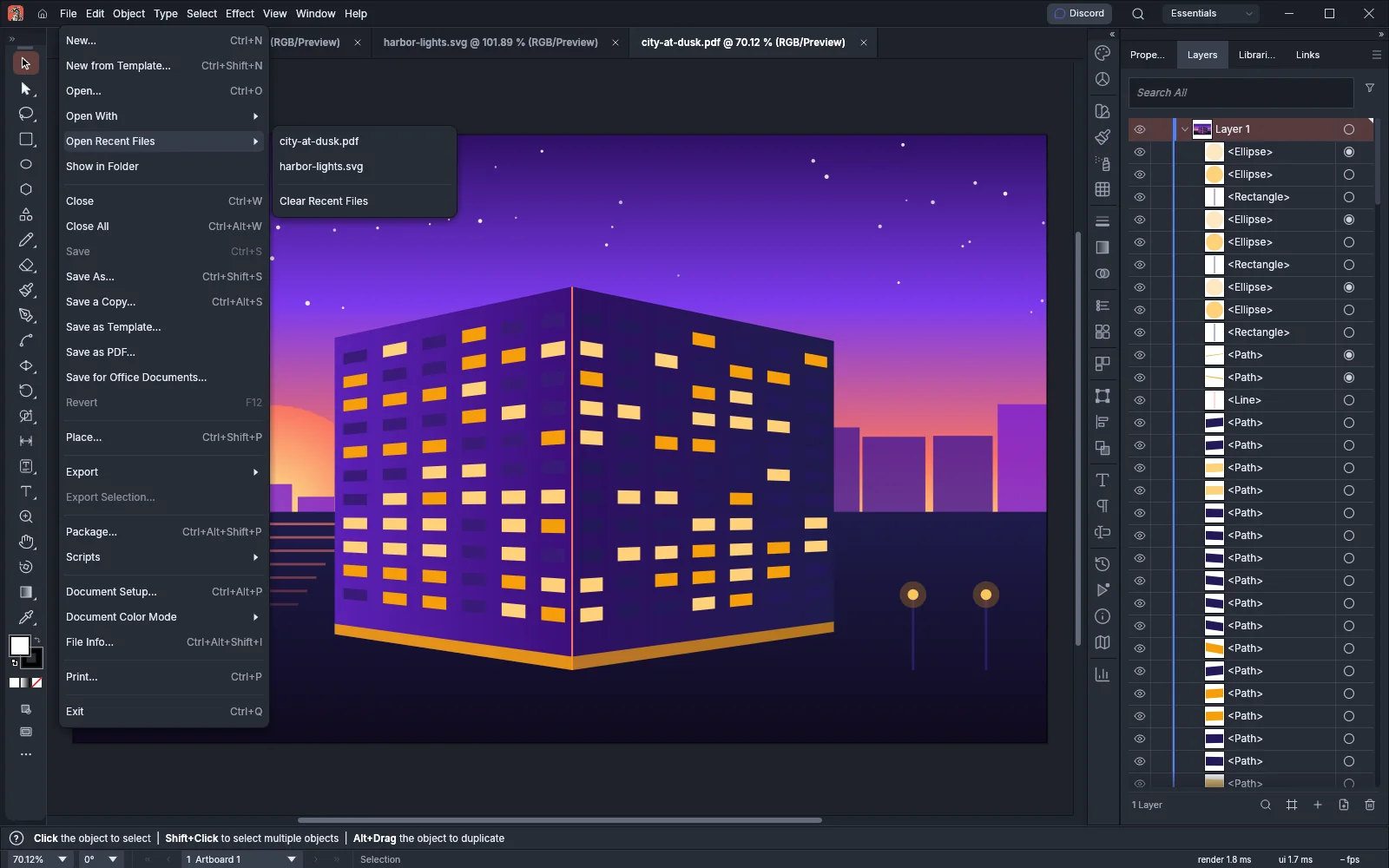
- The document goes to the top of File → Open Recent Files.
VectorCraft reads a dropped document before you can go on working. It does not show the progress window that File → Open… shows for a file that takes a while to open.
When no document is open, every file you drop opens as File → Open… opens it. A picture then opens as a document the size of the picture.
Drop a picture or text to place it
Section titled “Drop a picture or text to place it”When a document is open, a picture or a text file that you drop is placed in that document instead of opening in a tab:
- Make the document you want to place the file in the active tab.
- Drag the picture or text file over the window. VectorCraft outlines the canvas to show that the file will be placed.
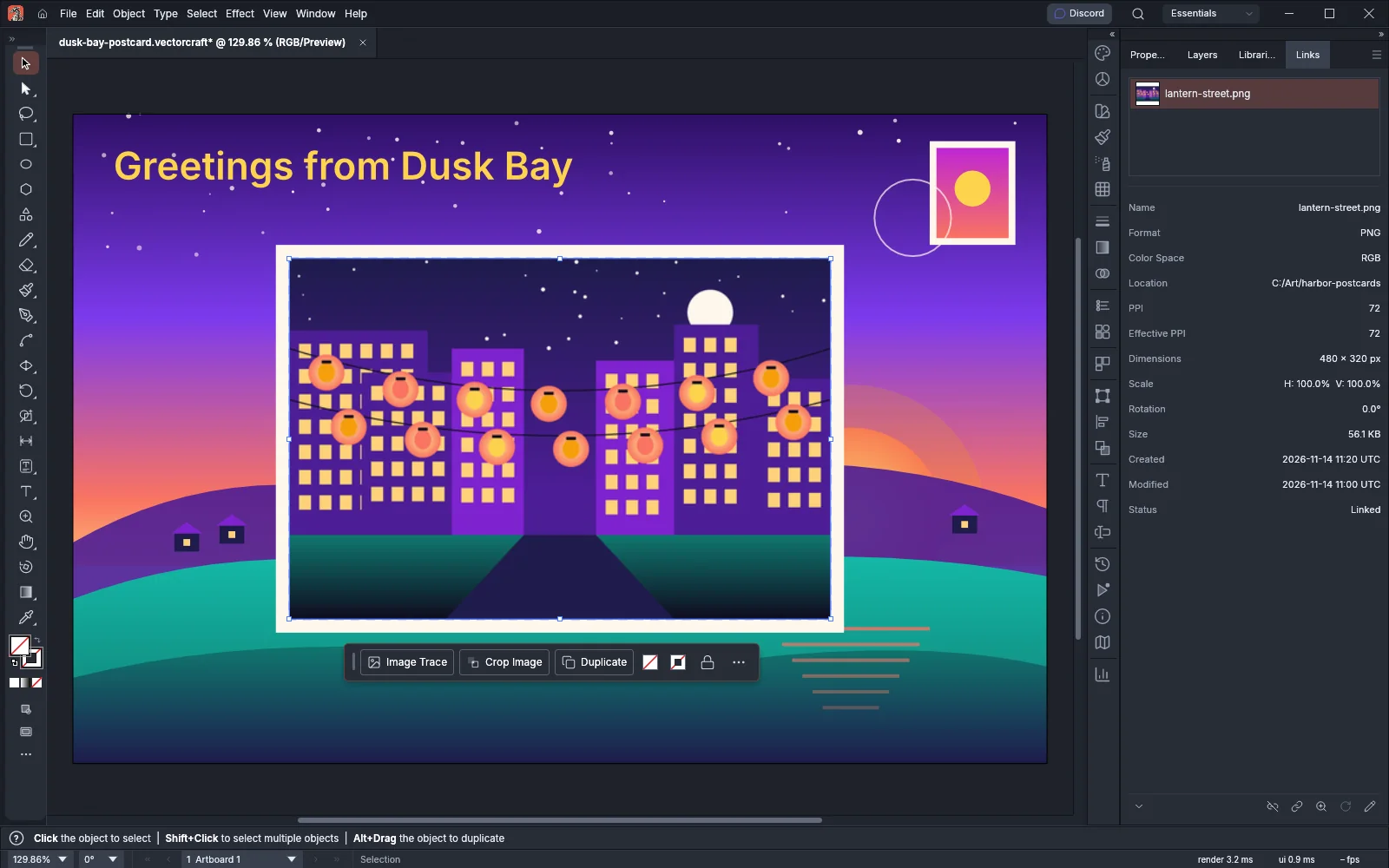
- Release the mouse button. VectorCraft places the file in the middle of the view and selects it.
| File | How it is placed |
|---|---|
| Pictures: PNG, JPEG, GIF, WebP, TIFF, BMP, Targa, PSD, PSB, PCX, Pixar, JPEG 2000, HEIC, HEIF and JPEG XL | As a linked image at 100% of its physical size, using the resolution the file declares, or 72 ppi when it declares none |
Plain text (.txt) |
The Text Import Options dialog opens first, then the text is placed as area type |
Rich text and Word documents (.rtf, .docx and .doc) |
As area type with its formatting |
A dropped picture is linked to its file, so the Links panel lists it as linked. To embed the picture in the document instead, hold Shift while you release the mouse button. To relink, update or embed a picture later, see Work with placed images.
To place a PDF, an .ai file, an SVG file or another drawing in the open document instead of opening it in a tab, use File → Place… (see Open and save files).
Drop several files at once
Section titled “Drop several files at once”You can select several files in your file manager and drop them together. VectorCraft sorts them by kind:
- It starts placing the pictures and text files first, all in the middle of the view, one above the other.
- It then opens the documents and the other files, each document in a tab of its own.
When you drop only documents, the last one opened becomes the active tab. When the drop also includes pictures or text files, the desktop version places them while the documents open, and the document they are placed in comes back to the front once they are placed.
Files that open as something else
Section titled “Files that open as something else”Some files are not documents. Whether you drop them on the canvas, on the tab bar or on an empty window, VectorCraft handles them the same way as File → Open… does:
| File | Extension | What VectorCraft does |
|---|---|---|
| Plug-in | .wasm |
Installs the plug-in. A plug-in that asks for permissions shows them first. See Install and manage plug-ins. |
| Shortcut set from another app | .kys |
Opens the Import Shortcut Set dialog, where you review the set before you keep it |
| Script | .jsx, .jsxinc and .jsxbin |
Shows the Check Script report without running the script. See Automate VectorCraft. |
| Flattener presets | .vcflattener |
Imports the presets |
| PDF presets | .vcpdfpresets |
Imports the presets |
| Print presets | .vcprintpresets |
Imports the presets |
| Perspective grid presets | .vcperspective |
Imports the presets |
| Export presets | .vcexportpresets |
Imports the presets |
| Composite fonts | .vccomposite |
Adds the composite fonts to the active document. See Set type for other languages. |
| Libraries panel library | .vclibrary |
Adds it to the Libraries panel as a new library |
| Swatch library | .vcswatches, .gpl, .ase and .acb |
Opens the library in a panel of its own |
| Graphic style library | .vcstyles |
Opens the library in a panel of its own |
| A file only an importer plug-in reads | The extensions an installed importer lists | Opens the file with that importer, as a new document |
When VectorCraft imports presets, the status bar names them, for example Imported PDF presets: followed by the names of the presets. An imported library is reported as Imported library followed by its name.
If a dropped file does not open or place
Section titled “If a dropped file does not open or place”- A file that VectorCraft cannot open: VectorCraft shows a dialog that starts with Can’t open and the file name, and the status bar gives the reason.
- A file that VectorCraft cannot place: the status bar shows
Couldn't placefollowed by the file name and the reason. - Linux with a Wayland desktop: VectorCraft does not receive files dropped on a window that runs on Wayland. To drop files, choose Edit → Preferences… (Ctrl+K), click the Performance page, set Linux Display Server to X11 (XWayland), and restart VectorCraft. The window opens on Wayland again when XWayland or the X11 libraries it needs are not installed. On a Wayland window, use File → Open… or File → Place…, or copy the file in your file manager and paste it into the document (see Copy and paste between apps). Troubleshooting and Preferences describe the setting.
Drop files in a browser
Section titled “Drop files in a browser”In the web version of VectorCraft, the browser reports where you drop a file:
- A file dropped on the canvas is placed where you drop it. This includes drawings such as SVG and PDF files.
- A file dropped anywhere else, such as on the tab bar, opens as File → Open… opens it.
- Plug-ins, presets, libraries, shortcut sets, scripts and files that only an importer reads open wherever you drop them.