Type, Select and Effect menus
This page lists every item of the Type and Select menus, in menu order, with what it does, its default shortcut and the guide that covers it. It also lists the submenus of the Effect menu and the guides that describe the effects in them. The File and Edit menus, the Object menu and the View, Window and Help menus have their own pages.
Where Windows and Linux use Ctrl, macOS uses Cmd, and where they use Alt, macOS uses Option. A shortcut cell that reads “None” means the item has no default shortcut. You can give any item a shortcut in Edit → Keyboard Shortcuts…, and Keyboard shortcuts lists every default.
An item that cannot act on the current selection is grayed out. For example, Type → Scale Text Attributes is grayed out until the selected type has been scaled, and Select → Same → Link Block Series is grayed out while no type is selected.
Type menu
Section titled “Type menu”Most Type items act on the selected type objects, or on the text you have selected with the Type tool.
Fonts and characters
Section titled “Fonts and characters”| Item | What it does | Windows and Linux | macOS | Guide |
|---|---|---|---|---|
| Font | Lists every font family you can use, the installed fonts included. Choose one to apply it. With Show Font Names in English on in Preferences, the families are listed by their English names. | None | None | Add and style type |
| Recent Fonts | Lists the fonts you used last, newest first. Number of Recent Fonts in Preferences sets how many it lists: 10 by default, from 1 to 15. | None | None | Add and style type |
| Size | Sets the font size to 6, 8, 9, 10, 11, 12, 14, 18, 24, 30, 36, 48, 60 or 72 pt. | None | None | Add and style type |
| Bold | Switches the text to the Bold face of its family, or back to the regular face. If the family has no Bold face, the text does not change and VectorCraft shows a message. | Ctrl+Shift+B while you edit text | Cmd+Shift+B while you edit text | Add and style type |
| Italic | Switches the text to the Italic or Oblique face of its family, or back to upright. If the family has neither face, the text does not change and VectorCraft shows a message. | Ctrl+Shift+I while you edit text | Cmd+Shift+I while you edit text | Add and style type |
| Glyphs | Opens the Glyphs panel. | None | None | Work with styles and long text |
| Insert Special Character | Inserts a Bullet, Copyright Symbol, Ellipsis, Paragraph Symbol, Registered Trademark Symbol, Section Symbol, Trademark Symbol, Em Dash, En Dash, Discretionary Hyphen, Nonbreaking Hyphen, or one of four curly quotation marks. | None | None | Work with styles and long text |
| Insert Whitespace Character | Inserts an Em Space, En Space, Hair Space, Sixth Space, Thin Space, Nonbreaking Space, Figure Space, Punctuation Space, Third Space or Quarter Space. | None | None | Work with styles and long text |
| Insert Break Character | Inserts a Forced Line Break or a Tab. | None | None | Work with styles and long text |
Type objects and layout
Section titled “Type objects and layout”| Item | What it does | Windows and Linux | macOS | Guide |
|---|---|---|---|---|
| Convert To Area Type | Turns point type into area type, framed by the bounds of its current lines. | None | None | Add and style type |
| Convert To Point Type | Turns area type into point type. Lines that wrapped end in line breaks, and a frame of threaded text leaves its thread with the text it holds. | None | None | Add and style type |
| Area Type Options… | Sets the rows, columns, gutters, inset, first baseline, vertical alignment, text flow and fit of the selected area type. | None | None | Add and style type |
| Type on a Path | Applies the Rainbow, Skew, 3D Ribbon, Stair Step or Gravity effect to the selected type on a path, or opens Type on a Path Options…. | None | None | Add and style type |
| Dynamic Text | Turns Dynamic Text on or off for the selected area type and type on a path. Point type in the selection keeps its size. | None | None | Make lists and fit type to its frame |
| Threaded Text → Create | Threads the selected area type and type on a path in stacking order, so one story flows through them. | None | None | Add and style type |
| Threaded Text → Release Selection | Takes the selected frames out of their threads. The story flows through the frames that are left. | None | None | Add and style type |
| Threaded Text → Remove Threading | Breaks the threads of the selected frames. Each frame keeps the text it shows. | None | None | Add and style type |
| Fit Headline | Tracks the first line of area type so that it fills the width of the frame. | None | None | Make lists and fit type to its frame |
Text tools
Section titled “Text tools”| Item | What it does | Windows and Linux | macOS | Guide |
|---|---|---|---|---|
| Find Font… | Lists the fonts the document uses, marks the missing ones, and replaces a font with another. | None | None | Add and style type |
| Composite Fonts… | Builds the document’s composite fonts. The item shows only while Show East Asian Options is on in Preferences. | None | None | Set type in other languages |
| Change Case | Changes the text to UPPERCASE, lowercase, Title Case or Sentence case. | None | None | Add and style type |
| Smart Punctuation… | Replaces straight quotes with the quotation marks set in Document Setup, -- with an en dash, --- with an em dash and ... with an ellipsis character. The dialog opens with Quotes, Dashes and Ellipsis turned on and the scope set to the selection. You can change the scope to the whole document. |
None | None | Add and style type |
| Bullets and Numbering → Apply Bullets | Turns the paragraphs into a bulleted list. | None | None | Make lists and fit type to its frame |
| Bullets and Numbering → Apply Numbers | Turns the paragraphs into a numbered list. | None | None | Make lists and fit type to its frame |
| Bullets and Numbering → Convert to Text | Turns the bullets and numbers of a list into ordinary characters, each followed by a tab, and turns the list off. | None | None | Make lists and fit type to its frame |
| Create Outlines | Converts the selected type into groups of compound paths, one for each letter. | Ctrl+Shift+O | Cmd+Shift+O | Add and style type |
| Scale Text Attributes | Moves the scale of a scaled type object into its font size, leading, baseline shift and horizontal scale. Rotation and position do not change. | None | None | Add and style type |
| Optical Margin Alignment | Turns Optical Margin Alignment on or off for the selected type and every frame of its threads. Punctuation and some letters then hang outside the margins. | None | None | Work with styles and long text |
| Fill with Placeholder Text | Replaces the selected text with placeholder text. Area type is filled to its frame. | None | None | Add and style type |
| Insert Inline Symbol | Places the symbol selected in the Symbols panel in the text as one character, which flows with the text. | None | None | Work with styles and long text |
| Show Hidden Characters | Shows or hides markers for spaces, paragraph ends and story ends. While the markers are shown, the item reads Hide Hidden Characters. | Ctrl+Alt+I | Cmd+Option+I | Add and style type |
| Type Orientation → Horizontal, Vertical | Sets the selected type, and every frame of its threads, to horizontal or vertical lines. | None | None | Work with styles and long text |
The spelling commands are on the Edit menu, under Edit → Spelling. Check spelling describes them.
Select menu
Section titled “Select menu”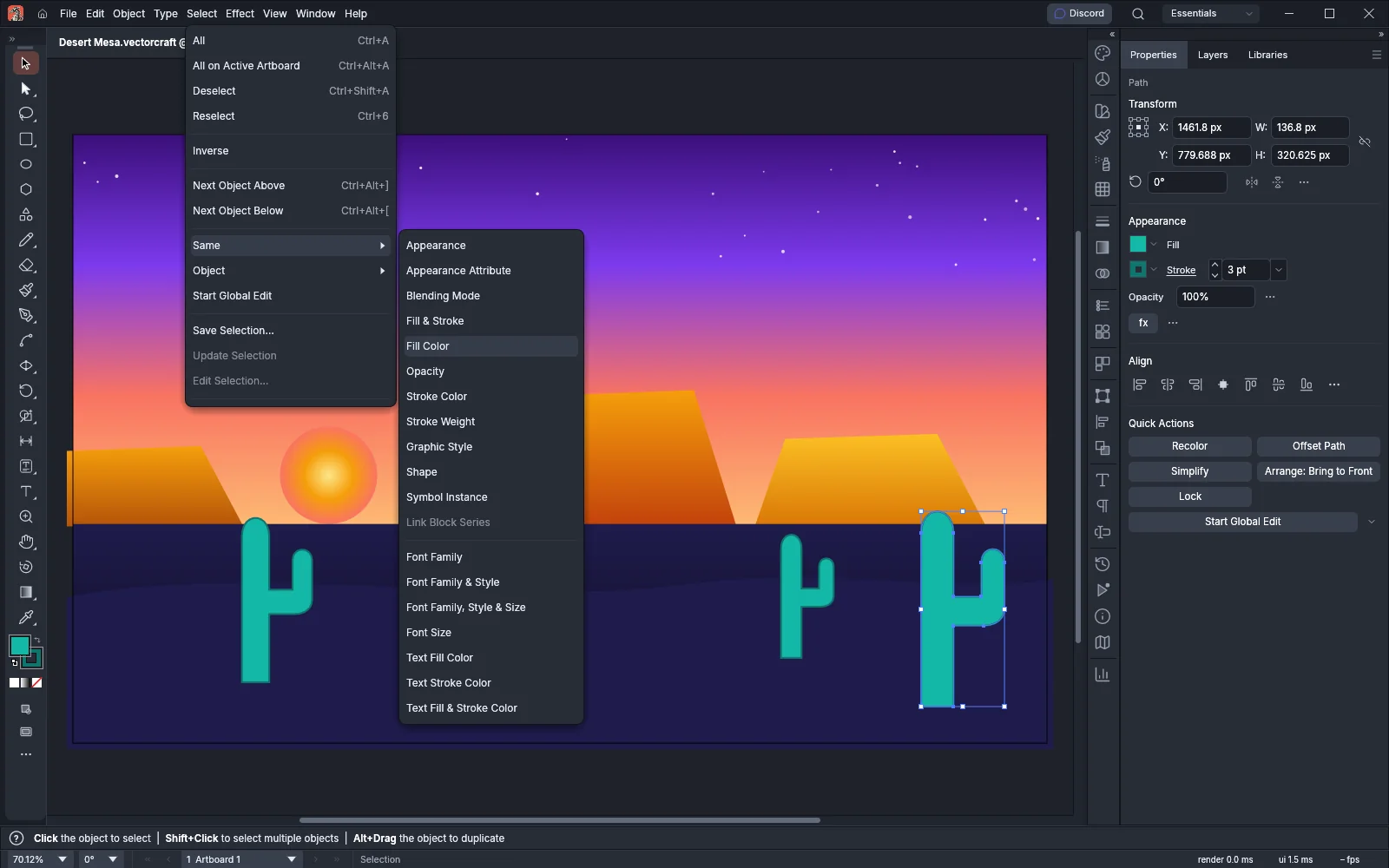
| Item | What it does | Windows and Linux | macOS | Guide |
|---|---|---|---|---|
| All | Selects every object you can select. While you edit text with the Type tool, it selects all of that text instead, the whole story in threaded text. | Ctrl+A | Cmd+A | Select artwork |
| All on Active Artboard | Selects the objects that overlap the active artboard or whose center is on it. | Ctrl+Alt+A | Cmd+Option+A | Select artwork |
| Deselect | Clears the selection. | Ctrl+Shift+A | Cmd+Shift+A | Select artwork |
| Reselect | Runs the last Select → Same command again. When nothing is selected, it starts from the objects that were selected when that command ran. | Ctrl+6 | Cmd+6 | Select artwork |
| Inverse | Selects every object that is not selected, and deselects the ones that are. | None | None | Select artwork |
| Next Object Above | Selects the next object above the selected one in its layer or group. Hidden and locked objects are skipped. | Ctrl+Alt+] | Cmd+Option+] | Select artwork |
| Next Object Below | Selects the next object below the selected one in its layer or group. Hidden and locked objects are skipped. | Ctrl+Alt+[ | Cmd+Option+[ | Select artwork |
| Start Global Edit | Finds the objects with the same shape as the one selected object, so that an edit to it is made to all of them. While Global Edit is on, the item reads Stop Global Edit. | None | None | Select artwork |
| Save Selection… | Saves the selected objects under a name, in the document. | None | None | Select artwork |
| Update Selection | Makes the saved selection you chose last hold the selected objects instead. | None | None | Select artwork |
| Edit Selection… | Renames or deletes saved selections. | None | None | Select artwork |
The document’s saved selections are listed by name at the end of the menu. Choose one to select its objects again. A document keeps up to 25 saved selections.
Select → Same
Section titled “Select → Same”Each Same item selects the objects that match the first selected object in one attribute. None of them has a default shortcut. Arrange, group and align shows how to use them.
| Item | Selects the objects with the same |
|---|---|
| Appearance | Appearance, opacity and blending mode |
| Appearance Attribute | Fill, stroke or effect: the item active in the Appearance panel, else the first effect, else the top fill |
| Blending Mode | Blending mode |
| Fill & Stroke | Fill color and stroke color |
| Fill Color | Fill color, including any tint of the same global or spot swatch |
| Opacity | Opacity |
| Stroke Color | Stroke color |
| Stroke Weight | Stroke weight |
| Graphic Style | Linked graphic style |
| Shape | Kind of object, such as rectangle, ellipse or path |
| Symbol Instance | Symbol, among the symbol instances |
| Link Block Series | Thread. It selects every frame of the threads that hold the selected type. |
| Font Family | Font family |
| Font Family & Style | Font family and style |
| Font Family, Style & Size | Font family, style and size |
| Font Size | Font size |
| Text Fill Color | Text fill color |
| Text Stroke Color | Text stroke color |
| Text Fill & Stroke Color | Text fill color and text stroke color |
Select Same Tint % in Preferences makes Fill Color, Stroke Color and Fill & Stroke match only the same tint of a swatch.
Select → Object
Section titled “Select → Object”Most Object items select every object of one kind in the document, and leave out hidden and locked objects. All on Same Layers and Direction Handles act on the current selection, and All on Same Layers is available only when something is selected. None of them has a default shortcut. Select objects of one kind describes each one.
| Item | Selects |
|---|---|
| All on Same Layers | Every object on the layers that hold the selected objects |
| Direction Handles | Every anchor point of the selected paths, with their direction handles shown |
| Brush Strokes | Every object whose stroke uses a brush |
| Bristle Brush Strokes | Every object whose top stroke uses a bristle brush |
| Clipping Masks | Every clipping path |
| Slices | Every slice |
| Stray Points | Every path that has only one anchor point |
| Open Paths | Every path that is not closed |
| Not Aligned to Pixel Grid | Every path and compound path that has Align to Pixel Grid turned off |
| All Text Objects | Every type object |
| Point Text Objects | Every point type object |
| Area Text Objects | Every area type object |
Effect menu
Section titled “Effect menu”The Effect menu starts with four items:
| Item | What it does | Windows and Linux | macOS |
|---|---|---|---|
| Apply Last Effect | Applies the last effect again with the same settings. | Ctrl+Shift+E | Cmd+Shift+E |
| Last Effect… | Opens the dialog of the last effect, so you can change its settings before you apply it. After you apply an effect, the item reads Last Effect: followed by that effect’s name, for example Last Effect: Drop Shadow…. | Ctrl+Alt+Shift+E | Cmd+Option+Shift+E |
| Document Raster Effects Settings… | Sets the resolution, color model and background that raster effects use. | None | None |
| Refresh Deferred Effects | Redraws the plug-in effects that did not finish drawing in the time allowed. | None | None |
Apply Last Effect and Last Effect… are grayed out while nothing is selected, and until you have applied an effect. The effects themselves have no default shortcuts. The Effect menu describes these four items in more detail.
Vector effects
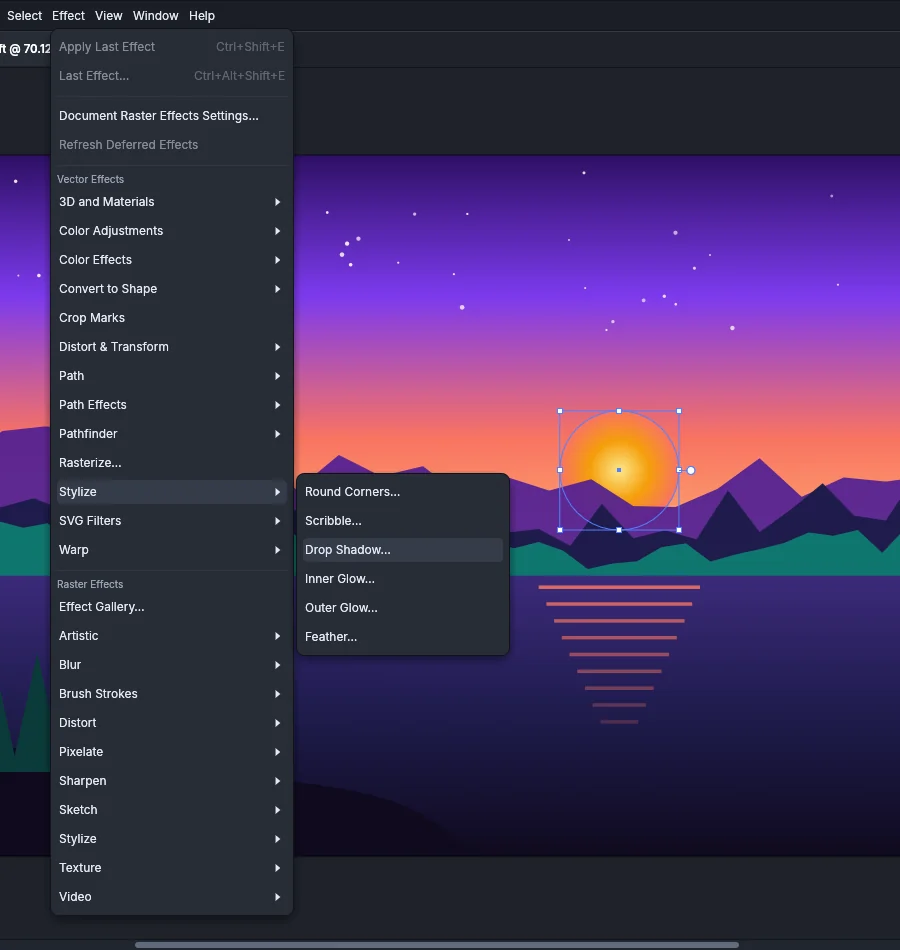
Section titled “Vector effects”Under the Vector Effects heading, the menu lists these submenus and items, in this order. An effect whose name ends in “…” opens its dialog. An effect without “…” is applied at once. The effects that need a dialog are grayed out while nothing is selected.
| Submenu or item | What it holds | Guide |
|---|---|---|
| 3D and Materials | Extrude & Bevel…, Revolve…, Inflate…, Rotate…, a grayed-out Materials… item, and the 3D (Classic) submenu with Extrude & Bevel (Classic)… | Make 3D artwork |
| Color Adjustments | Brightness/Contrast…, Curves…, Hue/Saturation…, Levels…, Shift to Color…, Temperature/Tint… | Apply effects and appearance |
| Color Effects | Desaturate, Duotone…, Exposure…, Invert Colors, Vector Halftone… | Apply effects and appearance |
| Convert to Shape | Rectangle…, Rounded Rectangle…, Ellipse… | Apply effects and appearance |
| Crop Marks | One item, which adds trim marks around the object | Apply effects and appearance |
| Distort & Transform | Free Distort…, Pucker & Bloat…, Roughen…, Transform…, Tweak…, Twist…, Zig Zag… | Apply effects and appearance |
| Path | Offset Path…, Outline Object, Outline Stroke | Apply effects and appearance |
| Path Effects | Dashes to Geometry…, Add Anchors…, Extend Path…, Close Path…, Smooth Anchors…, Retract Handles…, Reverse Direction, Simplify Anchors…, Split at Anchors… | Apply effects and appearance |
| Pathfinder | Add, Intersect, Exclude, Subtract, Minus Back, Divide, Trim, Merge, Crop, Outline, Hard Mix, Soft Mix, Trap… | Apply effects and appearance |
| Rasterize… | One item, which draws the object as an image | Apply effects and appearance |
| Stylize | Round Corners…, Scribble…, Drop Shadow…, Inner Glow…, Outer Glow…, Feather… | Apply effects and appearance |
| SVG Filters | Apply SVG Filter…, Import SVG Filter…, then the document’s own SVG filters by name | Apply effects and appearance |
| Warp | Arc…, Arc Lower…, Arc Upper…, Arch…, Bulge…, Shell Lower…, Shell Upper…, Flag…, Wave…, Fish…, Rise…, Fisheye…, Inflate…, Squeeze…, Twist… | Apply effects and appearance |
When you have installed a plug-in that adds live effects, a Plug-ins submenu after Warp lists its effects. While no such plug-in is installed, the menu has no Plug-ins submenu. Install and manage plug-ins shows how to install one.
Raster effects
Section titled “Raster effects”Under the Raster Effects heading, Effect Gallery… opens a dialog where you browse the raster effects and build a stack of them. Clicking OK applies the stack as separate effects in one undo step. Effect Gallery… is grayed out while nothing is selected. The submenus below it are Artistic, Blur, Brush Strokes, Distort, Pixelate, Sharpen, Sketch, Stylize, Texture and Video. This Stylize submenu holds Glowing Edges…, which is a raster effect. Apply raster effects with the Effect Gallery describes them.
Related
Section titled “Related”- Keyboard shortcuts
- File and Edit menus
- Object menu
- View, Window and Help menus
- Add and style type
- Work with styles and long text
- Make lists and fit type to its frame
- Set type in other languages
- Check spelling
- Select artwork
- Arrange, group and align
- Apply effects and appearance
- Make 3D artwork
- Install and manage plug-ins
- Preferences
- Workflows