Work in several windows
This page shows how to move between open documents, open more than one view of the same document, and arrange documents and views as tiles or floating windows.
Switch between open documents
Section titled “Switch between open documents”Each open document has a tab in the tab strip above the canvas. The tab shows the file name, the zoom and the mode, for example garden.vectorcraft @ 32.81 % (RGB/Preview).
- Click a tab to make its document the current one.
- Press Ctrl+F6 (Cmd+F6 on macOS) to go to the next document in tab order, or Ctrl+Shift+F6 (Cmd+Shift+F6 on macOS) to go to the previous one. After the last document, Next Document goes back to the first, and before the first, Previous Document goes to the last. From the Home screen, Next Document makes the first open document the current one, and Previous Document makes the last one current.
- When the tabs do not fit in the strip, click » at the right end of the strip. The list shows every open document and view, including the ones in floating windows, with a check mark next to the current one.
- Drag a tab left or right along the strip to change the order of the documents. A line shows where the tab will go.
Each view that Window → New Window opened counts as a step of its own for Next Document and Previous Document.
Open another view of a document
Section titled “Open another view of a document”A second view shows the same document with its own zoom, scroll position, rotation, artboard, and Outline or Preview mode. For example, one view can show a detail at 150% while another shows the whole artboard.
- Make the document current.
- Choose Window → New Window.
The new view opens as a tab of its own and becomes the current window. Its tab shows the document’s name followed by the view’s number, for example harbor.vectorcraft:2, and the first view’s tab changes to harbor.vectorcraft:1. When the current view is in a floating window, the new view opens in a floating window too.
Each view draws the same document, so an edit you make in one view shows in every view.
To close a view, click the × on its tab, middle-click the tab, or choose File → Close while the view is current. The shortcut for File → Close is Ctrl+W (Cmd+W on macOS). The document stays open in its other views. When one view is left, its tab loses the number. Closing the last view closes the document, and VectorCraft asks you to save it first if it has unsaved changes.
Arrange documents and views
Section titled “Arrange documents and views”The Window → Arrange submenu lays out every open document and every extra view at once. Each command treats a view as a window of its own.
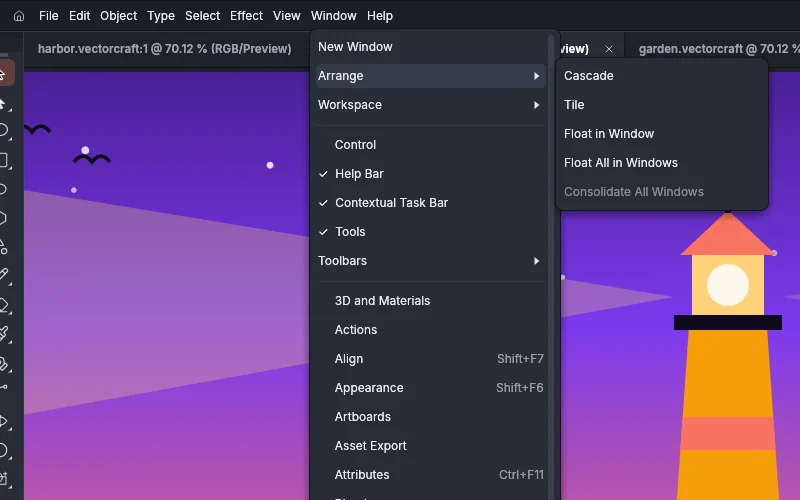
| Command | What it does | Available when |
|---|---|---|
| Cascade | Puts every document and view in a floating window of its own and stacks the windows from the upper left of the document area toward the lower right, 30 pt apart, in tab order. The windows are all the same size, each document is fitted to its window, and the current one is in front. | Two or more documents or views are open |
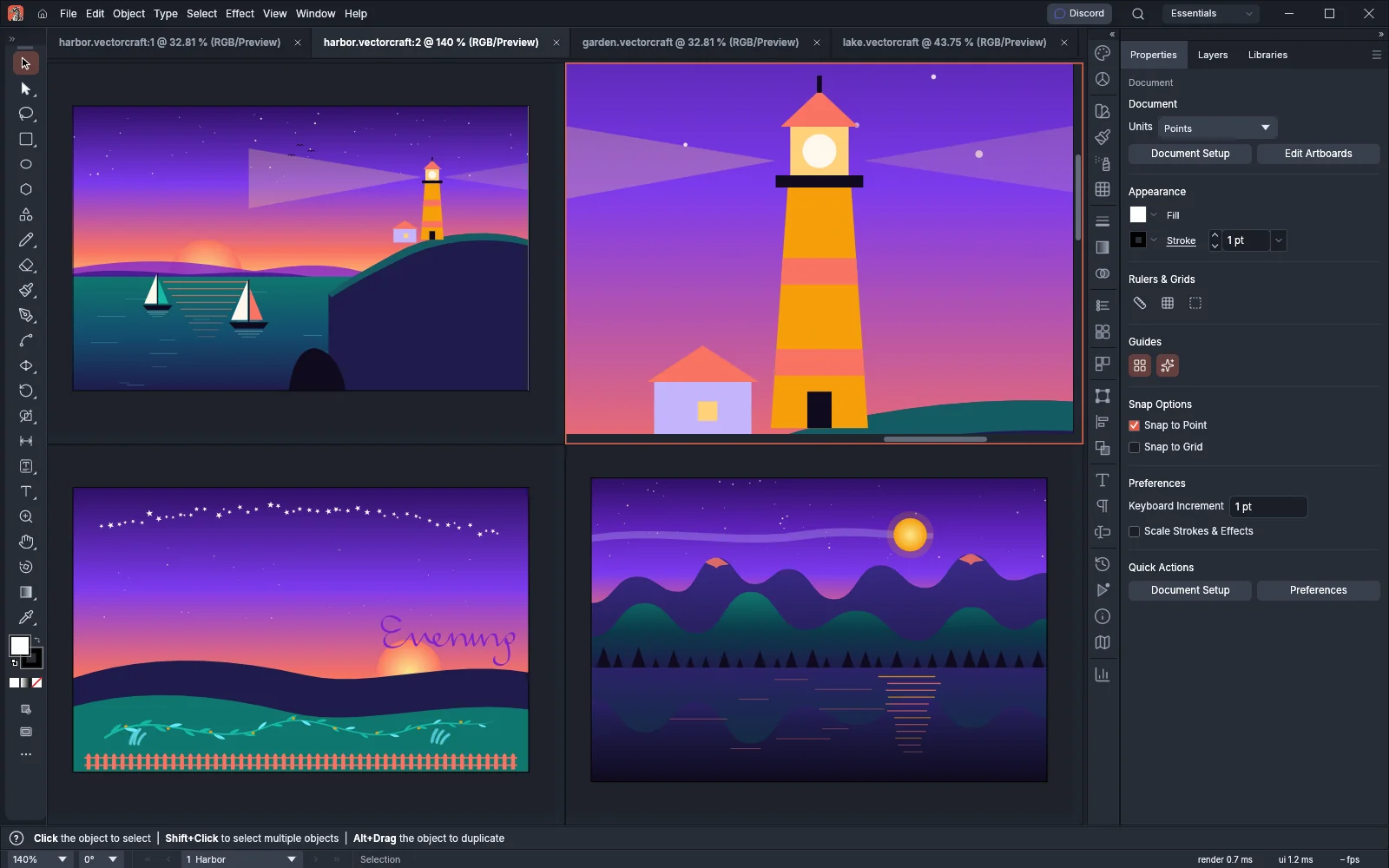
| Tile | Shows every document and view at once in a grid of panes that fills the document area, each fitted to its pane. The tabs stay in the strip. Windows that were floating come back under the tabs first. | Two or more documents or views are open |
| Float in Window | Moves the current document or view out of the tab strip into a floating window of its own, fitted to the window. | The current window is in the tab strip |
| Float All in Windows | Moves every document and view in the tab strip into a floating window of its own. | At least one window is in the tab strip |
| Consolidate All Windows | Ends Tile and puts every floating window back in the tab strip, so one document shows at a time. | Documents are tiled or a window floats |
In Tile, the grid has as many columns as the square root of the number of panes, rounded up. The current pane has an outline in the accent color, and the tools work in that pane. Click in another pane to make it the current one. A document that you open while the panes are tiled joins the grid.
VectorCraft does not save the window arrangement. When VectorCraft starts, each document it opens gets a tab in the tab strip, unless Open Documents As Tabs is cleared (see Open new documents in floating windows).
Float a document in its own window and dock it again
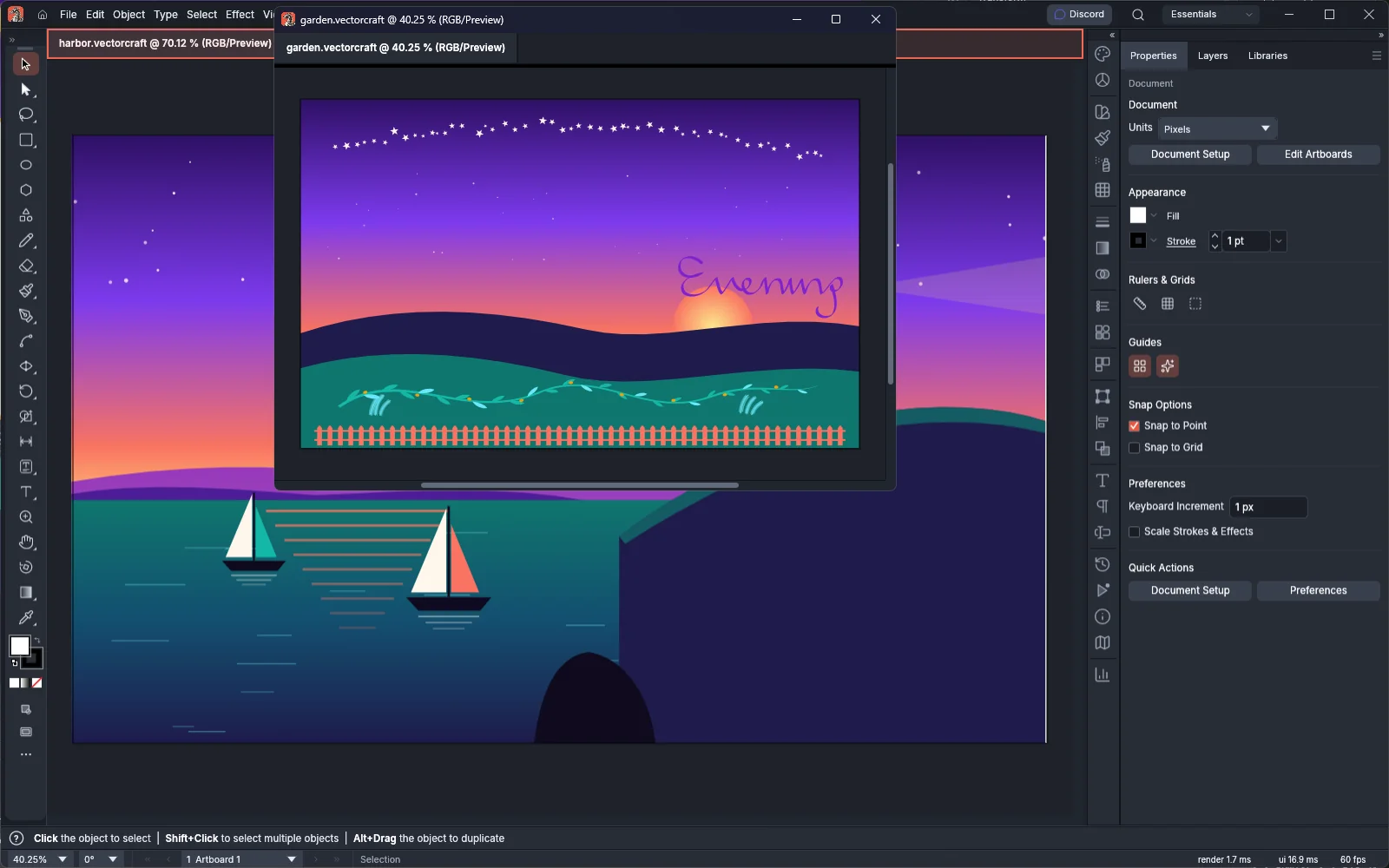
Section titled “Float a document in its own window and dock it again”On Windows, on macOS and on Linux without Wayland, a floating window is a separate window that you can move and resize. On Linux with Wayland and in the web version, it is a window inside the VectorCraft window, with a title bar of its own.
To float a document or view:
- Drag its tab up or down, more than 24 pt away from the tab strip.
- Release the mouse button. The document opens in a floating window under the pointer.
You can also choose Window → Arrange → Float in Window.
The tools work in the window that holds the current document. Click in another document’s window to make that document the current one. To close a floating window, click the × in its title bar.
To dock a floating window again, drag it onto the tab strip. On Windows, on macOS and on Linux without Wayland, drag the separate window by the tab at its top. On Linux with Wayland and in the web version, drag the window by its title bar. The tab strip is highlighted while the window is over it, and the document goes back under its tab when you release it. To dock every floating window at once, choose Window → Arrange → Consolidate All Windows.
Open new documents in floating windows
Section titled “Open new documents in floating windows”By default, each document that you open or create gets a tab in the tab strip. To open new documents in floating windows instead:
- On Windows and Linux, choose Edit → Preferences… (Ctrl+K), and then click User Interface in the page list. On macOS, choose VectorCraft → Settings → User Interface….
- Clear Open Documents As Tabs.
- Click OK.
Each document that you open or create after that opens in a floating window of its own, at the next place of a cascade. Documents that are already open stay where they are.
Shortcuts
Section titled “Shortcuts”| Action | Windows and Linux | macOS |
|---|---|---|
| Next Document | Ctrl+F6 | Cmd+F6 |
| Previous Document | Ctrl+Shift+F6 | Cmd+Shift+F6 |
| Close the current view or document | Ctrl+W | Cmd+W |
Window → New Window and the Window → Arrange commands have no shortcuts by default.