
Follow and cancel long exports
This page shows how to follow an export while VectorCraft writes its files, how to cancel it, and how to keep working while it runs.
How background export works
Section titled “How background export works”With Enable Background Export on (the default), VectorCraft writes the files of an export in the background, so you can keep editing while they are written. These exports run in the background:
- File → Export → Export for Screens… (Ctrl+Alt+E, Cmd+Option+E on macOS), when it writes into a folder
- File → Export → Export As…, Export As SVG… and Export As PNG…
- Export in the Asset Export panel, for picture assets
- File → Package… (Ctrl+Alt+Shift+P, Cmd+Option+Shift+P on macOS)
An export can open dialogs before it writes anything: the file or folder to write, the format’s options, and a question when the export would replace the file the document was opened from and opening that file left out content VectorCraft cannot read. The export starts after the last of these dialogs closes.
The export writes the document as it was when the export started. Changes you make while it runs do not appear in the files.
These commands write their files at once and do not run in the background: File → Save as PDF… (and Export As with the PDF format, which goes through the Save PDF dialog), File → Export Selection…, and the 3D assets of the Asset Export panel. See Save PDF files for print and sharing and Export 3D objects as mesh files.
In the web version, exports are not written in the background. Each export downloads its files when it finishes.
Watch an export’s progress
Section titled “Watch an export’s progress”- Start an export, for example File → Export → Export for Screens… with a folder chosen under Export to, and click Export Artboard (on the Assets tab, Export Asset). The dialog closes at once.
- When the export takes longer than 0.4 seconds, a progress window opens over the document. A quick export finishes without showing it.
- Read the window’s heading and count. The heading names the file or folder being written, for example Exporting app-icons….
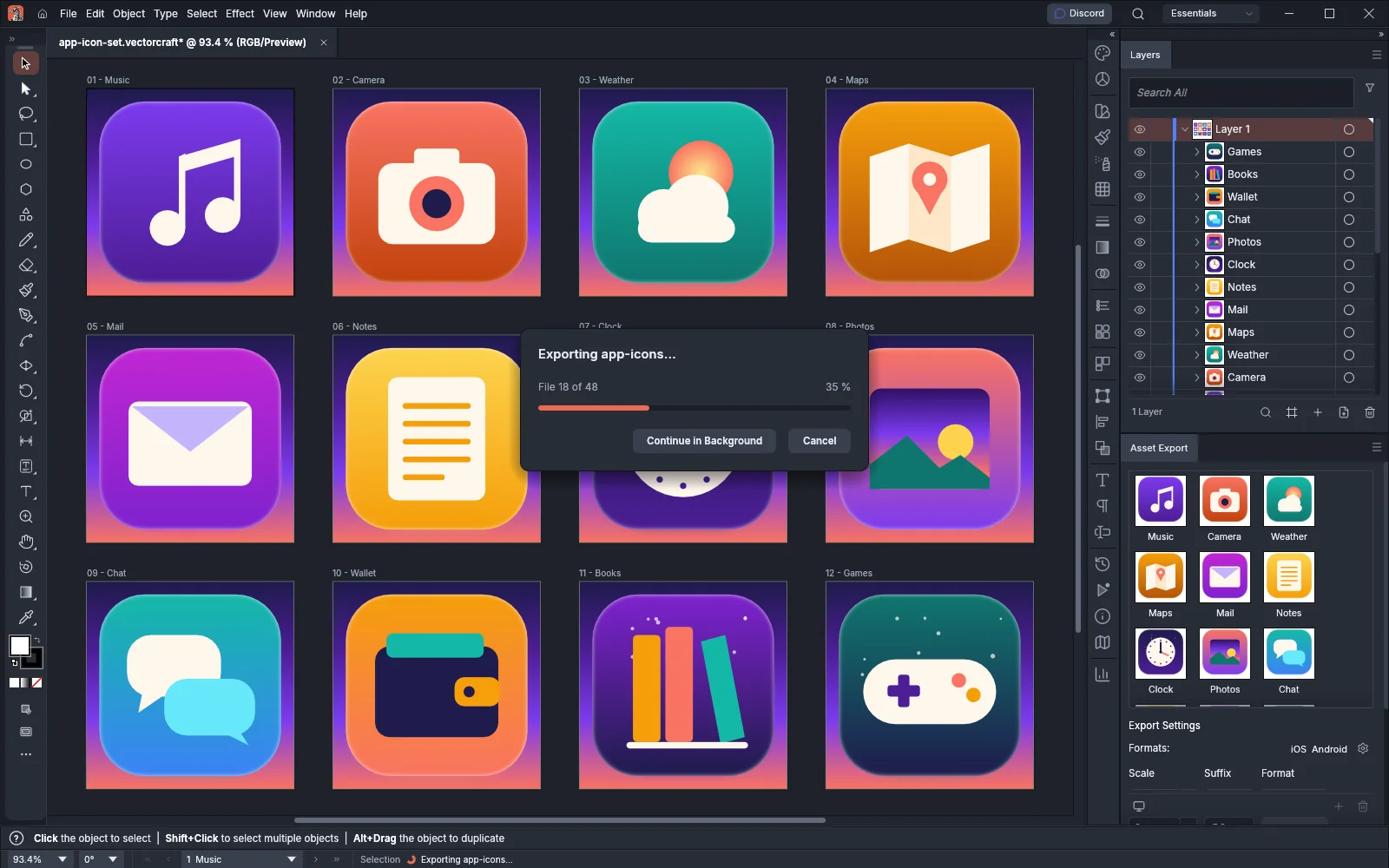
What the window counts depends on the export:
| Export | What the window shows |
|---|---|
| Export for Screens, or the Asset Export panel, writing more than one file | File n of total, the percentage done and a bar |
| A raster format (PNG, JPEG and others) with several artboards | Artboard n of total, the percentage done and a bar |
| One artboard or one file (including an Export for Screens run that writes one file), or a format written in one step such as SVG or EPS, even when it writes one file per artboard | A spinner and Encoding and writing the file… |
| An exporter plug-in that reports its progress | Encoding and writing the file…, the percentage done and a bar |
When you start more exports while one is running, VectorCraft writes them one at a time, in the order you started them. The window then adds a line such as 2 more exports waiting.
The progress window does not open while another dialog is open. It appears when that dialog closes.
Cancel an export
Section titled “Cancel an export”- In the progress window, click Cancel, or press Esc.
- The status bar shows Export cancelled.
Cancel stops every export in progress, not only the one the window names. That includes the exports still waiting and the exports you sent to the status bar earlier with Continue in Background. Cancel does not stop a package that File → Package… is writing. What stays on disk depends on the export:
- Export As writes nothing once it is canceled. If VectorCraft was already writing the file when you clicked Cancel, that file is finished.
- Export for Screens and the Asset Export panel stop before the next file. The files written before you clicked Cancel stay in the folder, and so does the file being written at that moment. To write the whole set, run the export again.
Keep working while an export runs
Section titled “Keep working while an export runs”- In the progress window, click Continue in Background. The window closes and the export goes on.
- Keep editing. The status bar shows a spinner and the export’s name, for example Exporting app-icons…. When saves or other exports also run, the line ends with a count such as (+1).
- When the export finishes, the status bar reports it, for example Exported 48 files to followed by the folder, or Exported followed by the file’s path. If Open Location after Export is on in Export for Screens, the folder opens when the export finishes, with the first file selected. If writing fails, the status bar shows the error.
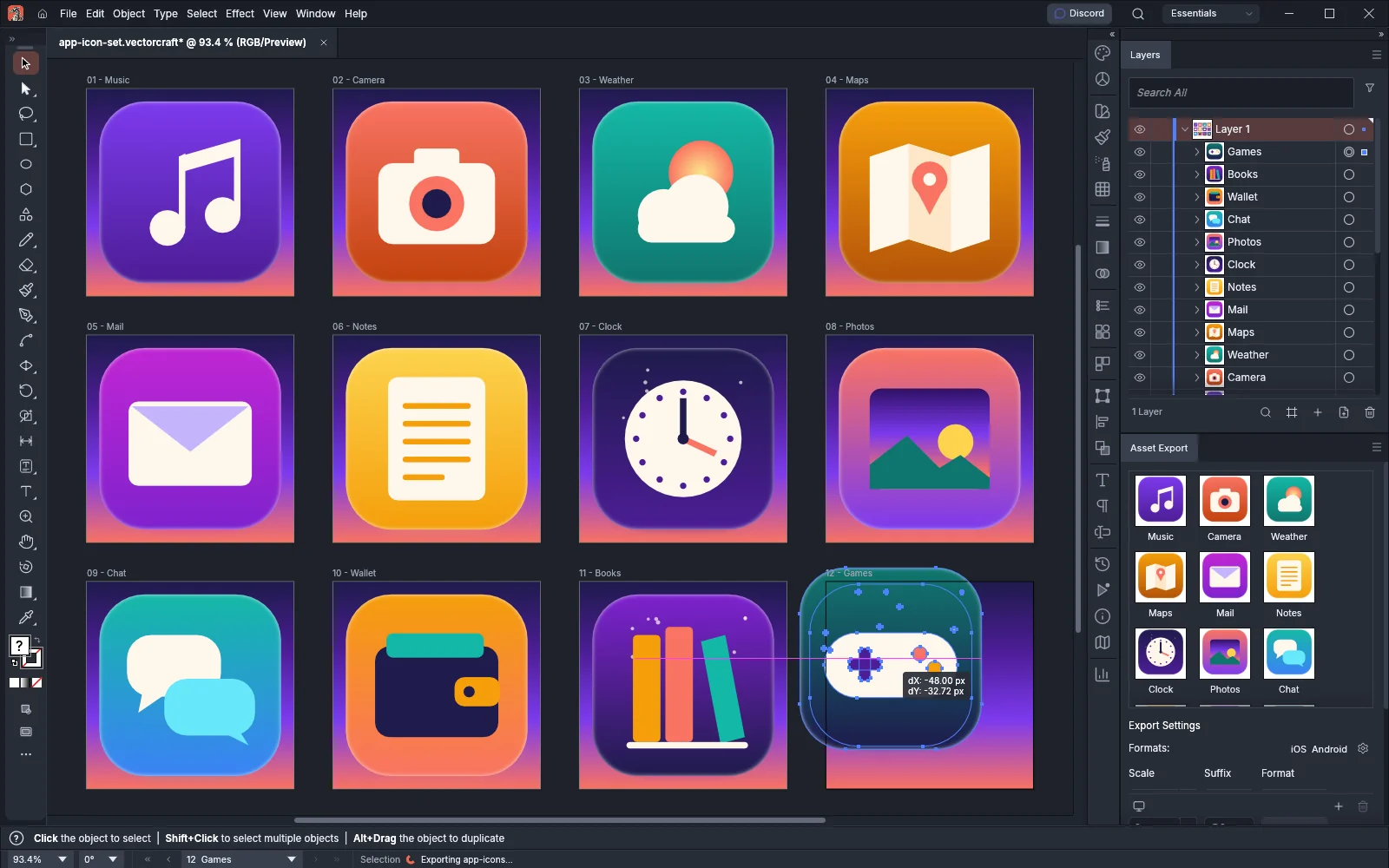
File → Package… shows its progress only in the status bar, as Packaging followed by the package name. It does not open the progress window.
When you quit VectorCraft or close the document, VectorCraft waits for the exports and saves still running to finish first.
Turn background export off or on
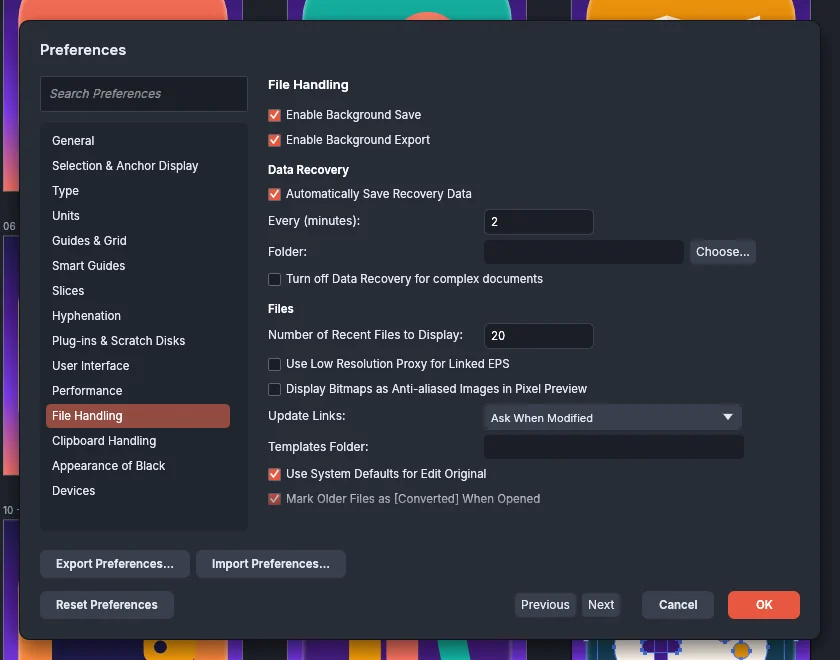
Section titled “Turn background export off or on”- Open Preferences: on Windows and Linux choose Edit → Preferences… (Ctrl+K). On macOS press Cmd+K. Preferences lists the other ways to open it.
- Click File Handling.
- Turn Enable Background Export off or on, then click OK.
| Setting | Default | What it does |
|---|---|---|
| Enable Background Save | On | Writes saves in the background. The status bar shows Saving followed by the file name while a save runs. |
| Enable Background Export | On | Writes the exports listed in How background export works in the background. All of them except File → Package… show the progress window. Its Cancel stops every export in progress except a package, including the exports already continuing in the background. |
With Enable Background Export off, VectorCraft writes each export before you can go on editing, and it does not show the progress window. Export for Screens, an export from the Asset Export panel and File → Package… started this way wait for any export still running in the background, then write their own files.