
Use swatch libraries
This guide covers swatch libraries: read-only sets of colors, gradients and patterns that you open in a panel and copy into a document. To organize the swatches a document already has, see Organize swatches and color groups.
Open a swatch library
Section titled “Open a swatch library”- Choose Window → Swatch Libraries, or click Swatch Libraries Menu at the bottom left of the Swatches panel. The Swatches panel menu lists the same libraries under Open Swatch Library.
- Choose a library. Gradient libraries are in the Gradients submenu, pattern libraries are in Patterns, and libraries you saved are in User Defined.
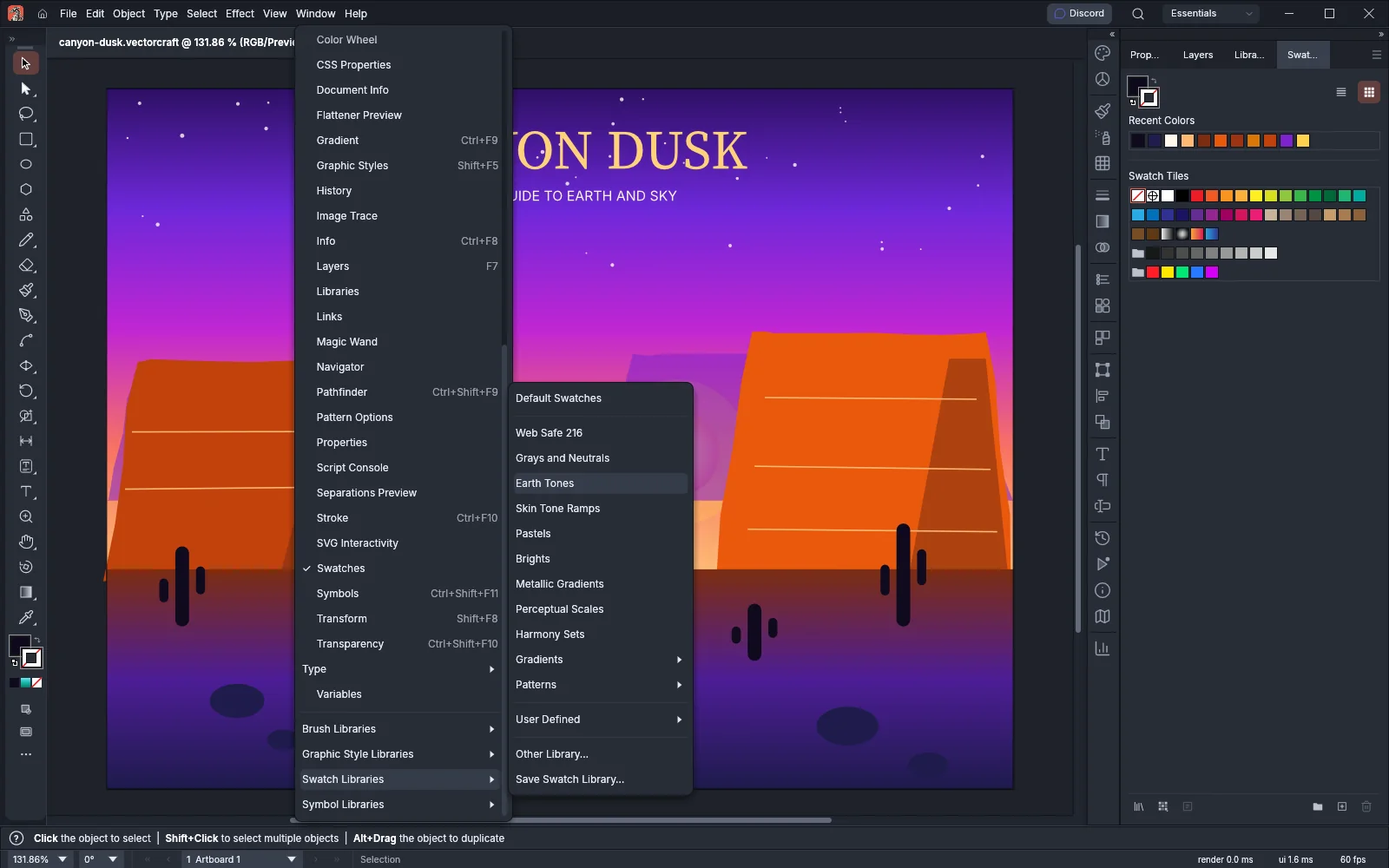
The library opens in a panel of its own, floating over the window. Drag its tab to dock it with the other panels, as with any panel. Choosing a library that is already open brings its panel to the front. In the Swatches panel’s library menu, the libraries that are open have a check mark, and the Swatch Libraries Menu button stays lit while any of them is open.
The built-in libraries:
| Library | What it holds |
|---|---|
| Web Safe 216 | The 216 colors whose red, green and blue values are multiples of 33 in hex, each named by its hex value. |
| Grays and Neutrals | Four color groups: Grays, from K=0 to K=100 in steps of 5; Warm Gray and Cool Gray, nine swatches each; and Neutrals, eight swatches from Ivory to Charcoal. |
| Earth Tones | Seven color groups of six swatches each: Clay, Terracotta, Ochre, Umber, Sand, Olive and Moss. |
| Skin Tone Ramps | Four color groups of eight tones each, from light to deep: Rosy, Neutral, Golden and Olive. |
| Pastels | Two color groups, Pastel and Soft, each with twelve hues from Red to Magenta. |
| Brights | Two color groups, Vivid and Deep, each with twelve saturated hues from Red to Magenta. |
| Metallic Gradients | Ten banded gradients that look like polished metal: Gold, Silver, Bronze, Copper, Brass, Chrome, Rose Gold, Gunmetal, Platinum and Pewter. |
| Perceptual Scales | Scales whose lightness rises in even steps, and two scales that run between two hues. |
| Harmony Sets | Color harmonies built from a few base colors with the Color Guide’s harmony rules. |
| Gradients → Spectrum Gradients | Sweeps through the full range of hues, and blends from each hue to the hue two steps further around the wheel, such as Red to Amber. |
| Gradients → Sky Gradients | Six skies: Dawn, Noon, Sunset, Dusk, Night and Overcast. |
| Gradients → Neutral Gradients | Eight gradients: White to Black, Light Grays, Dark Grays, Warm Grays, Cool Grays, two fades to transparent, and a radial Vignette. |
| Gradients → Duotone Gradients | Gradients between two hues from opposite sides of the color wheel. |
| Gradients → Radial Glows | A bright center that fades to a transparent edge, one for each hue. |
| Patterns → Geometric Patterns | Eleven black patterns on a clear background: dots, stripes, checks, grids and shapes. |
Work in a library panel
Section titled “Work in a library panel”A library panel lists the ungrouped swatches first, then each color group as a folder followed by its swatches. You cannot change, rename or delete swatches in it.
- Type in the Find field to show only the swatches whose names contain the text. When a group’s name matches, the panel shows all of the group’s swatches.
- Click Previous Library or Next Library at the bottom of the panel to show the library before or after it in the menu. The order wraps around at the ends.
- Use the panel menu to choose a view from Small Thumbnail View to Large List View, to turn Show Find Field on or off, and to close the panel with Close Library. Medium Thumbnail View is the default.
- Turn on Persistent in the panel menu to reopen the panel each time VectorCraft starts. If the library’s file has been moved or deleted, the panel shows the missing file’s name and a Locate Library… button to find it.
Add library swatches to the document
Section titled “Add library swatches to the document”To paint art with a library color, and add that color to the document:
- Select the art.
- Click the Fill or Stroke box in the toolbar to make it active.
- Click a swatch in the library panel. Alt-click (Option-click on macOS) paints the box that is not active instead.
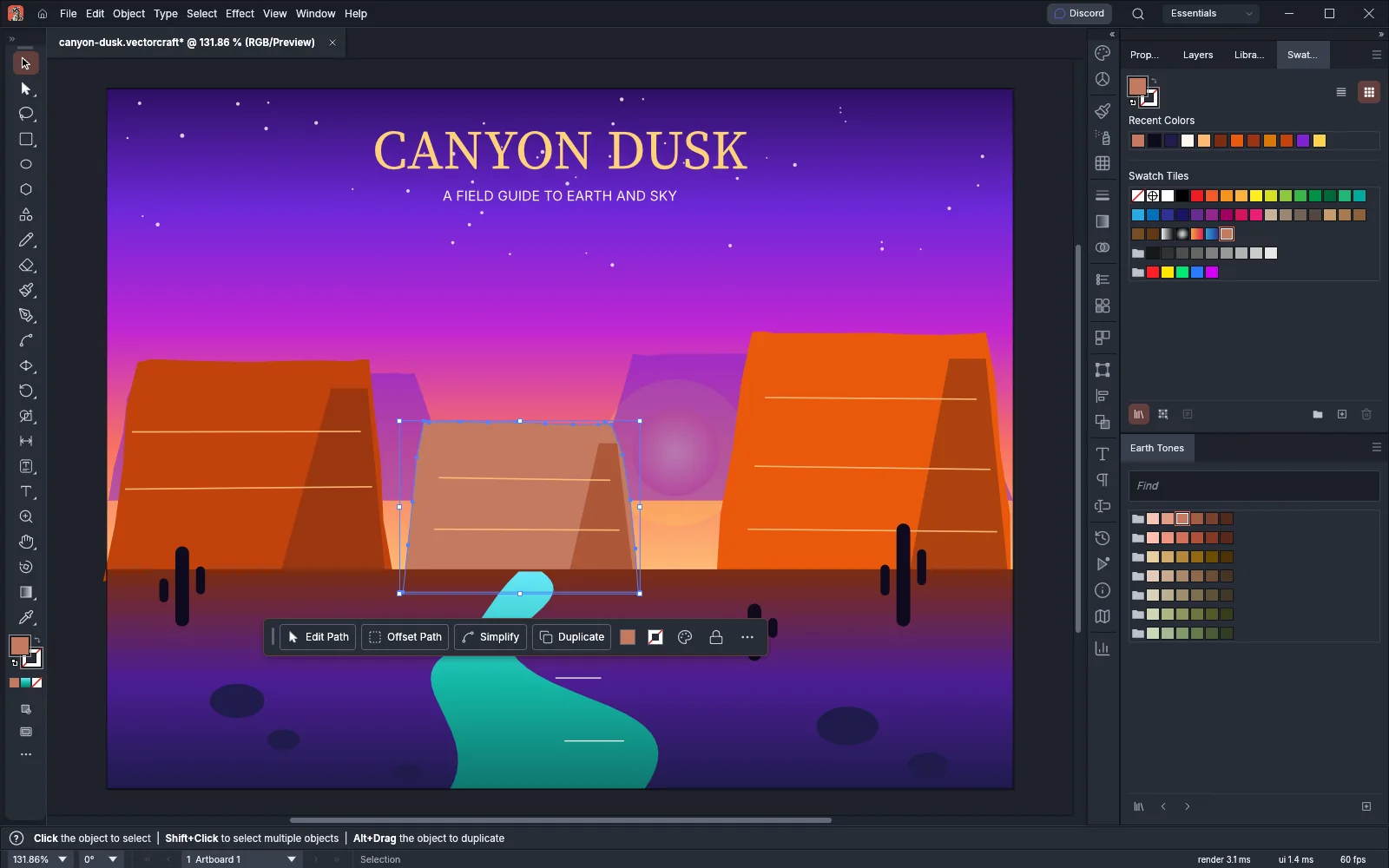
The click adds the swatch to the document’s swatches and paints the art in one step, so one Edit → Undo removes both. When the swatch is a solid color, it also becomes the Color Guide’s base color.
To add swatches without painting anything:
- In the library panel, Ctrl-click (Cmd-click on macOS) each swatch you want, or Shift-click to select a range. Click a folder to select a whole color group.
- Click Add to Swatches at the bottom right of the panel, or choose Add to Swatches from the panel menu.
How VectorCraft copies the swatches:
- A selected folder is added as a color group. When the document already has a color group with that name, the swatches go into it.
- A swatch the document already has, with the same name and the same color, gradient or pattern, is not added a second time.
- When another swatch already uses the name, the new swatch gets a number after its name, such as “Clay 1 2”.
- Adding a pattern swatch also adds its pattern to the document. If the document already has the same pattern, it is used instead of a copy.
Open a library file
Section titled “Open a library file”Other Library… opens swatches that are not built in.
- Choose Window → Swatch Libraries → Other Library…, or choose Other Library… from the Swatch Libraries Menu button’s menu.
- Pick a file in one of the formats in the following table, or any document VectorCraft can open. For a document, the library holds that document’s swatches. The library opens in its own panel.
- Add swatches from the panel as from a built-in library.
| Extension | Format |
|---|---|
.vcswatches |
VectorCraft swatch library. It keeps every solid color and gradient, color groups, and whether each swatch is global or spot. |
.gpl |
GPL palette, a plain-text list of RGB colors. A Name: line names the library, # Group: lines start color groups, and colors without a name are named by their values. |
.ase |
Swatch exchange file: solid colors and color groups. |
.acb |
Color book. VectorCraft reads it but cannot save one. |
A library opened this way is listed under Other Libraries in the Swatch Libraries Menu button’s menu until you quit VectorCraft. To keep a library in the menu, save it to User Defined as described in the next section. File → Open also opens a swatch library file, in its library panel.
Save the document’s swatches as a library
Section titled “Save the document’s swatches as a library”- Optional: to save only some swatches, select them in the Swatches panel. Ctrl-click (Cmd-click on macOS) swatches or color group folders.
- Choose Save Swatch Library… from the Swatches panel menu or from the Swatch Libraries Menu button’s menu. Window → Swatch Libraries → Save Swatch Library… opens the same dialog, but from there it always saves every swatch.
- Set the options in the following table and click OK.
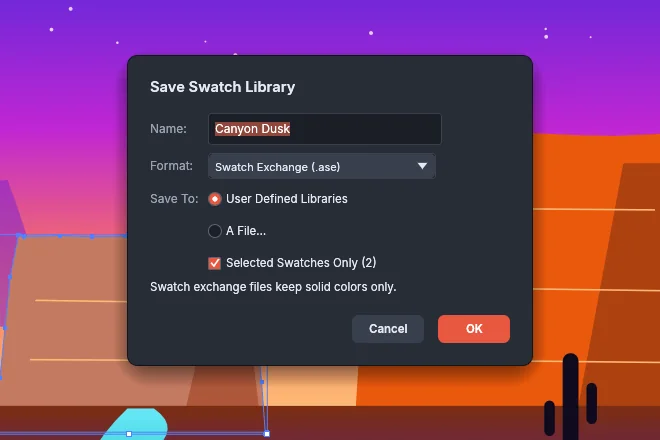
| Option | Default | What it does |
|---|---|---|
| Name | The document’s name without its extension | The library’s name. |
| Format | VectorCraft Swatches (.vcswatches) | VectorCraft Swatches (.vcswatches), GPL Palette (.gpl), Swatch Exchange (.ase) or CSS Custom Properties (.css). The following table lists what each format keeps. |
| Save To | User Defined Libraries, or A File… when there is no user library folder | User Defined Libraries saves the library where VectorCraft lists it under Window → Swatch Libraries → User Defined, and the status bar shows “Saved to User Defined:” with its name. A File… asks where to save the file. When VectorCraft has no user library folder, User Defined Libraries is dimmed. |
| Selected Swatches Only | Off | Saves only the swatches and color groups selected in the Swatches panel. The number in parentheses is how many are selected. The checkbox is dimmed when nothing is selected, and also when you open the dialog from the Window menu. |
| Format | What it keeps |
|---|---|
| VectorCraft Swatches | Every solid color in its own color model, every gradient, color groups, and whether each swatch is global or spot. |
| GPL Palette | Solid colors only, as 8-bit RGB. Color groups are kept as # Group: comment lines. |
| Swatch Exchange | Solid colors only, in RGB, CMYK, Lab or Gray, as global, spot or process colors, with color groups. A tint swatch is saved as the color it shows. Gradients are left out. |
| CSS Custom Properties | Colors and gradients as CSS custom properties on :root, except freeform gradients. VectorCraft cannot open this format as a library. |
No format saves [None] or pattern swatches.
When you choose GPL Palette or Swatch Exchange, a note under the options says that the format keeps solid colors only.
Get the default swatches back
Section titled “Get the default swatches back”Choose Window → Swatch Libraries → Default Swatches, or Default Swatches at the top of the Swatch Libraries Menu button’s menu. VectorCraft adds back every default swatch and color group of the document’s color mode whose name the document no longer uses, as one undo step. Swatches you added stay where they are.
VectorCraft matches the defaults by name only. It does not add back a default swatch when a swatch or color group in the document uses its name, even with a different color. For example, a default swatch you recolored keeps its name, so VectorCraft leaves your color in place. VectorCraft also skips a default color group whose name a swatch uses.