
Back up and move your settings
This guide shows you what each way of saving VectorCraft’s settings keeps, how to restore it on the same or another computer, and how to go back to the default settings.
What moves with which method
Section titled “What moves with which method”VectorCraft has three ways to save settings. Export Preferences… saves every setting in the Preferences dialog except the four folder settings, Enable Contextual Task Bar, Snap to Grid and Smart Guides. Export… in Keyboard Shortcuts saves your shortcuts. Copying the settings folder keeps everything else as well.
| Setting | Export Preferences… | Keyboard Shortcuts Export… | Copy the settings folder |
|---|---|---|---|
| Additional Fonts Folder, Additional Plug-ins Folder, the Data Recovery Folder and Templates Folder | No | No | Yes |
| Enable Contextual Task Bar, Snap to Grid and Smart Guides | No | No | Yes |
| Other settings in the Preferences dialog | Yes | No | Yes |
| Eyedropper Options, Pathfinder Options, Snap to Glyph options and Perspective Grid widget settings | Yes | No | Yes |
| Saved presets, such as print, PDF, document and gradient presets | No | No | Yes |
| Keyboard shortcuts | No | Yes | Yes |
| Workspaces, toolbars made with New Toolbar and changes made with Edit Toolbar | No | No | Yes |
| Action sets | No | No | Yes |
| Recent files, recent and favorite fonts, and the window’s size and place | No | No | Yes |
| Saved libraries, fonts, color profiles, color settings, plug-ins and scripts | No | No | Yes |
To save one action set to a file, use Save Actions… in the Actions panel menu, and add it on another computer with Load Actions…. See Record and play actions.
Export and import your preferences
Section titled “Export and import your preferences”Export Preferences… and Import Preferences… are at the bottom left of the Preferences dialog, above Reset Preferences.
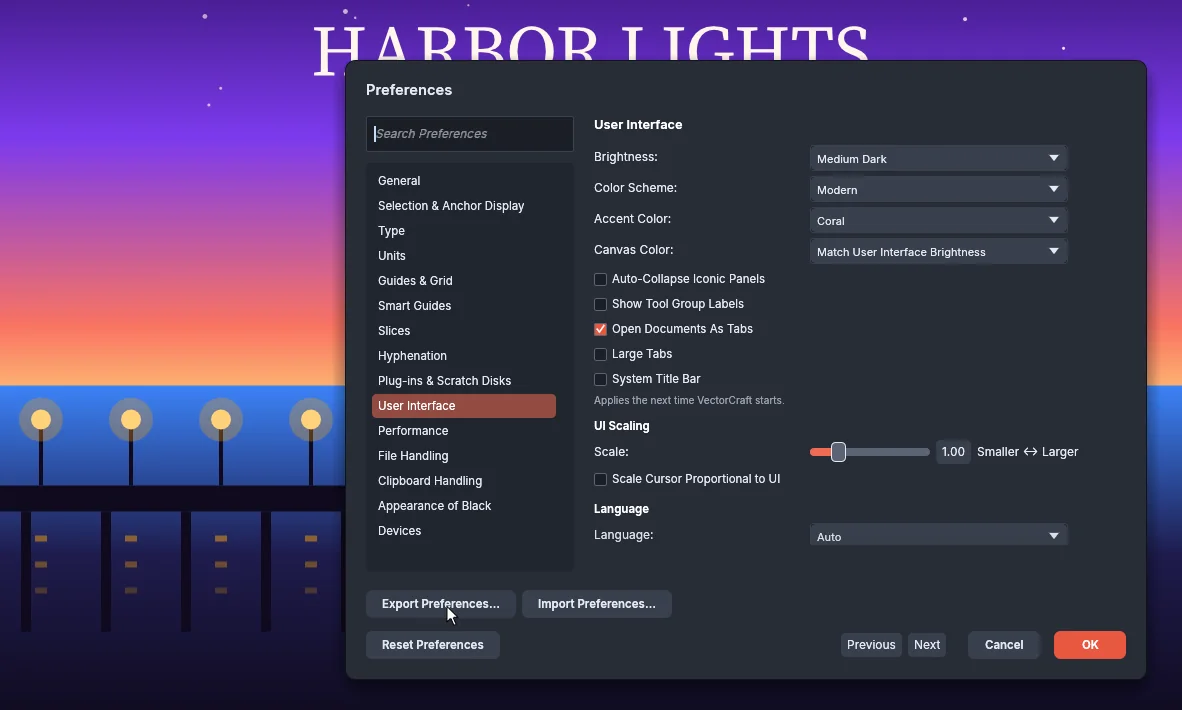
To save your preferences:
- Choose Edit → Preferences… (Ctrl+K). On macOS, choose VectorCraft → Settings → General… (Cmd+K).
- Click Export Preferences….
- Choose where to save the file. The suggested name is
VectorCraft Preferences.json. In the web build, the browser downloads the file.
The file holds the preferences as they were last applied. Changes you made in the dialog and have not applied with OK are not in it.
To load them on another computer, or after a reset:
- Open Preferences.
- Click Import Preferences… and choose the file.
- VectorCraft applies the preferences at once. The dialog shows the imported values, and the status bar shows “Preferences imported.”
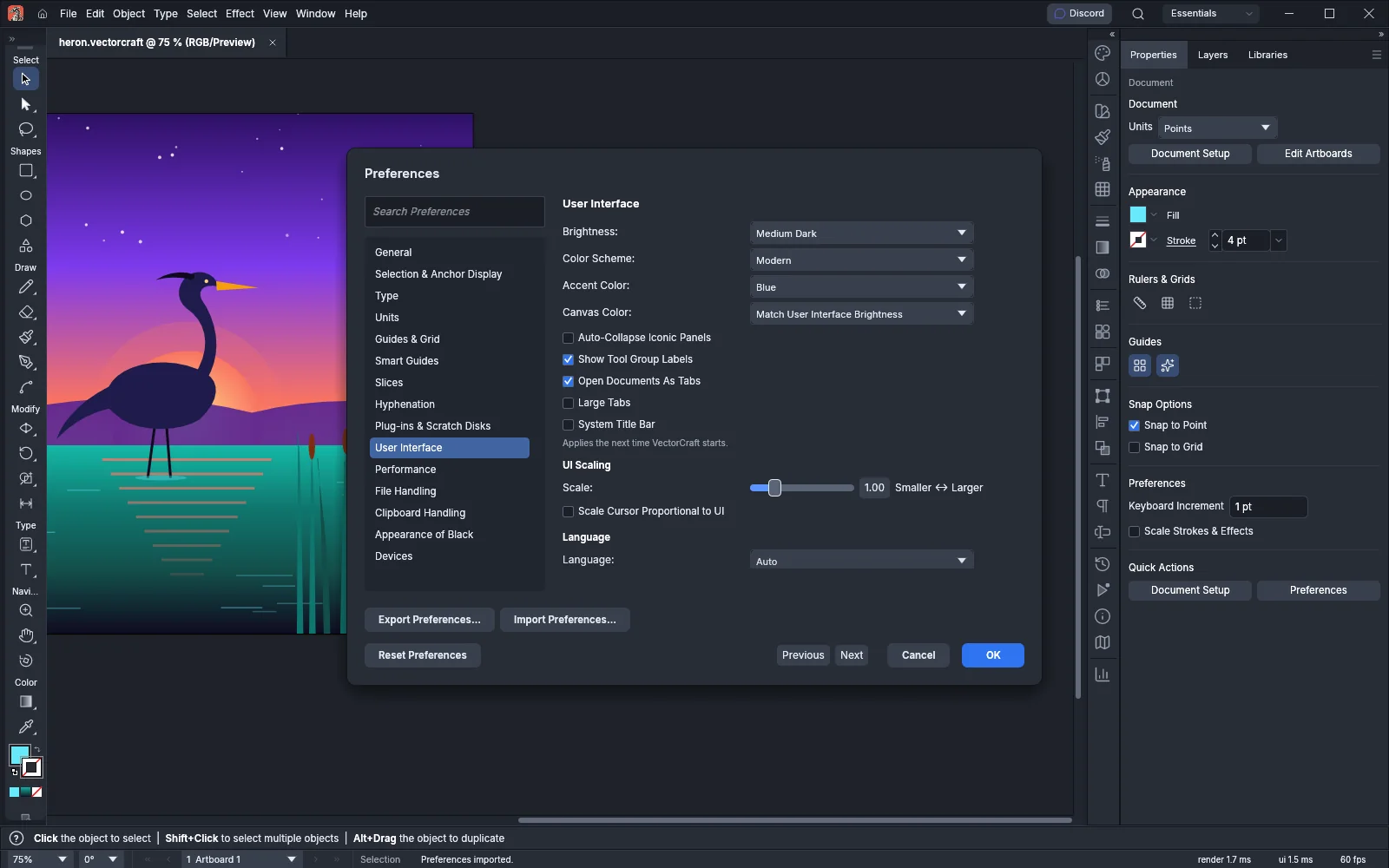
Settings that the file leaves out keep their values, and the import does not change the open document’s units. The import does not add a step to the History panel.
VectorCraft does not import the file, and no setting changes, when the file:
- is larger than 1 MB;
- is in another format, or a newer version of VectorCraft saved it;
- holds no preferences, or holds one of the four folder settings;
- holds a setting VectorCraft does not know, a value of the wrong type, or a value out of range.
The status bar then shows the reason. The web build has no Import Preferences… button. Preferences lists every setting the file can hold.
Export and import your keyboard shortcuts
Section titled “Export and import your keyboard shortcuts”Your keyboard shortcuts are not in the preferences file. Save them from the Keyboard Shortcuts dialog:
- Choose Edit → Keyboard Shortcuts…, or press Ctrl+Alt+Shift+K (Cmd+Option+Shift+K on macOS).
- Click Export… and choose where to save the file. The suggested name is
VectorCraft Shortcuts.json. It holds the set’s name and every shortcut that differs from the defaults.
To load them:
- Open Keyboard Shortcuts and click Import….
- Choose the
.jsonfile. The dialog shows “Imported. Press OK to keep the imported set.” - Click OK to keep the set, or Cancel to keep your earlier shortcuts.
The loaded set replaces all of your shortcuts. A shortcut you changed that the file does not list goes back to its default. Export Text… saves a list to read or print, and Import… does not read that list back. Customize keyboard shortcuts covers both dialogs in full.
Copy the settings folder (workspaces, toolbars and everything else)
Section titled “Copy the settings folder (workspaces, toolbars and everything else)”VectorCraft keeps its settings in the file ui.json in its settings folder. Next to it are the folders of your saved libraries, fonts, color profiles, plug-ins, scripts, PDF presets, recovery copies and logs.
| System | Settings folder |
|---|---|
| Windows | %APPDATA%\VectorCraft\ |
| macOS | ~/Library/Application Support/VectorCraft/ |
| Linux and FreeBSD | $XDG_CONFIG_HOME/vectorcraft/, or ~/.config/vectorcraft/ when XDG_CONFIG_HOME is not set |
ui.json holds the Preferences settings with your saved presets, your keyboard shortcuts, the current workspace, your saved workspaces and the changes made to each, your toolbars, your action sets, the recent files and fonts, and the window’s size and place.
- Quit VectorCraft. VectorCraft saves
ui.jsonwhen a setting changes and again when it quits. - Open the settings folder for your system. On Windows, type
%APPDATA%\VectorCraftin the address bar of File Explorer. - Copy the whole folder to a backup drive or to the other computer.
- On the other computer, quit VectorCraft, and put the copied folder in the place of its settings folder.
- Start VectorCraft.
To keep a separate set of settings in a folder you choose, start VectorCraft with the environment variable VECTORCRAFT_CONFIG_DIR set to that folder. VectorCraft then reads and saves its settings there. In PowerShell, from the folder that contains vectorcraft.exe:
$env:VECTORCRAFT_CONFIG_DIR = "D:\VectorCraft settings"& .\vectorcraft.exeRemove-Item Env:VECTORCRAFT_CONFIG_DIRWhere VectorCraft keeps its settings lists every folder in the settings folder.
Keep settings beside a portable copy
Section titled “Keep settings beside a portable copy”A portable copy keeps its settings in a VectorCraftData folder next to the program.
- Unpack the Windows portable zip. It holds the file
portable.txtnext tovectorcraft.exe. - Start
vectorcraft.exe. On the first start, VectorCraft creates theVectorCraftDatafolder and copies the settings folder for your system into it. Later starts do not copy the settings again. - To move the copy, copy the whole program folder together with
VectorCraftData.
On other systems, or for a Windows installation made with the installer, put an empty file named portable.txt or VectorCraft.portable in the program’s folder. VectorCraft ignores the file’s contents. On macOS, the program’s folder is the folder that holds VectorCraft.app. For an AppImage, it is the folder that holds the .AppImage file.
If VectorCraft can’t write to VectorCraftData, for example on a read-only drive, it uses the settings folder for your system and writes a warning to the log. VECTORCRAFT_CONFIG_DIR takes priority over the portable files.
To update a portable copy, unpack the new version and move the old VectorCraftData folder into its folder before you start it. Install and update has the downloads.
Go back to the defaults
Section titled “Go back to the defaults”| To reset | Do this | What stays |
|---|---|---|
| The Preferences settings | In Preferences, click Reset Preferences, click OK in the question, then click OK in Preferences. | Keyboard shortcuts, workspaces, saved presets and libraries, Enable Contextual Task Bar, Snap to Grid and Smart Guides. |
| The panels of the current workspace | Choose Window → Workspace → Reset Essentials. The item names the current workspace. | Toolbars made with New Toolbar, and every other setting. |
| Keyboard shortcuts | In Keyboard Shortcuts, click Reset to Defaults, then click OK. | Every other setting. |
To keep your settings before a reset, export them first or copy the settings folder. Reset Preferences lists what the reset changes.
To try VectorCraft once with the default settings without changing your saved ones, start it with VECTORCRAFT_NO_PREFS=1. VectorCraft then doesn’t read or save its settings, keeps no recovery copies, writes no log file and does not look for the portable files. See Start with default settings.