Change case and clean up text
This guide shows how to change the case of type, replace typewriter punctuation with typographer’s punctuation, paste text without its formatting, add special characters and placeholder text, and see the spaces and paragraph ends in your text.
Change the case of text
Section titled “Change the case of text”- With the Selection tool, select one or more type objects. Type inside a selected group counts too.
- Choose Type → Change Case, then one of the commands in the table.
| Command | What it does |
|---|---|
| UPPERCASE | Changes every letter to a capital. |
| lowercase | Changes every letter to a lowercase letter. |
| Title Case | Capitalizes the first letter of each word and changes every other letter to lowercase. |
| Sentence case | Capitalizes the first letter of each sentence and changes every other letter to lowercase. |
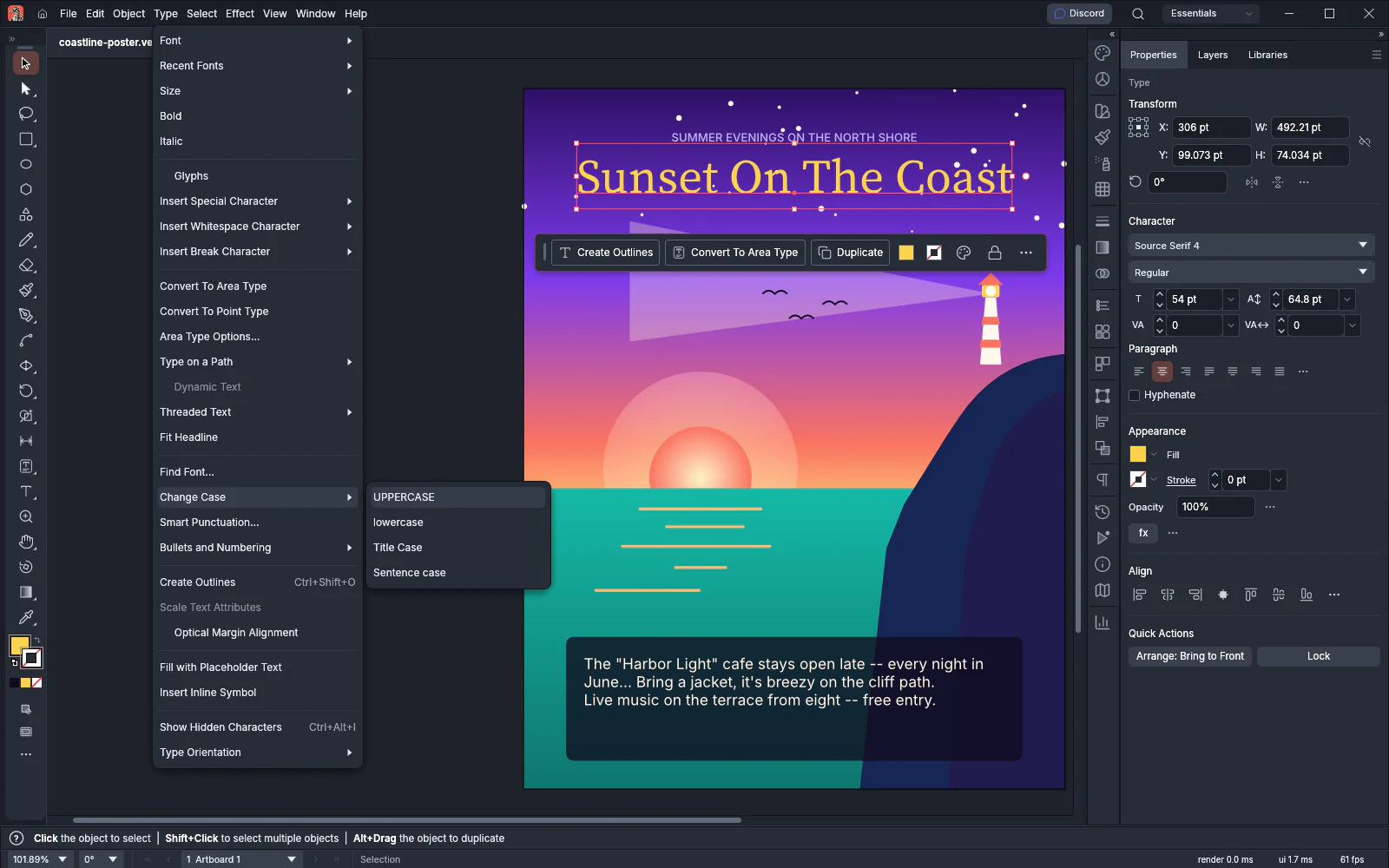
Change Case changes the whole text of each type object, even when you highlight only some of its words with the Type tool.
Title Case starts a new word at the beginning of the text and after a space, a tab, a line break, a hyphen, an opening parenthesis, a slash or a double quotation mark. A letter after an apostrophe stays lowercase, so “o’neil” becomes “O’neil”.
Sentence case starts a new sentence at the beginning of the text and after a period, an exclamation point, a question mark or a paragraph return. All other letters become lowercase, names included, so check proper nouns afterward.
Each Change Case command is one step that Edit → Undo reverses. When the text already has the case you chose, VectorCraft adds no step to the undo history.
Replace straight quotes, dashes and dots
Section titled “Replace straight quotes, dashes and dots”Smart Punctuation changes straight quotes into the document’s quote characters, double and triple hyphens into dashes, and three periods into an ellipsis.
- Select the type objects to change. To change every type object in the document, you can leave the selection empty.
- Choose Type → Smart Punctuation….
- Turn the options on or off, and set Scope.
- Click OK.
| Option | What it does | Default |
|---|---|---|
| Dashes | Replaces three hyphens (---) with an em dash and two hyphens (--) with an en dash. |
On |
| Ellipsis | Replaces three periods (...) with one ellipsis character. |
On |
| Quotes | Replaces straight double and single quotes with the quote characters set in Document Setup. | On |
| Scope | Type selection to change the selected type objects, or document to change every type object in the document. Any other value shows an error. With nothing selected, either value changes every type object. |
selection |
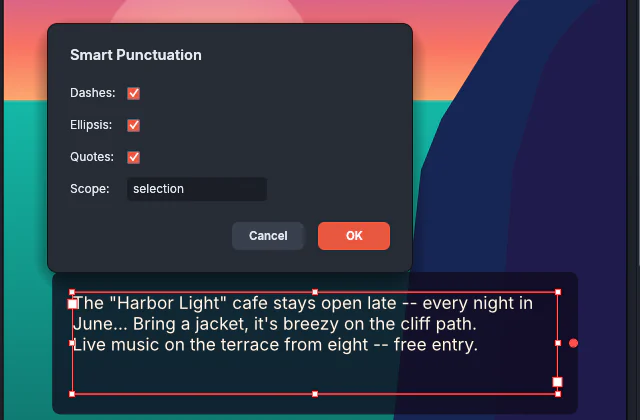
With Quotes on, each straight quote becomes an opening or a closing quote, depending on the character before it. A quote opens at the start of the text and after a space, an opening parenthesis, bracket or brace, an en or em dash or another opening quote. Every other quote closes. An apostrophe becomes a closing single quote, so “it’s” becomes “it’s”.
The Type tab of File → Document Setup… (Ctrl+Alt+P, or Cmd+Option+P on macOS) sets the quote characters. Double Quotes and Single Quotes set the pairs, and choosing a Language sets the pairs that language uses. A new document uses “ ” and ‘ ’. While Use Typographer’s Quotes on the same tab is on (the default), straight quotes you type become these characters. For the other Document Setup settings, see Set up documents and artboards.
The whole change is one step that Edit → Undo reverses. When nothing matches, VectorCraft adds no step to the undo history.
Paste text without its formatting
Section titled “Paste text without its formatting”Choose Edit → Paste without Formatting (Ctrl+Alt+V, or Cmd+Option+V on macOS) instead of Edit → Paste.
- While you edit text with the Type tool, VectorCraft inserts the text from the clipboard at the insertion point. The pasted words take the formatting of the text you paste into, not the formatting they were copied with.
- With any other tool, VectorCraft pastes the copied objects at the center of the view. Pasted type is set in Source Sans 3 Regular at 12 pt in black, as one run with default paragraph settings, and loses its character and paragraph styles. Objects that are not type paste unchanged.
The paste is one step named Paste without Formatting in the undo history. For text that comes from other apps, see Copy and paste between apps. To bring in a whole text file, see Place text from other files.
Insert a special character
Section titled “Insert a special character”- Select the type objects with the Selection tool.
- Choose Type → Insert Special Character, then the character.
| Menu item | Character |
|---|---|
| Bullet | • |
| Copyright Symbol | © |
| Ellipsis | … |
| Paragraph Symbol | ¶ |
| Registered Trademark Symbol | ® |
| Section Symbol | § |
| Trademark Symbol | ™ |
| Em Dash | — (U+2014) |
| En Dash | – (U+2013) |
| Discretionary Hyphen | U+00AD, a hyphen that shows only where a word breaks at the end of a line |
| Nonbreaking Hyphen | U+2011, a hyphen that keeps the words on each side of it on one line |
| Double Left Quotation Marks | “ |
| Double Right Quotation Marks | ” |
| Single Left Quotation Mark | ‘ |
| Single Right Quotation Mark | ’ |
VectorCraft adds the character at the end of the text of each selected type object. It does not insert the character at the Type tool’s insertion point.
To put a character in the middle of the text, click there with the Type tool and double-click the character in the Glyphs panel (Type → Glyphs). The panel inserts it at the insertion point. See Use OpenType features and glyphs.
Each insertion is one step named Typing in the undo history. For spaces, tabs and forced line breaks, see Insert spaces and breaks.
Fill type with placeholder text
Section titled “Fill type with placeholder text”Type → Fill with Placeholder Text replaces the text of each selected type object with sample copy, in the formatting of the object’s first character.
- Area type is filled with sample sentences repeated until the frame is about full. VectorCraft estimates the amount from the frame’s size, the font size and the leading, so the text can end above the bottom of the frame or overflow it.
- Point type and type on a path get one sentence: “Sample copy flows here while the layout takes shape.”
The fill replaces all the text of the object and is one step that Edit → Undo reverses.
New type can start with placeholder text too. While Fill New Type Objects With Placeholder Text is on in the Type page of Preferences (Edit → Preferences…, or VectorCraft → Settings on macOS), type you add with the Type tools starts with placeholder text, selected, so your first keystroke replaces it. The preference is on by default. See Preferences.
Show hidden characters
Section titled “Show hidden characters”Choose Type → Show Hidden Characters (Ctrl+Alt+I, or Cmd+Option+I on macOS). VectorCraft draws blue markers in the type on the canvas:
| Marker | Where it shows |
|---|---|
| A dot | Over each space |
| ¶ | After each line that ends a paragraph |
| # | After the last character of the type object |
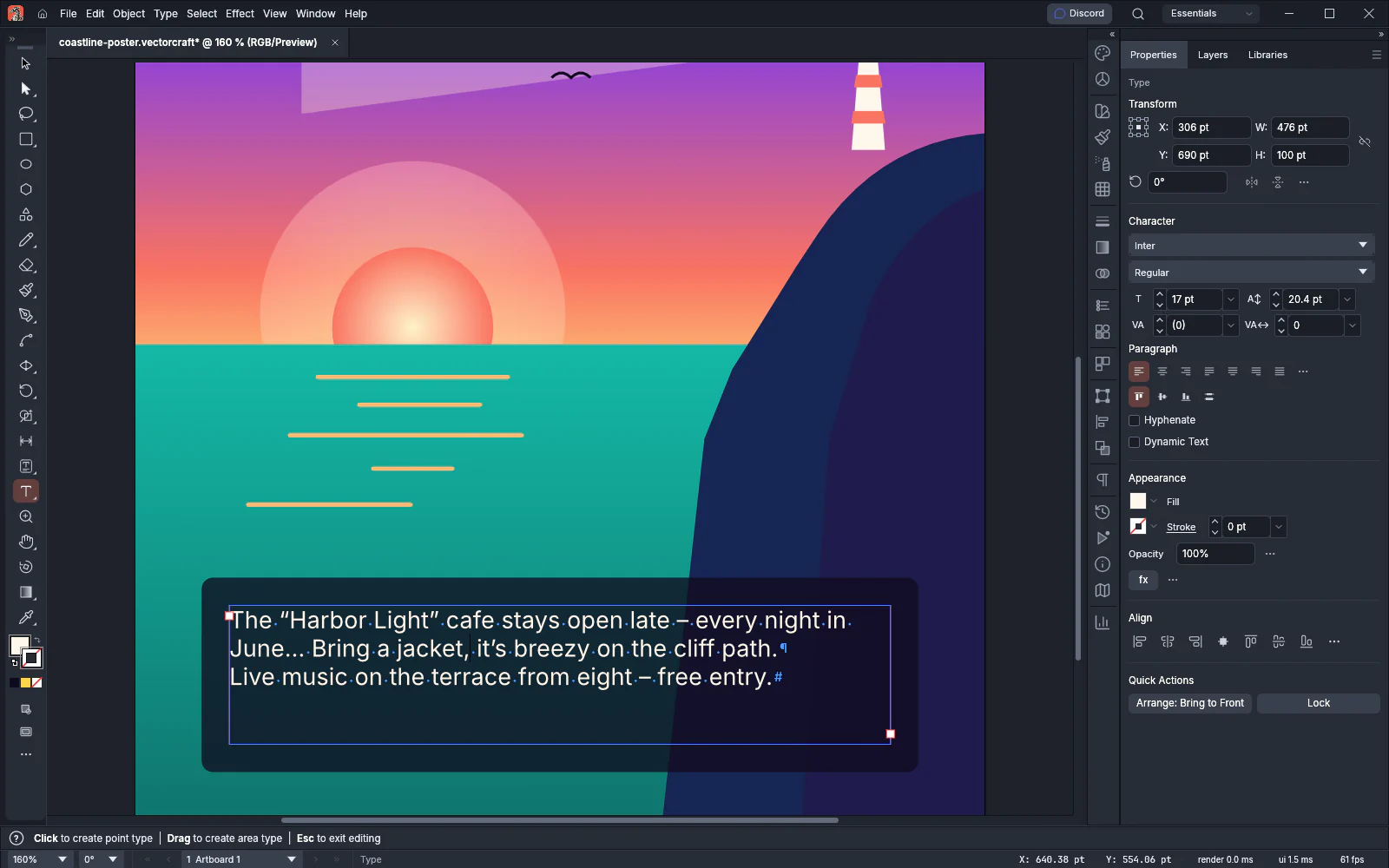
The markers show on every visible type object in the view, not only on the one you edit. Type on a path shows no markers. The markers appear only on the canvas. Printing and export leave them out.
While the markers show, the menu item reads Hide Hidden Characters. Choose it, or press the shortcut again, to hide them.
To remove double spaces or other repeated characters across the document, use Find and replace text. To check the words themselves, see Check spelling.
Shortcuts
Section titled “Shortcuts”| Command | Windows and Linux | macOS |
|---|---|---|
| Paste without Formatting | Ctrl+Alt+V | Cmd+Option+V |
| Show Hidden Characters | Ctrl+Alt+I | Cmd+Option+I |
To change these shortcuts, choose Edit → Keyboard Shortcuts….