Style strokes with dashes, arrowheads and profiles
This guide covers the Stroke panel: you set a stroke’s weight, caps and corners, draw dashed lines, add arrowheads, and change the stroke’s width along the path with width profiles.
Choose Window → Stroke to open the Stroke panel. You can also click the underlined Stroke: label on the Control bar, which opens the same settings in a popover. Dragging that label left or right changes the weight.
| Command | Windows and Linux | macOS |
|---|---|---|
| Stroke panel | Ctrl+F10 | Cmd+F10 |
| Stroke Weight Up | Ctrl+Alt+. | Cmd+Option+. |
| Stroke Weight Down | Ctrl+Alt+, | Cmd+Option+, |
The panel settings change the strokes of the selected objects. With nothing selected, they set up the next object you draw. When the selected objects differ in a setting, its field is blank and none of its buttons is lit.
The Stroke panel menu, which opens from the button at the top right of the panel, holds these commands.
| Command | What it does |
|---|---|
| Hide Options | Hides every row except Weight. The command then changes to Show Options |
| Add to Profiles… | Saves the selected stroke’s variable width as a profile |
| Delete Profile | Deletes the saved profile of the selected stroke |
| Reset Profiles | Deletes every saved profile and keeps the built-in ones |
Set the weight, caps and corners
Section titled “Set the weight, caps and corners”- Select the paths you want to change.
- Type a value in Weight, or pick one from the list next to it. The arrows next to the field change the weight by one unit and stop at each value in the list on the way.
- Click a Cap button for the ends of open paths.
- Click a Corner button for the corners, and for a miter join set the Limit.
- For a closed path, click an Align Stroke button to place the stroke on, inside or outside the path.
| Option | Default | What it does |
|---|---|---|
| Weight | 1 pt for new art | Sets the stroke width, from 0 pt to 1000 pt. The field uses the unit of the Stroke setting on the Units page of Preferences, and the list holds round values in that unit. In points, the list runs from 0.25 pt to 100 pt |
| Cap | Butt Cap | Butt Cap ends the stroke at the end point. Round Cap adds a half circle past the end. Projecting Cap adds a square past the end |
| Corner | Miter Join | Miter Join draws pointed corners, Round Join draws rounded corners and Bevel Join draws cut-off corners |
| Limit | 10 x | Sets how far a miter corner can point before it is drawn as a bevel, from 1 x to 500 x. The field is dimmed while Round Join or Bevel Join is on |
| Align Stroke | Align Stroke to Center | Align Stroke to Center, Align Stroke to Inside or Align Stroke to Outside. Inside and outside work only on closed paths, so the two buttons are dimmed for open paths and type |
To change the weight of the selected strokes by one step, press Ctrl+Alt+. (Cmd+Option+. on macOS) to make them thicker and Ctrl+Alt+, (Cmd+Option+, on macOS) to make them thinner. Below one unit, each step is a quarter unit, and above one unit it is a whole unit. The keys stop at 1000 pt and at a quarter unit. Objects without a stroke are not changed.
When you select type, the weight, cap, corner, limit, alignment and dash settings apply to the stroke of its characters, and the type stays editable.
Draw a dashed line
Section titled “Draw a dashed line”- Select the path and turn on Dashed Line.
- Type a length in the first dash field and in the first gap field.
- To repeat a longer pattern, fill in the second and third dash and gap pairs.
- Click Exact dash lengths or Fit dashes to corners and ends.
The first time you turn on Dashed Line, the stroke gets 12 pt dashes with 12 pt gaps, fitted to corners and ends. When you turn it off and on again, the stroke gets back the pattern it had.
- Exact dash lengths draws every dash and gap at the length you typed.
- Fit dashes to corners and ends adjusts the lengths a little so that a dash sits centered on each corner and on each end of the path.
A gap you leave empty takes the length of the dash before it. The pattern ends at the first empty dash field. When every value is 0, the stroke is drawn solid. A dash of 0 with a round cap draws a row of dots, and with a projecting cap it draws a row of squares.
Add arrowheads
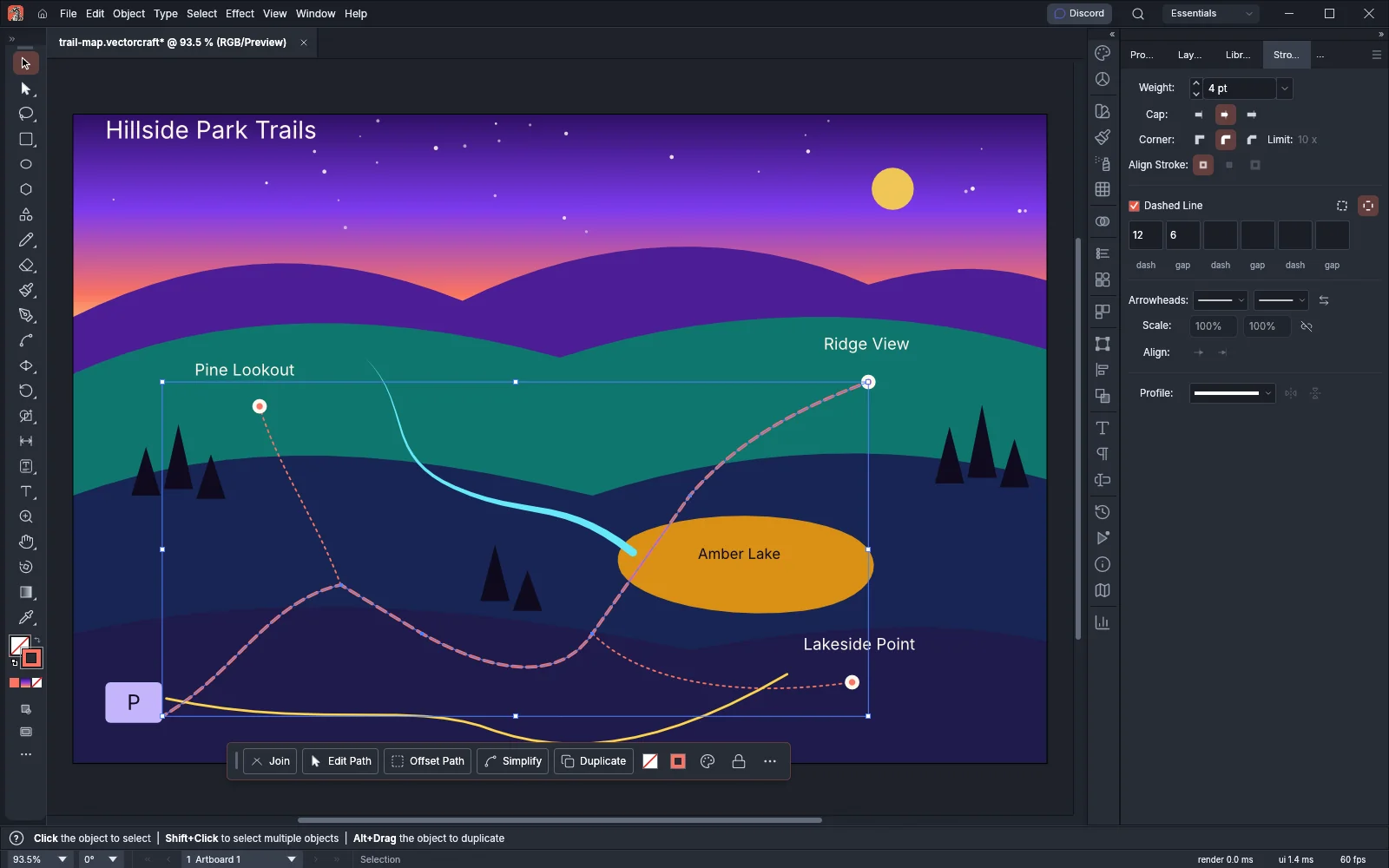
Section titled “Add arrowheads”- Select an open path.
- Open the left Arrowheads menu and click the shape for the start of the path.
- Open the right Arrowheads menu and click the shape for the end.
- Set the size of each arrowhead in the two Scale fields.
- Click an Align button to place the tip of each arrowhead.
Each menu starts with None and then lists 41 arrowheads, each with a drawn preview. The arrowhead the stroke has is highlighted. The list opens with the arrows (Arrow, Arrow (open), Line Arrow, Barbed and others), continues with shapes such as Triangle, Circle, Square and Diamond, and ends with bars and marks such as Bar, Dot on Bar, Slash, Bracket and Fork.
| Option | Default | What it does |
|---|---|---|
| Swap start and end arrowheads (arrows button) | Swaps the start and end arrowheads, together with their scales | |
| Scale | 100%, 100% | Sizes the start and the end arrowhead, from 1% to 1000%. At 100%, the arrowhead’s weight is the stroke weight, and it never gets smaller than a 0.25 pt weight. The fields are dimmed while the stroke has no arrowhead |
| Link start and end arrowhead scales (link button) | Off | While it is on, a value you type in either Scale field sets both |
| Align | Tip extends past the end point | Tip extends past the end point keeps the path’s length and draws the arrowhead beyond it. Tip on the end point puts the tip on the end point and shortens the stroke. The buttons are dimmed while the stroke has no arrowhead |
Shape a stroke with a width profile
Section titled “Shape a stroke with a width profile”A width profile changes the stroke’s width along the path, for example to make it taper toward one end.
- Select the path.
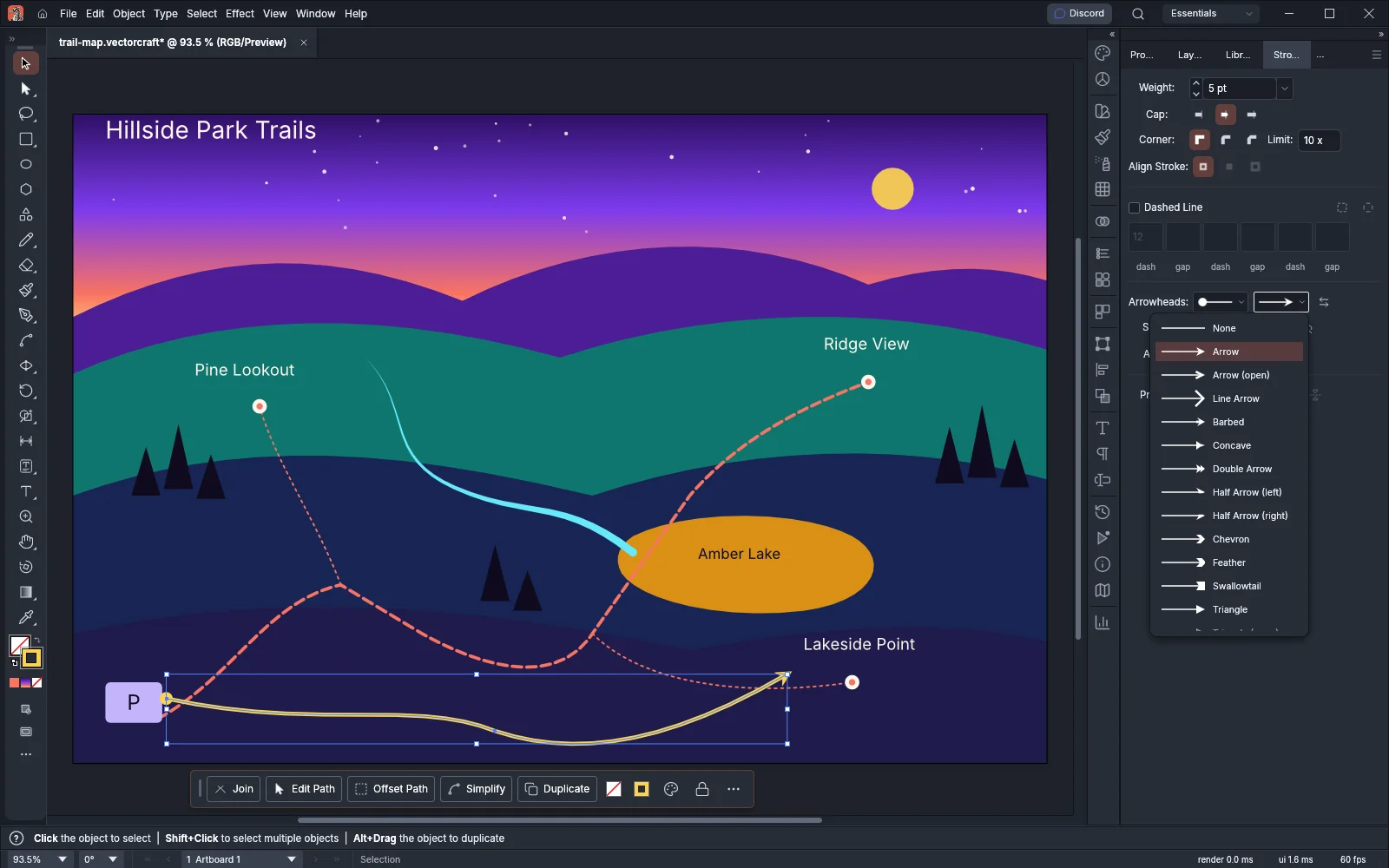
- Open the Profile menu. It is named Variable Width Profile when you point at it. Each row shows the profile’s shape.
- Click a profile.
- Click Flip Along to reverse the profile from one end of the path to the other, or Flip Across to swap the widths of its two sides.
The menu lists the built-in profiles first: Uniform, Lens, Taper Start, Taper End, Pinch, Teardrop and Wave. Uniform is a plain stroke of even width. Your saved profiles follow below a divider. The Profile button shows the shape of the selected stroke’s profile, including a shape you made yourself.
Flip Along and Flip Across are dimmed while the stroke has a uniform width. To make a shape of your own, drag points with the Width tool, as Paint with brushes and variable widths describes.
Save and reset width profiles
Section titled “Save and reset width profiles”- Select a stroke whose width you changed with the Width tool.
- Choose Add to Profiles… from the Stroke panel menu.
- In the Variable Width Profile dialog, type a name and click OK. The name starts as the first free “Width Profile 1”, “Width Profile 2” and so on.
The new profile appears at the end of the Profile menu. A name must not be empty, must differ from every other profile’s name regardless of letter case, and must not repeat a built-in profile’s name. Add to Profiles… is dimmed unless the selected stroke has a variable width that the menu does not list yet.
Saved profiles are stored with your preferences, so they are available in every document.
- To delete one saved profile, select a stroke that uses it and choose Delete Profile. The command is dimmed unless the stroke’s profile is a saved one. You cannot delete a built-in profile.
- To delete every saved profile, choose Reset Profiles. The built-in profiles stay. No confirmation dialog appears. The command is dimmed while you have no saved profiles.
Strokes that use a deleted profile keep their widths.