Set type in other languages
This guide shows how to set the language of type, turn on the East Asian type options, build composite fonts for Japanese text, and type a character by its code on Windows.
Set the language of type
Section titled “Set the language of type”The language of type sets the letter forms that VectorCraft draws and the rules it uses to hyphenate words.
- Select a type object, or select characters with the Type tool.
- Open the Character panel with Window → Type → Character (Ctrl+T, or Cmd+T on macOS).
- Choose a language from the Language menu at the foot of the panel. If you do not see the menu, choose Show Options in the panel menu.
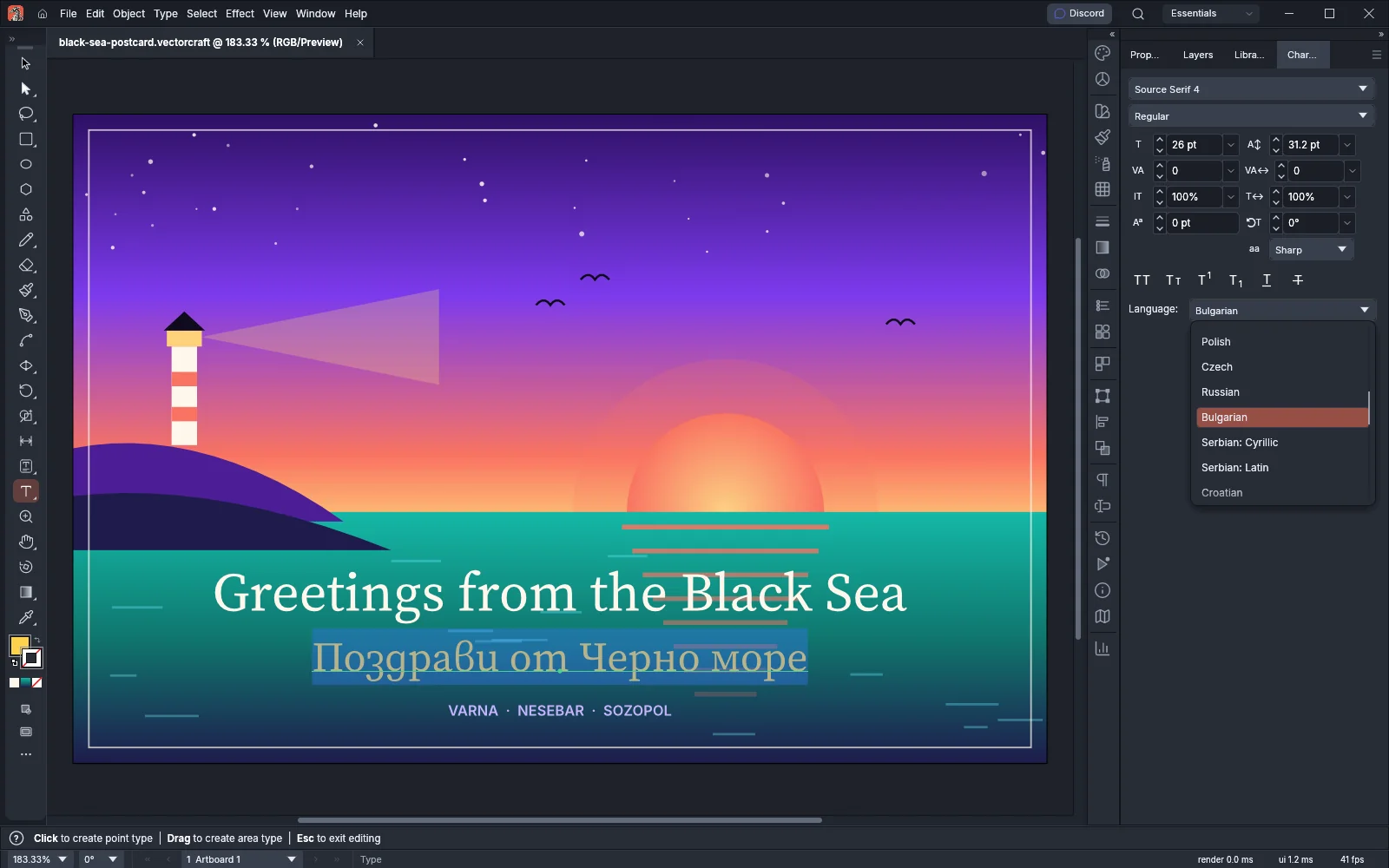
VectorCraft shapes the selected characters in that language, so the font draws the letter forms it has for the language. For example, when you set Cyrillic text to Bulgarian, a font that has Bulgarian letter forms draws them.
Each run of characters also hyphenates in its own language:
- English: USA and English: UK use VectorCraft’s English rules.
- Hindi, Marathi, Gujarati, Bengali, Punjabi, Tamil, Telugu, Kannada, Malayalam, Odia and Assamese use a set of hyphenation patterns for each language. A break never splits a letter cluster.
- In every other language, a word breaks only where the Exceptions (comma separated) list on the Hyphenation page of Preferences marks it.
Auto Spell Check checks the characters against the dictionary for their language, as Check spelling describes.
The menu lists 37 languages: English: USA, English: UK, German, German: Swiss, French, Italian, Spanish, Catalan, Portuguese, Dutch, Danish, Swedish, Finnish, Norwegian, Polish, Czech, Russian, Bulgarian, Serbian: Cyrillic, Serbian: Latin, Croatian, Turkish, Japanese, Chinese, Hindi, Marathi, Gujarati, Bengali, Punjabi, Tamil, Telugu, Kannada, Malayalam, Odia, Assamese, Sanskrit and Urdu.
New type takes the language of the document, and English: USA is the default. When the selected characters have different languages, the menu is blank. When a file you open sets a language that is not in the list, the menu shows that language’s tag.
Show the East Asian options
Section titled “Show the East Asian options”The commands for Japanese and other East Asian type are hidden until you turn them on.
- On Windows and Linux, choose Edit → Preferences… (Ctrl+K). On macOS, choose VectorCraft → Settings → Type….
- On the Type page, under Language Options, turn on Show East Asian Options.
The option is off by default. Turning it on adds these commands:
| Where | What appears |
|---|---|
| Type menu | Composite Fonts… |
| Character panel menu | Character Alignment, Proportional Metrics, Tate-chu-yoko, Tate-chu-yoko Settings… and Standard Vertical Roman Alignment |
| Paragraph panel | The Mojikumi Set and Kinsoku Set menus |
| Paragraph panel menu | Top-to-Top Leading, Bottom-to-Bottom Leading, Burasagari and Kinsoku Shori Type |
Set vertical type shows how to set vertical lines and use the tate-chu-yoko commands. Show Indic Options, under the same heading, adds Digits, Character Direction and Kashidas to the Character panel menu, as Set the font, size and spacing describes. It also adds the Left-to-Right Paragraph Direction and Right-to-Left Paragraph Direction buttons and the Insert Kashidas menu to the Paragraph panel, as Set paragraph options describes.
Build a composite font
Section titled “Build a composite font”A composite font sets each class of character in a font of its own. Japanese text can then take its kanji and kana from a Japanese font, and its Latin letters and digits from a Latin font. VectorCraft saves the composite fonts with the document.
- Open a document, and turn on Show East Asian Options as described in the previous section.
- Choose Type → Composite Fonts….
- Click New. VectorCraft adds a composite font named Composite Font 1 (or the next free number), based on the one picked in Font, and picks it.
- Type a name in Name.
- In each row of the table, choose the font and style for that class of character, and set its size, baseline and scales.
- Click OK. VectorCraft applies every change as one undo step. Cancel closes the dialog and leaves the composite fonts as they were.
- Select type, and choose the composite font by its name in the Character panel’s font menu. The font menus list composite fonts first.
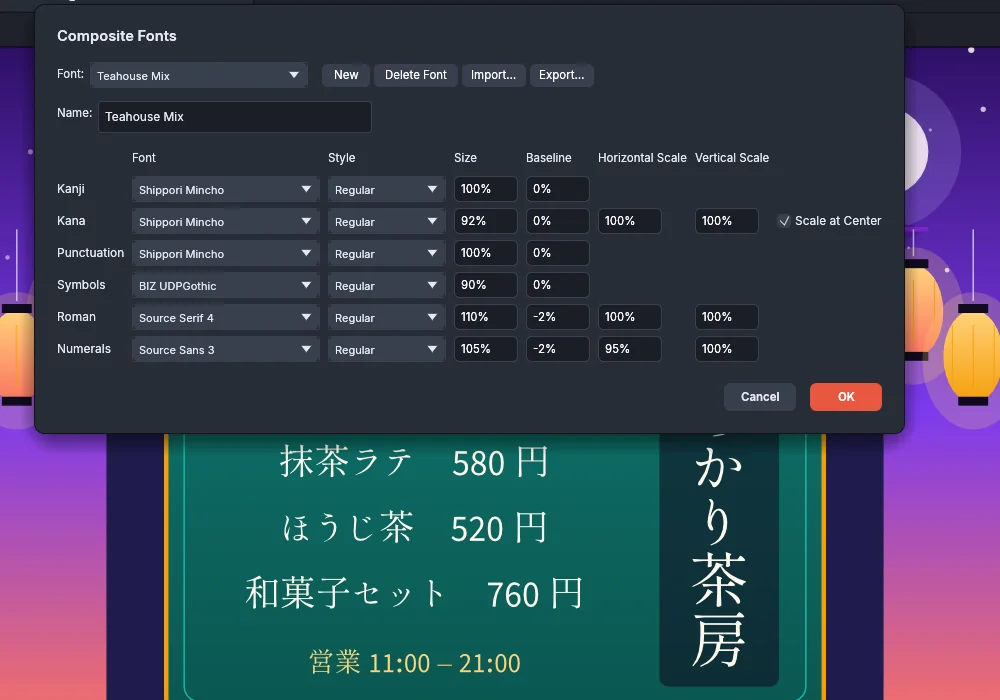
The top of the dialog holds these controls:
| Control | What it does |
|---|---|
| Font | Picks the composite font to edit. It shows None when the document has no composite fonts. |
| New | Adds a composite font based on the one picked. With no composite fonts, the new font starts from the default type font. |
| Delete Font | Removes the composite font picked. Type set in it keeps its name and shows as a missing font. The button is dimmed when the document has no composite fonts. |
| Import… | Adds the composite fonts of a file, as described in Share composite fonts. |
| Export… | Saves the composite font picked to a file. The button is dimmed when the document has no composite fonts. |
| Name | Sets the name of the composite font picked. |
The table has one row for each class of character:
| Class | Characters |
|---|---|
| Kanji | The base font: ideographs, full-width letters and digits, and every character that no other class takes |
| Kana | Hiragana and katakana, full-width and half-width |
| Punctuation | East Asian and full-width punctuation, and typographic quotes and dashes |
| Symbols | Arrows, math signs, shapes, enclosed characters and other symbols |
| Roman | Half-width Latin letters, their punctuation, and spaces |
| Numerals | The half-width digits 0 to 9 |
Each row has these columns:
| Column | What it sets | Range |
|---|---|---|
| Font and Style | The font family and style for the class. A composite font cannot be chosen here. | Any installed font |
| Size | The size of the characters, in percent of the type size | 10% to 400% |
| Baseline | How far the characters move up (positive) or down (negative), in percent of the type size | -100% to 100% |
| Horizontal Scale and Vertical Scale | The width and height of the characters. Only the Kana, Roman and Numerals rows have them. | 10% to 400% |
| Scale at Center | Scales the characters from the center of the em box instead of from the baseline. Only the Kana row has it. | On or off |
A new composite font copies every row of the one picked. When the document has no composite font yet, every row starts with the default type font at 100% size, a 0% baseline, 100% scales and Scale at Center off.
Each name must be unique, whatever its letter case, and cannot be the name of an installed font. A name can be up to 255 characters long and cannot contain control characters, and VectorCraft removes spaces from its start and end. A document can hold up to 256 composite fonts. When two composite fonts share a name, a name is empty, or a value is out of range, OK keeps the dialog open so you can fix it.
Share composite fonts
Section titled “Share composite fonts”Composite font files use the extension .vccomposite.
To save a composite font to a file:
- Choose Type → Composite Fonts….
- Pick the composite font in Font.
- Click Export… and choose where to save the file.
To add the composite fonts of a file to a document:
- Open the document, and choose Type → Composite Fonts….
- Click Import… and choose a
.vccompositefile. Its composite fonts join the list in the dialog, and the first one is picked. A composite font with the same name, whatever its letter case, is replaced. - Click OK to add the fonts to the document.
You can also open a .vccomposite file with File → Open…, or drop it on the VectorCraft window. Its composite fonts are added to the active document right away. VectorCraft reads files of up to 4 MB.
Type a character by its code on Windows
Section titled “Type a character by its code on Windows”On Windows, you can type a character by its decimal code with the numeric keypad, both while you edit type with the Type tool and in a panel’s text fields.
- Hold Alt.
- Type the code on the numeric keypad. For example, type 0176 for the degree sign (°).
- Release Alt. VectorCraft types the character in the same undo step as the text you are typing.
A code that starts with 0 types the character from the system’s ANSI code page, and a code without a leading 0 types the character from its OEM code page. The codes work with NumLock on or off. While you hold Alt, the keypad digits do not run shortcuts. Alt codes work on Windows only.