
Run scripts
This guide shows you how to run JavaScript files (.js and .jsx) from File → Scripts, answer and stop them, and read what they print in the Script Console. To write your own script, see Write a script.
Add scripts to the Scripts menu
Section titled “Add scripts to the Scripts menu”File → Scripts lists the scripts in the Scripts folder. You create this folder yourself, inside VectorCraft’s settings folder:
| System | Scripts folder |
|---|---|
| Windows | %APPDATA%\VectorCraft\Scripts\ |
| macOS | ~/Library/Application Support/VectorCraft/Scripts/ |
| Linux and FreeBSD | $XDG_CONFIG_HOME/vectorcraft/Scripts/, or ~/.config/vectorcraft/Scripts/ when XDG_CONFIG_HOME is not set |
A portable copy of VectorCraft uses the Scripts folder inside its VectorCraftData folder. A run started with VECTORCRAFT_NO_PREFS has no Scripts folder. Where VectorCraft keeps its settings describes the settings folder.
- Create a folder named
Scriptsin the settings folder. - Copy
.jsand.jsxfiles into it. To group scripts, put them in subfolders. - Open the File menu, or switch back to the VectorCraft window. VectorCraft reads the folder again each time, so you do not need to restart it.
The menu works like this:
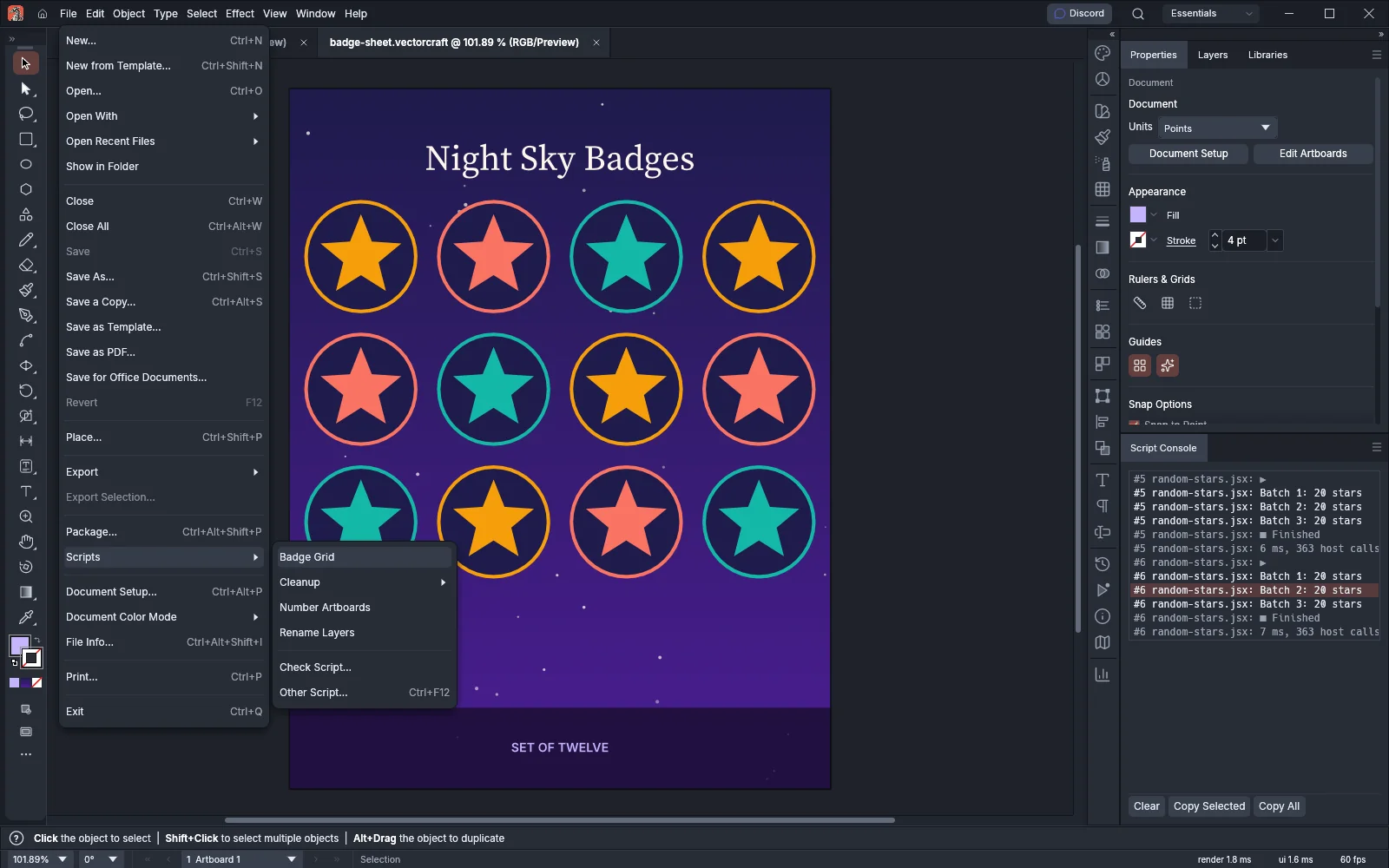
- The menu shows each script by its file name without the extension. When two scripts would show the same name, for example
Badge Grid.jsandBadge Grid.jsx, both show their whole file names. - Each subfolder that holds at least one script becomes a submenu. VectorCraft reads subfolders up to four levels deep.
- Scripts and subfolders are sorted together by name, without regard to case.
- VectorCraft leaves out hidden files and folders, names that start with a dot, symbolic links and junctions.
- Check Script… and Other Script… always come last.
The menu can also show one of these notes:
| Note | When it appears |
|---|---|
| Some scripts were not listed | A subfolder or an entry could not be read, or the folder holds more than VectorCraft lists at once (512 scripts, 128 subfolders or 2,048 entries, or more than it can read in 250 ms) |
| The Scripts folder cannot be read | The folder exists, but VectorCraft cannot open it, or it is a link to another folder |
Run a script from the Scripts menu
Section titled “Run a script from the Scripts menu”- Open the document the script works on.
- Choose File → Scripts, then the script. For a script in a subfolder, choose the subfolder first.
- Answer any questions the script asks. See Answer a script’s questions.
A script from the Scripts menu runs at once, without the warning that Other Script… shows. If the file has been moved or deleted since the menu was read, VectorCraft does not run it and reads the folder again.
While a script runs, the status bar shows Running a script… and a Stop button. The documents stay as they were before the run until the script finishes, and you cannot edit, select or save them.
Run any script file
Section titled “Run any script file”- Choose File → Scripts → Other Script…, or press Ctrl+F12 (Cmd+F12 on macOS).
- Choose a
.jsor.jsxfile. If you choose a file of another type, VectorCraft does not run it and shows the message “Choose a .js or .jsx script”. - In the Run Script warning, read the file name, then click Run, or click Cancel to close the warning without running the script.
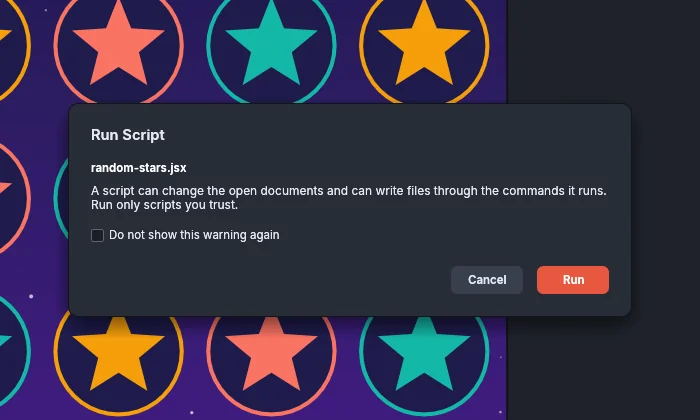
To stop the warning from appearing, select Do not show this warning again before you click Run. This turns off Show External Script Warning on the General page of Preferences. To see the warning again, choose Edit → Preferences… (Ctrl+K; on macOS, VectorCraft → Settings → General…, Cmd+K) and select Show External Script Warning on the General page. The setting is on by default.
Answer a script’s questions
Section titled “Answer a script’s questions”A script can open three kinds of dialogs. The dialog’s title is the title the script gives, or Script Alert when it gives none. The script waits until you answer.
| Dialog | Buttons | What each button does |
|---|---|---|
| Alert | OK, Stop | OK closes the message and the script goes on. |
| Confirm | Yes, No, Stop | Yes and No give the script your answer. |
| Prompt | OK, Cancel, Stop | OK gives the script the text in the field. Cancel gives it no text. |
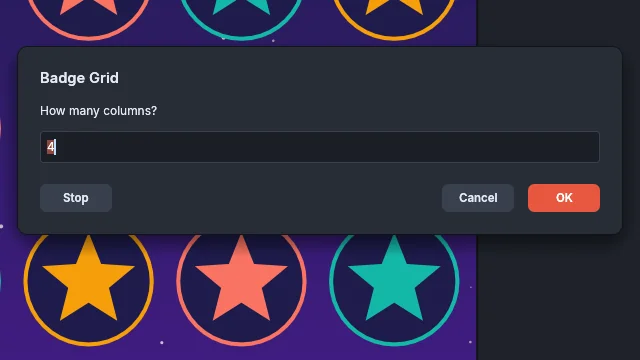
- Press Enter to click the highlighted button: OK, or Yes in a confirm. A script can make No the highlighted button instead.
- Press Esc to answer Cancel in a prompt, No in a confirm, or Stop in an alert.
- Stop ends the script and undoes everything it did.
- An alert shows a red ! beside its message when the script asks for an error icon.
Stop a script
Section titled “Stop a script”- Click Stop in the status bar, or Stop in a dialog the script opened. VectorCraft undoes everything the script did, and the status bar shows “The script was stopped and its changes were undone.”
- A script that adds a very large number of objects pauses with A Script Is Running: “This script has added a great many objects. Continue, or stop it and undo what it did?” Click Continue to let it go on, or Stop to end it. VectorCraft asks after 100,000 new objects or 512 MiB of new document data, and each Continue allows the same amount again, up to eight times.
- If you quit VectorCraft while a script runs, A Script Is Running asks “Stop the script and undo what it did? Then quit again.” Click Stop to end the script, then quit again. Click Cancel to let the script go on. If the script had a dialog open, that dialog appears again.
Files that the script saved or exported before it was stopped stay on disk. The message that ends the run names them.
Read a script’s output in the Script Console
Section titled “Read a script’s output in the Script Console”- Choose Window → Script Console.
- Run a script. The panel shows the lines of each run, newest at the bottom.
- Click a line to select it, or Shift-click another line to select every line between them.
- Click Copy Selected to copy the selected lines, or Copy All to copy every line. Click Clear to empty the panel.
The same three commands are in the panel menu. Closing the panel only hides it, and scripts go on writing to it.
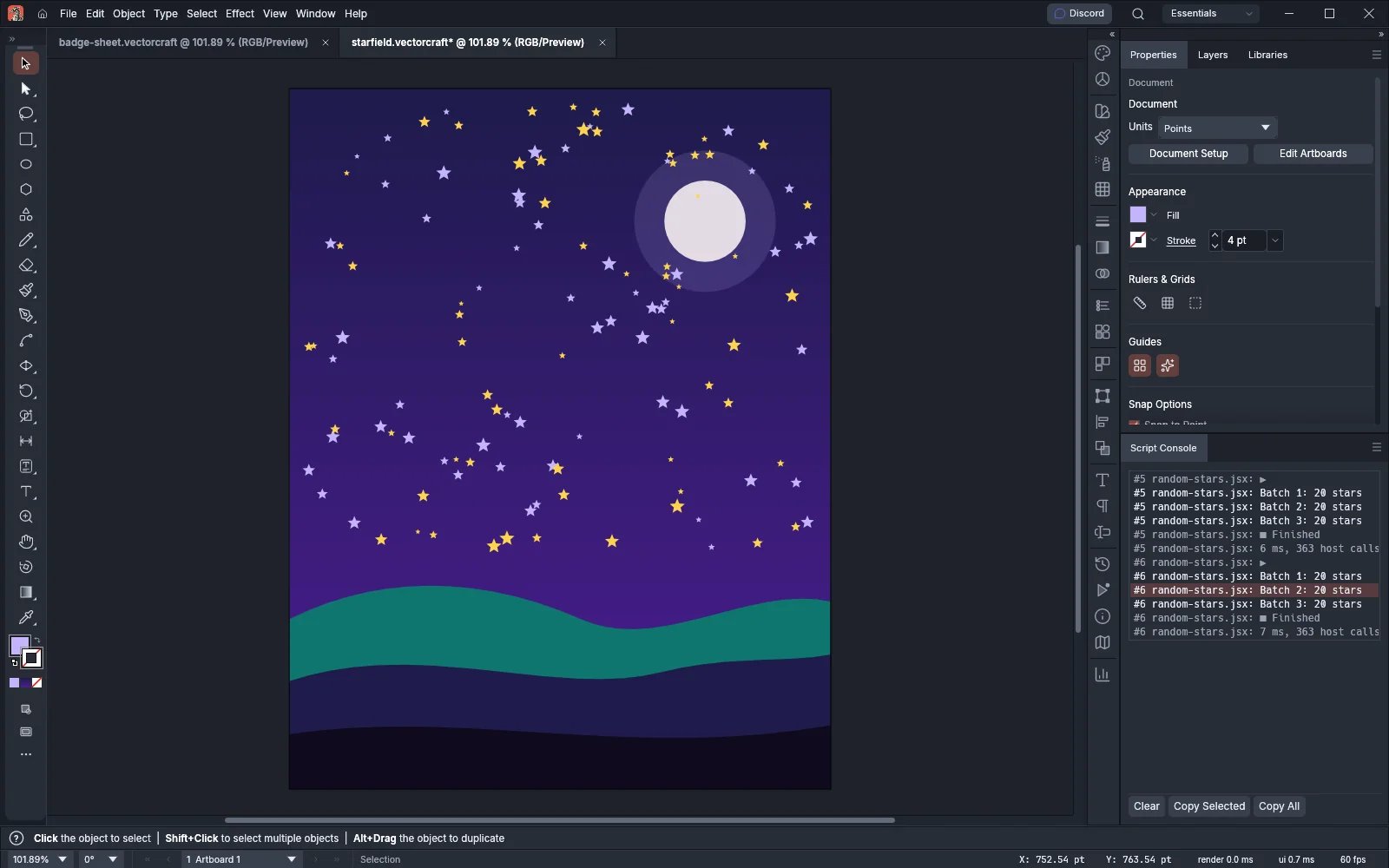
Each line starts with the run’s number and the script’s name, for example #6 random-stars.jsx:. A run writes these lines:
| Line | What it shows |
|---|---|
| ▶ | The run started. |
| Output | Text the script wrote with $.write, $.writeln or vc.log. |
| Error, in red | An error the script did not handle. |
| ■ and an ending | How the run ended (see the next table). |
| Report | How long the run took and how many calls it made to VectorCraft, for example 7 ms, 363 host calls, followed by its slowest commands. |
| Ending | What happened |
|---|---|
| Finished | The script ran to its end, and its changes were kept. |
| Ended with an error | The script stopped at an error, or has a syntax error. |
| Out of fuel | The script ran out of its allowance of 1,000,000,000 instructions. |
| Ended at a host limit | The script reached a limit on its calls to VectorCraft (2,000,000), on the data it passed to commands, or on new objects, or a command failed. |
| Ended at a limit | The script reached a limit on memory or call depth. |
| Stopped | You clicked Stop, or the run was canceled. |
| Ended by an internal fault | Something went wrong inside VectorCraft. |
Only a run that ends with Finished keeps its changes. Every other ending leaves the documents as they were before the run.
The console keeps up to 2,048 lines and 1 MiB of text, and drops its oldest lines first. A line longer than 4,096 bytes is cut. When lines were dropped or cut, a note above the list says how many, and Copy All copies that note first.
What a script can change
Section titled “What a script can change”- Undo: A finished run adds one undo step, Run Script, to each document whose artwork it changed. Choose Edit → Undo Run Script (Ctrl+Z, or Cmd+Z on macOS) to undo the whole run.
- Size: A script file can be up to 8 MiB.
- Files: A script can read files with
FileandFolderonly inside its own folder and the folders below it. It cannot write, copy, rename or delete files through them. Commands the script runs, such as save and export, can still write files. #include: A line#include "name.jsx"(or//@include) inserts another file in place of the line. VectorCraft looks for the file next to the script, then in each folder that an#includepathline names, then in each folder of theJSINCLUDEenvironment variable. An included file must be inside the script’s folder: one outside it ends the run. VectorCraft skipsJSINCLUDEfolders that are outside the script’s folder.#targetengine: A script that starts with#targetengine nameruns in an engine of that name, which keeps the script’s global variables for the next run that names it. VectorCraft keeps up to eight named engines. A script without the line starts fresh each time it runs.
Check a script before you run it
Section titled “Check a script before you run it”File → Scripts → Check Script… reads a script file and reports what it does without running any of it. See Check a script before you run it.