
Manage artboards
This page shows how to manage artboards with the Artboard tool’s canvas menu: copy and paste them, rename and lock them, delete the empty ones, switch their orientation, change how the canvas looks around them, and paste the same art onto several of them.
Open the artboard menu
Section titled “Open the artboard menu”- Choose the Artboard tool (Shift+O).
- Select the artboards you want to work on. Click an artboard to select it. Shift-click more artboards on the canvas to add them to the selection, or Shift-click a selected artboard to take it out. In the Artboards panel (Window → Artboards), Shift-click a row to select a range, or Ctrl-click (Cmd-click on macOS) a row to add or remove one artboard.
- Right-click one of the selected artboards. If you right-click an artboard that is not selected, VectorCraft selects only that artboard first.
The commands in the menu act on the selected artboards. Undo and Redo are always in the menu and are grayed out when there is nothing to undo or redo. VectorCraft leaves out any other item that cannot run on the current selection.
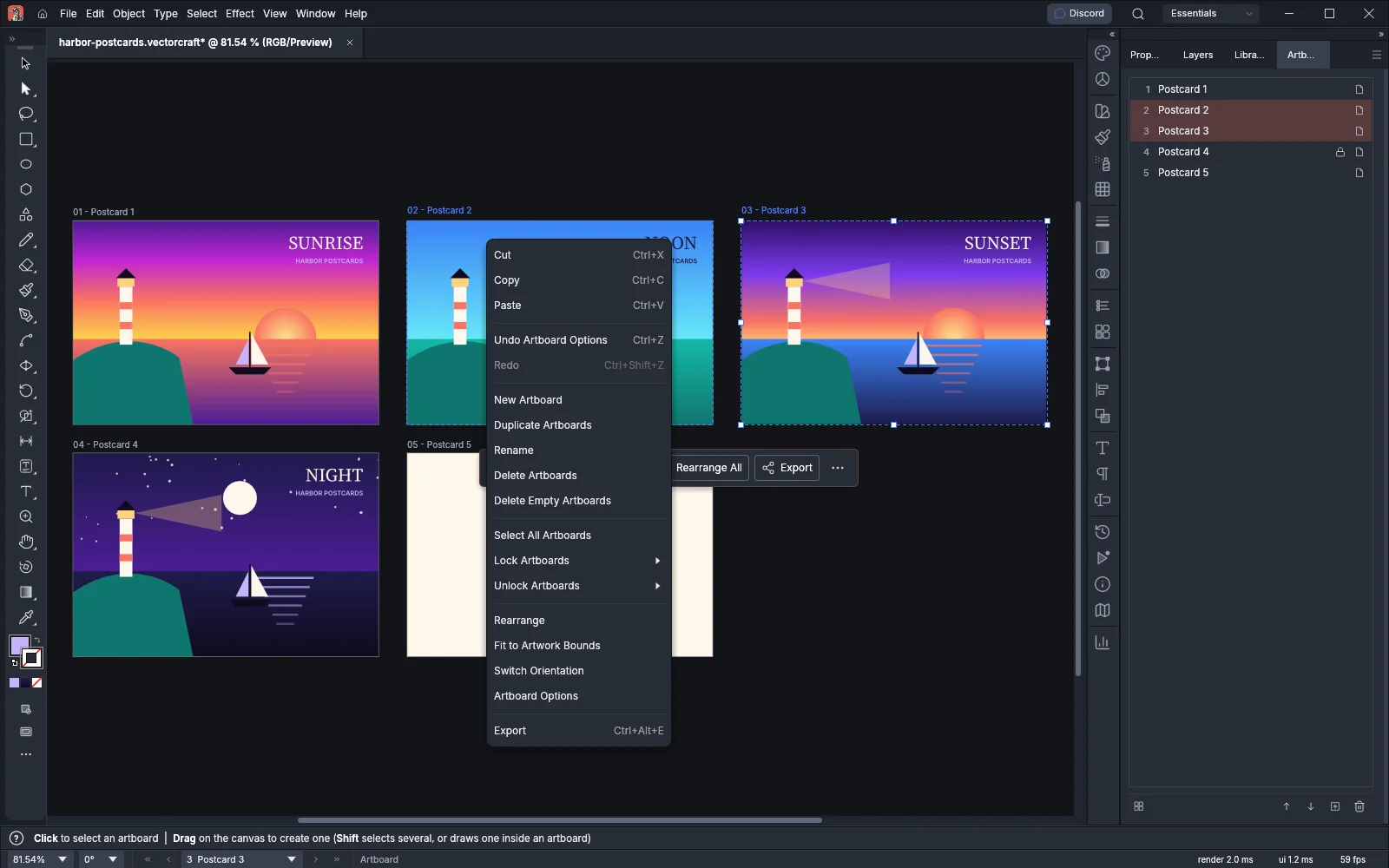
| Item | What it does | When it is in the menu |
|---|---|---|
| Cut | Copies the selected artboards, then deletes them. While Move Artwork with Artboard is on, the art that lies fully inside each artboard is copied and deleted with it | No selected artboard is locked, and at least one artboard is not selected |
| Copy | Copies the selected artboards. While Move Artwork with Artboard is on, the art that lies fully inside each artboard is copied with it | Always |
| Paste | Pastes copied artboards, or copied objects, centered on the point you right-clicked | The clipboard holds something to paste |
| Undo and Redo | Undo or redo the last change. The menu names the change | Always |
| New Artboard | Adds an artboard the size of the last artboard, 20 pt to its right, and makes it the active artboard. It is named Artboard and its number | Always |
| Duplicate Artboards | Adds a copy of each selected artboard to the right of the last artboard, and selects the copies. The art on each artboard is copied with it while Move Artwork with Artboard is on | Always |
| Rename | Opens the Rename dialog. See Rename artboards | Always |
| Delete Artboards | Deletes the selected artboards that are not locked. The artboard before the first deleted one becomes active, or the new first artboard when artboard 1 was deleted. When every artboard is selected, artboard 1 stays | At least one selected artboard can be deleted |
| Delete Empty Artboards | Deletes every artboard that has no art on it | At least one artboard is empty |
| Select All Artboards | Selects every artboard | At least one artboard is not selected |
| Lock Artboards and Unlock Artboards | Lock or unlock artboards. See Lock and unlock artboards | Each submenu has at least one entry |
| Rearrange | Opens Rearrange All Artboards, which lays the artboards out in a grid, a row or a column | The document has more than one artboard |
| Fit to Artwork Bounds | Resizes each selected artboard to the visible art on it | A selected artboard that is not locked has art on it |
| Switch Orientation | Swaps the width and height of each selected artboard | A selected artboard that is not locked is not square |
| Artboard Options | Opens the Artboard Options dialog for the active artboard. A preset, an orientation or a new width or height goes to every selected artboard | Always |
| Export | Opens Export for Screens with the selected artboards chosen | Always |
When you are in isolation mode, the menu also has Exit Isolation Mode. When you right-click locked objects, an Unlock submenu lists them.
Copy, cut and paste artboards
Section titled “Copy, cut and paste artboards”While Move Artwork with Artboard is on, copying an artboard also copies the art that lies fully inside it. The option is on by default, and the Control bar and the Properties panel show it while the Artboard tool is active. Pasted art goes back into the layers it came from.
- With the Artboard tool, select the artboards to copy.
- Right-click one of them and choose Copy, or press Ctrl+C (Cmd+C on macOS). Choose Cut (Ctrl+X, or Cmd+X on macOS) to remove the artboards after copying them.
- Right-click an empty part of the canvas where you want the copies and choose Paste. VectorCraft centers the pasted artboards on the point you right-clicked, and the Artboard tool selects them.
Edit → Paste (Ctrl+V, or Cmd+V on macOS) puts the copies together to the right of the last artboard instead. Edit → Paste in Place, Paste in Front and Paste in Back put them where the copied artboards were. You can paste artboards into another open document in the same way.
VectorCraft always keeps one artboard. Cut is not in the menu when every artboard is selected or when a selected artboard is locked.
Rename artboards
Section titled “Rename artboards”- With the Artboard tool, select one or more artboards.
- Right-click one of them and choose Rename.
- Type the name in Name. With one artboard, the field starts with its current name. With several artboards, the field starts empty.
- Click OK.
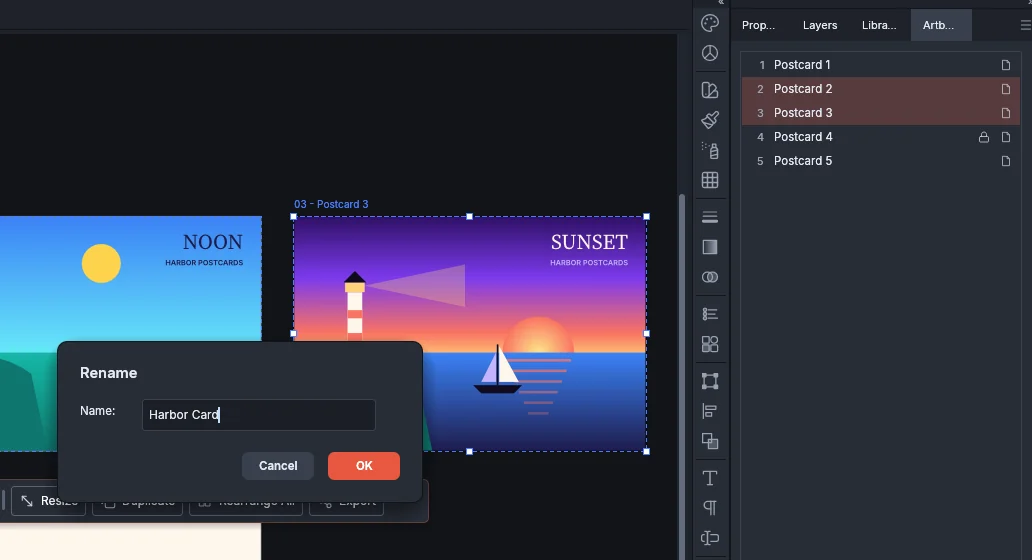
One artboard takes the name as you typed it, without spaces at the start or end. Several artboards take the name with a number, in artboard order. For example, Harbor Card for Postcard 2 and Postcard 3 names them Harbor Card-1 and Harbor Card-2. A locked artboard is renamed too. Edit → Undo reverses the whole rename in one step. If you leave the field empty, the names stay as they are.
You can also rename in the Artboards panel: double-click a row’s name, or choose Rename from the panel menu. While several artboards are selected, the name you type in one of their rows goes to all of them, numbered in the same way.
Lock and unlock artboards
Section titled “Lock and unlock artboards”A locked artboard cannot be moved, resized, cut or deleted, and Rearrange and Fit to Artwork Bounds leave it as it is. You can still rename it, and you can copy it. Until you unlock the artboard, the art on it acts as locked art: clicks, marquees and Select → All pass over it, and VectorCraft deselects that art when you lock the artboard.
- With the Artboard tool, select the artboards you want to lock or keep unlocked.
- Right-click one of them and point to Lock Artboards or Unlock Artboards.
- Choose an entry:
| Submenu | Entry | What it does |
|---|---|---|
| Lock Artboards | Lock Selected | Locks the selected artboards |
| Lock Artboards | Lock All Except Selected | Locks every artboard that is not selected |
| Lock Artboards | Lock All | Locks every artboard |
| Unlock Artboards | Unlock Selected | Unlocks the selected artboards |
| Unlock Artboards | Unlock All | Unlocks every artboard |
The menu leaves out an entry that would not change any artboard. For example, Unlock Artboards is not in the menu while no artboard is locked.
The Artboards panel shows a lock on each locked artboard’s row. Click in the lock column to lock or unlock one artboard.
Delete empty artboards and switch orientation
Section titled “Delete empty artboards and switch orientation”To delete the artboards that have no art on them:
- Choose the Artboard tool (Shift+O).
- Right-click the canvas and choose Delete Empty Artboards.
VectorCraft removes every artboard that has no art on it, together with its guides. Hidden, locked and template art count as art, and guides do not. Locked artboards stay. When every artboard is empty and none is locked, artboard 1 stays.
To turn artboards between portrait and landscape:
- With the Artboard tool, select the artboards.
- Right-click one of them and choose Switch Orientation.
Each selected artboard swaps its width and height and keeps its top-left corner where it is. Square artboards and locked artboards do not change. The art on an artboard is scaled with it only while Scale Artwork with Artboard is on in the Control bar. Edit → Undo reverses the change in one step.
Change how artboards look while you work
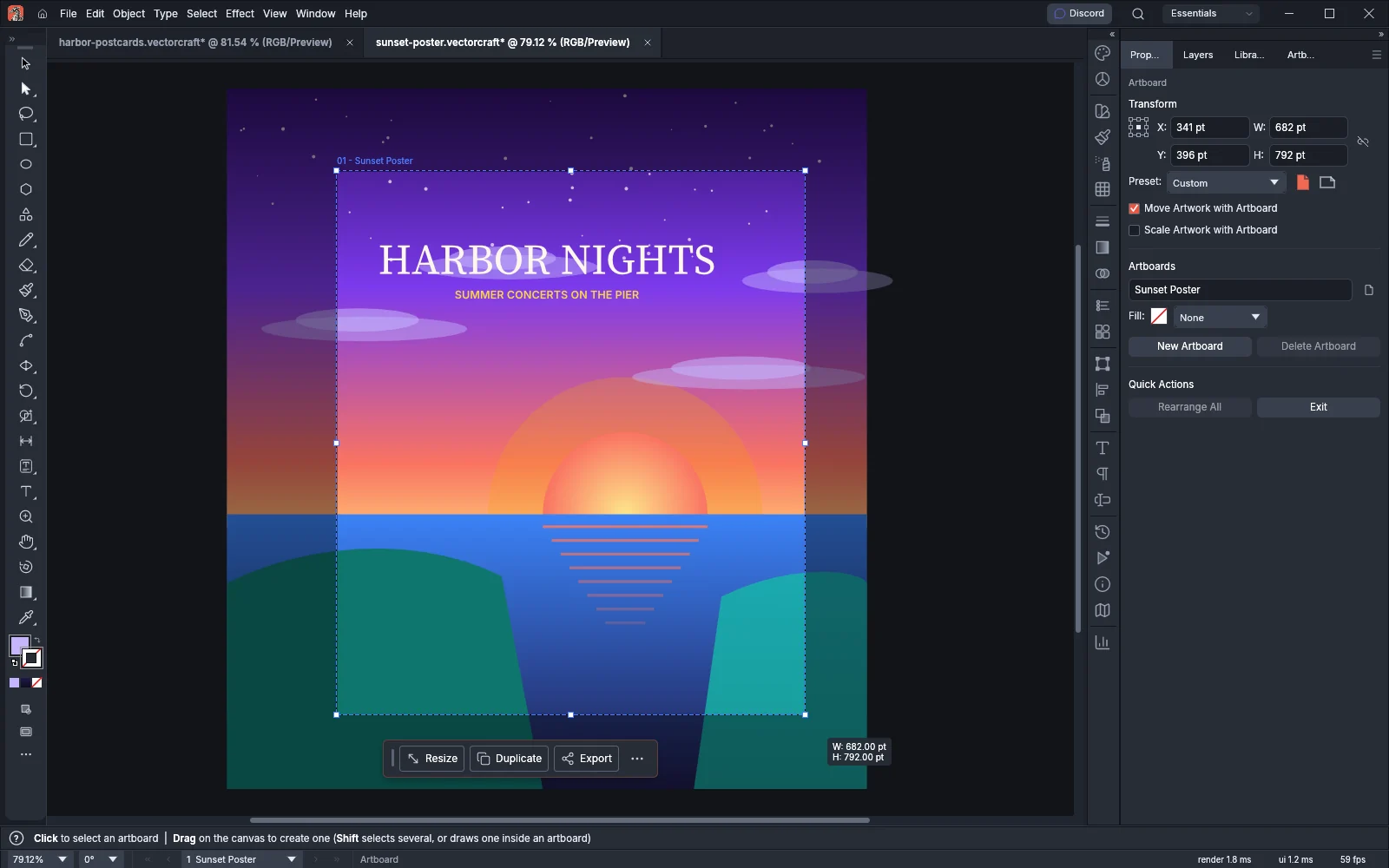
Section titled “Change how artboards look while you work”While the Artboard tool is active, VectorCraft draws everything outside the artboards darker, including the art that lies on the canvas around them. Two settings control it:
| Setting | What it does | Default |
|---|---|---|
| Fade Region Outside Artboard | Darkens the canvas and the art outside the artboards while the Artboard tool is active, with black at 40% opacity | On |
| Update While Dragging | Keeps the area outside the artboards dark while you move or resize an artboard. Turn it off to see that area as usual until you release the mouse button | On |
To change the settings:
- Double-click the Artboard tool in the Tools panel, double-click an empty part of an artboard with the Artboard tool, or choose Artboard Options from the canvas menu.
- Under Global at the bottom of the dialog, turn Fade Region Outside Artboard or Update While Dragging on or off.
- Click OK.
The same settings are in Edit → Preferences… → General, under Artboard Options (VectorCraft → Settings → General… on macOS). Both settings apply to every document.
The fade shows on the canvas only. Presentation Mode, exports and prints do not draw it.
Put a copy of art on several artboards
Section titled “Put a copy of art on several artboards”Paste in Place, Paste in Front and Paste in Back can put a copy of the same art on each selected artboard, for example a logo in the same corner of every card in a set.
- With the Selection tool, select the art and choose Edit → Copy (Ctrl+C, or Cmd+C on macOS).
- In the Artboards panel, click the first artboard you want the art on, then Shift-click or Ctrl-click (Cmd-click on macOS) the others. VectorCraft switches to the Artboard tool.
- Choose one of these commands from the Edit menu:
| Command | Windows and Linux | macOS | Where each copy goes |
|---|---|---|---|
| Paste in Front | Ctrl+F | Cmd+F | Above the top selected object, or at the top of the current layer |
| Paste in Back | Ctrl+B | Cmd+B | Below the bottom selected object, or at the bottom of the current layer |
| Paste in Place | Ctrl+Shift+V | Cmd+Shift+V | Where the art was copied |
| Paste on All Artboards | Ctrl+Alt+Shift+V | Cmd+Option+Shift+V | On every artboard, selected or not |
Each copy sits at the same place on its artboard as the original sat on the artboard it was copied from. The copies are made in artboard order. Art that you copied from outside every artboard keeps its position on the first selected artboard and the same offset on the others.
Copy the art before you switch to the Artboard tool: with the Artboard tool, Edit → Copy copies the selected artboards instead of the art.